

PitchPrint cannot run without WooCommerce. Install WooCommerce before the PitchPrint plugin.
1
Install WordPress
Download and install WordPress from wordpress.org.
2
Install WooCommerce
Log in to your WordPress admin and go to Plugins → Add New, then search for “WooCommerce” and install it.To install manually, download the WooCommerce zip and upload it instead.
3
Install the PitchPrint plugin
Use the same route: go to Plugins → Add New, search for “PitchPrint” and install it.You can also install the zip manually.
4
Activate both plugins
Go to Admin → Plugins → Installed Plugins and activate WooCommerce and PitchPrint.
5
Generate your PitchPrint keys
Create an account or log in, then open the domains page and add a new domain.Enter your intended live domain, not a localhost address. You can still use the keys for local testing. PitchPrint returns an API Key and Secret Key.
6
Enter the keys in WordPress
Back in your WordPress admin, click PitchPrint in the left menu, paste in both keys and save. Leave the Custom JS and CSS fields empty for now.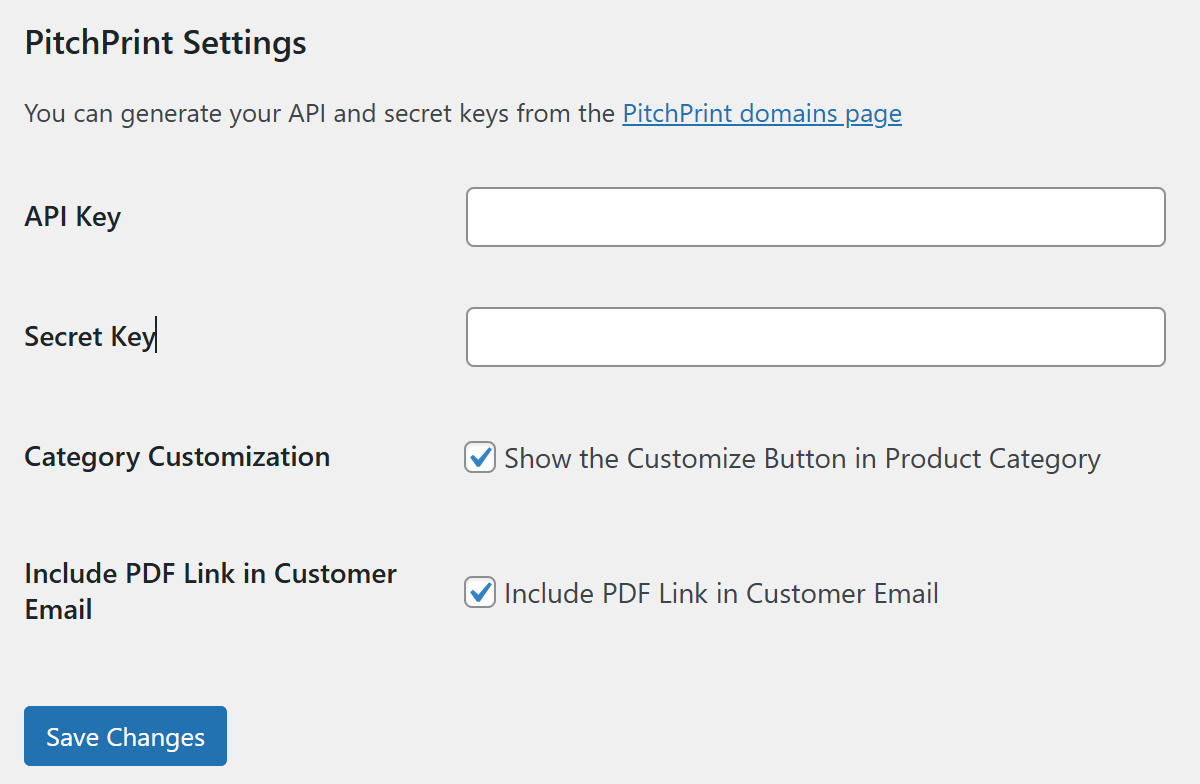
7
Set upload folder permissions
For uploads to work, set the
files folder below to permission 777.wp-contents
plugins
pitchprint
upload
files
777 grants write access to everyone on the server. Work through our security measures before going live.8
Assign a design to a product
Go to Products → Add Product, give it an SKU and a price, then pick the design to assign. Designs are pulled from your PitchPrint account using the keys above.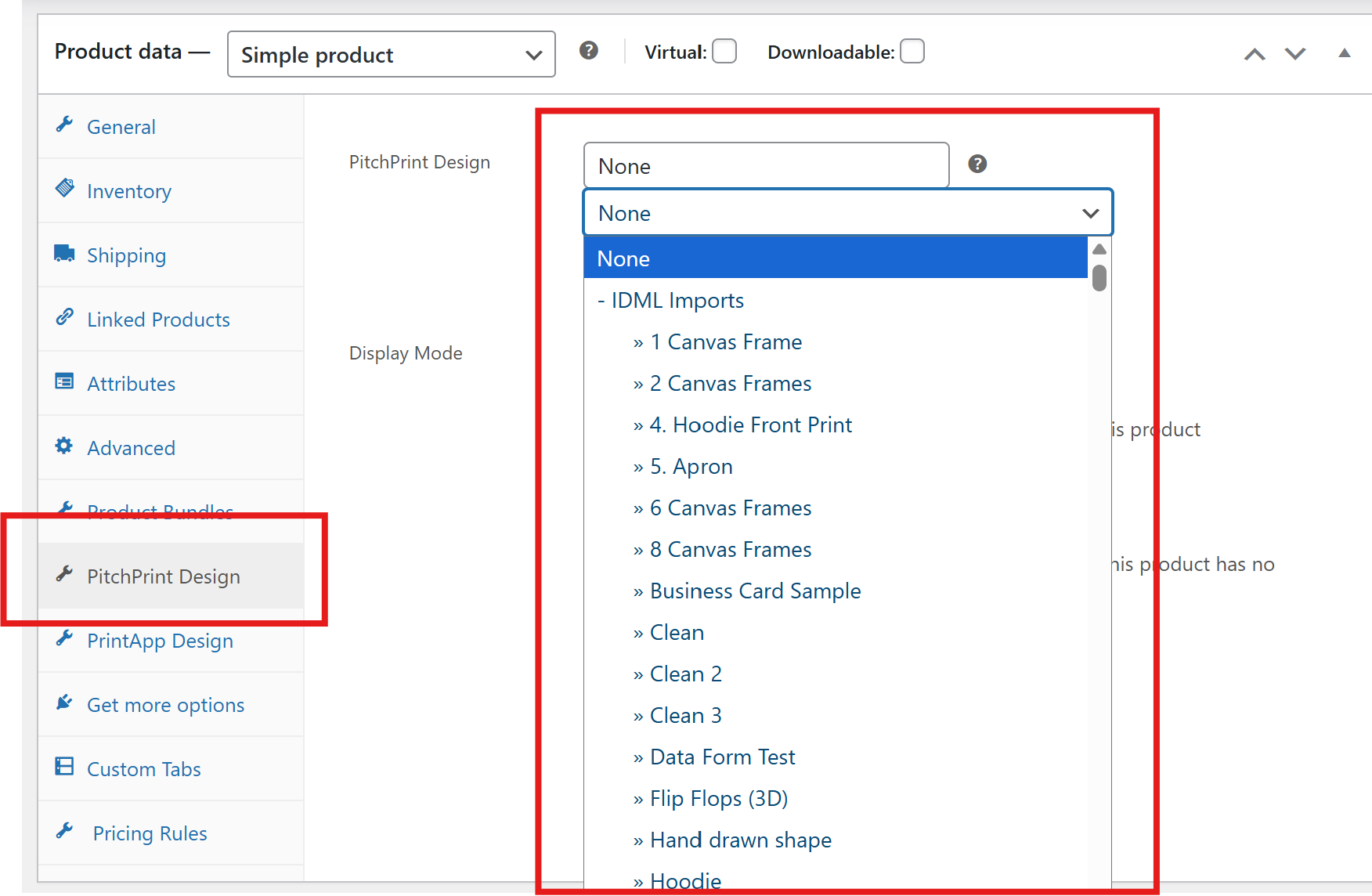
9
Test it on your storefront
Open the product on your store and check for the Customize button.
10
Collect your print files
When an order comes in, the design download links appear against each product in that order.
Related articles
Which shopping cart framework should I pick?
Suggestions to help you choose the right shopping cart platform for your store.
Browser Compatibility
See which browsers PitchPrint supports and the requirements for the app to run.
Getting started with PitchPrint
An overview of PitchPrint’s features, workflows and best practices for new users.