

- The Top-Most Layer (Foreground): Enabling this option “pins” an element to the absolute front of your design. It will perpetually float above all other content—even if you add new images or text later. This is ideal for logos, watermarks, or decorative frames that should never be hidden.
- The Bottom-Most Layer (Background): This option anchors an element to the very back of the canvas. It serves as a permanent foundation, ensuring that every other item you add to the project sits on top of it. This is perfect for background textures or base templates.
Setting an Element to “Always on Top”
To ensure a specific item (such as a logo or frame) remains at the very top of the layer stack by default, follow these steps:1
Select the item
Click on the Item on the canvas to open its settings.
2
Open the Tags section
Navigate to the Tags section within the item properties.
3
Add the always-top tag
Type 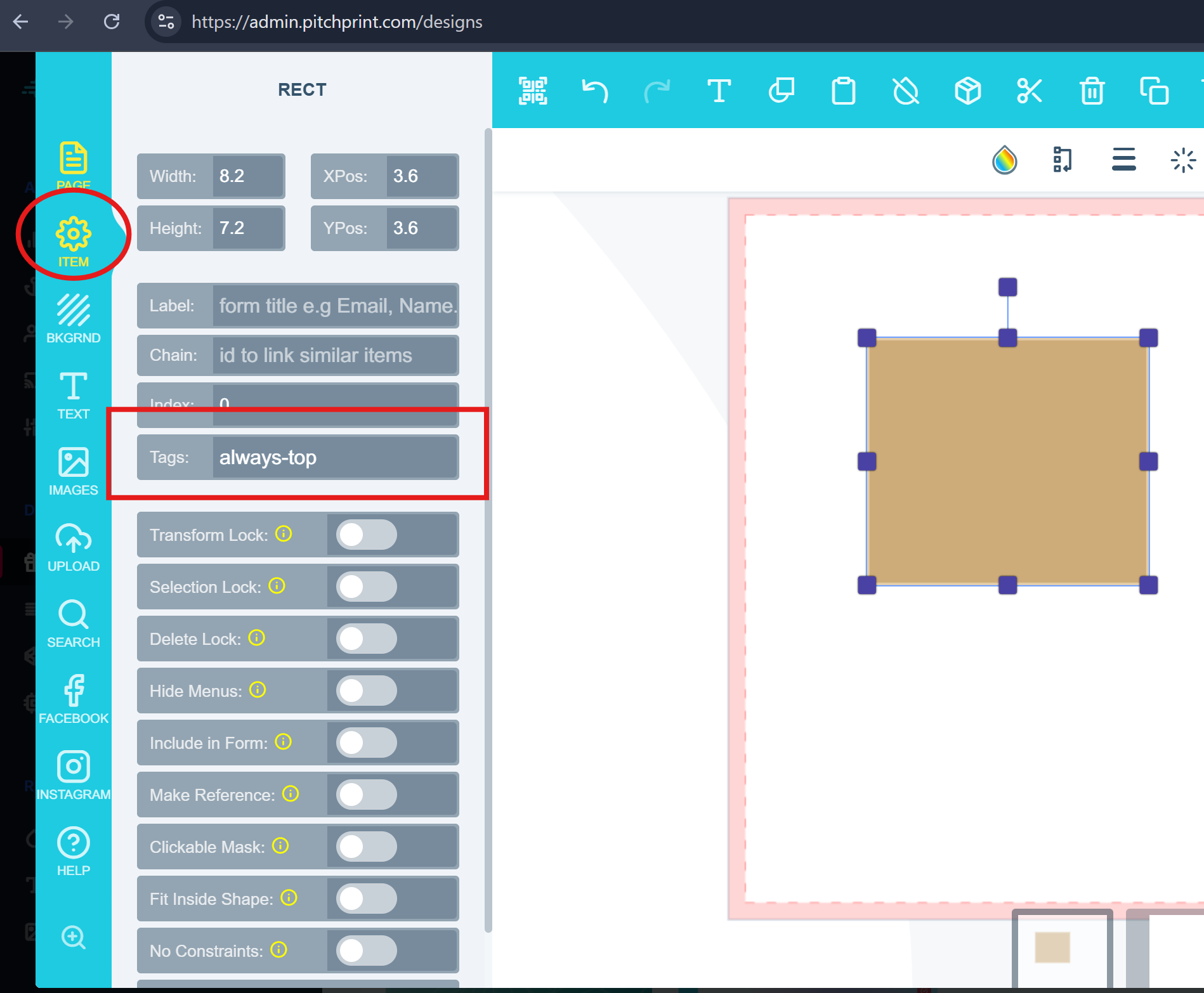
always-top into the Tag field.Setting an Element to “Always on Bottom”
To ensure a specific item (such as a background texture or base template) remains anchored to the very back of the layer stack, follow these steps:1
Select the item
Click on the specific element on your canvas to open its properties.
2
Access Tags
Locate the Tags field within the Item settings panel.
3
Apply the always-bottom tag
Type 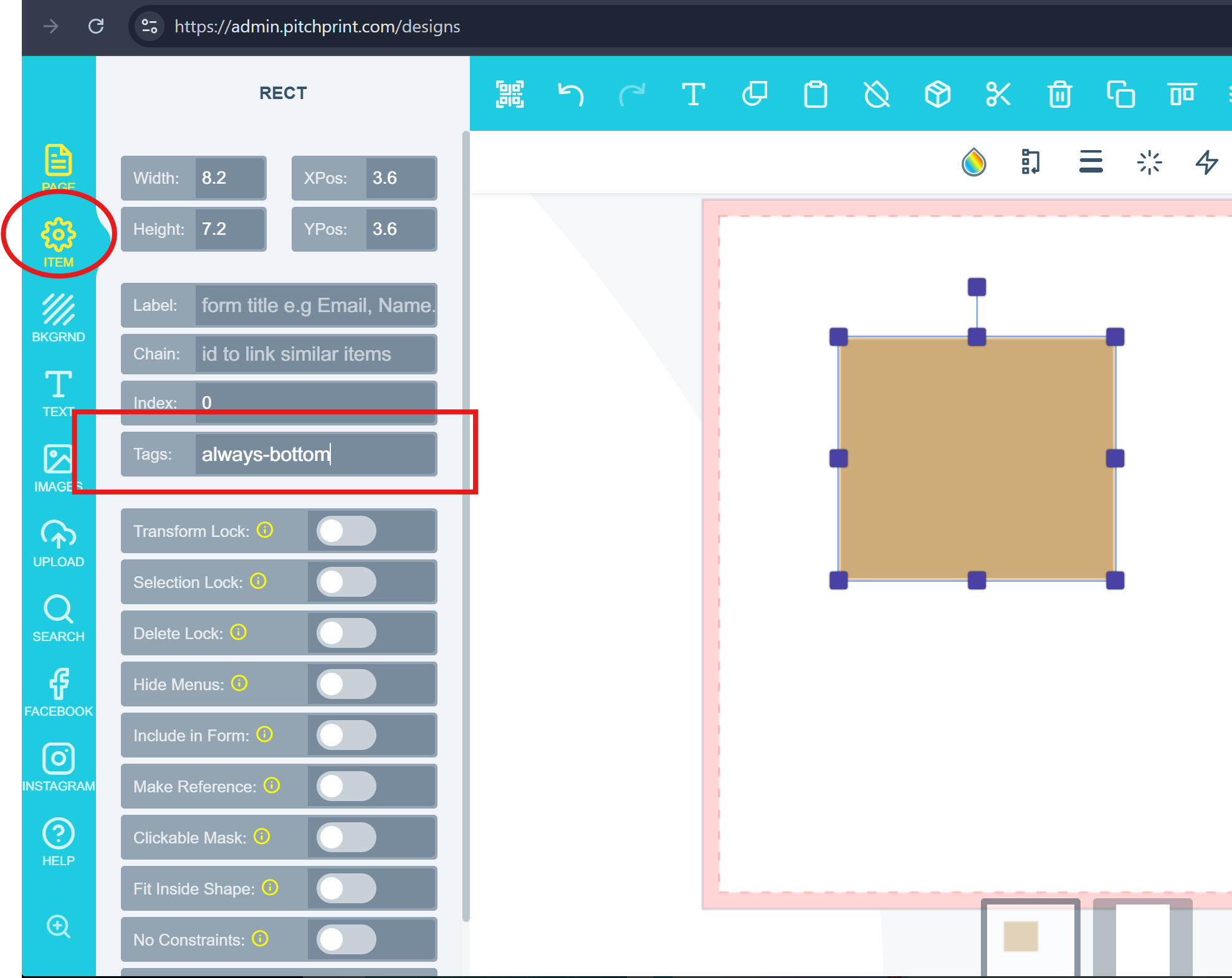
always-bottom into the field and save your changes.What’s new
One release has changed this feature since the article was written.Sticky Items
Latest WK21-40 · 20 October 2021 — In many cases, our admin users struggled to specify on which layer an element should fall on.