

1
Search (finding the target)
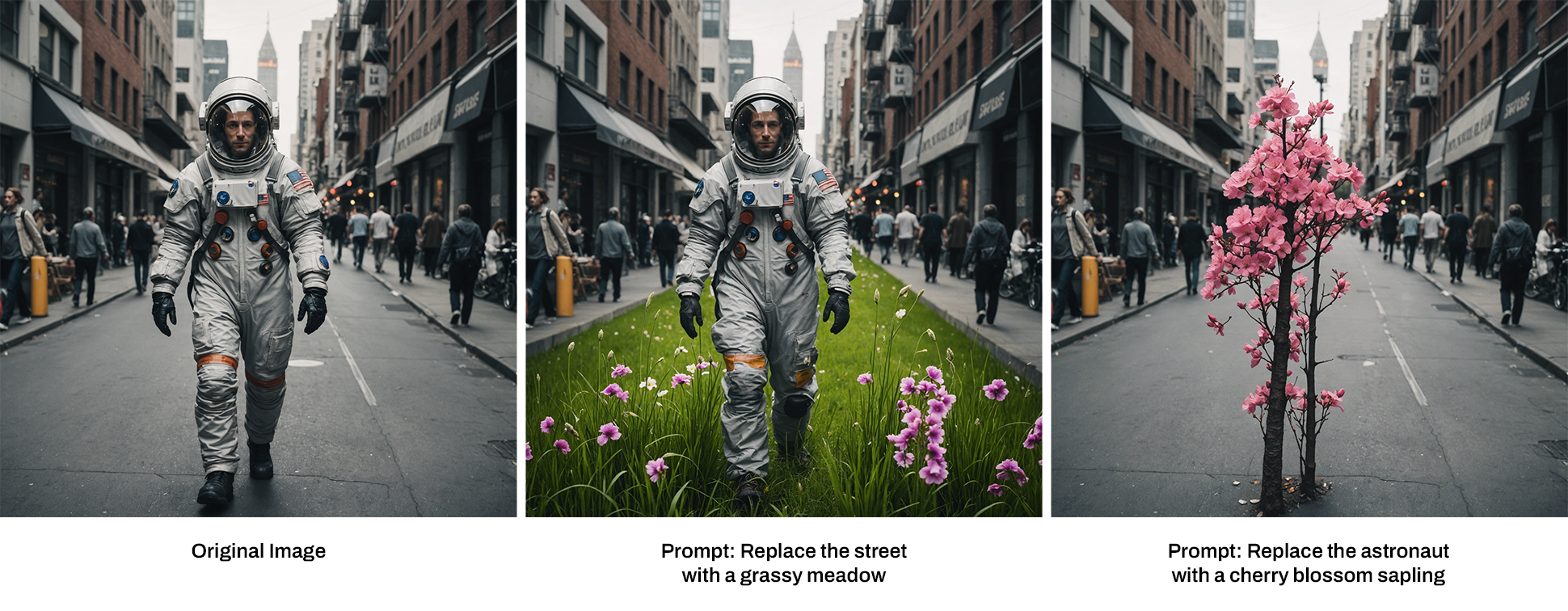
Identifying Elements: The AI starts by detecting specific elements in the image, like objects, colors, or textures.User Input: Customers can Describe the element they want to change (e.g., “find all the flowers”).The AI finds everything matching the search criteria.
2
Context analysis
Once the target is found, the AI checks the size, shape, colors, and textures of the object to ensure that the replacement will fit perfectly with the image.
3
Replace (adding new content)
User Input: Customers can describe what they want the AI to replace the element with, like “replace the tree with a fountain,” or let the AI generate its own content.AI Generation: The AI generates the new content and places it into the image, matching lighting, shadows, and perspective to make it look natural.
4
Blending and refinement
The AI seamlessly blends the new content with the original image so there are no visible edges or mismatches.
1
Add your image to the canvas
Start by uploading your image into the PitchPrint editor, and inserting it on the canvas.
2
Open Edit Picture
Once the image is on the canvas, click on the ‘Edit Picture’ button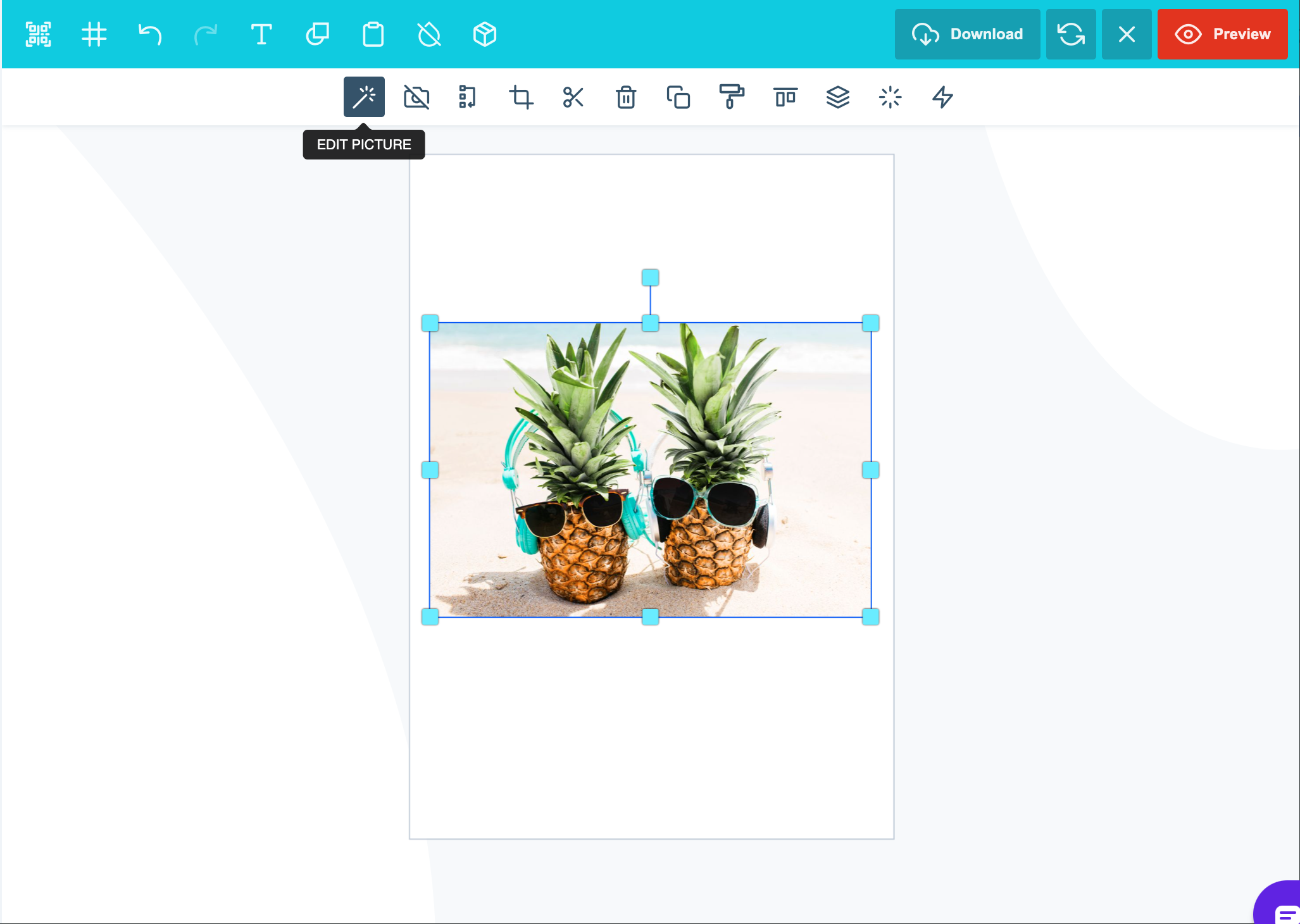
3
Choose Smart Replace
In the side panel you will find the AI Image enhancement tools, Click on ‘Smart Replace’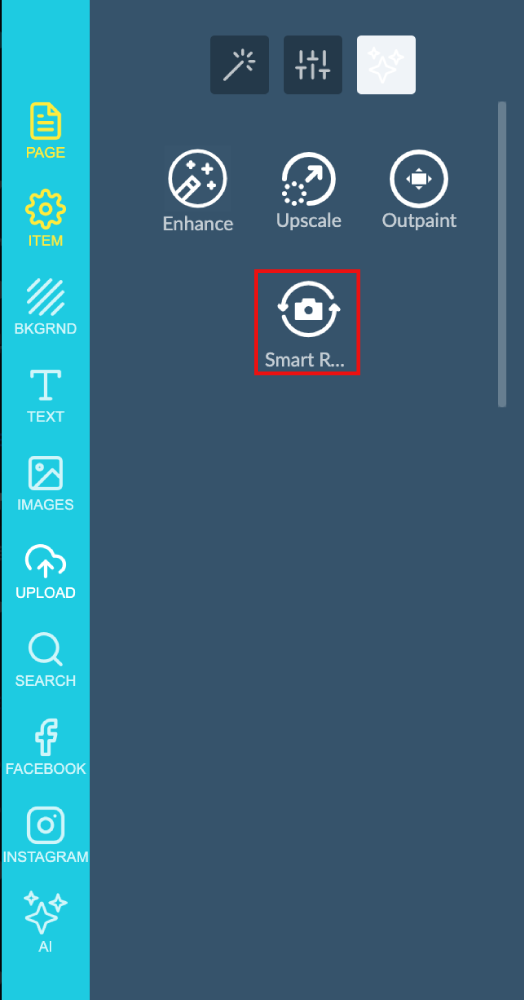
4
Enter your prompt
Now you will have to add your prompt: For this example I will change the pineapples into snowmen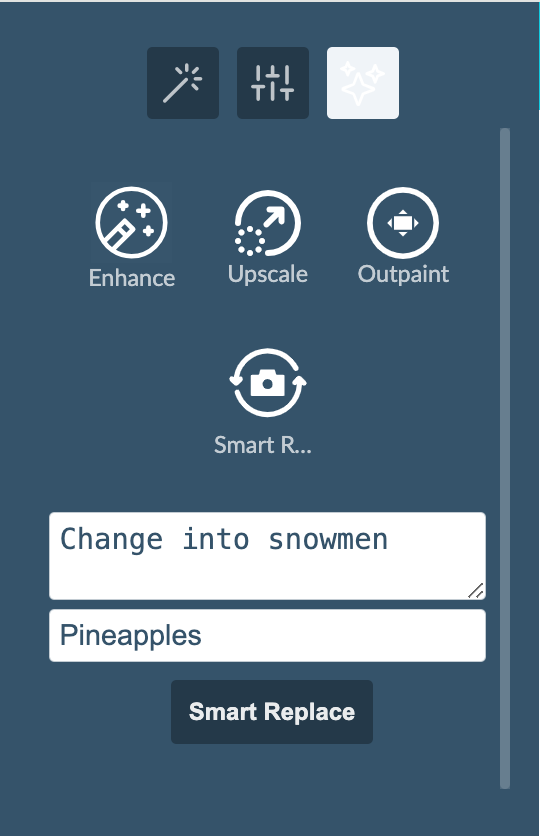
5
Review the result
AI will then go and identify the Pineapples and change them into Snowmen: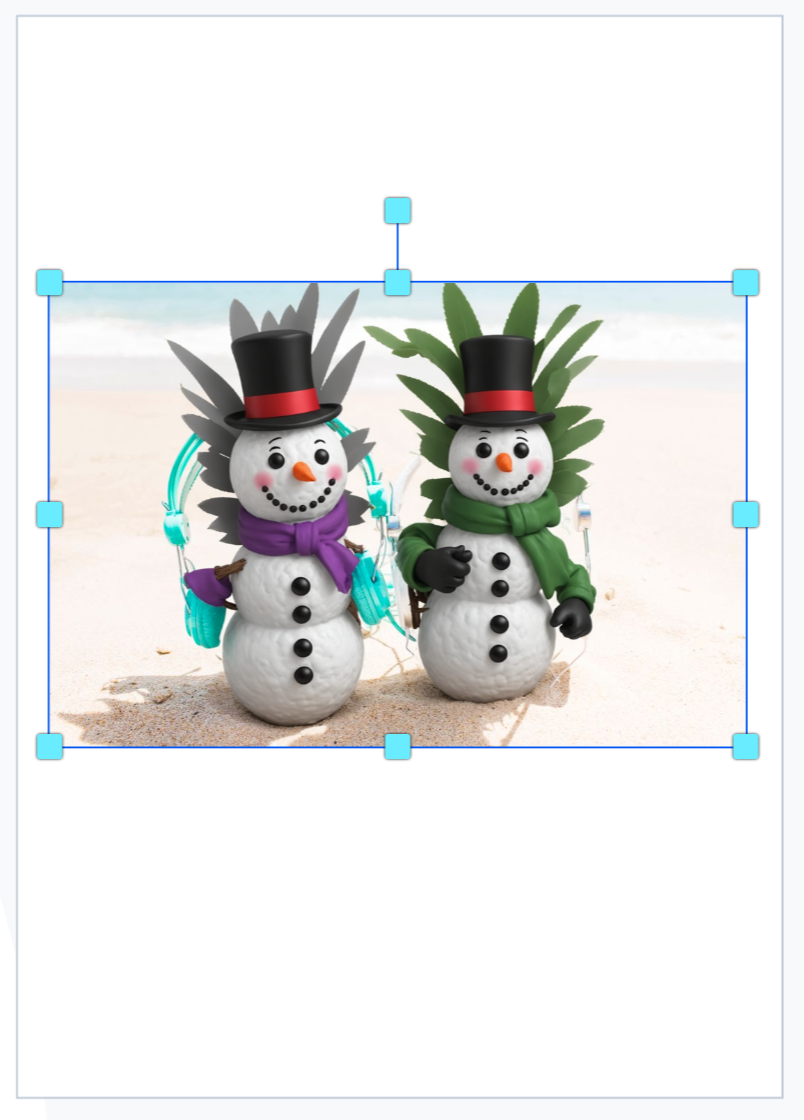
Related articles
AI Outpainting
Expand images beyond their original borders with AI.
AI Upscale
Increase image resolution and quality with AI without losing detail.
AI Structure
Refine images while preserving layout, proportions, and composition.
AI Sketch to Image
Convert rough sketches into fully detailed images.
What’s new
2 releases have changed this feature since the article was written.Smart Replace in AI Image Generator
Latest WK45-24 · 7 November 2024 — The Smart Replace feature was previously yielding incorrect results, not aligning with the prompts provided by customers.
AI Image Outpaint and Smart Replace
WK29-24 · 19 July 2024 — We updated the AI Image tool with two new features Outpaint and Smart Replace. Outpaint service inserts additional content in an image, basically expands the image.