

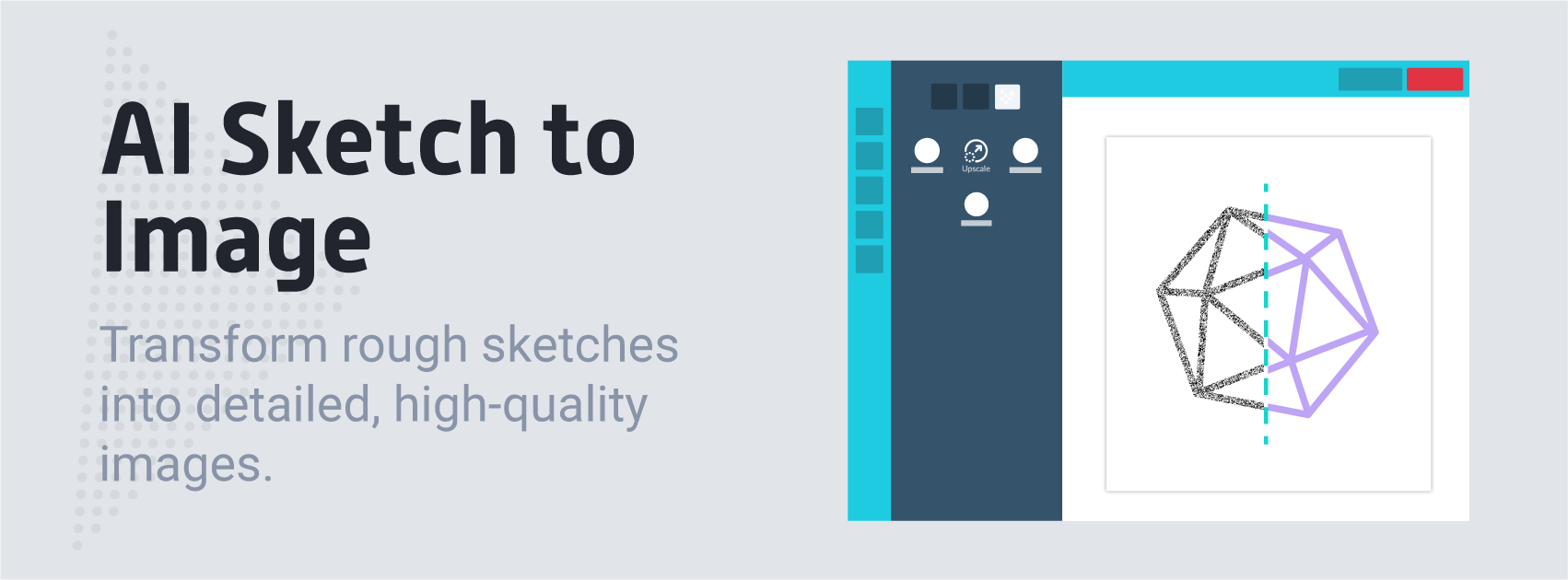
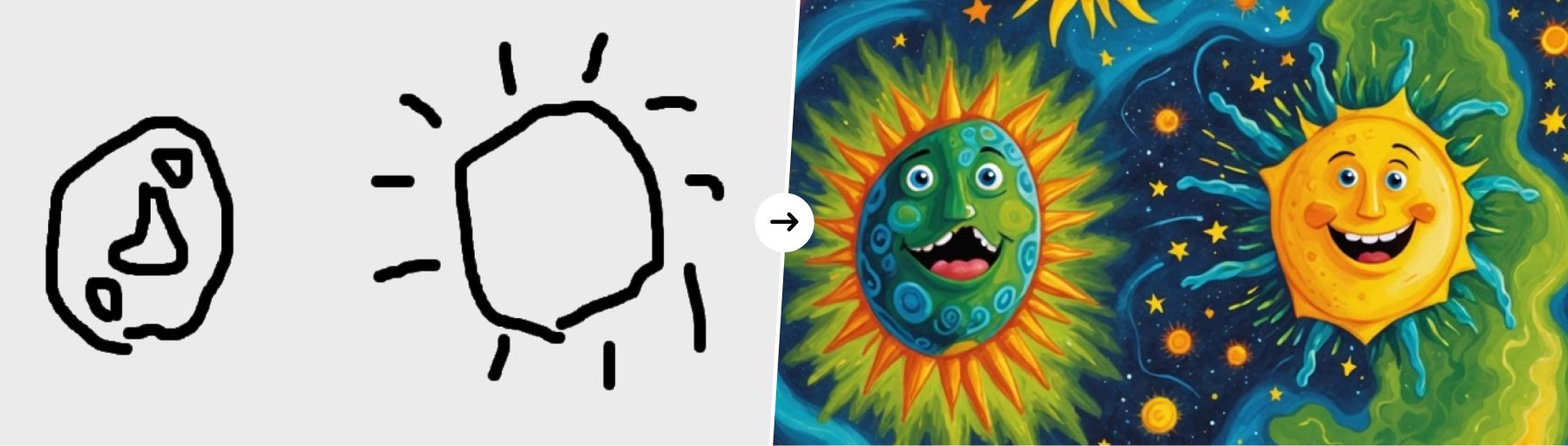
- Sketch Input: The user provides a simple sketch or drawing that acts as the starting point for the final image.
- AI Interpretation: The AI analyzes the shapes, lines, and proportions in the sketch, turning the basic drawing into a more complete image.
- Image Generation: Once the sketch is understood, the AI uses its knowledge of objects, textures, and styles to create a detailed version of the image.
- Customization: Users can add more details, like style, colors, or layout, to help guide the AI in creating the final image.
Process:
- Sketch Creation: The user creates a basic sketch, which could be a hand-drawn doodle or a simple digital outline.
- AI Processing: The AI processes the sketch and turns it into a more detailed image, filling in missing parts based on patterns it has learned.
- Final Image: The AI produces a high-quality image based on the original sketch, which can be further adjusted if needed.
1
Add your sketch to the canvas
Start by uploading your image into the PitchPrint editor, and inserting it on the canvas.
2
Open the picture editor
Once the image is on the canvas, click on the ‘Edit Picture’ button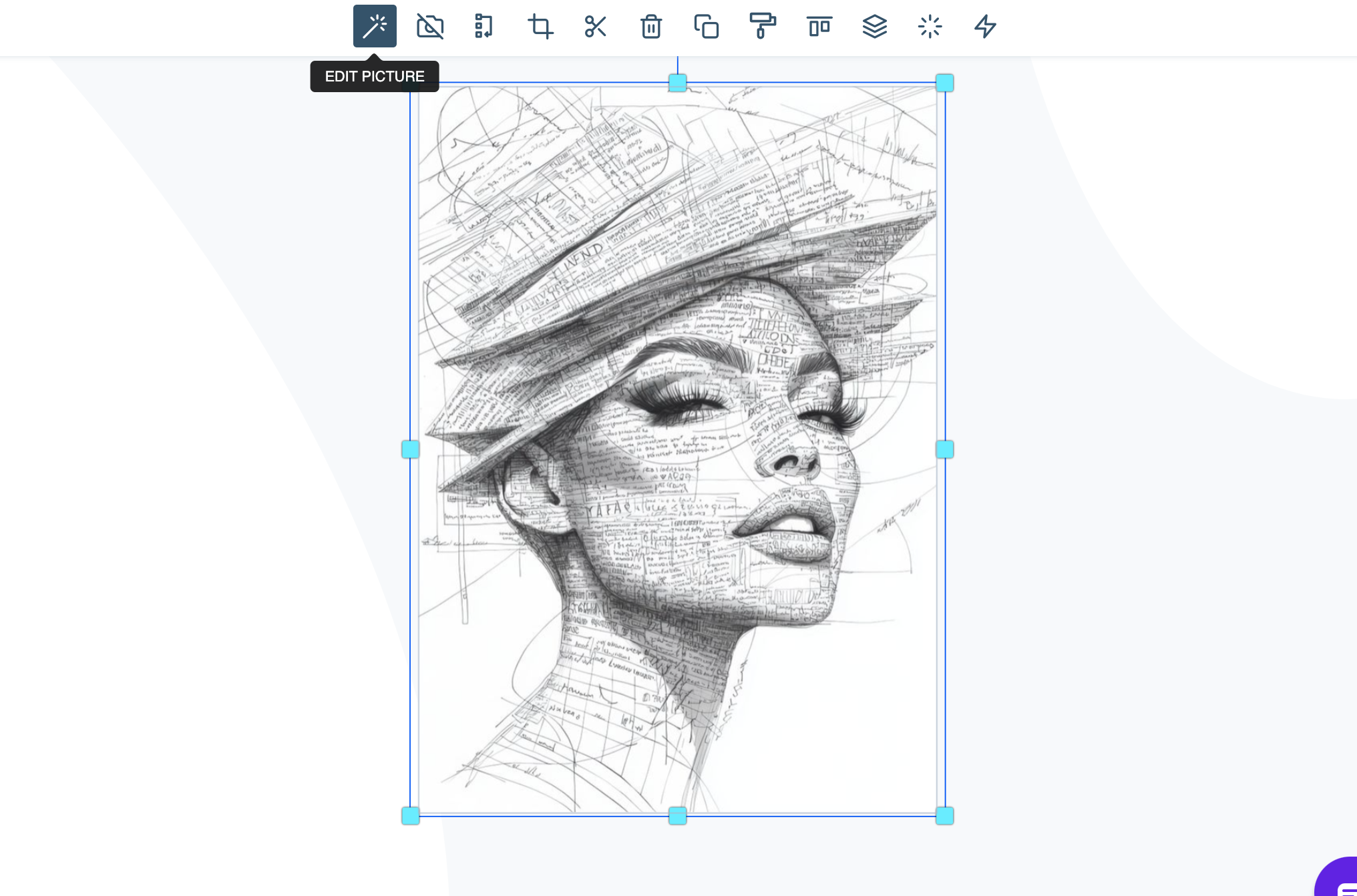
3
Select Structure
In the side panel you will find the AI Image enhancement tools, Click on ‘Structure’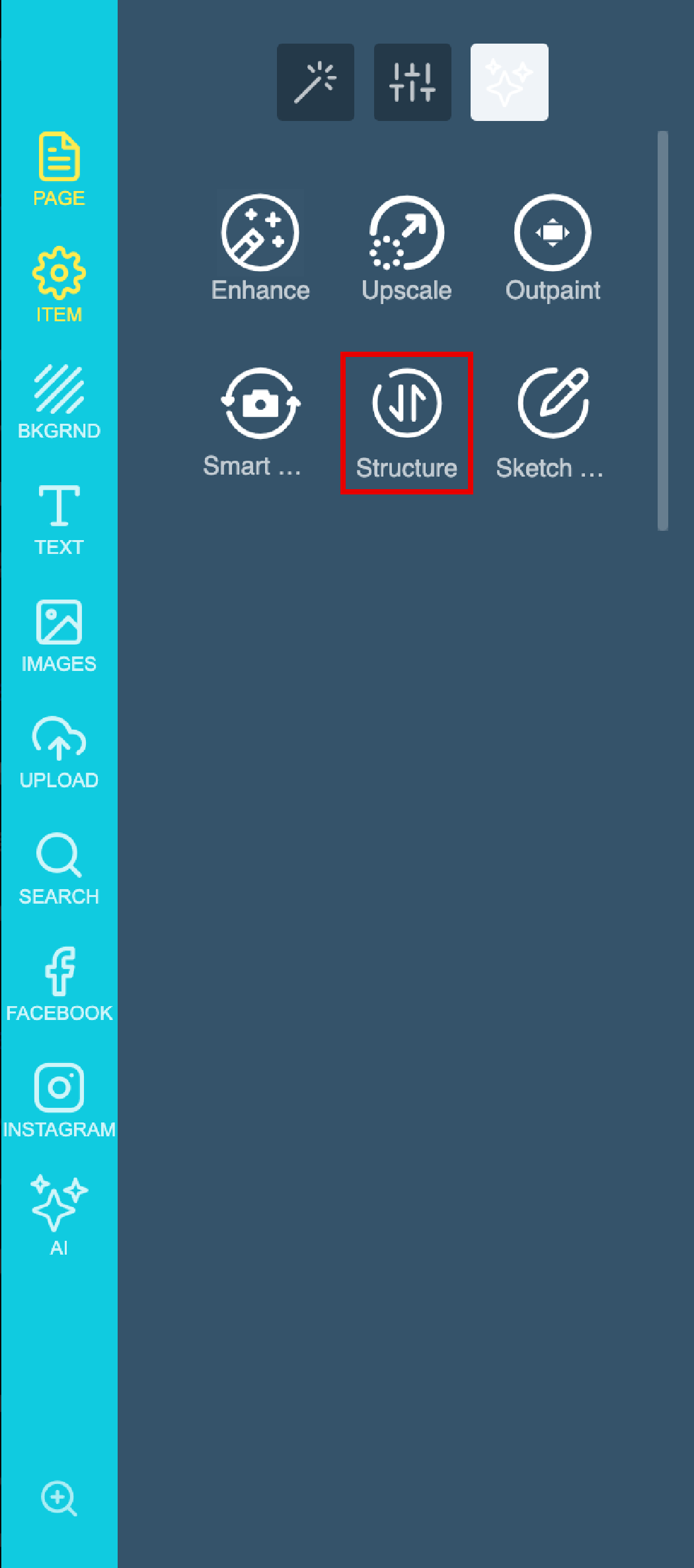
4
Enter your prompt
Now you will have to add your prompt: For this example I want the final Graphic to be a realistic oil Painting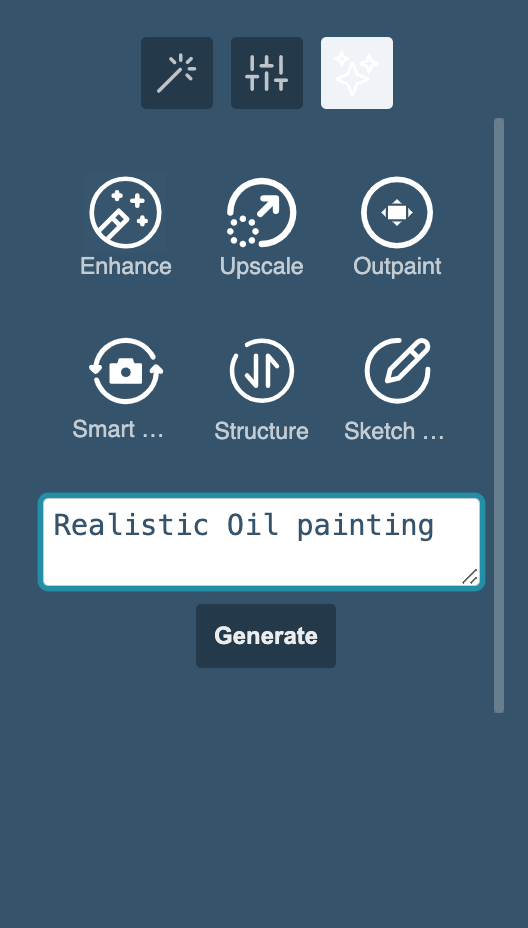
5
Generate the image
Lastly click on Generate & wait for your results.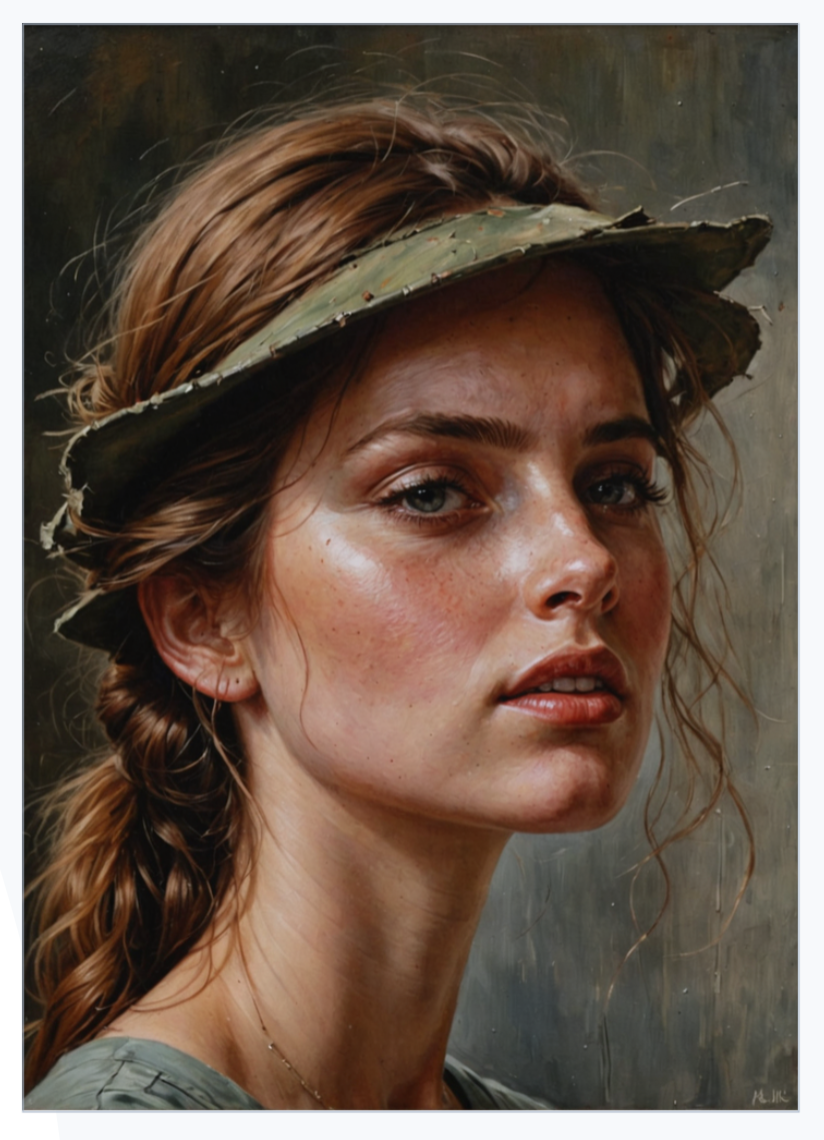
Related articles
AI Structure
Refine images while preserving layout, proportions, and composition.
AI-Imaginate
Generate AI images from text prompts with style and size options.
AI-Imaginate: Text to Image AI Tool
Generate images from text descriptions with AI-Imaginate.
AI Smart Replace
Find and replace elements within an image using AI.