

1
Create a template based design
Create your template based design in the Admin Area.
2
Open the Modules tab
Click the Configure Design icon. In the popup window, click the Modules Tab.
3
Enable Template Colors
Enable Template Colors: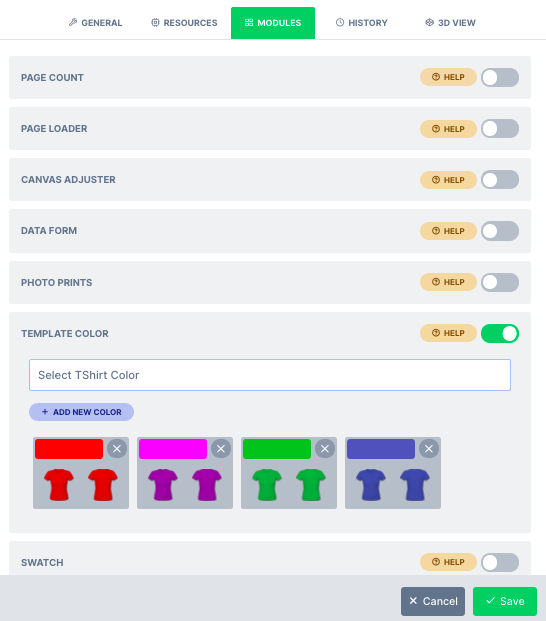
4
Confirm the module fields appear
You’ll see there is a Title text box, and a ’+ Add New’ button. If it doesn’t show this, it means your particular design is not template based.
5
Name the module
Type in a title for the Module.
6
Add a colour variant
To create a new color simply click ’+ Add New’ button. In the variant, you have a color rectangle default to red and a number image icons, representing the number of pages in your design.
7
Set the variant colour
Click the red colored rectangle to set the color for this variant.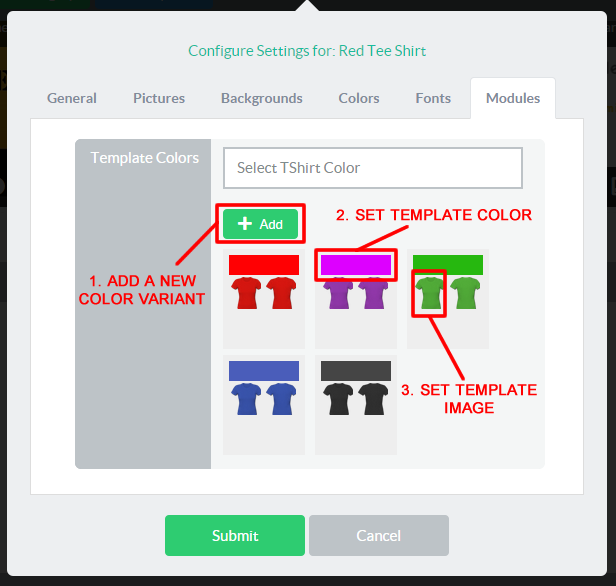
8
Assign a template image per page
You should now click each of the image icons to set the template image that will appear for that color variant.
You can equally upload your picture from that panel and immediately assign it to the module.
9
Save the module
You can add as many color variants as desired and once finished, click the submit button to save.
10
Optionally tint the original template
We recently added a new feature which allows you to enable tint original template, If enabled, upload the white template into the design and save it. You can then select the colors you would like to use in the template color module. Simply click the add new color button to add additional colors. Please refer to the image below for reference. These colors will then be available for the user to choose from. This works the same as the setup above, but saves the admin time by removing the need to upload a separate shirt template for each color.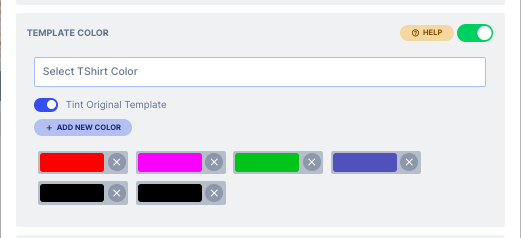
Related articles
Template Colour Designs
Learn what template-based designs are and how template images are swapped in the editor.
Swatch Module
Let customers switch a design’s color theme, background and preview within the editor.
Color Palette
Create five-color complementary themes customers can sample to restyle a design.
All About Colors
Understand PitchPrint’s color system, including Hex, CMYK and SPOT values.