

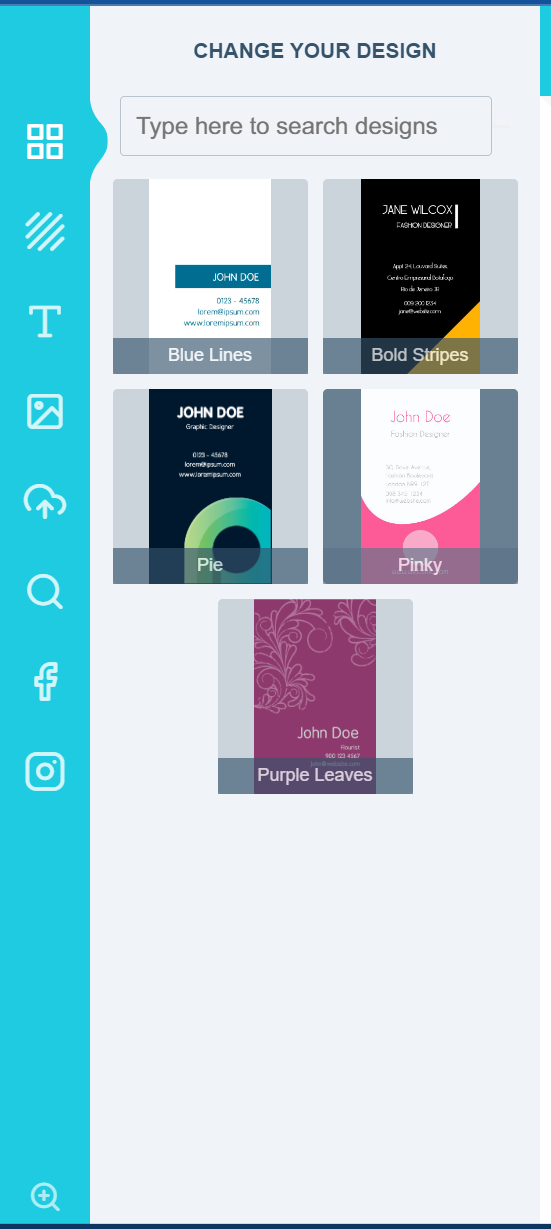

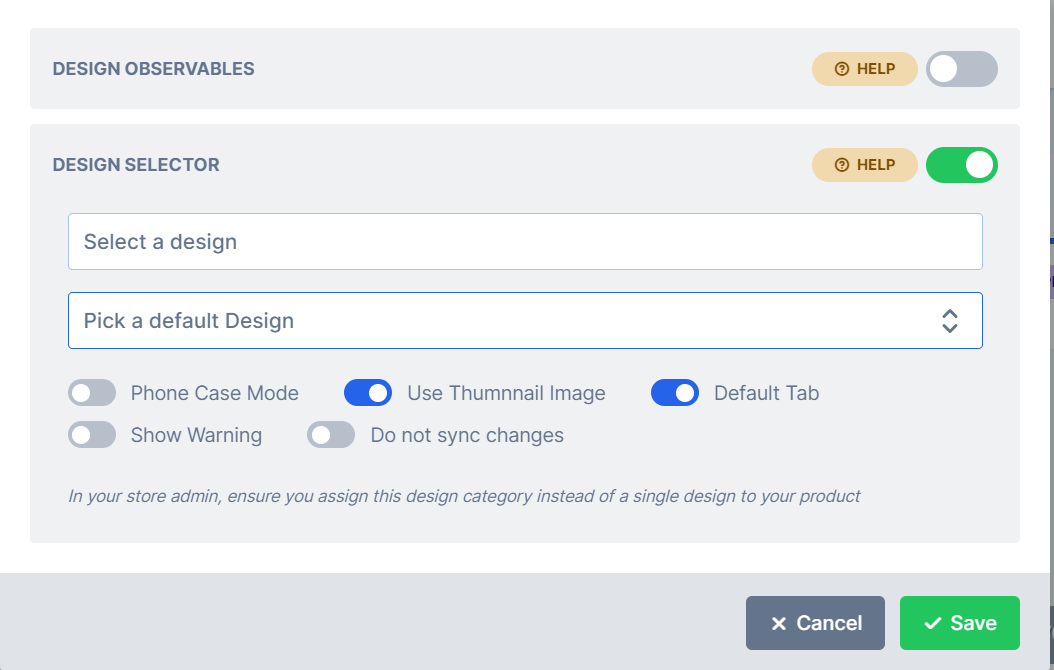
- Title: Provide an appropriate title to be displayed on top of the designs panel.
- Default Design: Your category will have designs displayed alphabetically but you might want to show a particular one first. Here, we set it to load the Nokia Lumia 920 as default. So when the app loads, this is the default design that will be loaded.
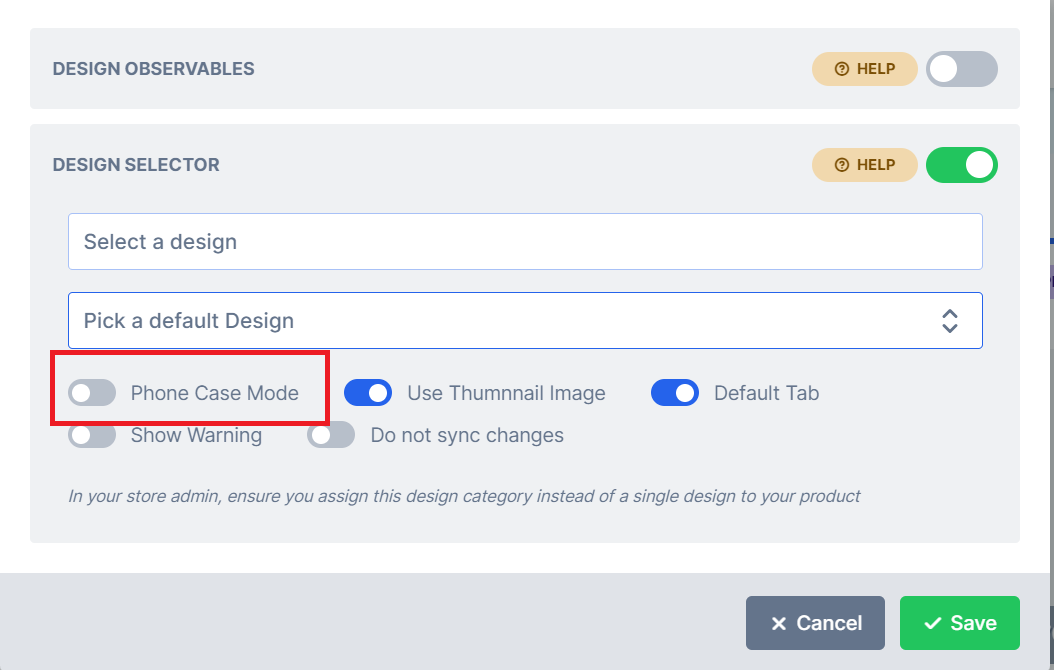
- Photo Case Mode : Enabling this means the pages acts as different layouts instead of each being a requirement. Let’s use two examples: In a business card design, you most probably want both pages front and back printed, so this should be disabled. On the other hand, a Phone Case design can have different layouts as separate pages but only one layout is needed by the customer; in this instance, this option should be selected. It means the pages are treated as different designs so to speak and it presents them as layouts instead of presenting the regular page navigation. To enable the following feature please enable *PHONE CASE MODE* as shown in the image below:
- Use Image thumbnail: Enabling this feature will show the product picture in the design gallery tab. Disabling is will only show the title of the design. If you have a long list of designs, then is is advisable to use the text option by disabling this feature but if not, you can go ahead and use the image based thumbnails.
How to assign the module in your Store Admin
In the store admin, instead of choosing a single design, you should select the category as a whole as shown below: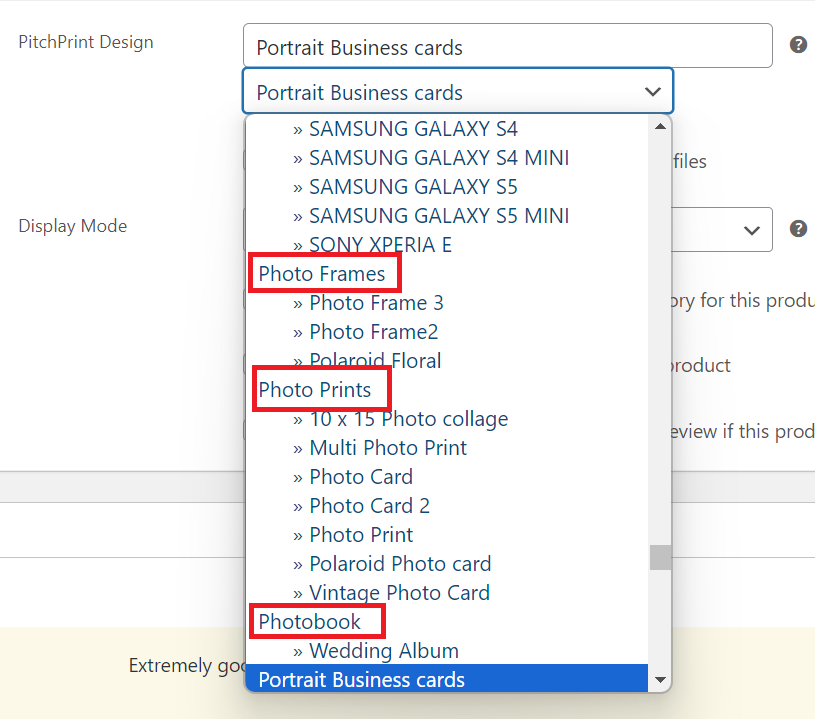
Please note categories are Left aligned and Single designs are right aligned.
What’s new
3 releases have changed this feature since the article was written.Design selector search update
Latest WK29-23 · 28 July 2023 — In our latest release note, we introduced enhancements to the design selector search feature discussed in our previous update.
Search Designs in Design Selector
WK23-23 · 6 June 2023 — We have introduced an exciting feature that allows end users to search for designs in the design selector using keywords or design names.
Design Selector on Mobile
WK44-20 · 9 November 2020 — When a design is selected in Design Module, the panel now hides on a mobile design.