

The four canvas layers
From bottom to top: Template, Background, Canvas and Foreground.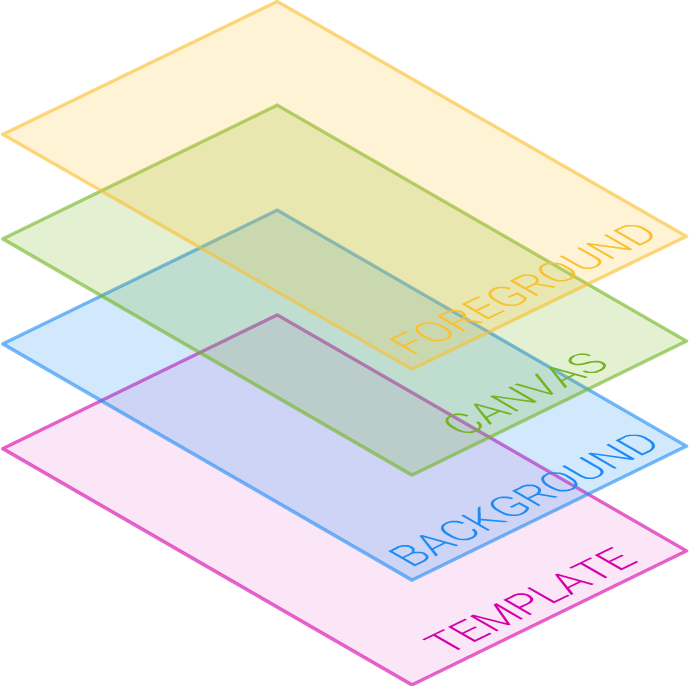
Template: the product mockup
Template: the product mockup
The lowest layer (purple in the diagram above). It holds a single image and is dormant in most designs. Its job is to show the customer how their work will look on the finished product.Use it for print-on products like a t-shirt, mug, cap or scarf. The t-shirt itself is not printed into the final PDF, only the customer’s artwork. You don’t need a picture of a t-shirt printed onto an actual t-shirt.Set it during design creation or editing by clicking the plus sign next to the Template Image label in the toolbox: That opens your uploaded images, where you can select one or upload a new one. Once a template image is set, the canvas offset panel appears at the bottom of the form:
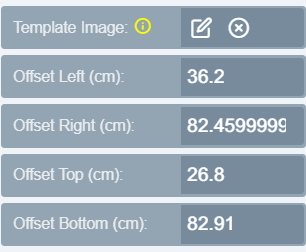 Use it to offset the canvas onto the area where designing is allowed: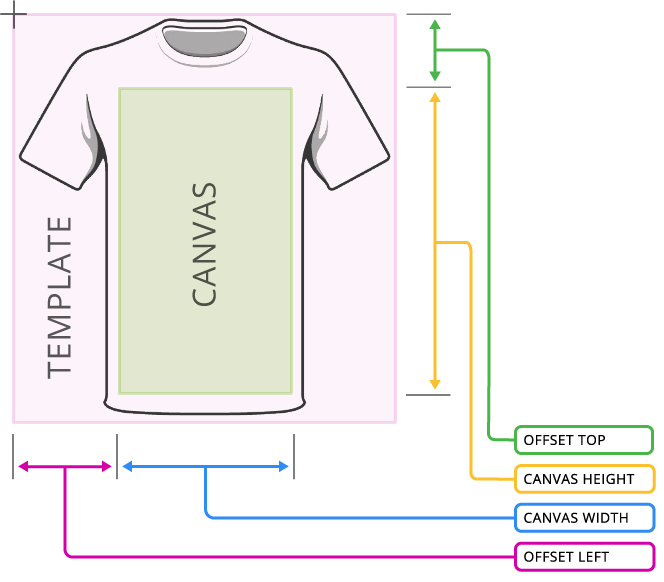
Background: image or solid color
Background: image or solid color
Sits above the template and below the canvas. This is the layer customers manipulate when they edit the background in the app. It can be an image or a solid color.
Canvas: where customers work
Canvas: where customers work
The layer your customer interacts with, placing shapes, text and images. Every design uses it. When customers select items they are clicking this canvas, not the template beneath or the foreground above.Its dimensions come from Product Width & Height, or from Canvas Width & Height when a template is used.With a template, you will often want to offset the canvas to part of the template area and make it smaller than the product itself. For a t-shirt, that might be only the chest area. Use the offset form shown above.In a plain design like a business card, the canvas is the actual size of the product.
Foreground: masking over the design
Foreground: masking over the design
The topmost layer, used mainly to mask the design canvas. Like the template it holds a single image, but you choose whether it prints.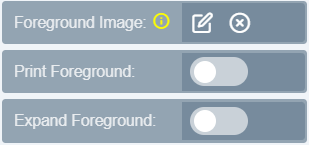 A mouse pad is a common example. The customer designs on a mouse pad image with the design area masked out as a transparent spot.
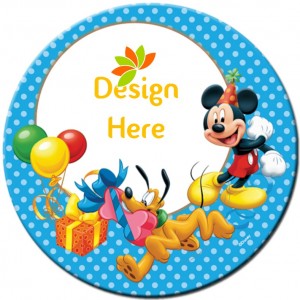 The “Design Here” spot is the main canvas showing through a transparent section of the foreground PNG.
The three design types
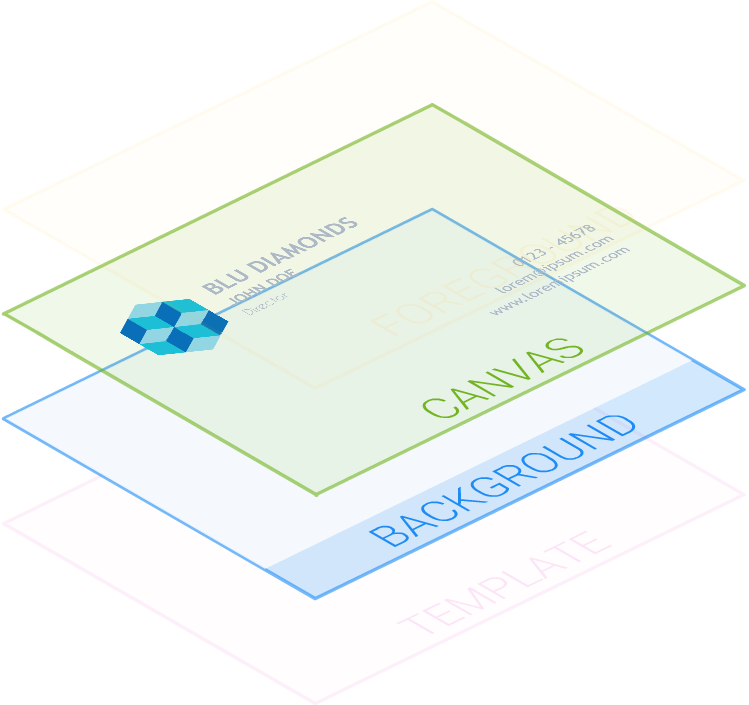
Plain Designs
Business cards, letterheads, banners, greeting cards, signs, labels.
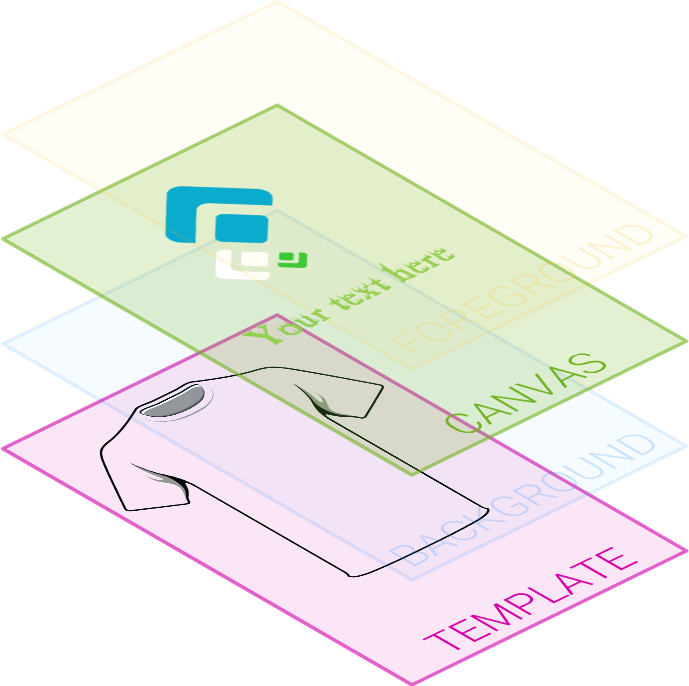
Template Designs
Print-on products such as t-shirts, mugs, caps, rugs, book covers, car stickers, sign boards and roll-up banners, where the customer sees the design in context. The context comes from the template picture.
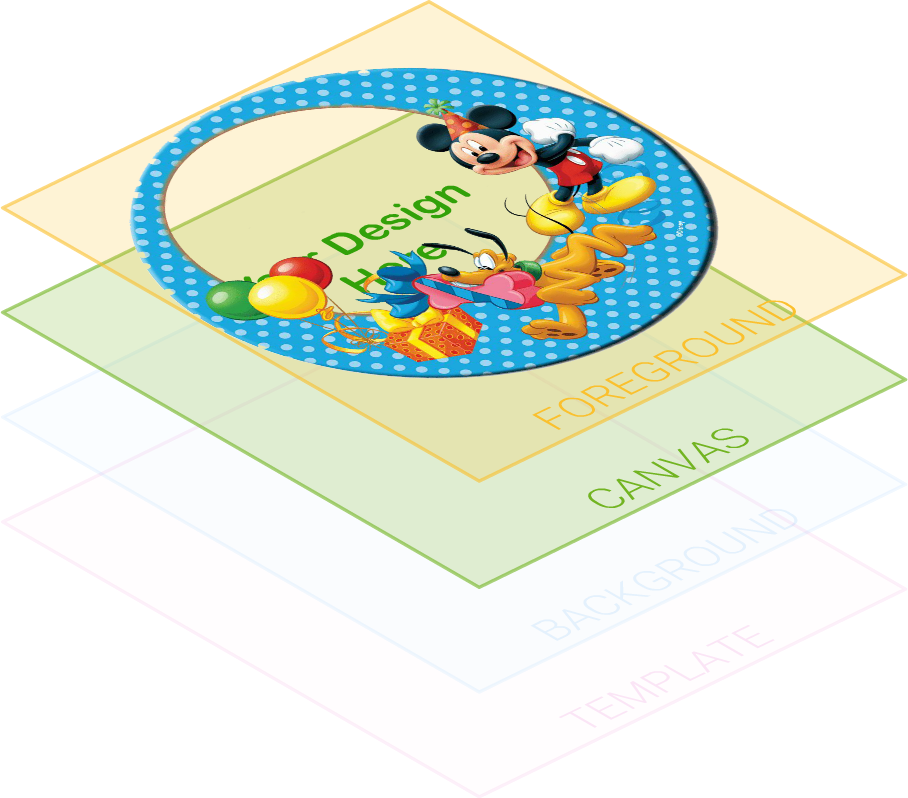
Foreground Designs
Mouse pads, phone covers, laptop cases, picture frames, Facebook banners, and anywhere else customers design underneath an emblem.
Related articles
How To Create A Design
Build your own design template step by step in the standalone editor.
Design Configuration
Reference for every design setting across General, Resources and Modules.
Managing your Designs
Create, edit, organize and configure designs and categories in the admin.
How to import designs
Import ready-made designs from the PitchPrint store into your categories.