

How to Enable and Configure Canvas Adjuster on a Design
To enable this feature, navigate to your designs page, simply click the Configure button on the design you like to assign this to. Then navigate to the Modules Tab. There you will find the Canvas Adjuster module. Click to enable it and the configuration panel shows up as shown below: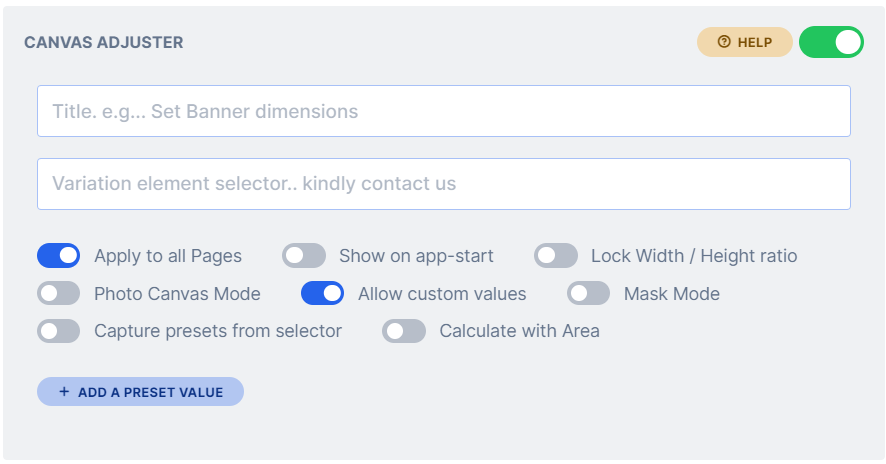
text
A title that users get to see on the panel. For example “Set banner dimensions“
text
An automated way of syncing the size selector in your product page with the canvas adjuster module. Following the example link above, the selected size in the product page is automatically used by the design app without any additional integration. If the size is changed in the app, the product page selector is auto-updated. It is a two way sync and if you have a linked pricing, the price is also updated.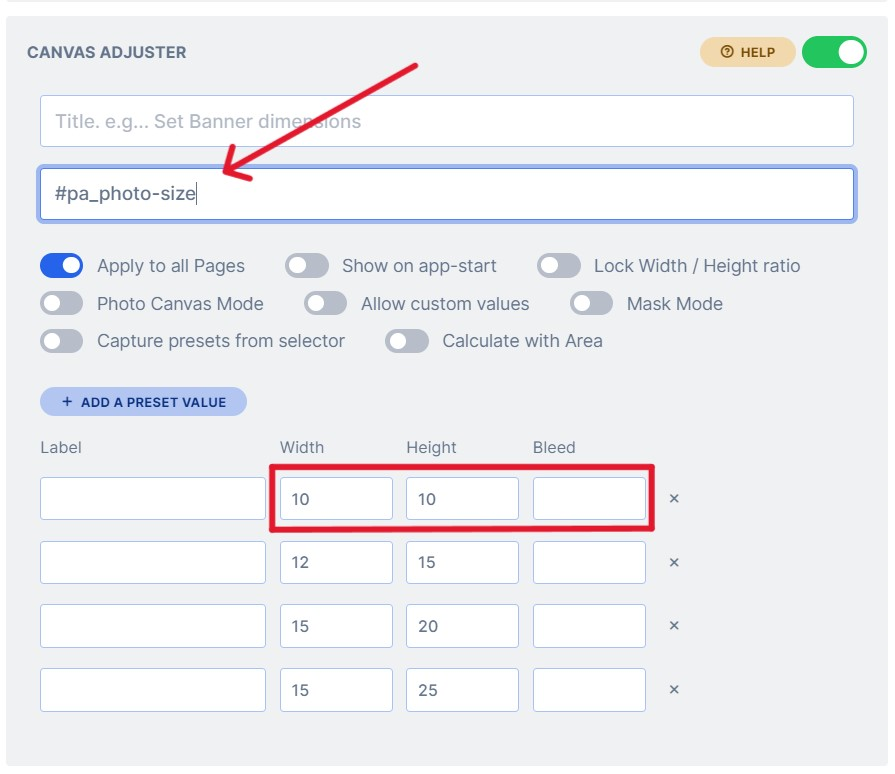 The value to be placed here is the jQuery element unique id or class for the size selector in your product page. This changes from theme to theme and differs even on framework. Should you need help in accessing the element, do send us a ticket with a direct link to your product page.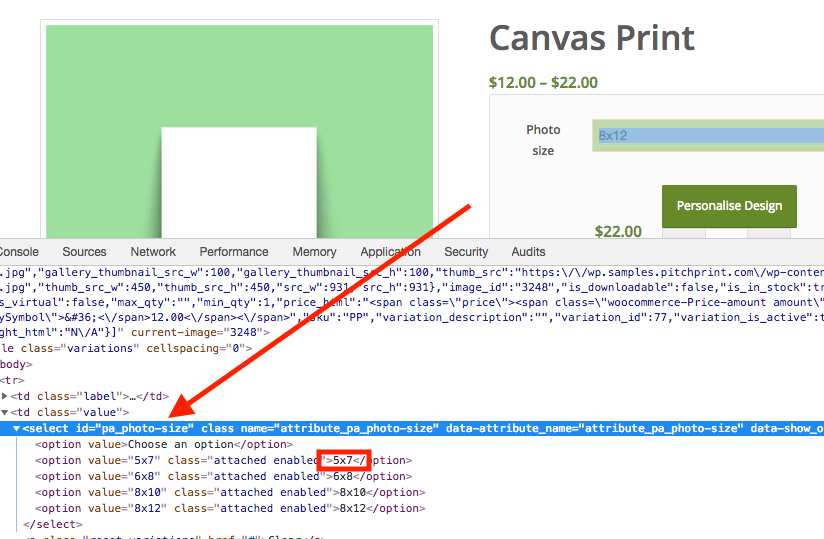
toggle
When enabled, the values entered by the customer are locked in proportion based on the default page dimension of the initial design.
toggle
When enabled, the dimensions applied to one page reflect across all the pages when the customer changes the dimension.
toggle
Gives your users the ability to enter their own custom values instead of choosing from your preset list.
button
Adds a preset value to the list. In the front designer, your customers get to pick from this list. To delete any, click on the red button with the cross against the row. This value is set in the design’s default value. You can enter as many values or none.
If no preset value is provided, the preset list is not shown.
toggle
An extension of the Photo mode feature. In the default Photo mode, the canvas is adjusted to fit the aspect ratio of the main photo. With mask mode enabled, the photo is masked to fit the canvas area and the user is given tools to zoom and position the photo as desired.This works like a Photo Print feature where customers can order photo prints in standard sizes by placing their photos on the canvas and have it fit that dimension. When they choose a different dimension, the photo will adjust to fit the new size.
toggle
Docks the custom size panel on the top of the window for easy modification of canvas sizes as shown: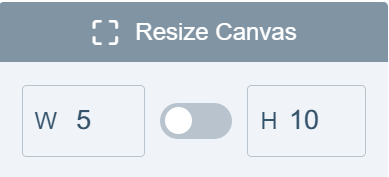
toggle
Allows users to create a canvas photo by adjusting the canvas size to the ratio of their uploaded photos. It is suited for plain canvases without any item, where users can simply drag their photos onto the canvas and the canvas will shrink or expand to the dimension of the photo placed on it.
toggle
When enabled, the designer will open with the dimensions selected by the customer on the product page.
Related articles
Integrating Canvas Adjuster To A WordPress Store
Set up canvas-based pricing variations for the Canvas Adjuster in a WooCommerce store.
Integrating Canvas Adjuster To An OpenCart Store
Configure canvas-based pricing options for the Canvas Adjuster in an OpenCart store.
What’s new
2 releases have changed this feature since the article was written.Scale Grouped Items in Canvas Adjuster
Latest WK12-26 · 19 March 2026 — We’ve enhanced the canvas adjuster to support automatic scaling for grouped items. Previously, this feature worked well for individual elements but did not fully support groups.
Auto-Scale Items Canvas adjuster
WK30-25 · 24 July 2025 — Traditionally, the Canvas Adjuster only modified the canvas dimensions—often causing items to stretch or shift out of place.