

- **File Upload **
- **Project Saved **
- Order Completed
1
Create a test bin
Navigate to the Mailgun bin, this will create a new bin for you. A bin like this can be used to easily test API calls on the fly and discarded once finished. Once you navigate there, it will give you a URL, a new bin for this test. Copy that URL. Don’t close this tab
2
Open the Webhooks page
Next, you navigate to your PitchPrint Admin and click the Webhooks link on the left.
3
Add a webhook endpoint
Click the button to Add a Webhook Endpoint: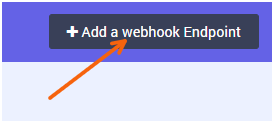
4
Paste your bin URL and pick an action
In the dialog that appears, paste in the URL you copied from the bin in step 1. This is where PitchPrint will send the event to when the selected action happens. And for action, you can leave it at When a File is Uploaded: And submit the form.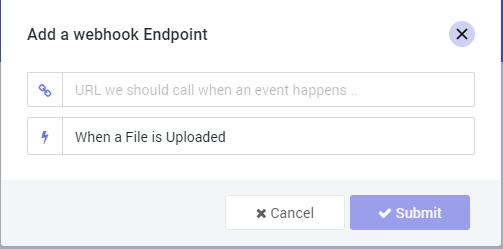
5
Upload a file from a product page
Now open any product page with PitchPrint design associated with your current apiKey. Launch the editor and upload a file.
6
Check the bin for the event
Once the upload completes, do refresh your bin tab you opened in step 1. You should find all the details of the just uploaded file with a tiny thumbnail, a low res version of the file if it’s an image, as well as the raw file and some other details.