

Creating the iPhone Template
To start with, we need a picture of an iPhone at the back of the page to act as a template. This template will never be printed in the final PDF file but will only act as a reference that will be beneath our canvas so people can have an idea of upon what and where they are placing their pictures. Go grab an iPhone template image with its back shown in an orthographic view like this: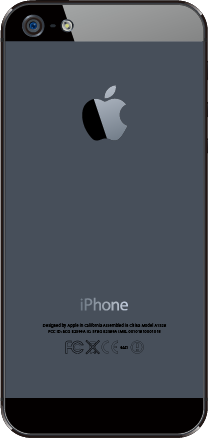
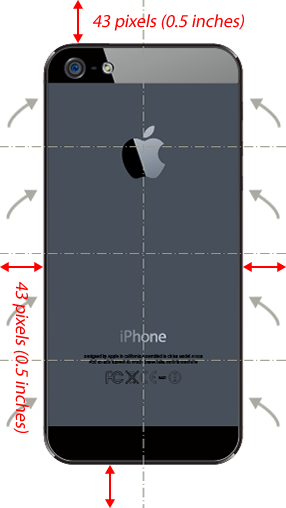
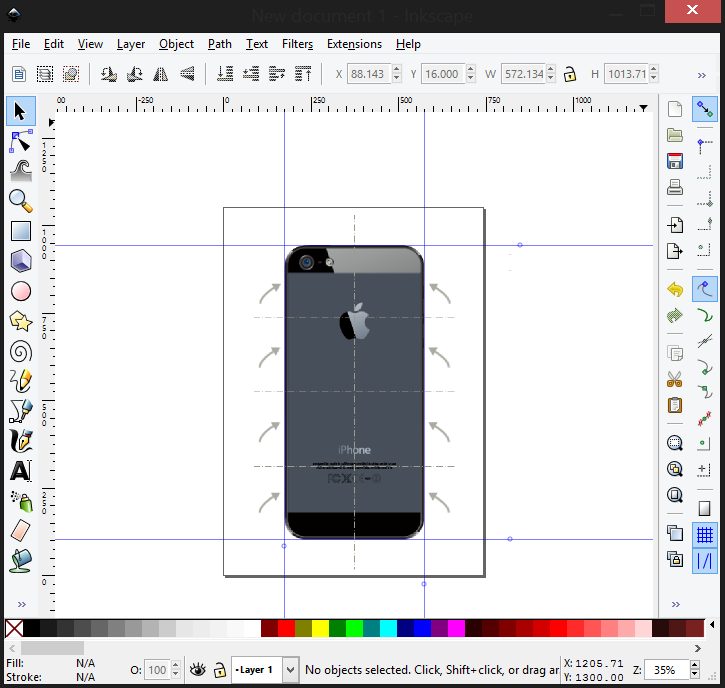
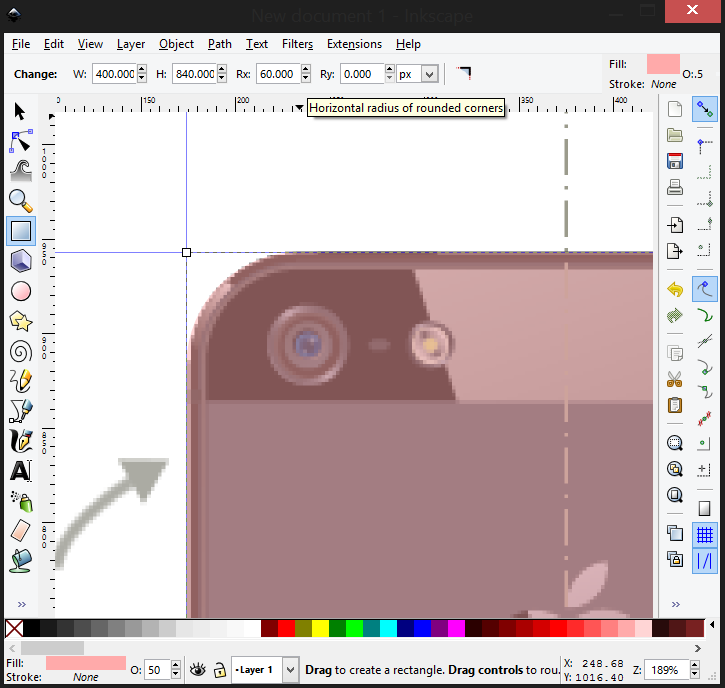
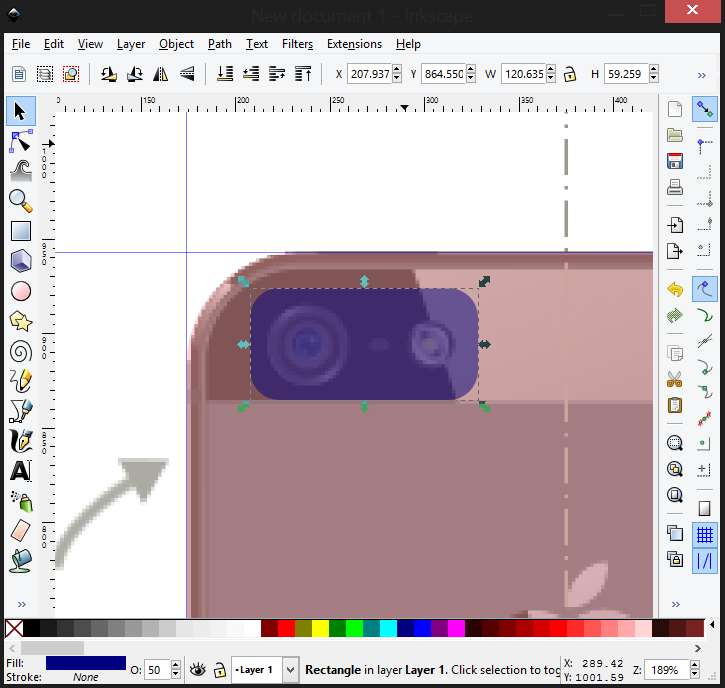

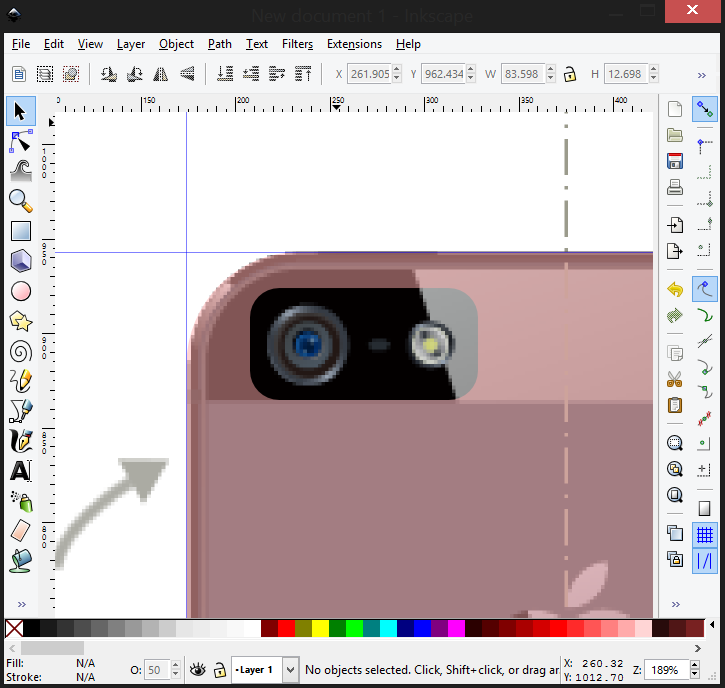
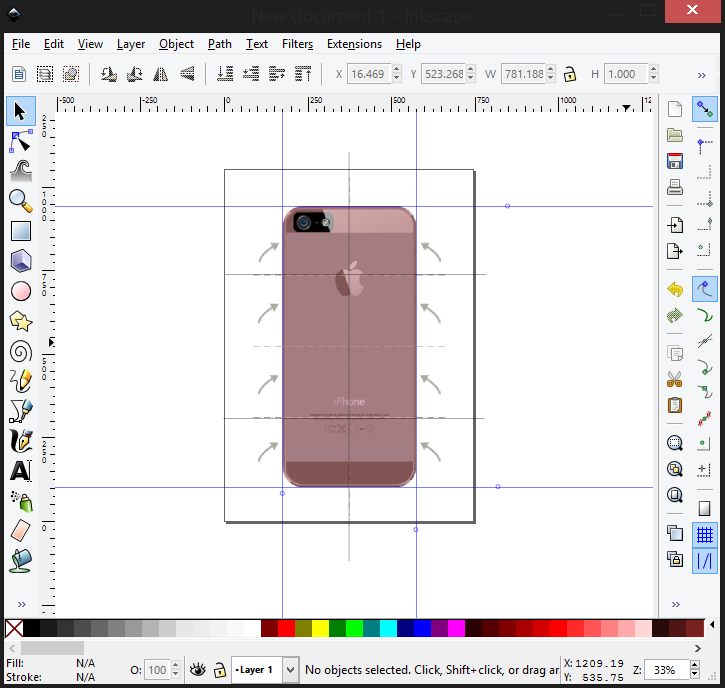
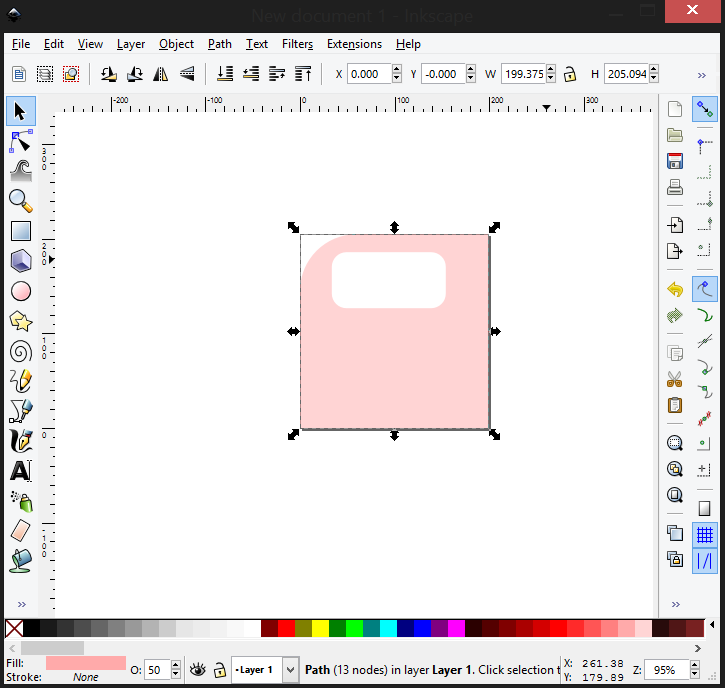
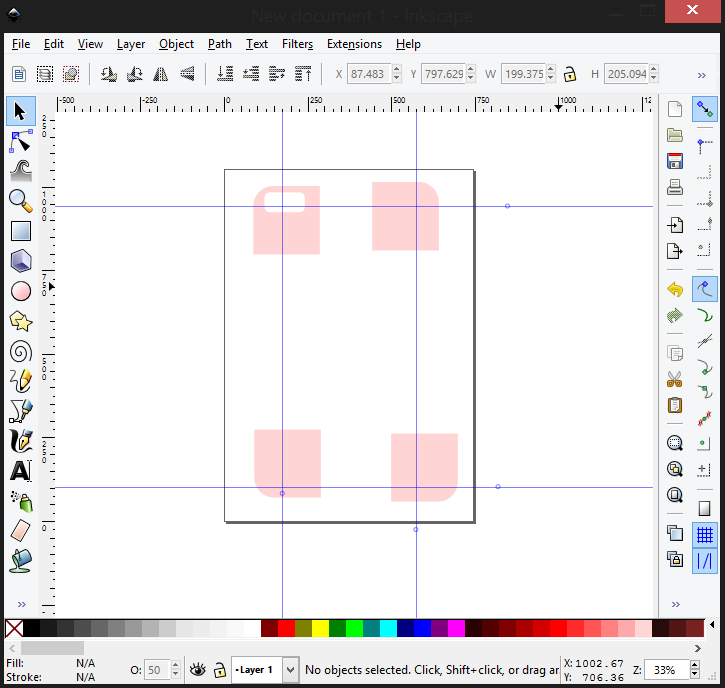 Next we need to save them separately as a file. Create a new Inkscape page: Menu > File > New > Default. Copy the top-eft shape; paste it into the new canvas, then Menu > File > Document Properties and under Custom Size in the dialog, click “Resize Page to Content”, then click the button “Resize Page to Drawing or Selection”. Now we have this:
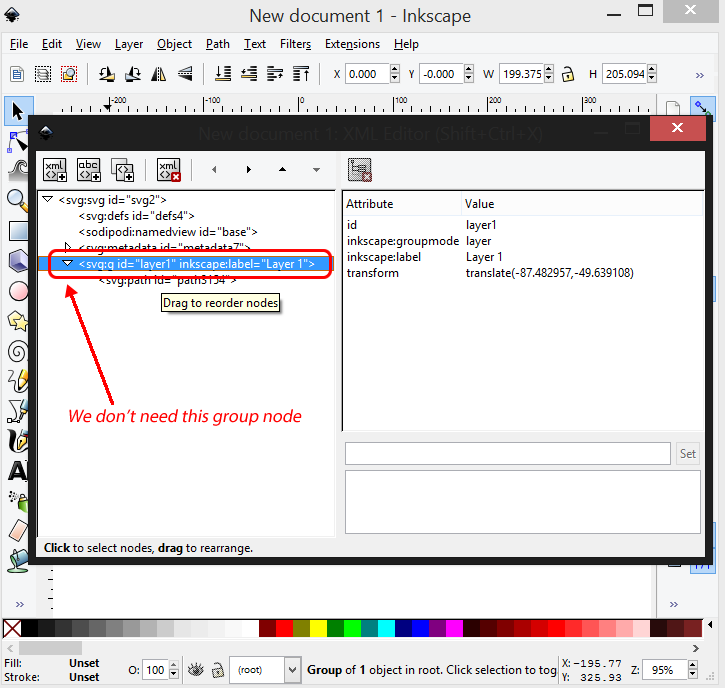
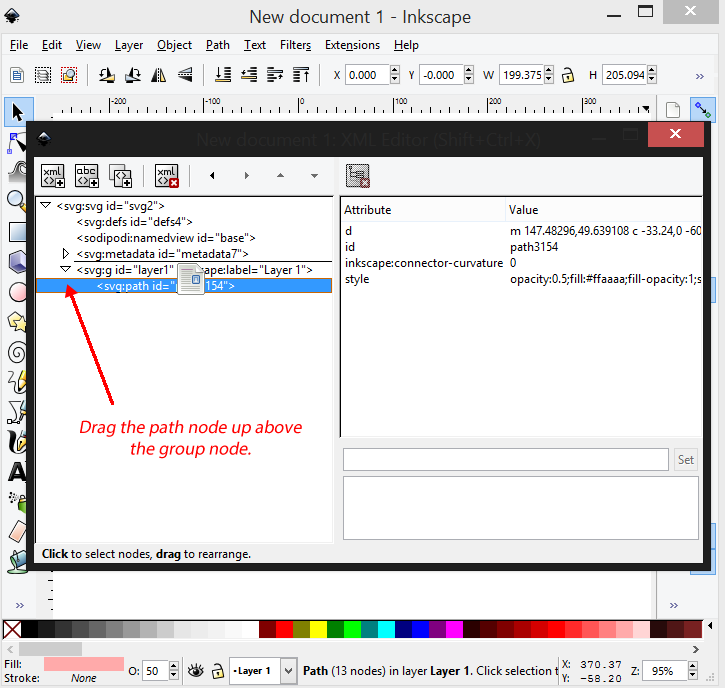
<svg:g”. Next, save it as plain shape. Menus > File > Save as… In the save dialog, select “Plain svg” for “Save as Type” so it gives you a light file without the gibberish.
Repeat this and save the remaining three other parts to wit: top-right, bottom-left and bottom-right.
That is how to create a mask. Other shapes should be simpler. What you need to ensure basically is that you have just one single node of path in the file, not grouped elements. You can draw a complex path, ensure you use the tools under shape to convert them to path and merge them all into a single path, resize your canvas to the path dimension and check for groupings and remove any. Then save!