Creating the Template
Navigate to Design, Once in the Designs section, you will find all your designs associated with the current domain you are administering, every design belonging to a section so check out the exact section you want your card to belong and to the right of the title, you will find two buttons, click the one labelled “Create a New Design” and a window and this will pop up a window where you will provide basic details regarding your new design template. Ok! The form should look like this: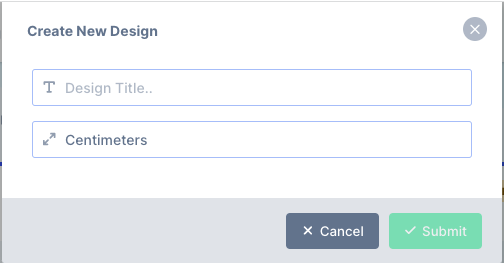
Add a Page
Ok, now you are in the Editor, you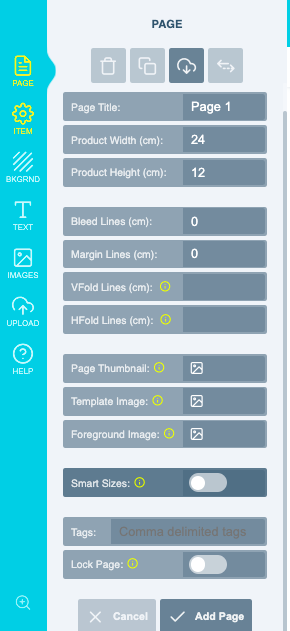
Set the Page Background Image
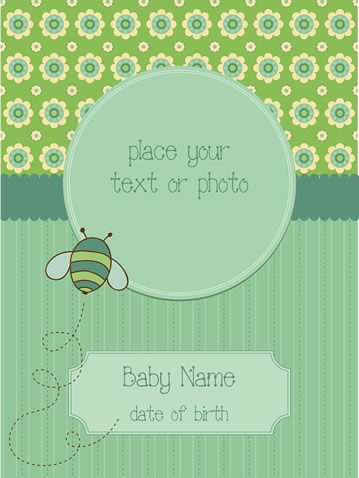
Now the page is created, you need to set the background image. Click the Background panel and navigate to the image you just uploadedAdd the Reference Text
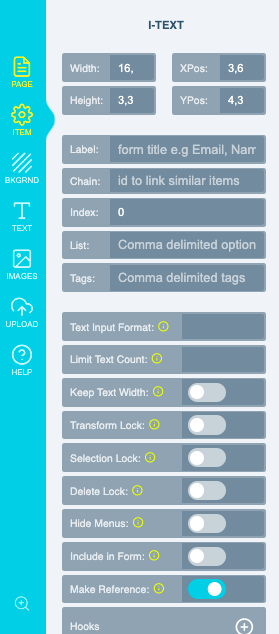
References are like dummy pointers that are placed on the canvas as guides but are neither printed in the final PDF file nor rendered in the raster image they can be any item type be it text, image or shape. So to create one, click the text tool and click somewhere in the center. Double click it to edit the text and type in “drag your picture here”. Next, set the font style and color to green. Try aligning it to the center part of the background’s circle; re-scale and adjust its position as desired. While still selected, show the admin toolbox panel (first icon on the top left). Now you will see in the toolbox, the details for the selected item. Toggle the switch against the Is Reference label to yes as shown in the picture below: