Create an account, add a domain in the PitchPrint admin and get the API Key and Secret Key needed to integrate the app
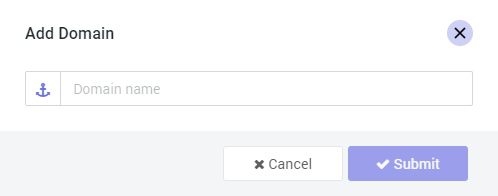
To integrate the app into your website, you need an API key as well as a Secret Key.The API Key is for public facing side of your server and acts as a means of identifying your particular website, while the Secret Key is used to generate signatures for back-end communication with our system, more like a means to authenticate alongside the API Key that this request is coming from you.So to start with, go to our registration page to create an account or the login page if you already have an account with us.Once you’ve logged in, navigate to the Domains page and click the green button on the top right corner labelled “Add Domain”. This pops up a window like this:
Now type in your domain name.
This name is simply a label and could be any domain name you choose. We have our own internal identifier, and the name can easily be renamed later on. It doesn’t have to be the actual site domain.
Once you do that and click Submit button, the application creates that domain with its own layout file, sample design, images and so on. It also generates the two important items, the API and Secret keys.Your domains page should now have one domain listed, the one you just created with its keys, date created, the license type Basic as well as an option to edit the domain name anytime you so choose to.Now that you have generated the necessary keys, let’s get started with a plain html page and load the necessary JavaScript files into it.
Load the PitchPrint app into your page and wire up events.
After Save
Handle the project-saved event and use the returned data.
My Account - Saved Projects
Add a My Account page so customers can view their saved projects.
{"docsConfig":{"theme":"mint","$schema":"https://mintlify.com/docs.json","name":"PitchPrint","colors":{"primary":"#6022E7","light":"#8B5CF6","dark":"#4C1BC4"},"logo":{"light":"https://mintcdn.com/pitchprint/lFqp-OsyXnf1Fc9b/brand/logo/light.svg?fit=max\u0026auto=format\u0026n=lFqp-OsyXnf1Fc9b\u0026q=85\u0026s=ec857289e0ade69316f8eff623821ad8","dark":"https://mintcdn.com/pitchprint/lFqp-OsyXnf1Fc9b/brand/logo/dark.svg?fit=max\u0026auto=format\u0026n=lFqp-OsyXnf1Fc9b\u0026q=85\u0026s=504b6c4556dad8a811dd61d2b802ecce"},"favicon":"https://mintcdn.com/pitchprint/lFqp-OsyXnf1Fc9b/brand/favicon.svg?fit=max\u0026auto=format\u0026n=lFqp-OsyXnf1Fc9b\u0026q=85\u0026s=b6f4f01ffcc134da4657f0b0d0a1b395","navbar":{"links":[{"href":"https://pitchprint.com","label":"Website"}],"primary":{"type":"button","label":"Dashboard","href":"https://admin.pitchprint.com/login"}},"footer":{"socials":{"x":"https://x.com/pitchprint","github":"https://github.com/pitchprint","linkedin":"https://linkedin.com/company/pitchprint"},"links":[{"header":"Product","items":[{"label":"PitchPrint","href":"https://pitchprint.com"},{"label":"Dashboard","href":"https://pitchprint.com/dashboard"}]},{"header":"Blog","items":[{"label":"Articles","href":"/blog/posts/ai-studio"},{"label":"Releases","href":"/blog/releases/2026"}]}]},"errors":{"404":{"redirect":false,"title":"Page not found","description":"This page may have moved when we rebuilt the docs. Try [search](/docs), the [installation guides](/docs/documentation/which-framework-should-i-pick), or the [API reference](/docs/api-reference/introduction). Still stuck? Email [support@pitchprint.com](mailto:support@pitchprint.com)."}},"contextual":{"options":["copy","view","chatgpt","claude","perplexity","mcp","cursor","vscode"],"display":"header"},"styling":{"latex":true},"navigation":{"global":{"anchors":[{"anchor":"Demos","icon":"circle-play","href":"https://wp.demo.pitchprint.io"},{"anchor":"Support","icon":"envelope","href":"mailto:support@pitchprint.com"}]},"pages":[]}},"deployment":{"deploymentMetadataValue":{"subdomain":"pitchprint","hasAudioNarration":false,"actualSubdomain":"pitchprint","customDomains":["pitchprint.com"],"gitSource":{"type":"github","owner":"pitchprint","repo":"docs","deployBranch":"main","contentDirectory":"","isPrivate":false,"mountPath":"","label":""},"chroma":{"collectionId":"8b3f5e9d-7001-4a57-9541-4a2322cc6249","liveDeploymentHistoryId":"6ad5d0509685d528bc7fa825","schemaVersion":"v3","latestBuiltDeploymentHistoryId":"6ad5d0509685d528bc7fa825"},"entitlements":{"AI_CHAT":{"status":"DISABLED"}},"buildId":"6ad5d0509685d528bc7fa825","clientVersion":"0.0.3971","searchFilterCounts":[{"language":"default","tag":"Documentation","count":154},{"language":"default","tag":"Tutorial","count":91},{"language":"default","tag":"Blog","count":39},{"language":"default","tag":"Tips 'n Tricks","count":32},{"language":"default","tag":"Admin Guide","count":27},{"language":"default","tag":"Using Modules","count":20},{"language":"default","tag":"API Reference","count":19},{"language":"default","tag":"Articles","count":14},{"language":"default","tag":"Installation Guide","count":12},{"language":"default","tag":"Sample Solutions","count":11}]},"assistantConfig":{"enableAskAiButton":false,"enableStarterQuestions":false,"enableContextualStarterQuestions":false,"enableAskAiSearchBar":true},"basePath":"","hasChatPermissions":false,"hasWebMcpPermissions":false,"toggles":[{"name":"kill-isr","enabled":true,"variant":{"name":"disabled","enabled":false,"feature_enabled":true},"impressionData":false},{"name":"agent-mintlify-slack","enabled":true,"variant":{"name":"disabled","enabled":false,"feature_enabled":true},"impressionData":false},{"name":"editor-v7-file-tree","enabled":true,"variant":{"name":"disabled","enabled":false,"feature_enabled":true},"impressionData":false},{"name":"agent-integrations-settings","enabled":true,"variant":{"name":"disabled","enabled":false,"feature_enabled":true},"impressionData":false},{"name":"automations-pr-grouping","enabled":true,"variant":{"name":"disabled","enabled":false,"feature_enabled":true},"impressionData":false},{"name":"custom-prefix","enabled":true,"variant":{"name":"disabled","enabled":false,"feature_enabled":true},"impressionData":false},{"name":"analytics-v7","enabled":true,"variant":{"name":"disabled","enabled":false,"feature_enabled":true},"impressionData":false},{"name":"user-flows-analytics","enabled":true,"variant":{"name":"disabled","enabled":false,"feature_enabled":true},"impressionData":false},{"name":"no-publish-flow","enabled":true,"variant":{"name":"disabled","enabled":false,"feature_enabled":true},"impressionData":false},{"name":"workos-onboarding","enabled":true,"variant":{"name":"disabled","enabled":false,"feature_enabled":true},"impressionData":false},{"name":"llms-txt-v2","enabled":true,"variant":{"name":"disabled","enabled":false,"feature_enabled":true},"impressionData":false},{"name":"pause-universal-search-reconcile","enabled":true,"variant":{"name":"disabled","enabled":false,"feature_enabled":true},"impressionData":false},{"name":"snapshot-serving-live","enabled":true,"variant":{"name":"disabled","enabled":false,"feature_enabled":true},"impressionData":false},{"name":"stripTemperatureMiddleware","enabled":true,"variant":{"name":"disabled","enabled":false,"feature_enabled":true},"impressionData":false},{"name":"per-site-search-delta","enabled":true,"variant":{"name":"disabled","enabled":false,"feature_enabled":true},"impressionData":false},{"name":"support-platform-pylon-zendesk","enabled":true,"variant":{"name":"disabled","enabled":false,"feature_enabled":true},"impressionData":false},{"name":"snapshot-serving","enabled":true,"variant":{"name":"disabled","enabled":false,"feature_enabled":true},"impressionData":false},{"name":"instant-rollback","enabled":true,"variant":{"name":"disabled","enabled":false,"feature_enabled":true},"impressionData":false},{"name":"granular-notifications-server","enabled":true,"variant":{"name":"disabled","enabled":false,"feature_enabled":true},"impressionData":false},{"name":"granular-notifications","enabled":true,"variant":{"name":"disabled","enabled":false,"feature_enabled":true},"impressionData":false},{"name":"editor-private-page-search","enabled":true,"variant":{"name":"disabled","enabled":false,"feature_enabled":true},"impressionData":false},{"name":"automations-fable","enabled":true,"variant":{"name":"disabled","enabled":false,"feature_enabled":true},"impressionData":false},{"name":"fixed-ai-action-pricing","enabled":true,"variant":{"name":"disabled","enabled":false,"feature_enabled":true},"impressionData":false},{"name":"automation-resolve-merge-conflict","enabled":true,"variant":{"name":"disabled","enabled":false,"feature_enabled":true},"impressionData":false},{"name":"scoped-publishing","enabled":true,"variant":{"name":"disabled","enabled":false,"feature_enabled":true},"impressionData":false},{"name":"mintql","enabled":true,"variant":{"name":"disabled","enabled":false,"feature_enabled":true},"impressionData":false},{"name":"page-level-analytics","enabled":true,"variant":{"name":"disabled","enabled":false,"feature_enabled":true},"impressionData":false},{"name":"editor-version-history-v2","enabled":true,"variant":{"name":"disabled","enabled":false,"feature_enabled":true},"impressionData":false},{"name":"editor-nav-generations","enabled":true,"variant":{"name":"disabled","enabled":false,"feature_enabled":true},"impressionData":false},{"name":"billing-page-v2","enabled":true,"variant":{"name":"disabled","enabled":false,"feature_enabled":true},"impressionData":false},{"name":"workspace-projects","enabled":true,"variant":{"name":"disabled","enabled":false,"feature_enabled":true},"impressionData":false},{"name":"assistant-v5","enabled":true,"variant":{"name":"disabled","enabled":false,"feature_enabled":true},"impressionData":false},{"name":"byok-sep-25","enabled":true,"variant":{"name":"disabled","enabled":false,"feature_enabled":true},"impressionData":false},{"name":"fork-pr-previews","enabled":true,"variant":{"name":"disabled","enabled":false,"feature_enabled":true},"impressionData":false},{"name":"revalidation-jwt","enabled":true,"variant":{"name":"disabled","enabled":false,"feature_enabled":true},"impressionData":false},{"name":"vite-origin","enabled":true,"variant":{"name":"disabled","enabled":false,"feature_enabled":true},"impressionData":false},{"name":"editor-agent-model-picker","enabled":true,"variant":{"name":"disabled","enabled":false,"feature_enabled":true},"impressionData":false},{"name":"billing-updated-9-15","enabled":true,"variant":{"name":"disabled","enabled":false,"feature_enabled":true},"impressionData":false},{"name":"workos-sso-scim","enabled":true,"variant":{"name":"disabled","enabled":false,"feature_enabled":true},"impressionData":false},{"name":"hobby-abuse-scan","enabled":true,"variant":{"name":"disabled","enabled":false,"feature_enabled":true},"impressionData":false},{"name":"dashboard-inbox","enabled":true,"variant":{"name":"disabled","enabled":false,"feature_enabled":true},"impressionData":false},{"name":"workos-signup","enabled":true,"variant":{"name":"disabled","enabled":false,"feature_enabled":true},"impressionData":false},{"name":"workos-enabled","enabled":true,"variant":{"name":"disabled","enabled":false,"feature_enabled":true},"impressionData":false}],"isAtlas":false,"googleFontsInlined":false},"customCss":[{"filePath":"style.css","content":"header button[aria-haspopup=menu],nav button[aria-haspopup=menu]{display:none!important}"}],"page":{"pagePath":"docs/api-reference/generate-your-auth-keys","slug":"/docs/api-reference/generate-your-auth-keys","pageMetadata":{"title":"Generate your auth keys","description":"Create an account, add a domain in the PitchPrint admin and get the API Key and Secret Key needed to integrate the app","href":"/docs/api-reference/generate-your-auth-keys"},"description":{"compiledSource":"\"use strict\";\nconst {jsx: _jsx} = arguments[0];\nconst {useMDXComponents: _provideComponents} = arguments[0];\nfunction _createMdxContent(props) {\n const _components = {\n p: \"p\",\n ..._provideComponents(),\n ...props.components\n };\n return _jsx(_components.p, {\n children: \"Create an account, add a domain in the PitchPrint admin and get the API Key and Secret Key needed to integrate the app\"\n });\n}\nfunction MDXContent(props = {}) {\n const {wrapper: MDXLayout} = {\n ..._provideComponents(),\n ...props.components\n };\n return MDXLayout ? _jsx(MDXLayout, {\n ...props,\n children: _jsx(_createMdxContent, {\n ...props\n })\n }) : _createMdxContent(props);\n}\nreturn {\n default: MDXContent\n};\n","frontmatter":{},"scope":{}},"pageType":"default","mdx":{"mdxSource":{"compiledSource":"\"use strict\";const{Fragment:_Fragment,jsx:_jsx,jsxs:_jsxs}=arguments[0];const{useMDXComponents:_provideComponents}=arguments[0];function _createMdxContent(props){const _components={a:`a`,p:`p`,strong:`strong`,..._provideComponents(),...props.components},{Card,CardGroup,Frame,Heading,Note,OptimizedImage}=_components;if(!Card)_missingMdxReference(`Card`,true);if(!CardGroup)_missingMdxReference(`CardGroup`,true);if(!Frame)_missingMdxReference(`Frame`,true);if(!Heading)_missingMdxReference(`Heading`,true);if(!Note)_missingMdxReference(`Note`,true);if(!OptimizedImage)_missingMdxReference(`OptimizedImage`,true);return _jsxs(_Fragment,{children:[_jsx(_components.p,{children:`To integrate the app into your website, you need an API key as well as a Secret Key.`}),`\n`,_jsx(_components.p,{children:`The API Key is for public facing side of your server and acts as a means of identifying your particular website, while the Secret Key is used to generate signatures for back-end communication with our system, more like a means to authenticate alongside the API Key that this request is coming from you.`}),`\n`,_jsxs(_components.p,{children:[`So to start with, go to our `,_jsx(_components.a,{href:`https://admin.pitchprint.io/register`,children:`registration page`}),` to create an account or the `,_jsx(_components.a,{href:`https://admin.pitchprint.io/login`,children:`login page`}),` if you already have an account with us.`]}),`\n`,_jsxs(_components.p,{children:[`Once you’ve logged in, navigate to the `,_jsx(_components.a,{href:`https://admin.pitchprint.io/domains`,children:`Domains page`}),` and click the green button on the top right corner labelled `,_jsx(_components.strong,{children:`“Add Domain”`}),`. This pops up a window like this:`]}),`\n`,_jsx(Frame,{children:_jsx(OptimizedImage,{src:`https://s3.amazonaws.com/helpscout.net/docs/assets/58f1ec6d2c7d3a52b42f8254/images/5ae468350428631126f17b64/file-4f2Z2muyt9.png`,alt:`Add Domain popup window with a field for the domain name`})}),`\n`,_jsx(_components.p,{children:`Now type in your domain name.`}),`\n`,_jsx(Note,{children:_jsx(_components.p,{children:`This name is simply a label and could be any domain name you choose. We have our own internal identifier, and the name can easily be renamed later on. It doesn’t have to be the actual site domain.`})}),`\n`,_jsx(_components.p,{children:`Once you do that and click Submit button, the application creates that domain with its own layout file, sample design, images and so on. It also generates the two important items, the API and Secret keys.`}),`\n`,_jsx(_components.p,{children:`Your domains page should now have one domain listed, the one you just created with its keys, date created, the license type Basic as well as an option to edit the domain name anytime you so choose to.`}),`\n`,_jsx(_components.p,{children:`Now that you have generated the necessary keys, let’s get started with a plain html page and load the necessary JavaScript files into it.`}),`\n`,_jsx(Heading,{level:`2`,id:`related-articles`,children:`Related articles`}),`\n`,_jsxs(CardGroup,{cols:2,children:[_jsx(Card,{title:`Introduction`,icon:`circle-info`,href:`/docs/api-reference/introduction`,children:_jsx(_components.p,{children:`Overview of what PitchPrint is and how it works.`})}),_jsx(Card,{title:`Integration`,icon:`plug`,href:`/docs/api-reference/integration`,children:_jsx(_components.p,{children:`Load the PitchPrint app into your page and wire up events.`})}),_jsx(Card,{title:`After Save`,icon:`floppy-disk`,href:`/docs/api-reference/after-save`,children:_jsx(_components.p,{children:`Handle the project-saved event and use the returned data.`})}),_jsx(Card,{title:`My Account - Saved Projects`,icon:`user`,href:`/docs/api-reference/custom-integration-my-account`,children:_jsx(_components.p,{children:`Add a My Account page so customers can view their saved projects.`})})]})]})}function MDXContent(props={}){const{wrapper:MDXLayout}={..._provideComponents(),...props.components};return MDXLayout?_jsx(MDXLayout,{...props,children:_jsx(_createMdxContent,{...props})}):_createMdxContent(props)}return{default:MDXContent};function _missingMdxReference(id,component){throw new Error(`Expected `+(component?`component`:`object`)+\" `\"+id+\"` to be defined: you likely forgot to import, pass, or provide it.\")}","frontmatter":{},"scope":{"config":{},"pageMetadata":{"title":"Generate your auth keys","description":"Create an account, add a domain in the PitchPrint admin and get the API Key and Secret Key needed to integrate the app","href":"/docs/api-reference/generate-your-auth-keys"}}},"mdxSourceWithNoJs":null},"mdxExtracts":{"tableOfContents":[{"title":"Related articles","slug":"related-articles","depth":2,"children":[]}],"codeExamples":{}},"jsLinks":["/_mintlify/custom/pitchprint/886e30c9af4224f6/scripts/convert-to-markdown.js","/_mintlify/custom/pitchprint/c953c1c1f34b6af4/scripts/example.js","/_mintlify/custom/pitchprint/14cc91d930d58432/scripts/helpscout.js","/_mintlify/custom/pitchprint/8f78fad523c4930d/scripts/publish-to-docs.js","/_mintlify/custom/pitchprint/8be7daf1bdca8db0/scripts/generate-blog-summaries.js","/_mintlify/custom/pitchprint/fc72494a10805019/scripts/ingest-new.js","/_mintlify/custom/pitchprint/dec987e667653622/scripts/report-drift.js","/_mintlify/custom/pitchprint/e456009a2e9f0ad5/scripts/registry.js","/_mintlify/custom/pitchprint/13fc4b20d6eac8f8/scripts/fetch-blog-releases.js"],"subdomain":"pitchprint","siteName":"PitchPrint","title":"Generate your auth keys - PitchPrint","navMaps":{"firstHrefInVersion":{},"firstHrefInLanguage":{}},"lastModified":"2026-08-17T19:31:59.343Z","originalFileLocation":"docs/api-reference/generate-your-auth-keys.mdx"},"headHtml":"\u003cscript data-mint-head>(function(){var d=document.documentElement,p=null;if(!p){try{p=localStorage.getItem(\"isDarkMode\")}catch(e){}if(p==='true')p='dark';else if(p==='false')p='light';if(p!=='light'\u0026\u0026p!=='dark'\u0026\u0026p!=='system')p=\"system\"}var r=p==='system'?(matchMedia(\"(prefers-color-scheme: dark)\").matches?'dark':'light'):p;d.classList.remove(r==='dark'?'light':'dark');d.classList.add(r);d.setAttribute(\"data-theme-preference\",p)})();\u003c/script>\u003cmeta data-mint-head name=\"description\" content=\"Create an account, add a domain in the PitchPrint admin and get the API Key and Secret Key needed to integrate the app\">\u003cmeta data-mint-head name=\"application-name\" content=\"PitchPrint\">\u003cmeta data-mint-head name=\"generator\" content=\"Mintlify\">\u003clink data-mint-head rel=\"icon\" type=\"image/png\" sizes=\"192x192\" href=\"/mintlify-assets/_mintlify/favicons/pitchprint/6gqAs1_dwfh54HA4/_generated/favicon/android-chrome-192x192.png\" media=\"(prefers-color-scheme: light)\">\u003clink data-mint-head rel=\"apple-touch-icon\" type=\"image/png\" sizes=\"180x180\" href=\"/mintlify-assets/_mintlify/favicons/pitchprint/6gqAs1_dwfh54HA4/_generated/favicon/apple-touch-icon.png\">\u003clink data-mint-head rel=\"icon\" type=\"image/png\" sizes=\"16x16\" href=\"/mintlify-assets/_mintlify/favicons/pitchprint/6gqAs1_dwfh54HA4/_generated/favicon/favicon-16x16.png\" media=\"(prefers-color-scheme: light)\">\u003clink data-mint-head rel=\"icon\" type=\"image/png\" sizes=\"32x32\" href=\"/mintlify-assets/_mintlify/favicons/pitchprint/6gqAs1_dwfh54HA4/_generated/favicon/favicon-32x32.png\" media=\"(prefers-color-scheme: light)\">\u003clink data-mint-head rel=\"shortcut icon\" type=\"image/x-icon\" href=\"/mintlify-assets/_mintlify/favicons/pitchprint/6gqAs1_dwfh54HA4/_generated/favicon/favicon.ico\" media=\"(prefers-color-scheme: light)\">\u003clink data-mint-head rel=\"icon\" type=\"image/png\" sizes=\"192x192\" href=\"/mintlify-assets/_mintlify/favicons/pitchprint/6gqAs1_dwfh54HA4/_generated/favicon-dark/android-chrome-192x192.png\" media=\"(prefers-color-scheme: dark)\">\u003clink data-mint-head rel=\"icon\" type=\"image/png\" sizes=\"16x16\" href=\"/mintlify-assets/_mintlify/favicons/pitchprint/6gqAs1_dwfh54HA4/_generated/favicon-dark/favicon-16x16.png\" media=\"(prefers-color-scheme: dark)\">\u003clink data-mint-head rel=\"icon\" type=\"image/png\" sizes=\"32x32\" href=\"/mintlify-assets/_mintlify/favicons/pitchprint/6gqAs1_dwfh54HA4/_generated/favicon-dark/favicon-32x32.png\" media=\"(prefers-color-scheme: dark)\">\u003clink data-mint-head rel=\"shortcut icon\" type=\"image/x-icon\" href=\"/mintlify-assets/_mintlify/favicons/pitchprint/6gqAs1_dwfh54HA4/_generated/favicon-dark/favicon.ico\" media=\"(prefers-color-scheme: dark)\">\u003cmeta data-mint-head property=\"og:title\" content=\"Generate your auth keys - PitchPrint\">\u003cmeta data-mint-head property=\"og:description\" content=\"Create an account, add a domain in the PitchPrint admin and get the API Key and Secret Key needed to integrate the app\">\u003cmeta data-mint-head property=\"og:site_name\" content=\"PitchPrint\">\u003cmeta data-mint-head property=\"og:url\" content=\"https://pitchprint.com/docs/api-reference/generate-your-auth-keys\">\u003cmeta data-mint-head property=\"og:type\" content=\"website\">\u003cmeta data-mint-head property=\"og:image\" content=\"https://pitchprint.mintlify.app/_mintlify/api/og/v2?division=Overview\u0026amp;title=Generate+your+auth+keys\u0026amp;description=Create+an+account%2C+add+a+domain+in+the+PitchPrint+admin+and+get+the+API+Key+and+Secret+Key+needed+to+integrate+the+app\u0026amp;theme=597b42b10e9ef5f4e0b4869a\u0026amp;signature=ce94e407c23b2df31a9d1617631744b5ef1cad4d56adafaacef5c7eb8caeb73b\">\u003cmeta data-mint-head property=\"og:image:width\" content=\"1200\">\u003cmeta data-mint-head property=\"og:image:height\" content=\"630\">\u003cmeta data-mint-head name=\"twitter:card\" content=\"summary_large_image\">\u003cmeta data-mint-head name=\"twitter:title\" content=\"Generate your auth keys - PitchPrint\">\u003cmeta data-mint-head name=\"twitter:description\" content=\"Create an account, add a domain in the PitchPrint admin and get the API Key and Secret Key needed to integrate the app\">\u003cmeta data-mint-head name=\"twitter:image\" content=\"https://pitchprint.mintlify.app/_mintlify/api/og/v2?division=Overview\u0026amp;title=Generate+your+auth+keys\u0026amp;description=Create+an+account%2C+add+a+domain+in+the+PitchPrint+admin+and+get+the+API+Key+and+Secret+Key+needed+to+integrate+the+app\u0026amp;theme=597b42b10e9ef5f4e0b4869a\u0026amp;signature=ce94e407c23b2df31a9d1617631744b5ef1cad4d56adafaacef5c7eb8caeb73b\">\u003cmeta data-mint-head name=\"twitter:image:width\" content=\"1200\">\u003cmeta data-mint-head name=\"twitter:image:height\" content=\"630\">\u003cmeta data-mint-head name=\"msapplication-config\" content=\"/mintlify-assets/_mintlify/favicons/pitchprint/6gqAs1_dwfh54HA4/_generated/favicon/browserconfig.xml\">\u003cmeta data-mint-head name=\"apple-mobile-web-app-title\" content=\"PitchPrint\">\u003cmeta data-mint-head name=\"msapplication-TileColor\" content=\"#6022E7\">\u003clink data-mint-head rel=\"canonical\" href=\"https://pitchprint.com/docs/api-reference/generate-your-auth-keys\">\u003clink data-mint-head rel=\"alternate\" type=\"application/xml\" href=\"/sitemap.xml\">\u003clink data-mint-head rel=\"alternate\" type=\"text/markdown\" href=\"/docs/api-reference/generate-your-auth-keys.md\">\u003cscript data-mint-head type=\"application/ld+json\">{\"@context\":\"https://schema.org\",\"@graph\":[{\"@type\":\"Organization\",\"@id\":\"https://pitchprint.com/#organization\",\"name\":\"PitchPrint\",\"url\":\"https://pitchprint.com\",\"logo\":{\"@type\":\"ImageObject\",\"url\":\"https://mintcdn.com/pitchprint/lFqp-OsyXnf1Fc9b/brand/logo/light.svg?fit=max\u0026auto=format\u0026n=lFqp-OsyXnf1Fc9b\u0026q=85\u0026s=ec857289e0ade69316f8eff623821ad8\"}},{\"@type\":\"WebSite\",\"@id\":\"https://pitchprint.com#website\",\"name\":\"PitchPrint\",\"url\":\"https://pitchprint.com\",\"publisher\":{\"@id\":\"https://pitchprint.com/#organization\"}},{\"@type\":\"WebPage\",\"@id\":\"https://pitchprint.com/docs/api-reference/generate-your-auth-keys#webpage\",\"url\":\"https://pitchprint.com/docs/api-reference/generate-your-auth-keys\",\"name\":\"Generate your auth keys\",\"description\":\"Create an account, add a domain in the PitchPrint admin and get the API Key and Secret Key needed to integrate the app\",\"dateModified\":\"2026-08-17T19:31:59.343Z\",\"isPartOf\":{\"@id\":\"https://pitchprint.com#website\"},\"breadcrumb\":{\"@id\":\"https://pitchprint.com/docs/api-reference/generate-your-auth-keys#breadcrumb\"}},{\"@type\":\"BreadcrumbList\",\"@id\":\"https://pitchprint.com/docs/api-reference/generate-your-auth-keys#breadcrumb\",\"itemListElement\":[{\"@type\":\"ListItem\",\"position\":1,\"name\":\"Overview\",\"item\":\"https://pitchprint.com/docs/api-reference/introduction\"},{\"@type\":\"ListItem\",\"position\":2,\"name\":\"Generate your auth keys\",\"item\":\"https://pitchprint.com/docs/api-reference/generate-your-auth-keys\"}]},{\"@type\":[\"Article\",\"TechArticle\"],\"@id\":\"https://pitchprint.com/docs/api-reference/generate-your-auth-keys#article\",\"headline\":\"Generate your auth keys\",\"name\":\"Generate your auth keys\",\"description\":\"Create an account, add a domain in the PitchPrint admin and get the API Key and Secret Key needed to integrate the app\",\"url\":\"https://pitchprint.com/docs/api-reference/generate-your-auth-keys\",\"mainEntityOfPage\":{\"@id\":\"https://pitchprint.com/docs/api-reference/generate-your-auth-keys#webpage\"},\"dateModified\":\"2026-08-17T19:31:59.343Z\",\"publisher\":{\"@id\":\"https://pitchprint.com/#organization\"},\"isPartOf\":{\"@id\":\"https://pitchprint.com#website\"}}]}\u003c/script>\u003cscript data-mint-head type=\"application/ld+json\">{\"@context\":\"https://schema.org\",\"@type\":\"WebSite\",\"name\":\"PitchPrint\",\"creator\":{\"@type\":\"Organization\",\"name\":\"Mintlify\",\"url\":\"https://mintlify.com\"}}\u003c/script>","siteName":"PitchPrint","nav":{"global":{"anchors":[{"anchor":"Demos","icon":"circle-play","href":"https://wp.demo.pitchprint.io"},{"anchor":"Support","icon":"envelope","href":"mailto:support@pitchprint.com"}]},"products":[{"product":"Documentation","icon":"book","tabs":[{"tab":"Documentation","pages":[{"title":"Documentation","href":"/docs"}]},{"tab":"Tutorial","pages":[{"title":"Tutorial","href":"/docs/tutorial/overview"}]},{"tab":"API Reference","groups":[{"group":"Overview","pages":[{"title":"API overview","description":"Base URL, authentication, and conventions for the PitchPrint Runtime API.","href":"/docs/api-reference/introduction"},{"title":"Generate your auth keys","href":"/docs/api-reference/generate-your-auth-keys"},{"title":"Authentication","description":"How your API Key and Secret Key work, and how to sign Runtime API requests.","href":"/docs/api-reference/auth-signature"}]},{"group":"Custom Integration","pages":[{"title":"Integration","href":"/docs/api-reference/integration"},{"title":"After Save","href":"/docs/api-reference/after-save"},{"title":"My Account - Saved Projects","href":"/docs/api-reference/custom-integration-my-account"}]},{"group":"Designer API","pages":[{"title":"Designer ready method","href":"/docs/api-reference/designer-ready-method"},{"title":"Events","href":"/docs/api-reference/events"},{"title":"Initialization Options","href":"/docs/api-reference/initialization-options"}]},{"group":"Runtime API","pages":[{"title":"Fetch Design Categories","openapi":"POST /runtime/fetch-design-categories","href":"/docs/api-reference/fetch-design-categories"},{"title":"Fetch Designs","openapi":"POST /runtime/fetch-designs","href":"/docs/api-reference/fetch-designs"},{"title":"Fetch Design","openapi":"POST /runtime/fetch-design","href":"/docs/api-reference/fetch-design"},{"title":"Fetch Design Previews","openapi":"POST /runtime/fetch-design-previews","href":"/docs/api-reference/fetch-design-previews"},{"title":"Fetch Project","openapi":"POST /runtime/fetch-project","href":"/docs/api-reference/fetch-project"},{"title":"Fetch User Projects","openapi":"POST /runtime/fetch-user-projects","href":"/docs/api-reference/fetch-user-projects"},{"title":"Clone Project","openapi":"POST /runtime/clone-project","href":"/docs/api-reference/clone-project"},{"title":"Render PDF \u0026 Raster","openapi":"GET /{projectId}","href":"/docs/api-reference/render-pdf-raster"}]},{"group":"Developer Knowledge Base","pages":[{"title":"Adding Pages Programmatically","href":"/docs/api-reference/adding-pages-programmatically"},{"title":"PPCLIENT PROPS","href":"/docs/api-reference/ppclient-props"}]}]}]},{"product":"Blog","icon":"newspaper","pages":[{"title":"Blog","href":"/blog"}]}]},"title":"Generate your auth keys - PitchPrint","buildId":"dpl_DFJrtvUi8HS5F9nkooKuDJsuD5BM","deploymentId":"dpl_DFJrtvUi8HS5F9nkooKuDJsuD5BM","dynamics":["07c022d89b","a74be98ba7"],"chunks":["Frame-COGkNuA6.js","DynamicMarkdown-85clUA0i.js","zoom-image-lightbox-BZxD9MAj.js","lightbox-handle-r17bVUz3.js"]}