·
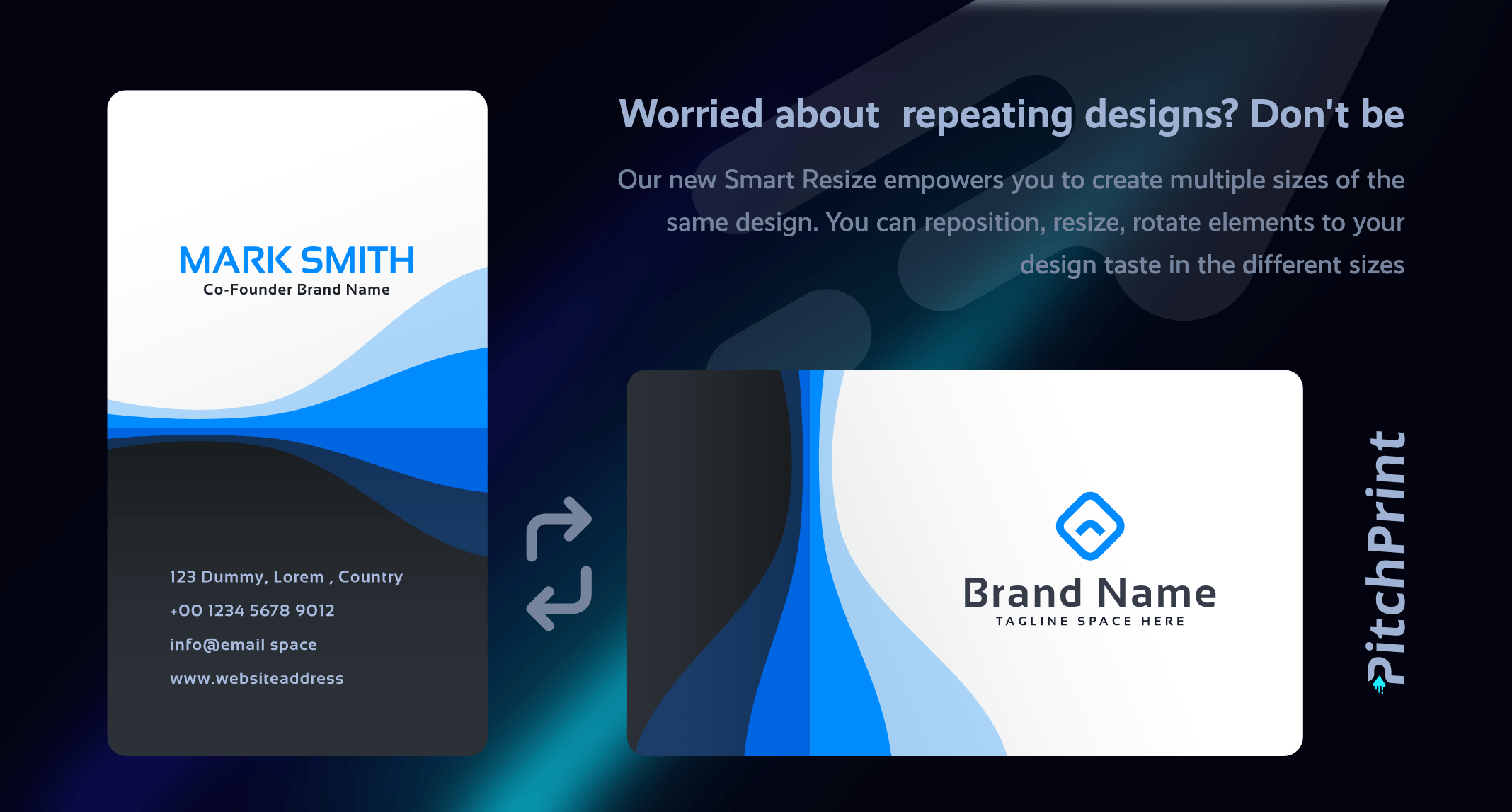
One design resized into portrait, landscape and square variants
Cover graphic for the Smart Sizes feature announcement
Hi guys👋 We have an exciting new feature we’ve been working on that we can’t wait to share with you. It’s called Smart Sizes. Basically it’s a feature that allows a designer to create multiple variations of a single design by varying the canvas size and elements’ properties to come up with entirely different looking layouts. So, imagine you have a card product in three sizes: Landscape, Portrait and Square. In the past you would have to create these as three separate designs and find ways to wire them to a single product. Well, using this feature, you start by creating the first size, placing every element nicely to your taste.
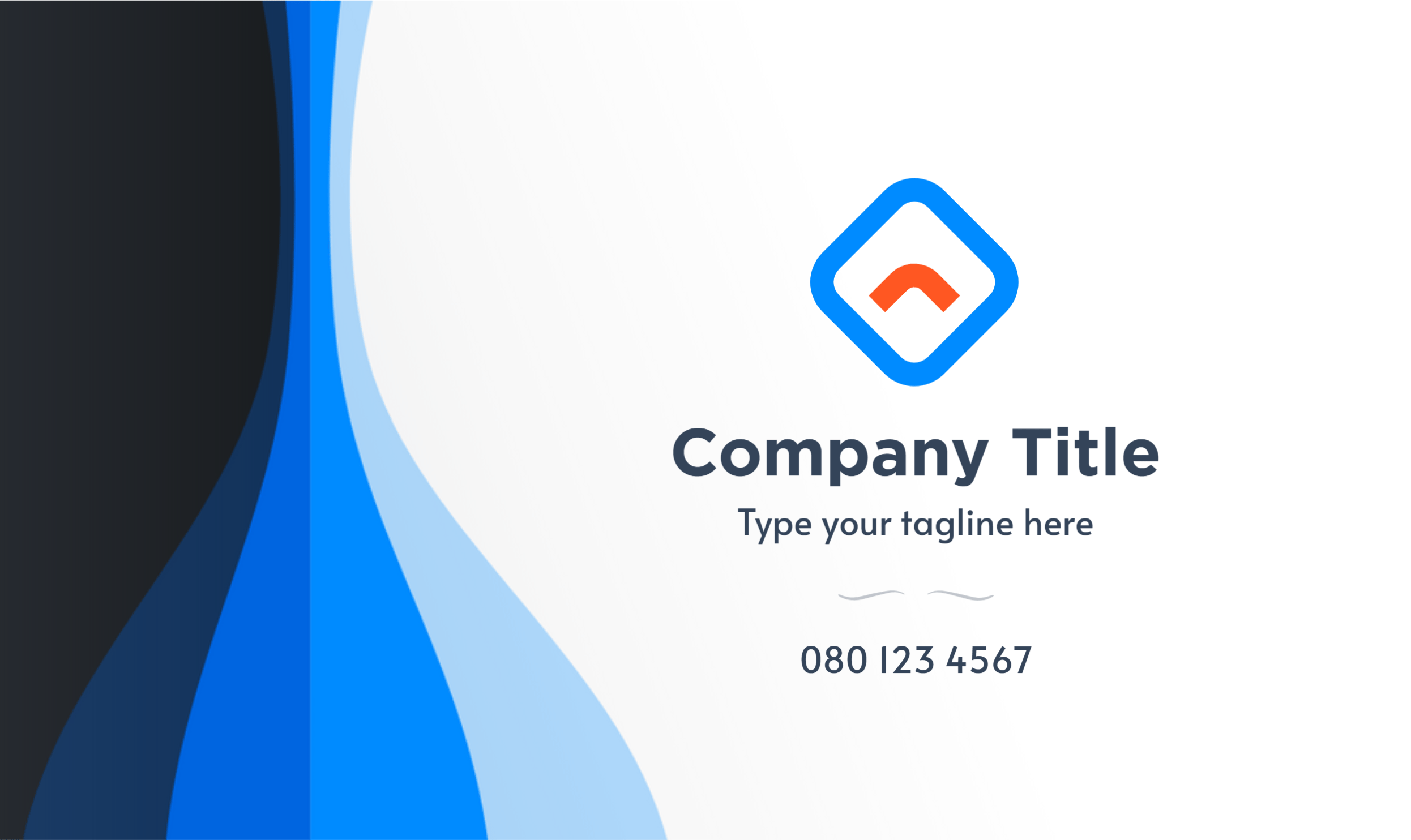
A card design laid out at the first size, 8.6cm by 5.4cm

Size 1 - 8.6cm by 5.4cm

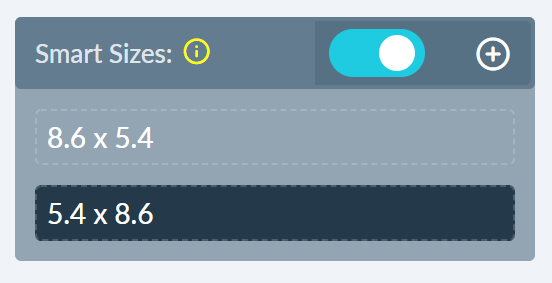
Next, you simply enable the Smart Sizes on that page and click the plus sign to add a new size:
The Smart Sizes list on a page, with the plus sign for adding a size
By design, the next size is a swap of the Width and Height but you can always adjust the values in the page configuration as you would resize a page.
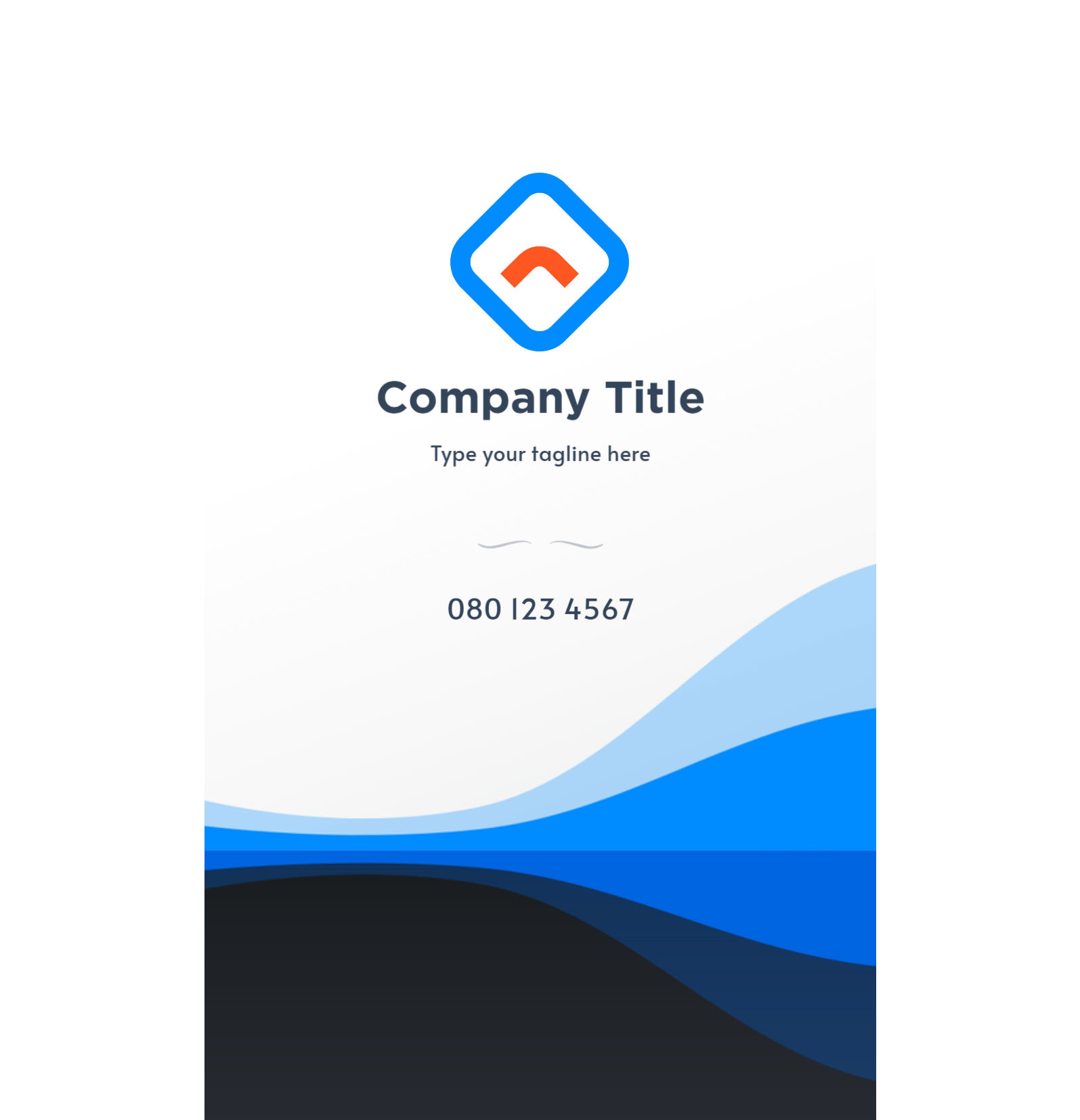
The design at a second size, 5.4cm by 8.6cm, with width and height swapped

Size 2 - 5.4cm by 8.6cm

After adding a new size, it’s necessary to reposition or resize the elements to fit well with the new size. And you can add a third or forth size as you wish.

In-App Size Selection

The panel below will be shown on the App product page if Smart Canvas is enabled. With this, your customers can pick which design layout they love.
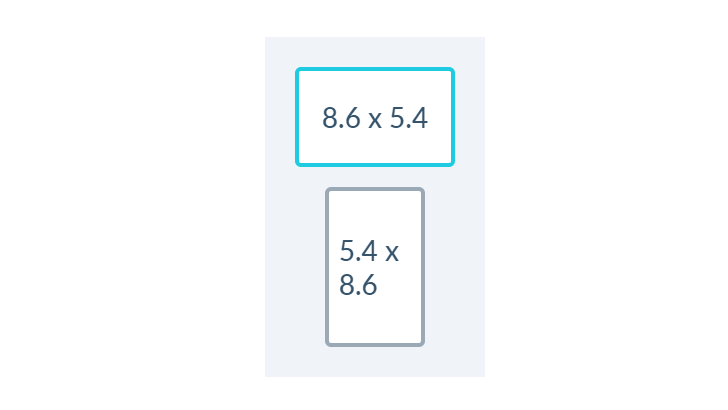
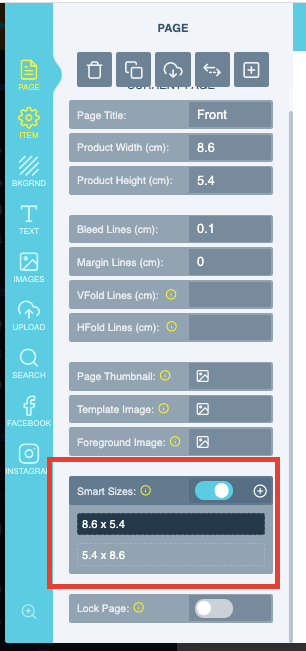
The in-app panel where customers pick which design layout they want
When adding new elements to the canvas they need to be positioned in both instances, for it to display correctly. To enable Smart Canvas go to your designs page in the admin, open the design where you would like to enable Smart Canvas. You should see the below option on your left enable it and start by adding a new smart page by clicking the plus icon⊕
The Smart Canvas option on the left of an open design in the admin
And for it to appear in the Front App, you will need to update your Layout to the latest
The admin layouts page used to update a domain to the latest layout
Do give it a try and sure let us know if you require any assistance setting this feature up on your products. Please review our plugin and receive a $25 voucher if you’re one of the first 100 people to do so, you can review by using this link https://review.capterra.com/Feedback-PitchPrint-180523-3107660498.