> ## Documentation Index
> Fetch the complete documentation index at: https://pitchprint.com/llms.txt
> Use this file to discover all available pages before exploring further.
# Single/Double Sided Module
> Enable the Single/Double Sided module and point it at your product page selector so the editor opens with one or two pages
 This module empowers your customers with the option to initiate the editor with either a single-sided or double-sided design.
Opting for "single" results in the editor opening with just one page of the design. Conversely, selecting "double" will open the editor with two pages of the design.
To achieve this, we utilize a variation element selector, which helps us determine the number of pages chosen by the customer during the design process.
### How to Enable and Configure Single/Double Sided Module on a Design
To activate this fantastic feature, please go to the [designs](https://admin.pitchprint.com/designs) page and click on the Configuration icon button, which appears when hovering over the design of your choice. Navigate to the Modules tab, scroll down to the Single/Double Sided option, and enable it. This action will trigger the configuration panel to open, as depicted below:
This module empowers your customers with the option to initiate the editor with either a single-sided or double-sided design.
Opting for "single" results in the editor opening with just one page of the design. Conversely, selecting "double" will open the editor with two pages of the design.
To achieve this, we utilize a variation element selector, which helps us determine the number of pages chosen by the customer during the design process.
### How to Enable and Configure Single/Double Sided Module on a Design
To activate this fantastic feature, please go to the [designs](https://admin.pitchprint.com/designs) page and click on the Configuration icon button, which appears when hovering over the design of your choice. Navigate to the Modules tab, scroll down to the Single/Double Sided option, and enable it. This action will trigger the configuration panel to open, as depicted below:
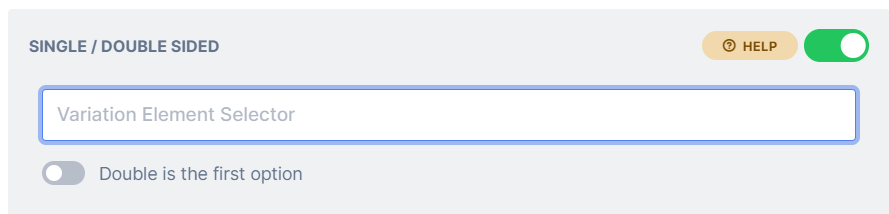 **Variation element selector:** This innovative feature simplifies the synchronization of the single/double-sided field on your product page with the pages within the design. It automatically incorporates the selected pages from the product page into the design app, eliminating the need for any extra integration steps. Additionally, if a customer closes the editor and chooses a different side, the editor will promptly update with the newly selected pages from the product page, as chosen by the customer.
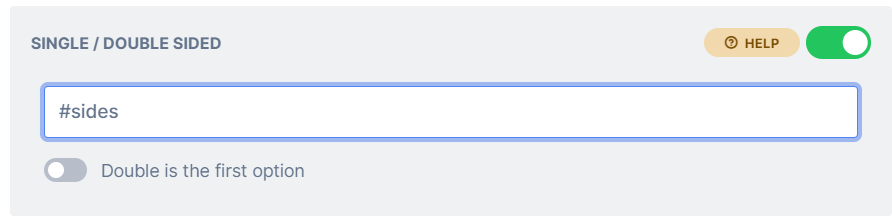 For this field, you should input the unique id or class of the jQuery element that corresponds to the page selector on your product page. It's important to note that this ***id*** or ***class*** can vary depending on your theme or framework. If you require assistance in locating or accessing this element, please don't hesitate to reach out to us via email. Feel free to include a direct link to your product page for more precise support.
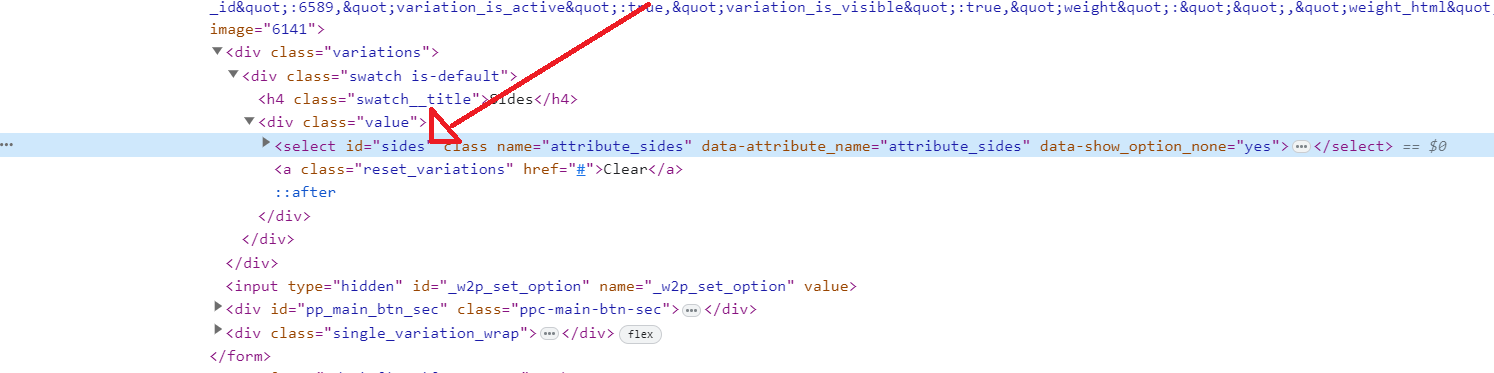 **Double is the first option:** If enabled the first option in the drop down will be double sided.
A sample can be found on the following page: [single/double sided business card demo](https://wp.demo.pitchprint.io/product/business-card-single-double-side/).
## Related articles
Sync your product quantity element with the page count of a PitchPrint project.
A phone-based layout module for quickly building and editing photo books.
This documentation is built and hosted on [Mintlify](https://mintlify.com), a developer documentation platform.
**Double is the first option:** If enabled the first option in the drop down will be double sided.
A sample can be found on the following page: [single/double sided business card demo](https://wp.demo.pitchprint.io/product/business-card-single-double-side/).
## Related articles
Sync your product quantity element with the page count of a PitchPrint project.
A phone-based layout module for quickly building and editing photo books.
This documentation is built and hosted on [Mintlify](https://mintlify.com), a developer documentation platform.