> ## Documentation Index
> Fetch the complete documentation index at: https://pitchprint.com/llms.txt
> Use this file to discover all available pages before exploring further.
# Shuffle Module
> Phone-first layout module that guides customers through three cards to pick photos, choose styles and order a photo book.
 Shuffle Module is a Phone-based layout module that makes creating and editing photo books as easy as as possible on handheld devices. With a simple clean interface, the layout module presents the user with clean, accessible three steps cards to select pictures, pick their styles and create their order.
**Step 1: Select photo source**
Shuffle Module is a Phone-based layout module that makes creating and editing photo books as easy as as possible on handheld devices. With a simple clean interface, the layout module presents the user with clean, accessible three steps cards to select pictures, pick their styles and create their order.
**Step 1: Select photo source**
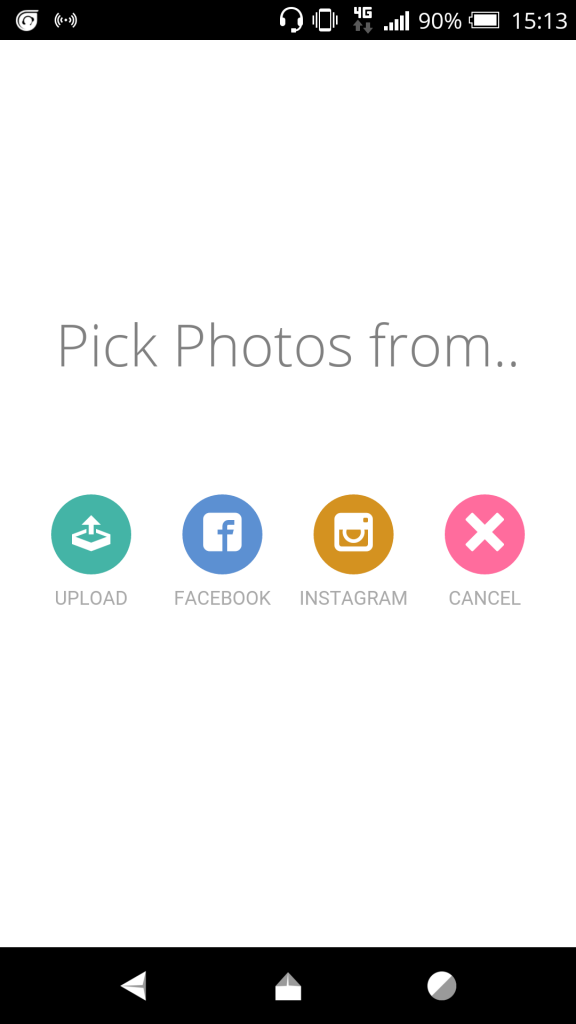 **Step 2: Choose photos**
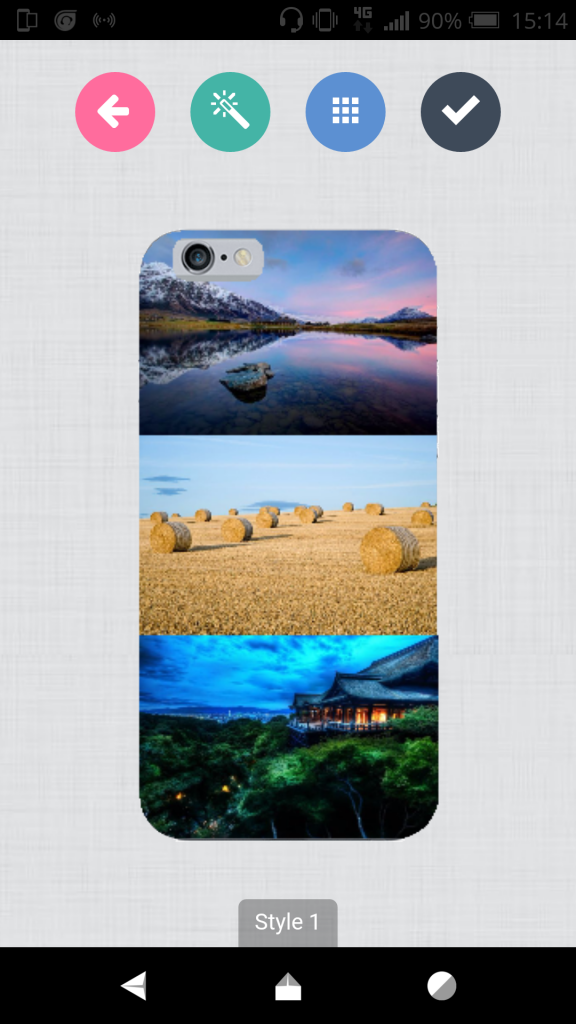
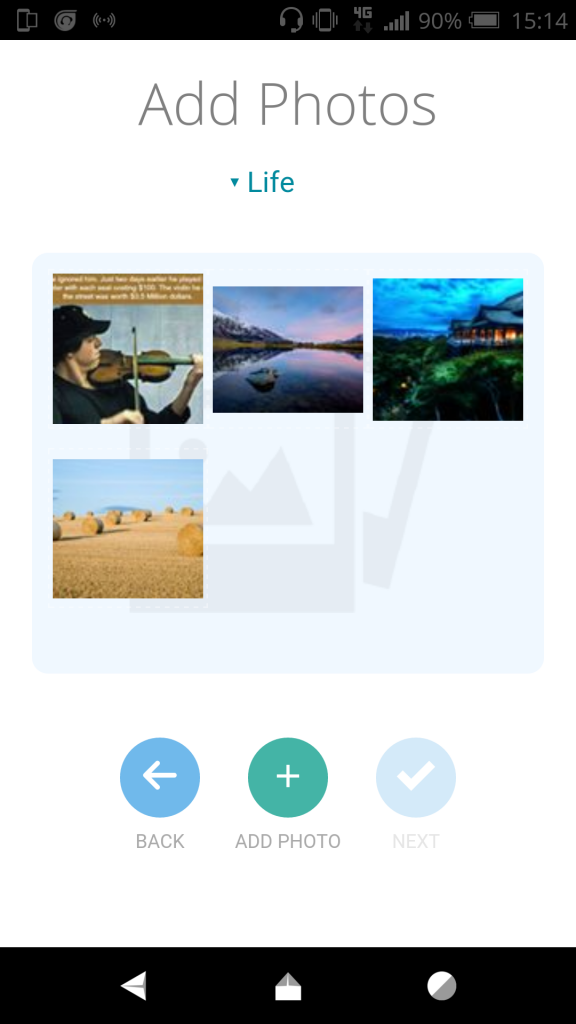 **Step 3: Shuffle photos and pick alternate styles**
 The module can be enabled against individual designs.
### How it works.
When you enable the module, the system copies the **“module-shuffle”** layout from the store into your domain, so you have a new layout included in your list of layouts. And also assigns that new layout to the design template. If you disable it, it simply changes the layout to the default layout for that product but leaves the copied layout file should in case you have made edits which you wish to retain.
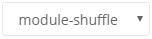
To modify the texts like ***“Pick Photos from..”***, you need to go to layouts, select the module-shuffle layout from the drop down and edit the texts there.
The module can be enabled against individual designs.
### How it works.
When you enable the module, the system copies the **“module-shuffle”** layout from the store into your domain, so you have a new layout included in your list of layouts. And also assigns that new layout to the design template. If you disable it, it simply changes the layout to the default layout for that product but leaves the copied layout file should in case you have made edits which you wish to retain.
To modify the texts like ***“Pick Photos from..”***, you need to go to layouts, select the module-shuffle layout from the drop down and edit the texts there.
 At the moment, the same layout is used in all screens, i.e Desktop, Tablet and Mobile Phones. We will soon add options to assign layouts per screen so you can still have the regular layout displayed when loaded from a desktop or a tablet device.
*This is a premium module*
## Related articles
Let customers open the editor with a single-sided or double-sided design.
Sync your product quantity element with the page count of a PitchPrint project.
This documentation is built and hosted on [Mintlify](https://mintlify.com), a developer documentation platform.
At the moment, the same layout is used in all screens, i.e Desktop, Tablet and Mobile Phones. We will soon add options to assign layouts per screen so you can still have the regular layout displayed when loaded from a desktop or a tablet device.
*This is a premium module*
## Related articles
Let customers open the editor with a single-sided or double-sided design.
Sync your product quantity element with the page count of a PitchPrint project.
This documentation is built and hosted on [Mintlify](https://mintlify.com), a developer documentation platform.