> ## Documentation Index
> Fetch the complete documentation index at: https://pitchprint.com/llms.txt
> Use this file to discover all available pages before exploring further.
# Remove Background
> Switch on the AI background removal button in the editor by resaving your layout and styling in the admin.
 This feature allows your customers to remove the background from an image within the PitchPrint editor. It saves the customer the need from using an external application to remove a background from their images. The feature is still in BETA phase and we're still in the process of training the AI on a daily basis.
To enable Remove Background please go to the [Layouts page](https://admin.pitchprint.com/layouts). Please ensure that you **Copy** and **Paste** any changes like **Javascript, HTML or CSS** code you added on an external file. After doing so reload the layout please have a look at the image below:
This feature allows your customers to remove the background from an image within the PitchPrint editor. It saves the customer the need from using an external application to remove a background from their images. The feature is still in BETA phase and we're still in the process of training the AI on a daily basis.
To enable Remove Background please go to the [Layouts page](https://admin.pitchprint.com/layouts). Please ensure that you **Copy** and **Paste** any changes like **Javascript, HTML or CSS** code you added on an external file. After doing so reload the layout please have a look at the image below:
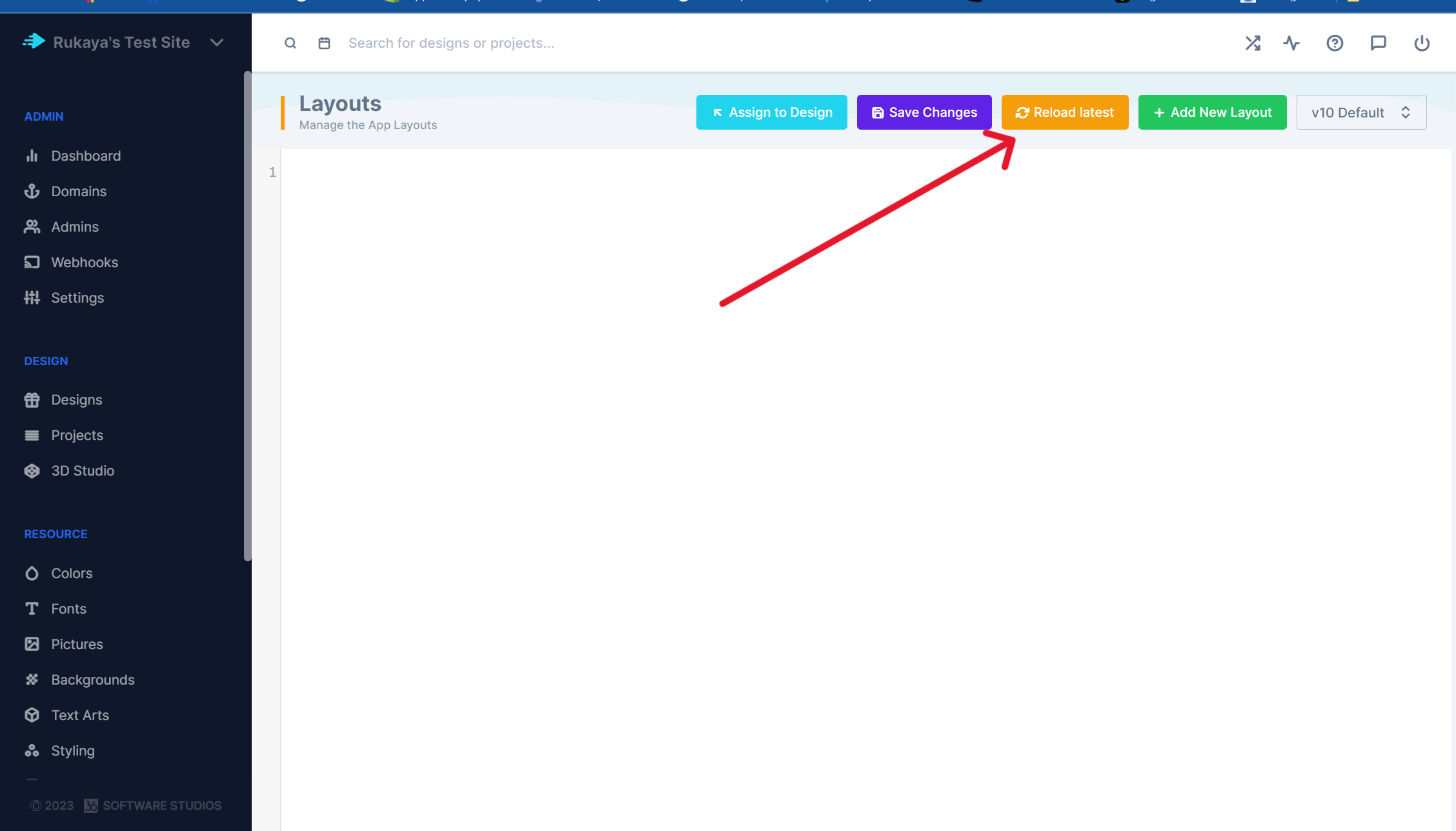 You can then paste your code back into the layout section and save.
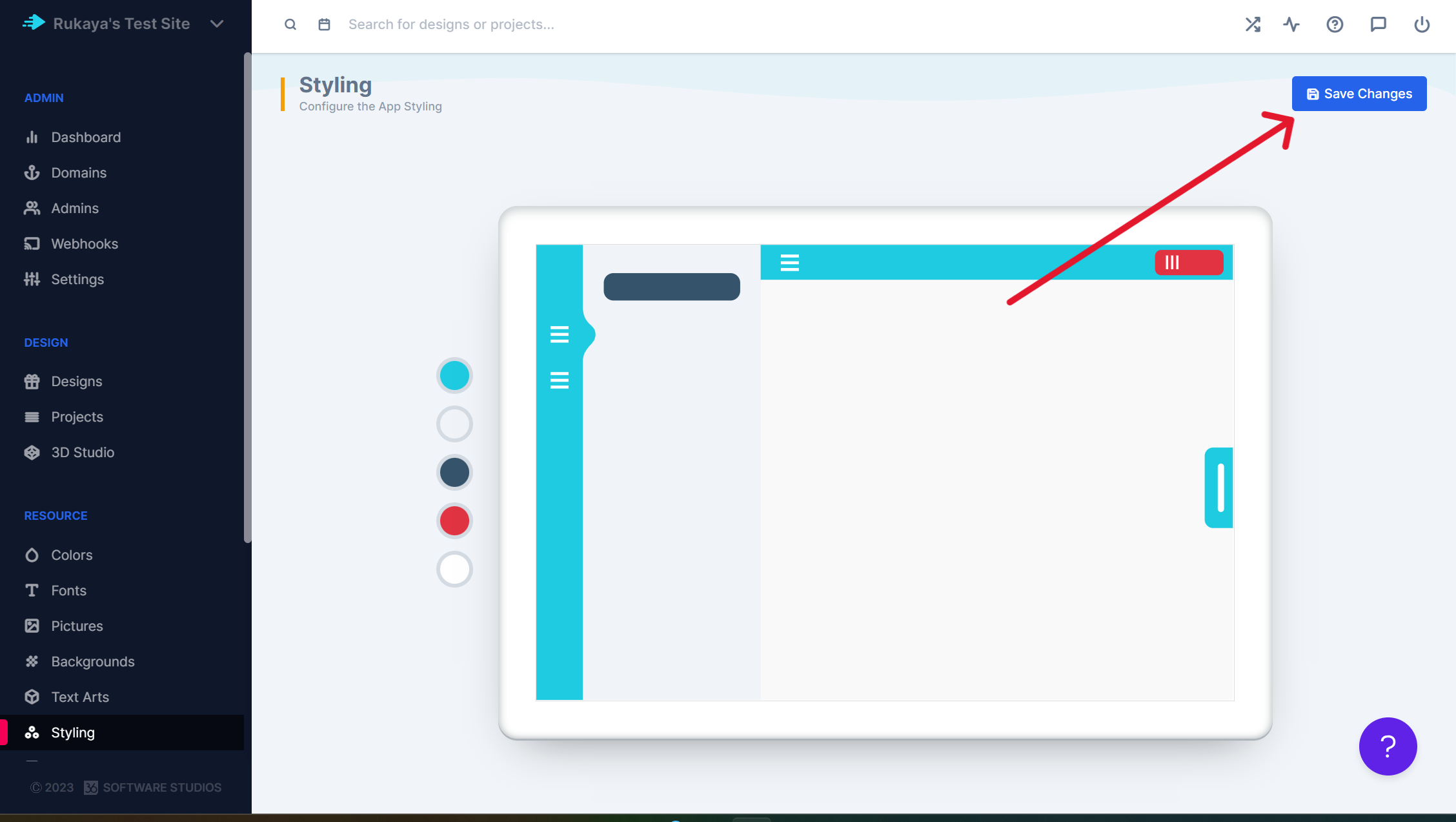
After doing this please go to the [Styling page](https://admin.pitchprint.com/styling) and save styling.
You can then paste your code back into the layout section and save.
After doing this please go to the [Styling page](https://admin.pitchprint.com/styling) and save styling.
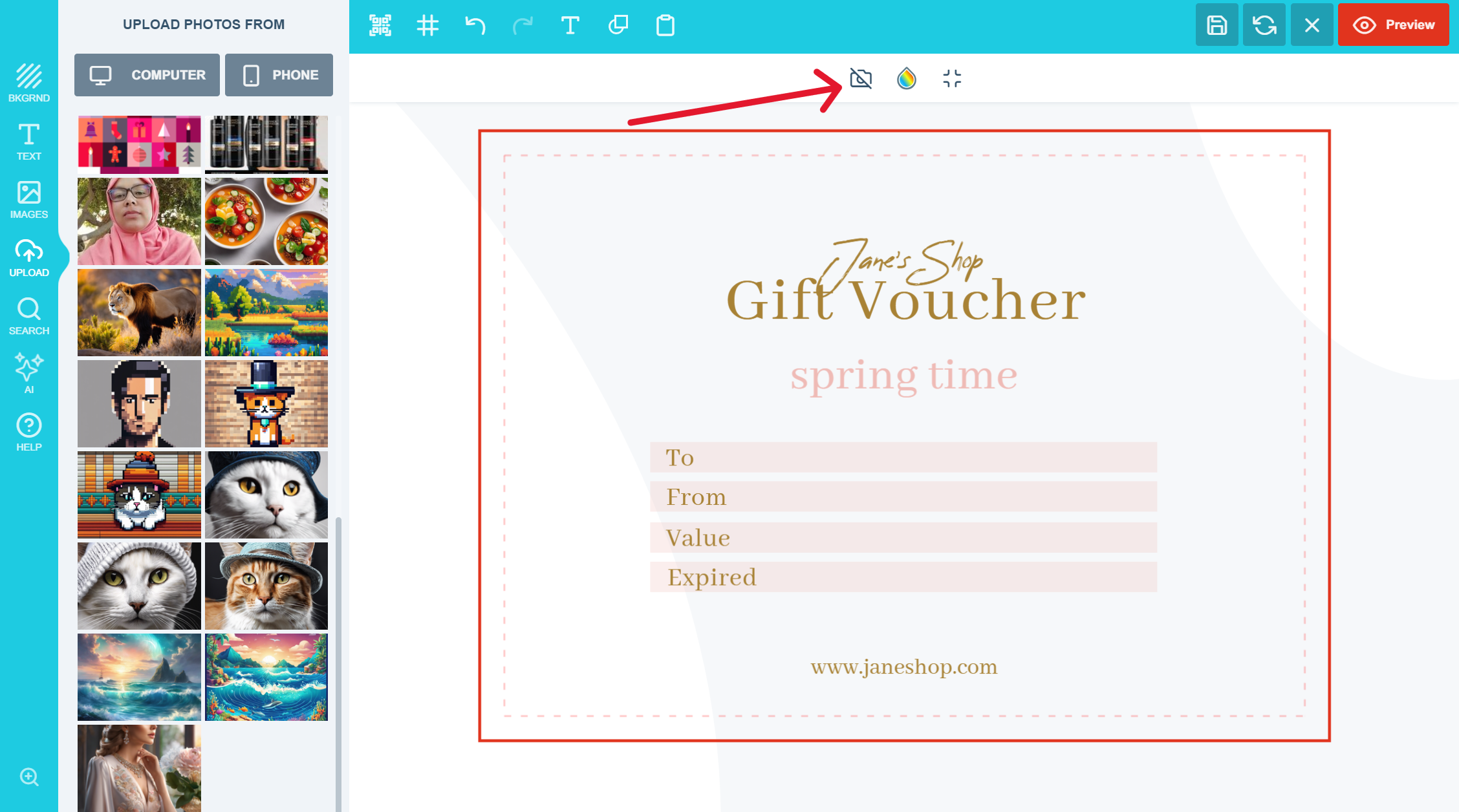
 The button should then appear within the editor which allows the customer to remove the background please have a look at the image below:
 Please send us your questions and suggestions to [support@pitchprint.com](mailto:support@pitchprint.com) it will help us improve this functionality
## Related articles
Increase image resolution and quality with AI without losing detail.
Find and replace elements within an image using AI.
Expand images beyond their original borders with AI.
Refine images while preserving layout, proportions, and composition.
This documentation is built and hosted on [Mintlify](https://mintlify.com), a developer documentation platform.
Please send us your questions and suggestions to [support@pitchprint.com](mailto:support@pitchprint.com) it will help us improve this functionality
## Related articles
Increase image resolution and quality with AI without losing detail.
Find and replace elements within an image using AI.
Expand images beyond their original borders with AI.
Refine images while preserving layout, proportions, and composition.
This documentation is built and hosted on [Mintlify](https://mintlify.com), a developer documentation platform.