> ## Documentation Index
> Fetch the complete documentation index at: https://pitchprint.com/llms.txt
> Use this file to discover all available pages before exploring further.
# Remix Module
> Add a shuffle button that randomly fills every mask shape tagged with the chain value remix using photos from the customer's gallery.
 The Remix Module is a simple tool that randomly fills out mask shapes with pictures from customer’s gallery.
You can see a sample here: [Photo prints demo](https://wp.demo.pitchprint.io/product/photo-prints/)
Select the My Pictures Tab or Facebook / Instagram tabs and you will find the Magic wand icon if you have multiple photos there. Click to shuffle the photos
It is a simple button that appears on the Upload, Facebook and Instagram Photo tabs and when clicked, uses the photos in that collection to fill out any mask shape that has a chain value **remix** across all the pages in the current design.
The Remix Module is a simple tool that randomly fills out mask shapes with pictures from customer’s gallery.
You can see a sample here: [Photo prints demo](https://wp.demo.pitchprint.io/product/photo-prints/)
Select the My Pictures Tab or Facebook / Instagram tabs and you will find the Magic wand icon if you have multiple photos there. Click to shuffle the photos
It is a simple button that appears on the Upload, Facebook and Instagram Photo tabs and when clicked, uses the photos in that collection to fill out any mask shape that has a chain value **remix** across all the pages in the current design.
 Enabling Remix Module in your designs
To use this feature, simply [edit your design or create a new one](https://admin.pitchprint.io/designs).
Place a mask shape on the design canvas. A mask shape is a simple shape with just paths. All items in the Plain Shapes collection can be used as masks.
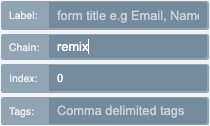
Then check the Admin tab on the left and enter in the value of **“remix”** in the chain input.
Repeat this process for as many masks you want to be in the collection, even across pages.
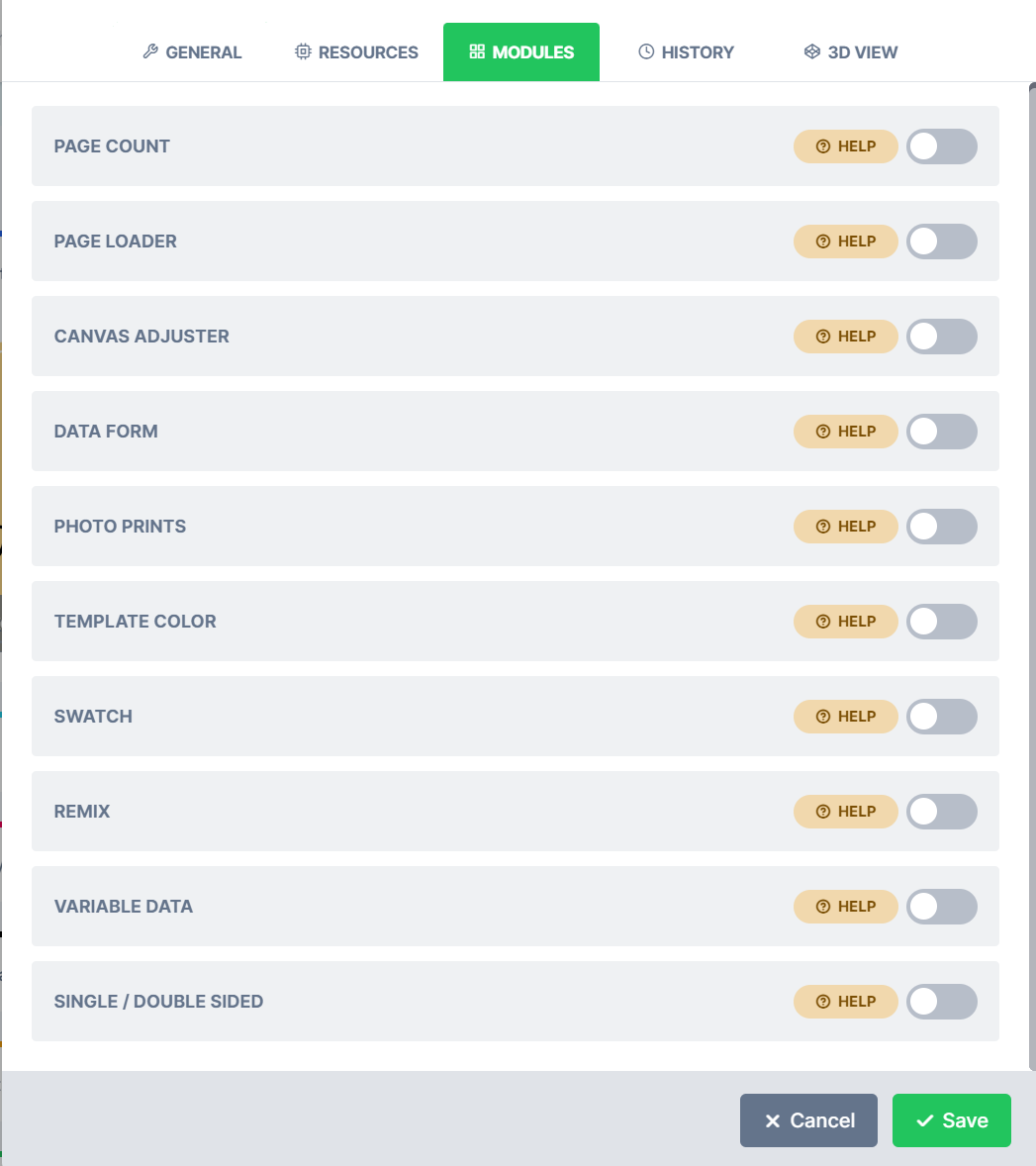
Save your design and enable the Remix Module for that design in the design configuration window under Modules tab.
Enabling Remix Module in your designs
To use this feature, simply [edit your design or create a new one](https://admin.pitchprint.io/designs).
Place a mask shape on the design canvas. A mask shape is a simple shape with just paths. All items in the Plain Shapes collection can be used as masks.
Then check the Admin tab on the left and enter in the value of **“remix”** in the chain input.
Repeat this process for as many masks you want to be in the collection, even across pages.
Save your design and enable the Remix Module for that design in the design configuration window under Modules tab.
 ***Please note, this Module becomes enabled ONLY if there are photos loaded in any of your collections: Upload, Facebook or Instagram***
This documentation is built and hosted on [Mintlify](https://mintlify.com), a developer documentation platform.
***Please note, this Module becomes enabled ONLY if there are photos loaded in any of your collections: Upload, Facebook or Instagram***
This documentation is built and hosted on [Mintlify](https://mintlify.com), a developer documentation platform.