> ## Documentation Index
> Fetch the complete documentation index at: https://pitchprint.com/llms.txt
> Use this file to discover all available pages before exploring further.
# Localstorage Trigger
> Fix a missing Customize button caused by browser security settings blocking localStorage.
The PitchPrint editor needs access to `localStorage` to run. Tightened browser security settings can block it, and when that happens the **Customize** button doesn't appear on your product pages.
Internet Explorer is not compatible with our platform at all. For other browsers, the fix is a security setting.
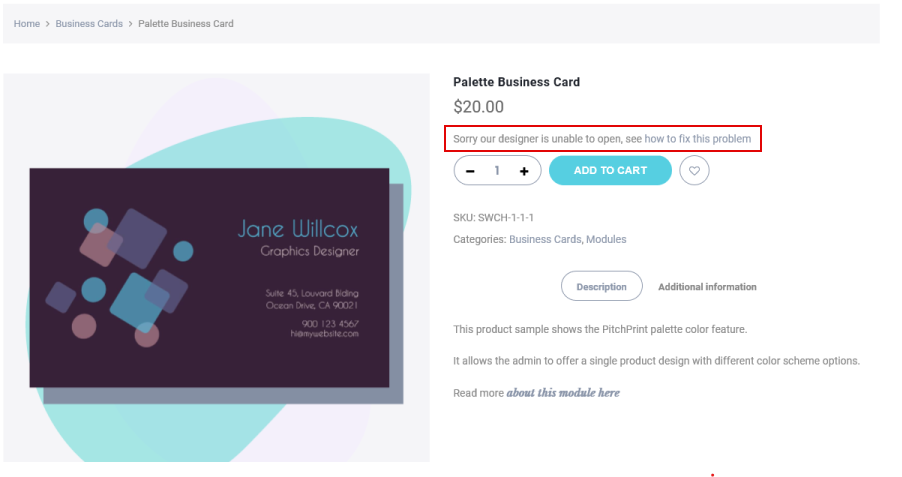
We detect Internet Explorer and show this message. Click **fix this problem** to see the next steps.
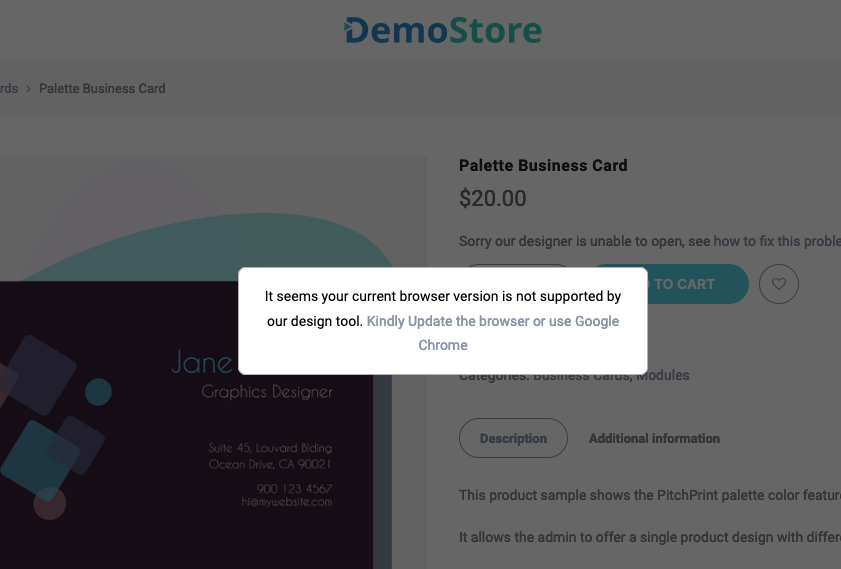
 A popup then prompts you to update or change your browser.
 Pick your browser below and apply the change.
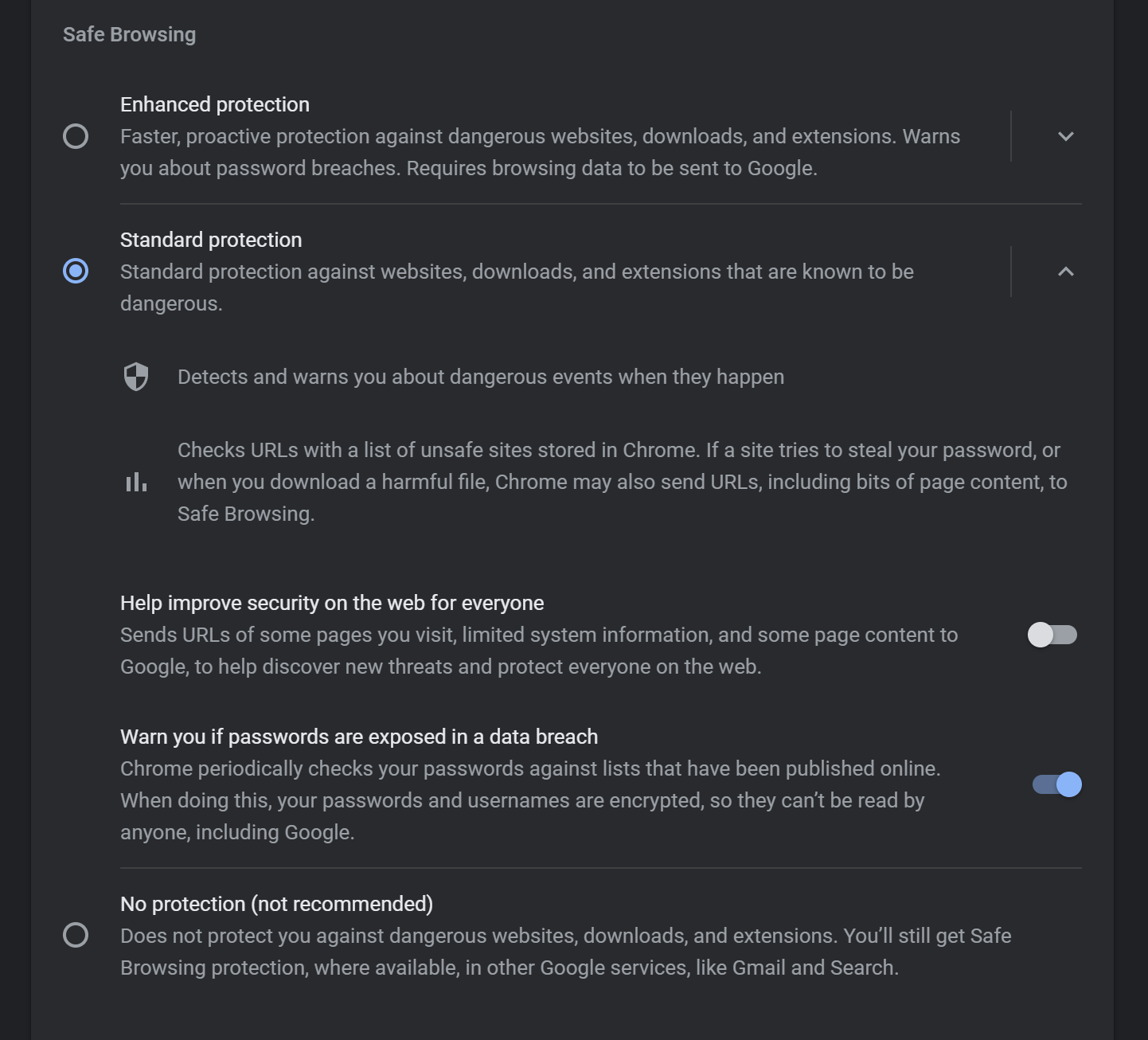
Go to **Settings → Privacy and security → Security** (`chrome://settings/security`) and switch to **Standard protection**.
Pick your browser below and apply the change.
Go to **Settings → Privacy and security → Security** (`chrome://settings/security`) and switch to **Standard protection**.
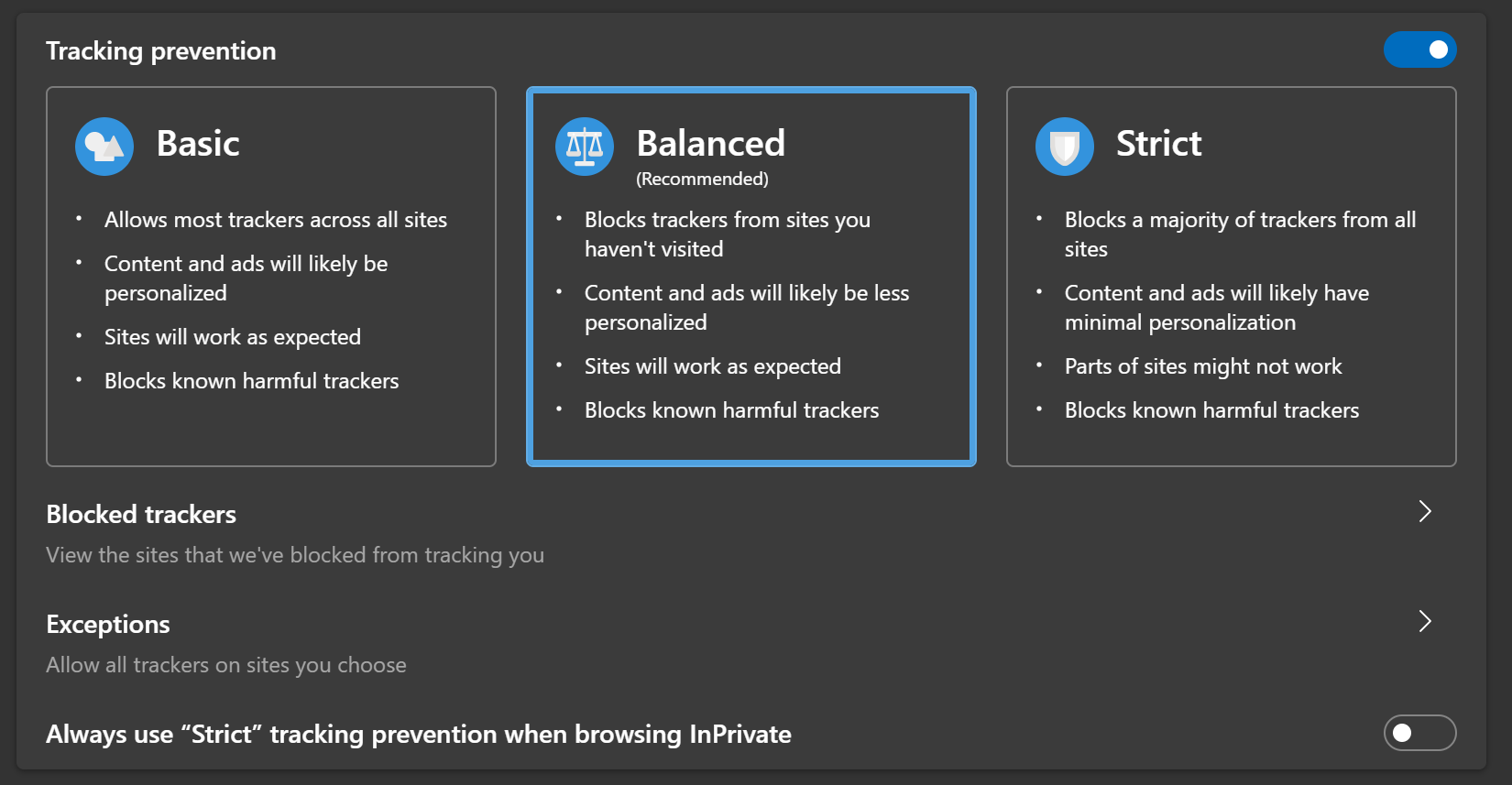
 Go to **Settings → Privacy, search and services** (`edge://settings/privacy`) and switch tracking prevention to **Balanced**.
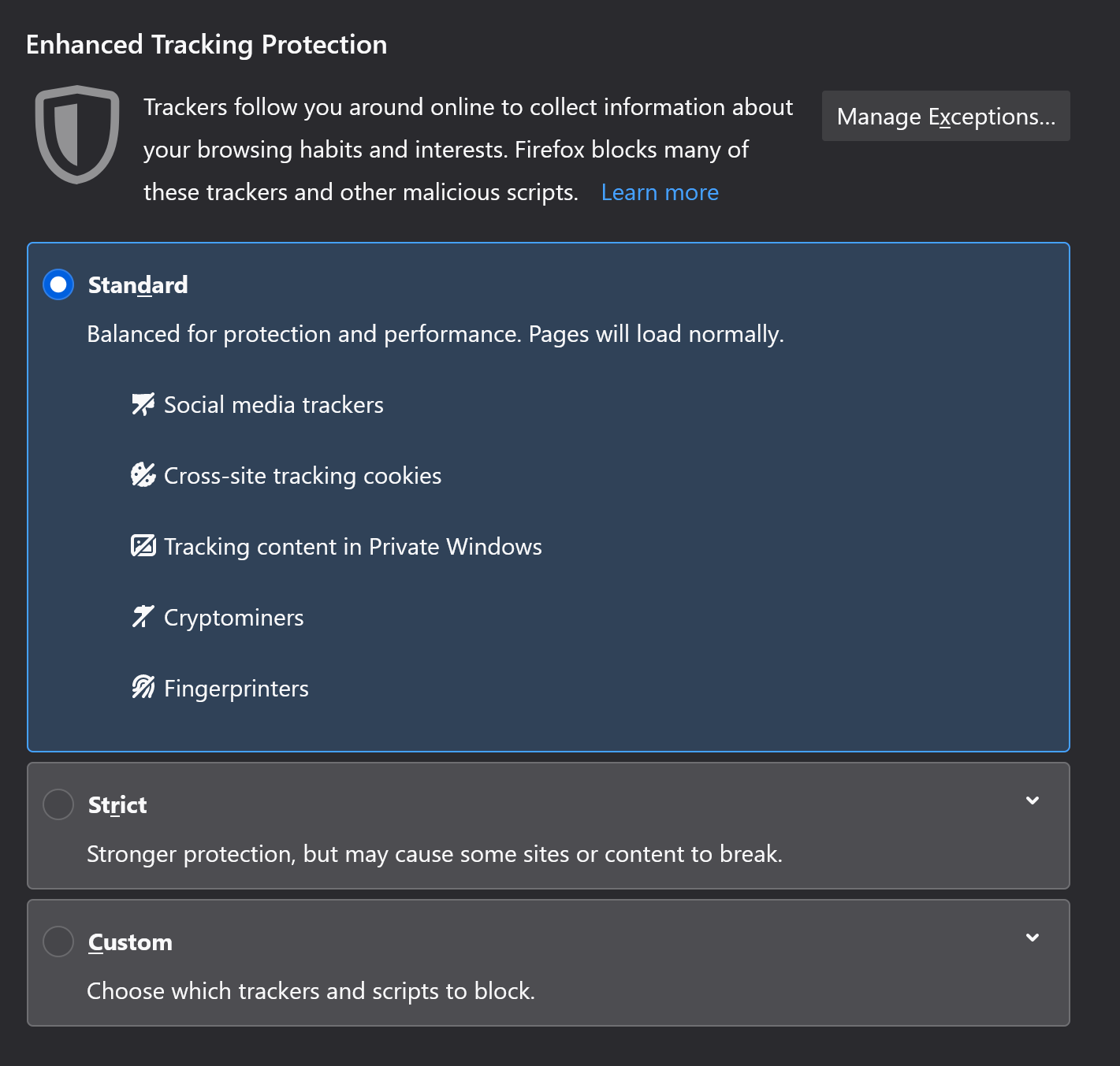
 Go to **Settings → Privacy & Security** (`about:preferences#privacy`) and switch to **Standard**.
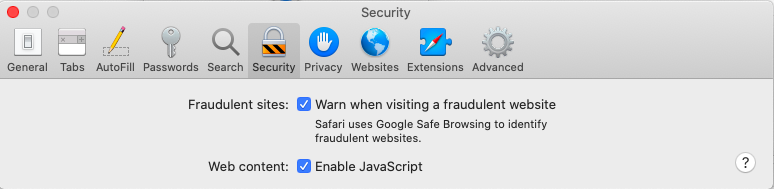
 In **Security** settings, make sure **Enable JavaScript** is ticked.
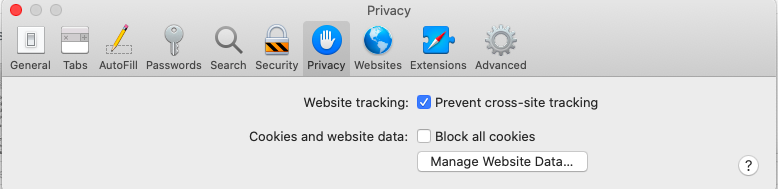
 Then in **Privacy** settings, make sure **Block all cookies** is *not* ticked.
 With the setting updated your browser will stop blocking `localStorage`, and designs will load correctly from then on.
If the problem persists, get in touch with our support team and we'll help you work through it.
This documentation is built and hosted on [Mintlify](https://mintlify.com), a developer documentation platform.
With the setting updated your browser will stop blocking `localStorage`, and designs will load correctly from then on.
If the problem persists, get in touch with our support team and we'll help you work through it.
This documentation is built and hosted on [Mintlify](https://mintlify.com), a developer documentation platform.