> ## Documentation Index
> Fetch the complete documentation index at: https://pitchprint.com/llms.txt
> Use this file to discover all available pages before exploring further.
# Page Count
> Keep your product quantity in sync with the number of pages in a PitchPrint project, with a condition to control the value passed.
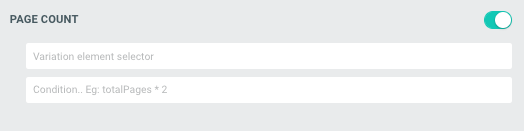 The Page Count module allows for the quantity element of your product to be updated as the page count changes in a PitchPrint project.
So if the designer has 1 page to start off with and your customer adds another page to their project, the quantity element will be updated to 2.
Variation element selector = (the element selector of the quantity element on your product page).
The condition section allows you to determine what the value should be that get's passed to the quantity element on your product page.
Example you have a business card product and consider back and front to be 2 pages on PitchPrint but 1 product on your store.
You'll then provide the condition that the total number of pages in PitchPrint should be divided by 2 (totalPages / 2) for this to be considered as one count of the business card product.
If you need help with finding the variation element selector, you can contact our support.
## Related articles
Let customers open the editor with a single-sided or double-sided design.
A phone-based layout module for quickly building and editing photo books.
This documentation is built and hosted on [Mintlify](https://mintlify.com), a developer documentation platform.
The Page Count module allows for the quantity element of your product to be updated as the page count changes in a PitchPrint project.
So if the designer has 1 page to start off with and your customer adds another page to their project, the quantity element will be updated to 2.
Variation element selector = (the element selector of the quantity element on your product page).
The condition section allows you to determine what the value should be that get's passed to the quantity element on your product page.
Example you have a business card product and consider back and front to be 2 pages on PitchPrint but 1 product on your store.
You'll then provide the condition that the total number of pages in PitchPrint should be divided by 2 (totalPages / 2) for this to be considered as one count of the business card product.
If you need help with finding the variation element selector, you can contact our support.
## Related articles
Let customers open the editor with a single-sided or double-sided design.
A phone-based layout module for quickly building and editing photo books.
This documentation is built and hosted on [Mintlify](https://mintlify.com), a developer documentation platform.