> ## Documentation Index
> Fetch the complete documentation index at: https://pitchprint.com/llms.txt
> Use this file to discover all available pages before exploring further.
# How to import designs
> Bring ready-made designs from the PitchPrint store into a category in your own store with the Import Designs button.
In this article, you will receive step-by-step instructions on how to import designs from the PitchPrint store to your own store.
To start, first login to your PitchPrint store: [https://admin.pitchprint.com/login](https://admin.pitchprint.com/login) which will take you to the dashboard.
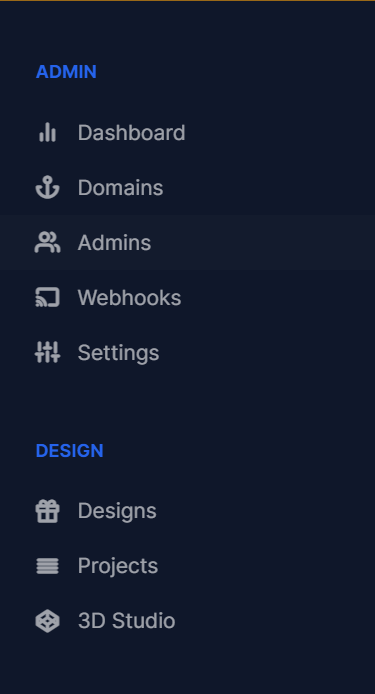
Next 'click' on **Designs** in the side panel:
 Once the design page has loaded, Select the appropriate category you'd like to import the design/s into. (Lets use Canvas Prints as an example)
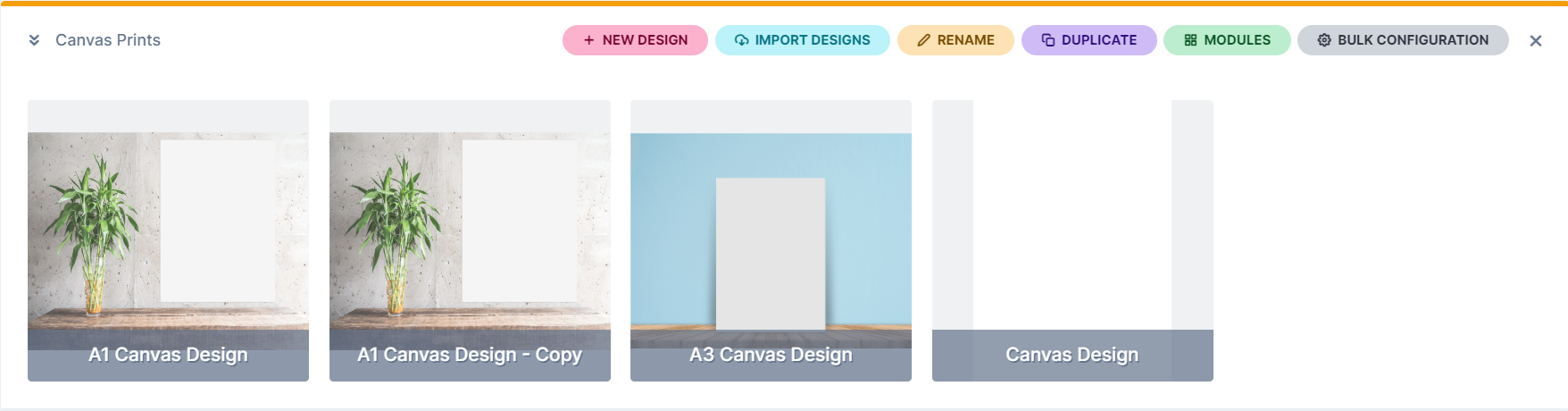 Now click on the **Import Designs** button:
 The following window will pop-up: You can use the drop down menu, to select a category you'd like to choose a design/s from
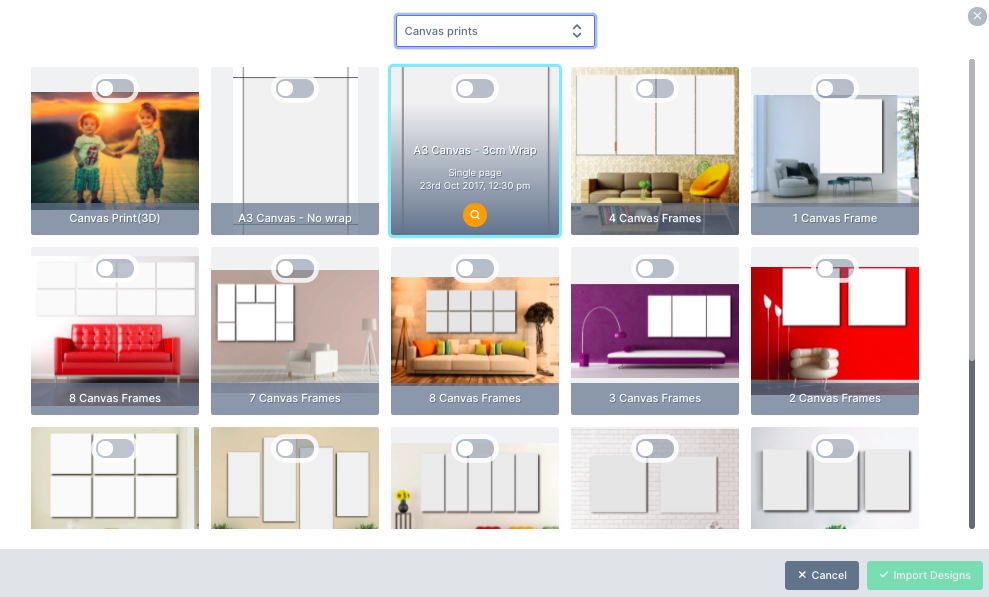 Once you have chosen a category, select the designs you want to import and then 'click' the I**mport Designs** button Its as easy as that.
## Related articles
Build your own design template step by step in the standalone editor.
Create, edit, organize and configure designs and categories in the admin.
Understand the four canvas layers and the three main design types.
Reference for every design setting across General, Resources and Modules.
This documentation is built and hosted on [Mintlify](https://mintlify.com), a developer documentation platform.
Once you have chosen a category, select the designs you want to import and then 'click' the I**mport Designs** button Its as easy as that.
## Related articles
Build your own design template step by step in the standalone editor.
Create, edit, organize and configure designs and categories in the admin.
Understand the four canvas layers and the three main design types.
Reference for every design setting across General, Resources and Modules.
This documentation is built and hosted on [Mintlify](https://mintlify.com), a developer documentation platform.