> ## Documentation Index
> Fetch the complete documentation index at: https://pitchprint.com/llms.txt
> Use this file to discover all available pages before exploring further.
# How to create colour chains
> Use the reserved col1 to col10 chain values to synchronise the colour of multiple canvas elements without linking their text values
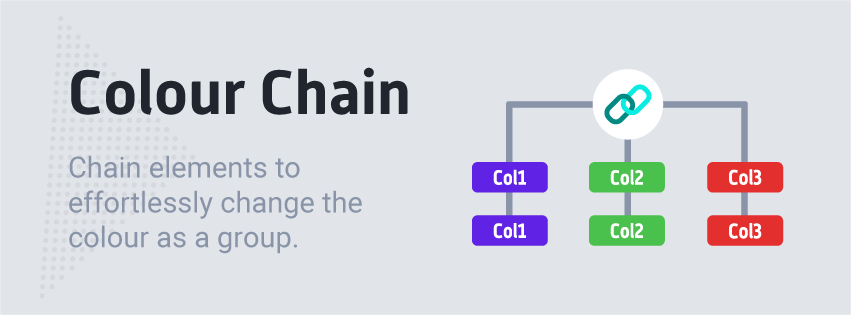 **PitchPrint** has a feature called **chain,** which basically allows you to link items on the canvas to each other. Such that when one item is edited, all other items with the same chain ID gets the same text or image value. With this feature, you can have multiple items like all email elements, chained together so that your customer gets to edit their email only once and that value synchronised across the design canvas.
The general chain implementation only affects text and image values. This feature is now possible with colors as well. We made this distinction so that you can chain elements with same color together and not have their text values synchronised.
**So How does it work?**
You will start by creating your design as usual, but then you will supply a chain value for the selected elements as shown below:
**PitchPrint** has a feature called **chain,** which basically allows you to link items on the canvas to each other. Such that when one item is edited, all other items with the same chain ID gets the same text or image value. With this feature, you can have multiple items like all email elements, chained together so that your customer gets to edit their email only once and that value synchronised across the design canvas.
The general chain implementation only affects text and image values. This feature is now possible with colors as well. We made this distinction so that you can chain elements with same color together and not have their text values synchronised.
**So How does it work?**
You will start by creating your design as usual, but then you will supply a chain value for the selected elements as shown below:
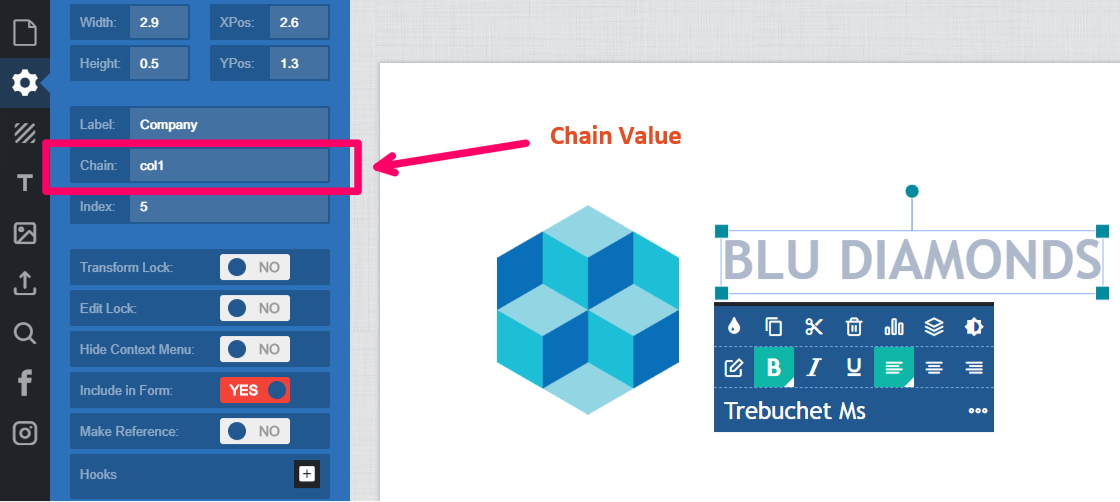 What makes this different is the reserved list of values we have which are:
**col1, col2, col3, col4, col5, col6, col7, col8, col9 and col10**
So an element with any of the above values is deemed a color chain. Its text values will not be synchronized, only the color will. With this list, you can create up to chain groups with their colors linked.
For example, to link two text item's colors, simply assign the first one **col1** and the second one the same value **col1**. That way, they are in the same color group and will be synchronized. You can create a different group with **col2** and so on.
**Remember** that chain values are case sensitive so make sure that the values are exactly the same.
## Related articles
Synchronise element colors across the canvas using the col1 to col10 chain values.
Link text items so editing one updates all others sharing the same chain ID.
Link clickable masks so they share the same uploaded image using numeral chain values.
This documentation is built and hosted on [Mintlify](https://mintlify.com), a developer documentation platform.
What makes this different is the reserved list of values we have which are:
**col1, col2, col3, col4, col5, col6, col7, col8, col9 and col10**
So an element with any of the above values is deemed a color chain. Its text values will not be synchronized, only the color will. With this list, you can create up to chain groups with their colors linked.
For example, to link two text item's colors, simply assign the first one **col1** and the second one the same value **col1**. That way, they are in the same color group and will be synchronized. You can create a different group with **col2** and so on.
**Remember** that chain values are case sensitive so make sure that the values are exactly the same.
## Related articles
Synchronise element colors across the canvas using the col1 to col10 chain values.
Link text items so editing one updates all others sharing the same chain ID.
Link clickable masks so they share the same uploaded image using numeral chain values.
This documentation is built and hosted on [Mintlify](https://mintlify.com), a developer documentation platform.