> ## Documentation Index
> Fetch the complete documentation index at: https://pitchprint.com/llms.txt
> Use this file to discover all available pages before exploring further.
# How to create an SVG for use as a Mask
> Flatten artwork into a single compound path in Illustrator and save it as an SVG that PitchPrint accepts as a photo mask.
Image mask is a means of cutting an image along the outlines of a shape path.
This can be achieved in PitchPrint by placing any of the default plain shapes on the canvas an then dragging a photo unto them. The Photo fills out the shape as a mask.
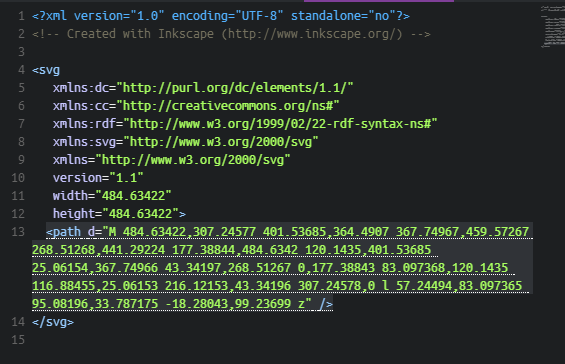
You can as well use your own unique SVG files for this purpose. To do this, the most important criteria is that the SVG needs to be a single path node. In essence, when you open up the SVG in a text editor, it should show a path element just at the base of the svg node, not enclosed in a group or other elements.
A sample is shown in the image below:
 To achieve this, select the shape you want to use for masking in Illustrator and convert it into a path. If you have non-touching parts, select them all and make sure they are flattened as one single element, not grouped.
Select them and click **Object > Compound Path > Make**.
Then copy the new item and open your text editor. Paste into the text editor and save the file with a .svg extension. Check the code and ensure you see it as a single path node similar the image above.
Import same into PitchPrint and that should work as an Photo Mask.
## Related articles
Export and save PitchPrint-optimized SVG files from Adobe Illustrator.
Turn a shape into an image placeholder customers can click to insert images.
Use any shape as a clipping area to trim content in the final PDF.
Set a guide image that prompts clients to click a mask shape.
This documentation is built and hosted on [Mintlify](https://mintlify.com), a developer documentation platform.
To achieve this, select the shape you want to use for masking in Illustrator and convert it into a path. If you have non-touching parts, select them all and make sure they are flattened as one single element, not grouped.
Select them and click **Object > Compound Path > Make**.
Then copy the new item and open your text editor. Paste into the text editor and save the file with a .svg extension. Check the code and ensure you see it as a single path node similar the image above.
Import same into PitchPrint and that should work as an Photo Mask.
## Related articles
Export and save PitchPrint-optimized SVG files from Adobe Illustrator.
Turn a shape into an image placeholder customers can click to insert images.
Use any shape as a clipping area to trim content in the final PDF.
Set a guide image that prompts clients to click a mask shape.
This documentation is built and hosted on [Mintlify](https://mintlify.com), a developer documentation platform.