> ## Documentation Index
> Fetch the complete documentation index at: https://pitchprint.com/llms.txt
> Use this file to discover all available pages before exploring further.
# How to add your own fonts
> Upload a TTF or Woff file on the Fonts page and PitchPrint generates the missing format so the font works in the editor and the print PDF.
Your default PitchPrint domain comes with a few set of general fonts but you can add your own custom fonts to enhance user choices and creativity. There are two types of Fonts required for the application to function properly. The **TTF and Woff font file types**. The TTF is used in generating the final PDF file while the Woff is a web based font file system used predominantly in browsers because of its light weight and faster loading time.
Luckily now PitchPrint requires you to upload only one font file of either format. The application will convert and create the other missing format from the uploaded file. From experience, it’s best you upload a full TTF Font file though Woff also works fine in converting to TTF.
So to get started, navigate to your [Fonts Page](https://admin.pitchprint.com/fonts) and click the “**Upload Own Font**” button at the top.
A popup window will load where you can select the files that you would like to upload from the files on your system as shown below:
Select the font you would like to upload and
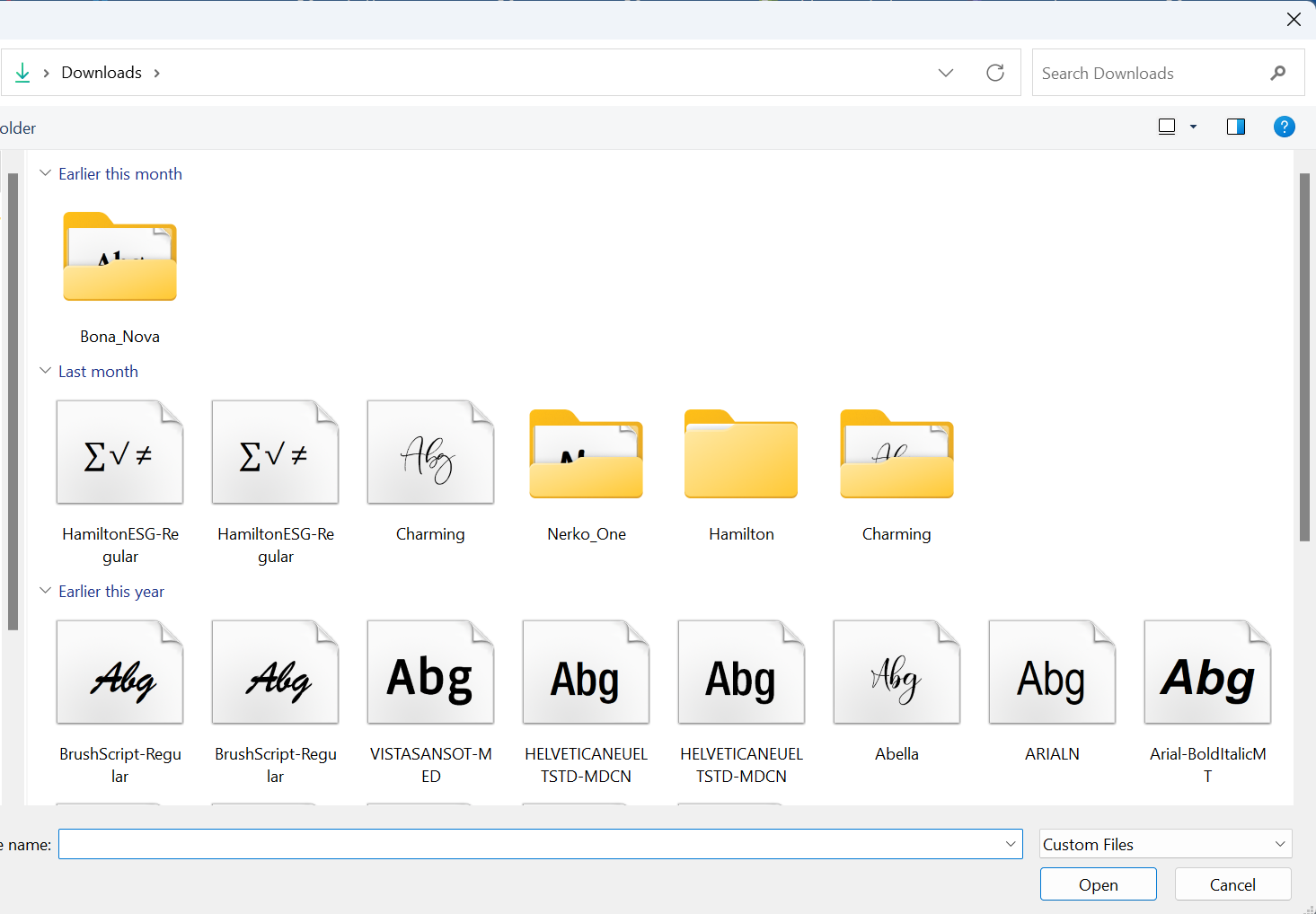 The app will generate a thumbnail of the font file and can be accessible from the front end of your store. If it is not showing on your store, perhaps you need to include it in your design if per chance you have excluded all fonts or you have only included a select few in your design.
## Related articles
Add Google Fonts directly from within the design editor.
Create reusable grouped text-and-shape emblems that can be customized across designs.
Create a Text Style while building or editing your designs.
Choose between standard, text-wrapping, and curved text box formatting options.
This documentation is built and hosted on [Mintlify](https://mintlify.com), a developer documentation platform.
The app will generate a thumbnail of the font file and can be accessible from the front end of your store. If it is not showing on your store, perhaps you need to include it in your design if per chance you have excluded all fonts or you have only included a select few in your design.
## Related articles
Add Google Fonts directly from within the design editor.
Create reusable grouped text-and-shape emblems that can be customized across designs.
Create a Text Style while building or editing your designs.
Choose between standard, text-wrapping, and curved text box formatting options.
This documentation is built and hosted on [Mintlify](https://mintlify.com), a developer documentation platform.