> ## Documentation Index
> Fetch the complete documentation index at: https://pitchprint.com/llms.txt
> Use this file to discover all available pages before exploring further.
# Design Selector Module
> Add a designs tab so customers can switch between every design in a category without leaving the editor.
 This module allows customers to select and change designs while inside the application.
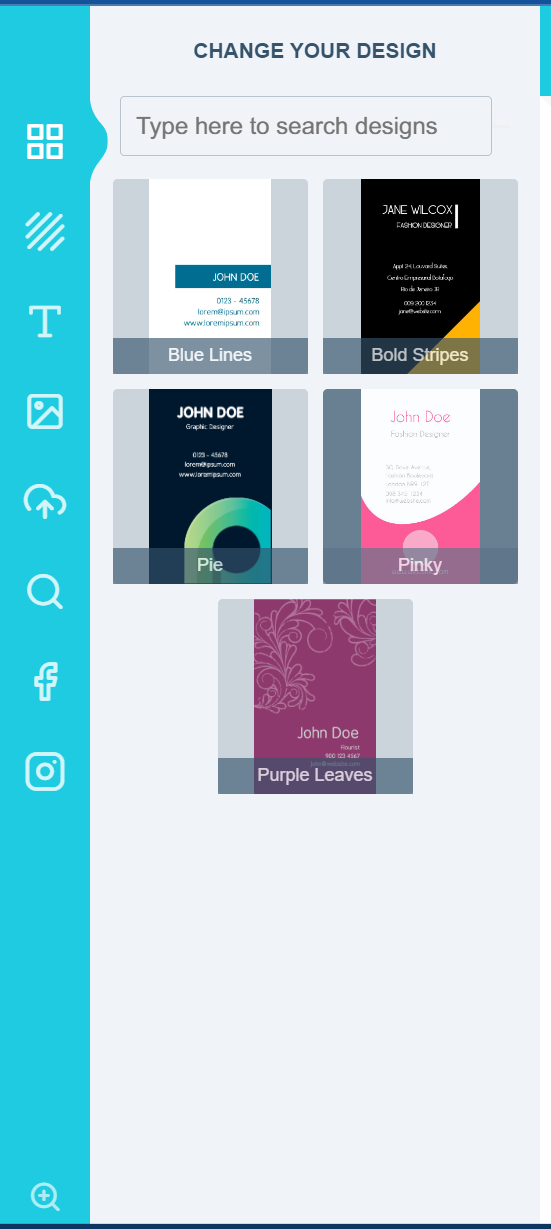
An extra designs tab is created where customers get to select a different design from the same category if they so choose without getting out of the application. This is vital and useful for designs like Business Cards or Phone Cases where they can choose their devices at run-time.
This module allows customers to select and change designs while inside the application.
An extra designs tab is created where customers get to select a different design from the same category if they so choose without getting out of the application. This is vital and useful for designs like Business Cards or Phone Cases where they can choose their devices at run-time.
 This is a category module rather than a design module. It loads all the designs within a category. You can launch this using the **MODULES button** as shown:
 This will launch the category modules panel and you can find the Design Selector Module there.
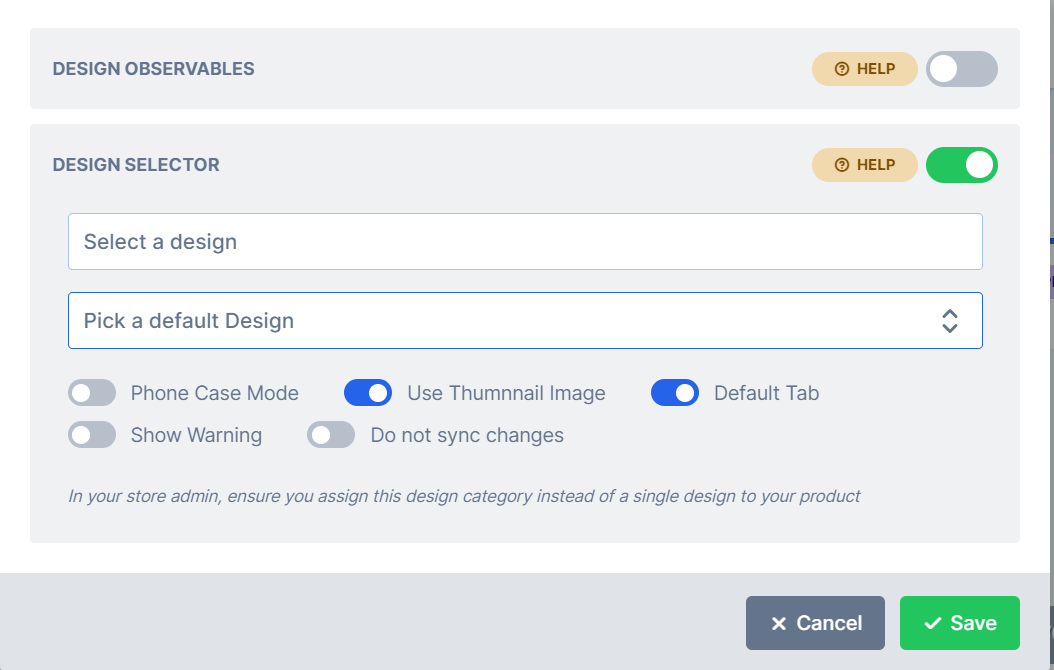 * **Title:** Provide an appropriate title to be displayed on top of the designs panel.
* **Default Design:** Your category will have designs displayed alphabetically but you might want to show a particular one first. Here, we set it to load the Nokia Lumia 920 as default. So when the app loads, this is the default design that will be loaded.
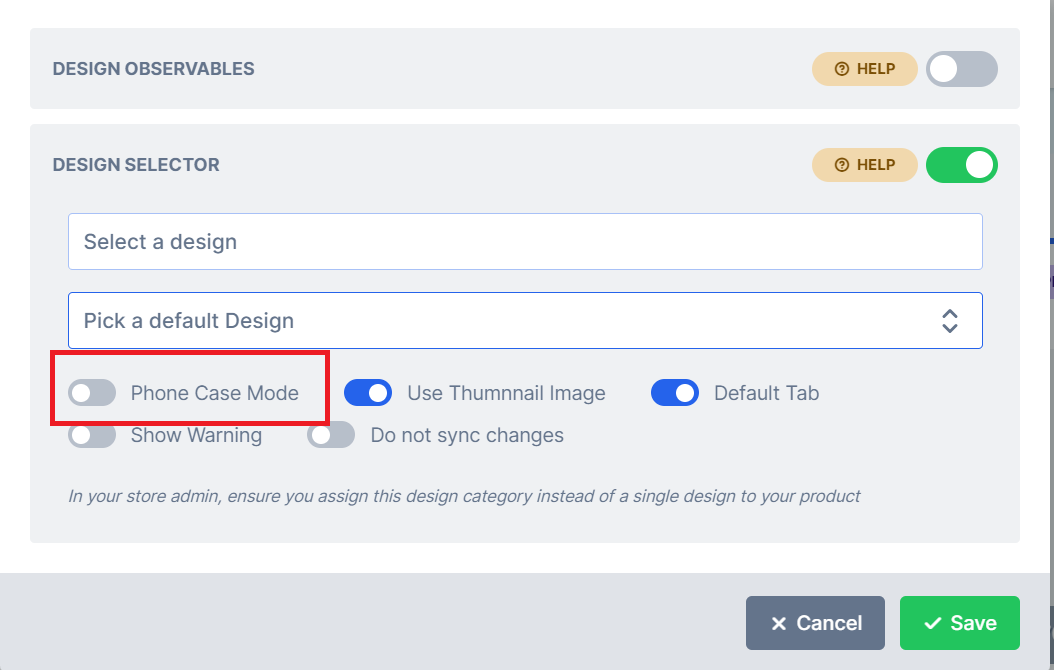
* **Photo Case Mode :** Enabling this means the pages acts as different layouts instead of each being a requirement. Let’s use two examples: In a business card design, you most probably want both pages front and back printed, so this should be disabled. On the other hand, a Phone Case design can have different layouts as separate pages but only one layout is needed by the customer; in this instance, this option should be selected. It means the pages are treated as different designs so to speak and it presents them as layouts instead of presenting the regular page navigation. To enable the following feature please enable \***PHONE CASE MODE**\* as shown in the image below:
* **Title:** Provide an appropriate title to be displayed on top of the designs panel.
* **Default Design:** Your category will have designs displayed alphabetically but you might want to show a particular one first. Here, we set it to load the Nokia Lumia 920 as default. So when the app loads, this is the default design that will be loaded.
* **Photo Case Mode :** Enabling this means the pages acts as different layouts instead of each being a requirement. Let’s use two examples: In a business card design, you most probably want both pages front and back printed, so this should be disabled. On the other hand, a Phone Case design can have different layouts as separate pages but only one layout is needed by the customer; in this instance, this option should be selected. It means the pages are treated as different designs so to speak and it presents them as layouts instead of presenting the regular page navigation. To enable the following feature please enable \***PHONE CASE MODE**\* as shown in the image below:
 * **Use Image thumbnail:** Enabling this feature will show the product picture in the design gallery tab. Disabling is will only show the title of the design. If you have a long list of designs, then is is advisable to use the text option by disabling this feature but if not, you can go ahead and use the image based thumbnails.
Submit to save your changes.
### How to assign the module in your Store Admin
In the store admin, instead of choosing a single design, you should select the category as a whole as shown below:
* **Use Image thumbnail:** Enabling this feature will show the product picture in the design gallery tab. Disabling is will only show the title of the design. If you have a long list of designs, then is is advisable to use the text option by disabling this feature but if not, you can go ahead and use the image based thumbnails.
Submit to save your changes.
### How to assign the module in your Store Admin
In the store admin, instead of choosing a single design, you should select the category as a whole as shown below:
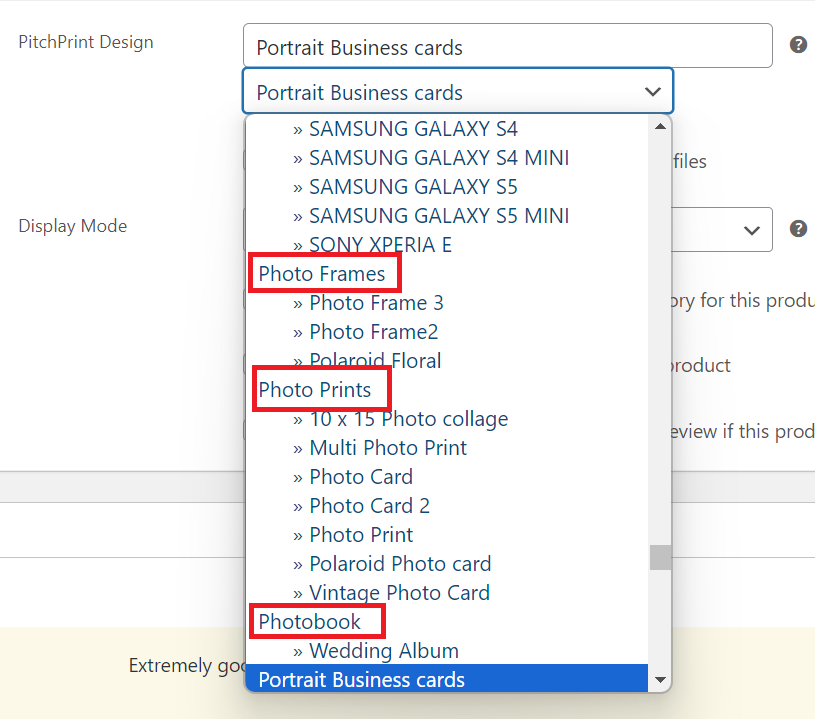 Please note categories are Left aligned and Single designs are right aligned.
When making use of Custom Integration simply replace the **designId** with a **categoryId** as shown below:
**Default integration with single design:**
```javascript theme={null}
var ppclient = new PitchPrintClient({
apiKey: 'f80b84b4eb5cc81a140cb90f52e824f6', //Kindly provide your own APIKey
designId: '3d8f3899904ef2392795c681091600d0', //Change this to your designId
custom: true,
isvx: true
});
```
**Integration with a category of designs:**
```javascript theme={null}
var ppclient = new PitchPrintClient({
apiKey: 'f80b84b4eb5cc81a140cb90f52e824f6', //Kindly provide your own APIKey
designId: '*3d8f3899904ef2392795c681091600d0', //Change this to your categoryId
custom: true,
isvx: true
});
```
And the module will override the default behavior of picking a design before launching the application.
You can find a demo here: [Water bottle design selector demo](https://wp.demo.pitchprint.io/product/water-bottle-design-selector-module/)
This documentation is built and hosted on [Mintlify](https://mintlify.com), a developer documentation platform.
Please note categories are Left aligned and Single designs are right aligned.
When making use of Custom Integration simply replace the **designId** with a **categoryId** as shown below:
**Default integration with single design:**
```javascript theme={null}
var ppclient = new PitchPrintClient({
apiKey: 'f80b84b4eb5cc81a140cb90f52e824f6', //Kindly provide your own APIKey
designId: '3d8f3899904ef2392795c681091600d0', //Change this to your designId
custom: true,
isvx: true
});
```
**Integration with a category of designs:**
```javascript theme={null}
var ppclient = new PitchPrintClient({
apiKey: 'f80b84b4eb5cc81a140cb90f52e824f6', //Kindly provide your own APIKey
designId: '*3d8f3899904ef2392795c681091600d0', //Change this to your categoryId
custom: true,
isvx: true
});
```
And the module will override the default behavior of picking a design before launching the application.
You can find a demo here: [Water bottle design selector demo](https://wp.demo.pitchprint.io/product/water-bottle-design-selector-module/)
This documentation is built and hosted on [Mintlify](https://mintlify.com), a developer documentation platform.