> ## Documentation Index
> Fetch the complete documentation index at: https://pitchprint.com/llms.txt
> Use this file to discover all available pages before exploring further.
# Design Item and Page Tags
> What each item and page tag does, including page-clip, always-top, always-bottom, the pdf tags, grommets and no-mask, and where to add them.
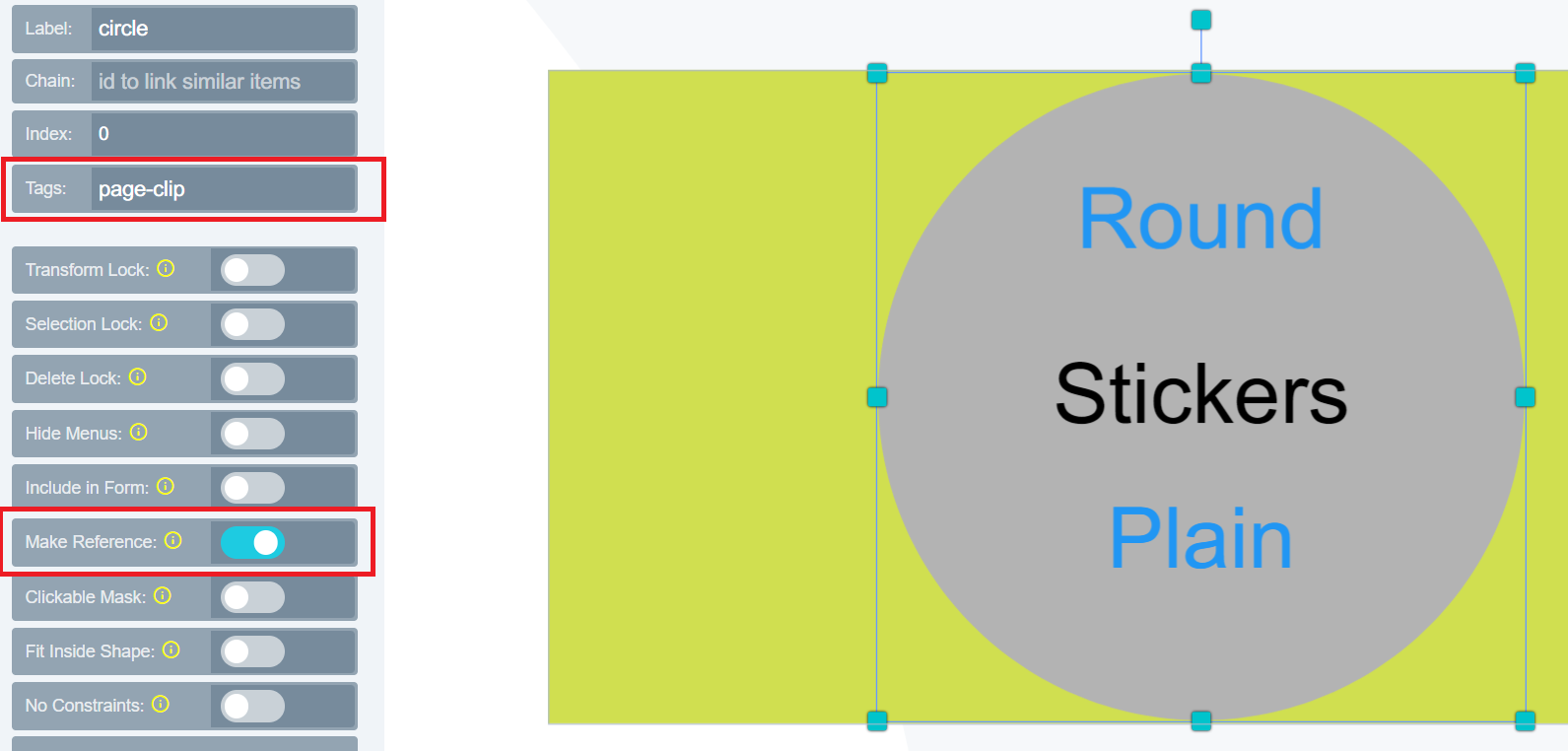
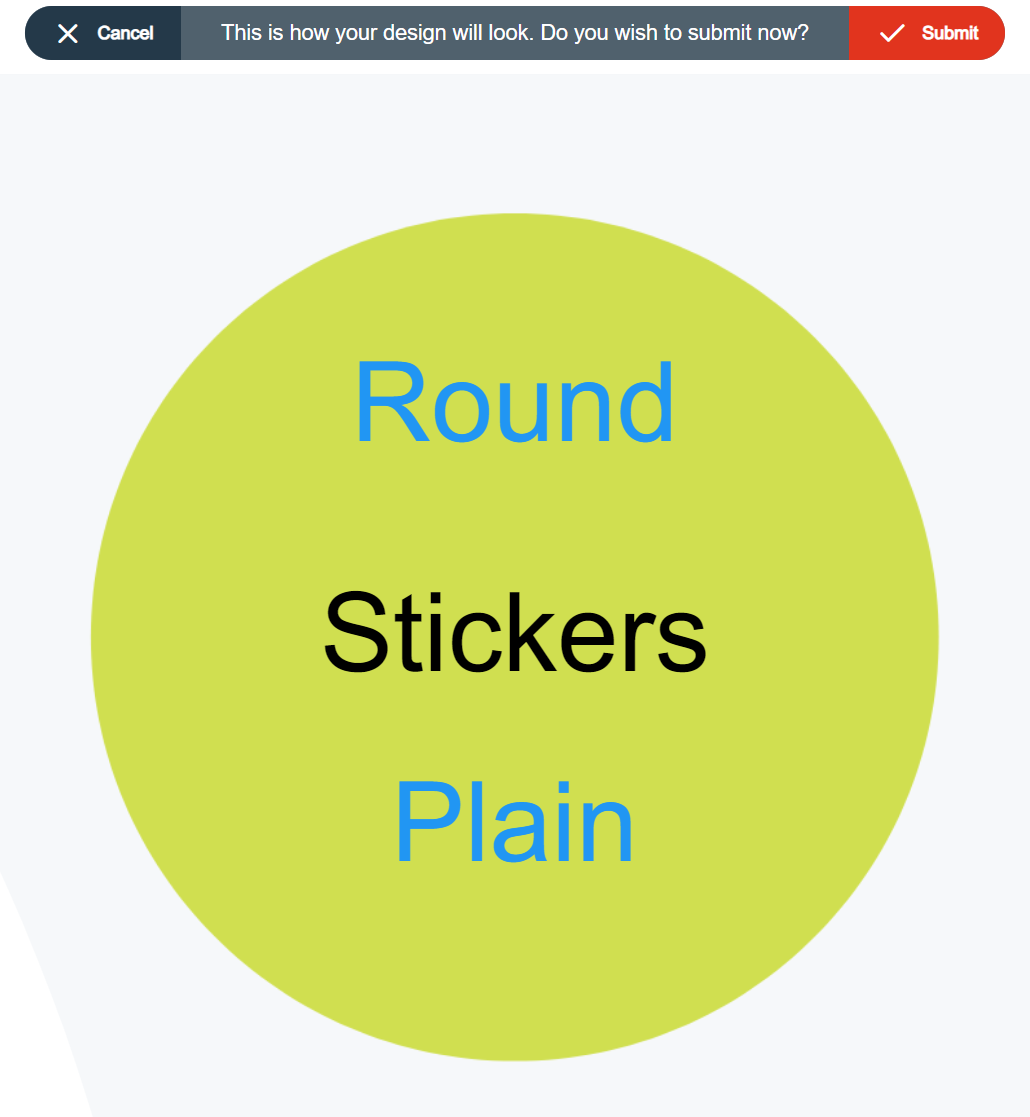
**Page Clip:** A feature that allows you to add any shape to the canvas and set it as a clip to cut area around the shape in the final PDF.
To enable page-clip, click on the shape and go to the ITEM menu tab. Add ***page-clip*** to the tag section as shown below and enable make reference.
 The below image will be the output thereafter:
 **Always Top:** Allows you to place an element at the topmost layer of the canvas.
To enable always-top add the ***always-top*** tag to the tag section as shown below:
**Always Top:** Allows you to place an element at the topmost layer of the canvas.
To enable always-top add the ***always-top*** tag to the tag section as shown below:
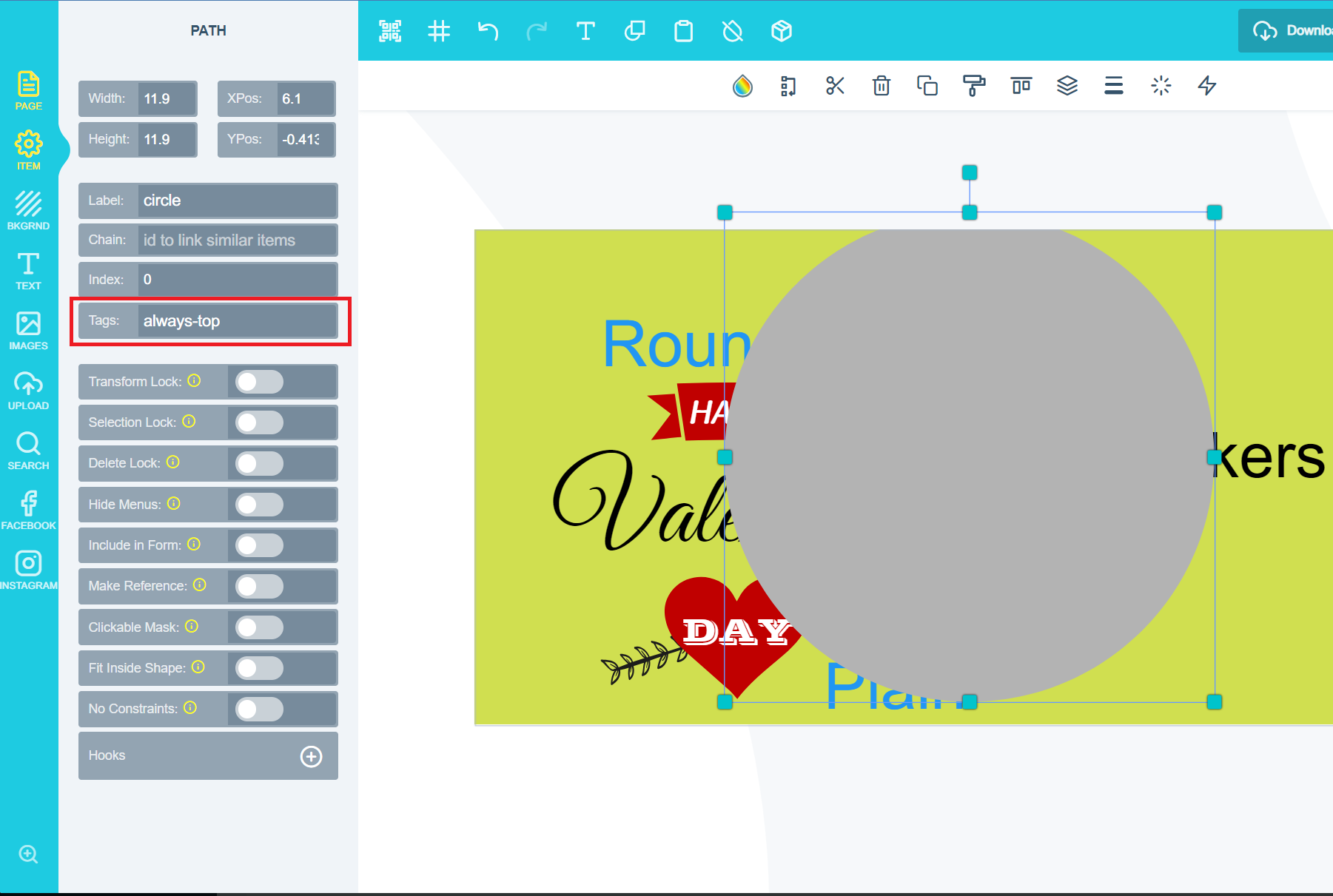 This will result in all other elements moving behind the item selected and that selected element will remain at the top irrespective of edits implemented on the design.
**Always Bottom:** Allows you to place an element in the lowest layer of the canvas.
To enable always-bottom add the ***always-bottom*** tag to the tag section as shown below:
This will result in all other elements moving behind the item selected and that selected element will remain at the top irrespective of edits implemented on the design.
**Always Bottom:** Allows you to place an element in the lowest layer of the canvas.
To enable always-bottom add the ***always-bottom*** tag to the tag section as shown below:
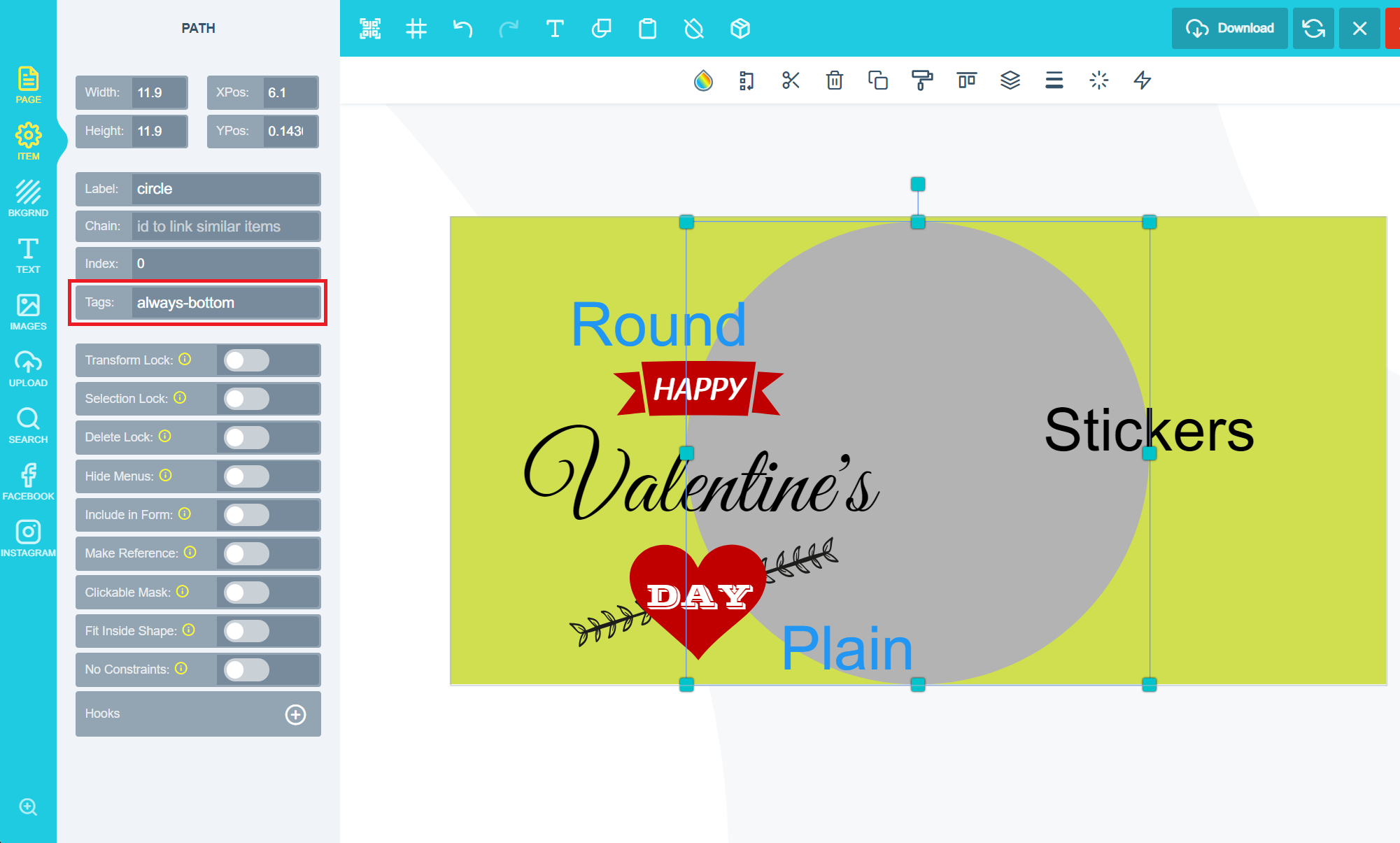 This will result in all other elements moving in front the item and selected item will always remain at the bottom.
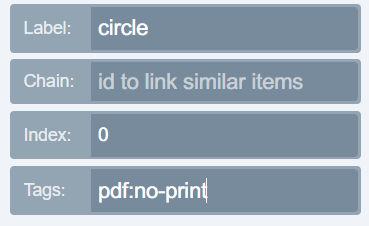
**PDF no-print** - The item will not be displayed on the printed file. To enable pdf: no-print add the following tag shown below:
This will result in all other elements moving in front the item and selected item will always remain at the bottom.
**PDF no-print** - The item will not be displayed on the printed file. To enable pdf: no-print add the following tag shown below:
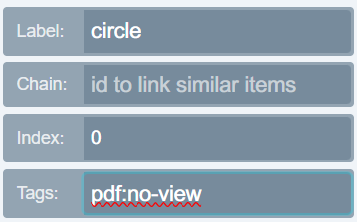
 **PDF no-view** - The item cannot be viewed when you open the PDF inside any PDF viewing application. To enable pdf: no-view add the following tag shown below:
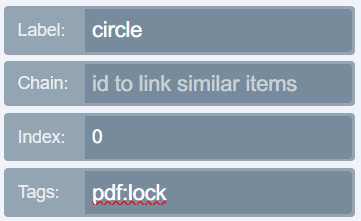
 **PDF lock** - The item cannot be moved when editing the PDF. To enable pdf: lock add the following tag shown below:
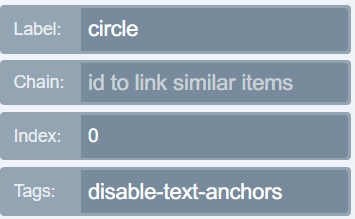
 **Disable Text anchors**: This tag will disable the text anchors when applied to a text field. To enable disable text anchors please add the following tag shown below:
 **Grommets:** A reinforcement hole either horizontally or vertically used to insulate a rope or cable passed through it. A great way to protect the design material from tearing or abrasion. To enable grommets please follow the steps below:
Go to the page section as shown below and enable the Grommet on the page tags:
**Grommets:** A reinforcement hole either horizontally or vertically used to insulate a rope or cable passed through it. A great way to protect the design material from tearing or abrasion. To enable grommets please follow the steps below:
Go to the page section as shown below and enable the Grommet on the page tags:
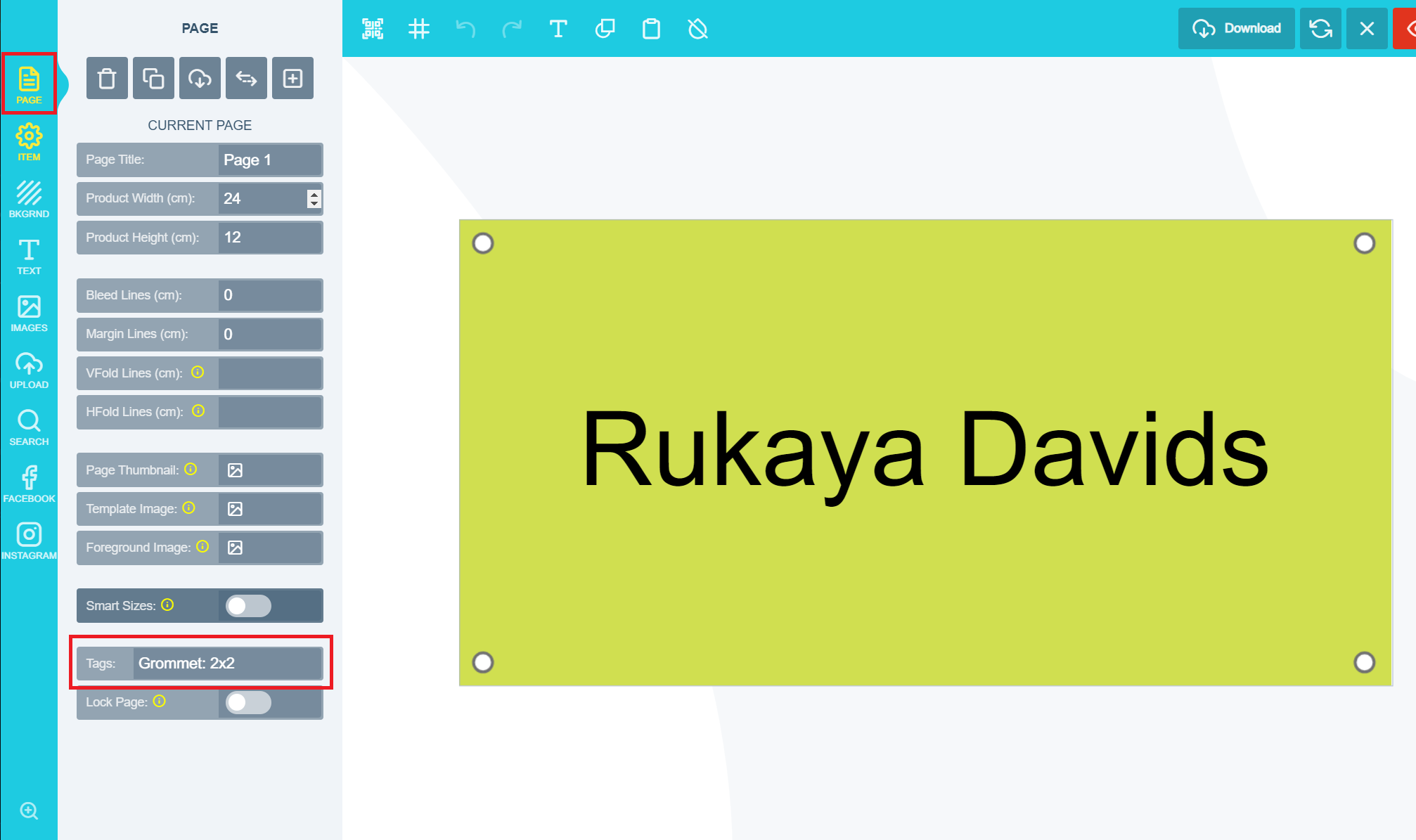 Add the tag as indicated on the screenshot above.
Kindly note for Horizontal values, any value can be added as for Vertical only 1 OR 2 may be used. Please note that any changes made to the top of the page will be automatically added to the bottom as well.
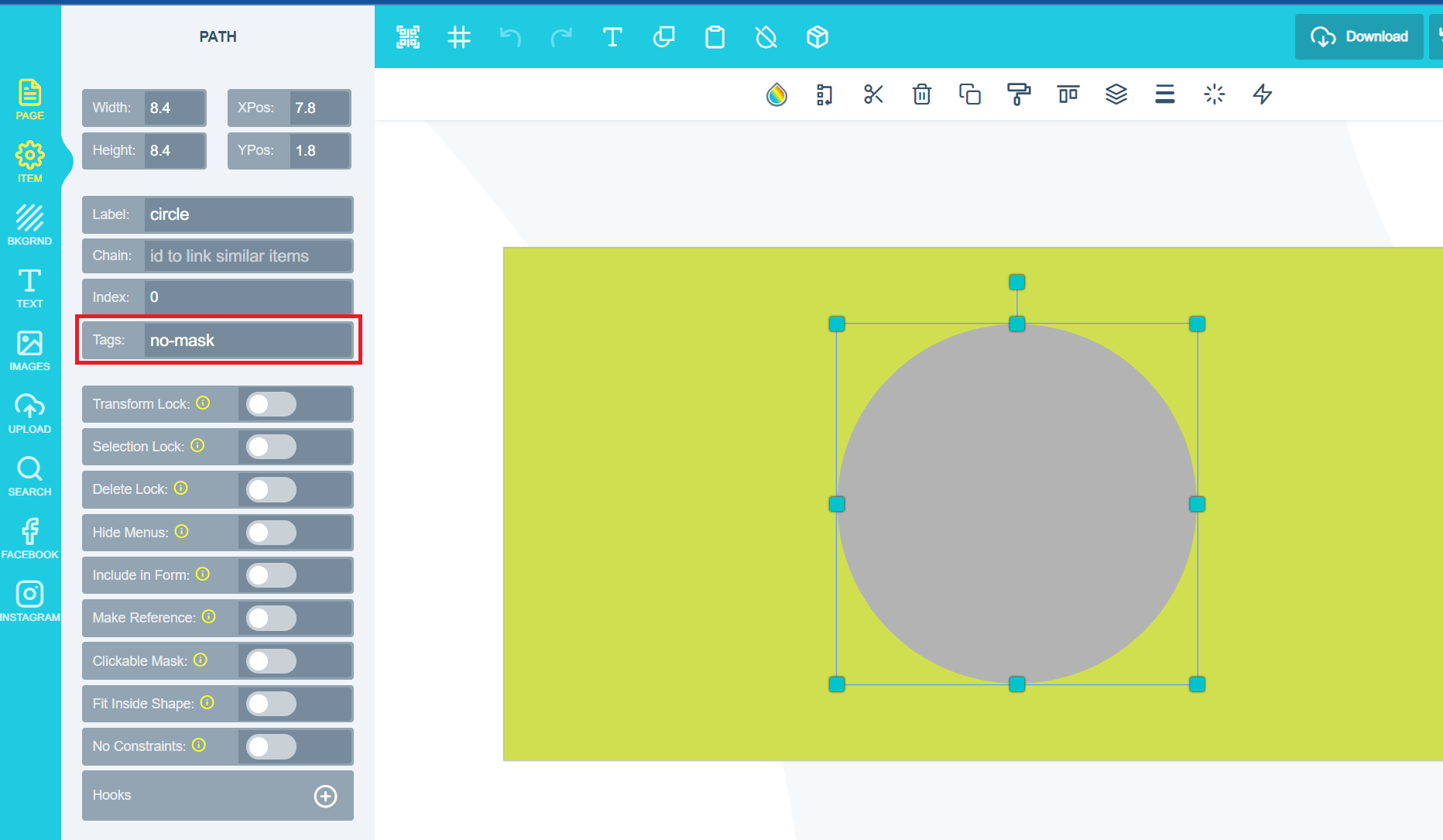
**No-mask:** Allows you to stop a shape from being used as an image placeholder. Any shape added to the canvas will be used as an image placeholder by default. If you would like to prevent customers from adding images to shapes on the canvas, you do so by enabling *no-mask* and it will prevent the shape from being used as an image placeholder.
To enable no-mask please add the tag as shown below:
Add the tag as indicated on the screenshot above.
Kindly note for Horizontal values, any value can be added as for Vertical only 1 OR 2 may be used. Please note that any changes made to the top of the page will be automatically added to the bottom as well.
**No-mask:** Allows you to stop a shape from being used as an image placeholder. Any shape added to the canvas will be used as an image placeholder by default. If you would like to prevent customers from adding images to shapes on the canvas, you do so by enabling *no-mask* and it will prevent the shape from being used as an image placeholder.
To enable no-mask please add the tag as shown below:
 ## Related articles
How PitchPrint tags activate features on a design and the list of supported tags.
This documentation is built and hosted on [Mintlify](https://mintlify.com), a developer documentation platform.
## Related articles
How PitchPrint tags activate features on a design and the list of supported tags.
This documentation is built and hosted on [Mintlify](https://mintlify.com), a developer documentation platform.