> ## Documentation Index
> Fetch the complete documentation index at: https://pitchprint.com/llms.txt
> Use this file to discover all available pages before exploring further.
# PP v10 features
> Tools added in version 10, covering the background editor, text and picture menus, photo editor adjustments and free hand drawing.
The following are the new features in Version 10 that are not available in 9. We will keep expanding this to reflect more features as we develop them
## **BACKGROUNDS**
Double click on the canvas and enable background editor . Once the canvas outline is red you will enter background editor.
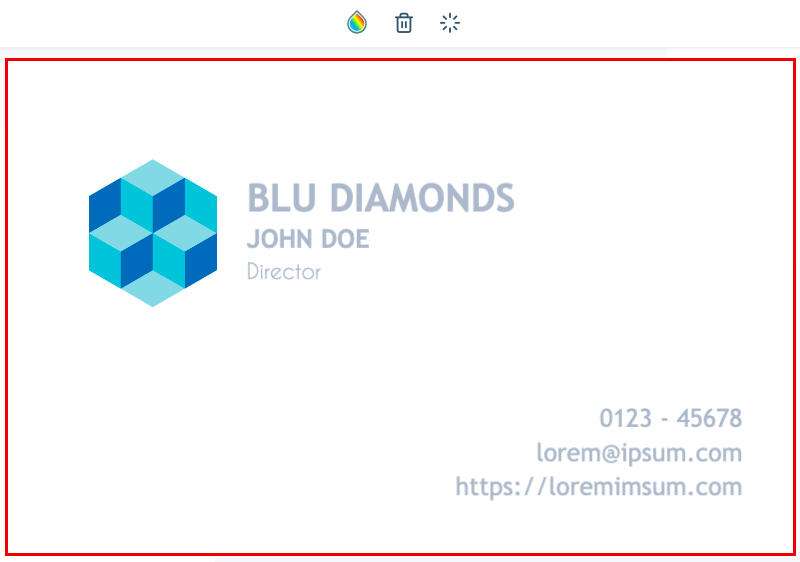 To make changes to the background use the menu above the canvas
 1. Background Colour - Choose background colour add transparency or add new colours to the list.
2. Convert to a picture item - If you've added a background you can convert it to a picture and vice versa.
3. Background positioning - There are four types of background positions available namely **Default**, **Fill**, **Fit**, and **Stretch**.
4. Delete Background - Delete background.
5. Transparency - Adjust background transparency.
## **TEXT**
\*\*\*\*Add new text to canvas.
## **PICTURES**
1. Background Colour - Choose background colour add transparency or add new colours to the list.
2. Convert to a picture item - If you've added a background you can convert it to a picture and vice versa.
3. Background positioning - There are four types of background positions available namely **Default**, **Fill**, **Fit**, and **Stretch**.
4. Delete Background - Delete background.
5. Transparency - Adjust background transparency.
## **TEXT**
\*\*\*\*Add new text to canvas.
## **PICTURES**
 1. Edit picture - takes you to photo editor.
2. Change to background - Change the picture to a background or vice versa.
3. Crop -Crop picture.
4. Cut - Cut item.
5. Delete - Delete Item.
6. Copy - Copy Item.
7. Align - Align Item.
8. Layer - Layer item/items.
9. Transparency - Add transparency to item.
10. Transform - Transform item.
## **PHOTO EDITOR**
1. Edit picture - takes you to photo editor.
2. Change to background - Change the picture to a background or vice versa.
3. Crop -Crop picture.
4. Cut - Cut item.
5. Delete - Delete Item.
6. Copy - Copy Item.
7. Align - Align Item.
8. Layer - Layer item/items.
9. Transparency - Add transparency to item.
10. Transform - Transform item.
## **PHOTO EDITOR**
 1. **Filter images.**
2. **More Photo Editor Features**
1. **Filter images.**
2. **More Photo Editor Features**
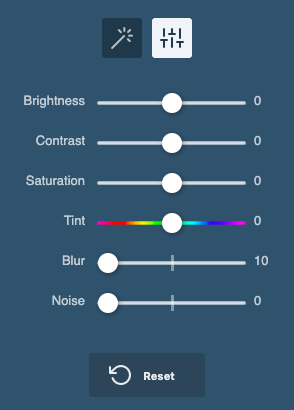 1. Brightness - Adjust image brightness.
2. Contrast - Adjust image contrast.
3. Saturation - Adjust image saturation.
4. Tint - Adjust image tinting.
5. Blur - Blur image.
6. Noise - Add noise to image.
7. Reset - Reset image settings to default.
## **DRAW ON CANVAS**
****
Create free hand drawing on the canvas. After writing on the canvas the context menu will show up giving you the ability to edit your drawings.
This documentation is built and hosted on [Mintlify](https://mintlify.com), a developer documentation platform.
1. Brightness - Adjust image brightness.
2. Contrast - Adjust image contrast.
3. Saturation - Adjust image saturation.
4. Tint - Adjust image tinting.
5. Blur - Blur image.
6. Noise - Add noise to image.
7. Reset - Reset image settings to default.
## **DRAW ON CANVAS**
****
Create free hand drawing on the canvas. After writing on the canvas the context menu will show up giving you the ability to edit your drawings.
This documentation is built and hosted on [Mintlify](https://mintlify.com), a developer documentation platform.