> ## Documentation Index
> Fetch the complete documentation index at: https://pitchprint.com/llms.txt
> Use this file to discover all available pages before exploring further.
# All About Colors
> How PitchPrint stores Hex, CMYK and SPOT values per color, and which of them is used for on-screen display versus the final PDF
Colors is one of the resource groups in PitchPrint which can be assigned to or excluded from designs. By default when a new domain is created, a set of 13 color categories are created for the domain. You can always delete these and create your own categories or rename them.
Creating a new category is fairly simple, just click the button on the top right corner labeled **"Create New Category"** and a modal window will pop up prompting you for the category title. When a category is created, you can start adding color items to it.
### PitchPrint Color System
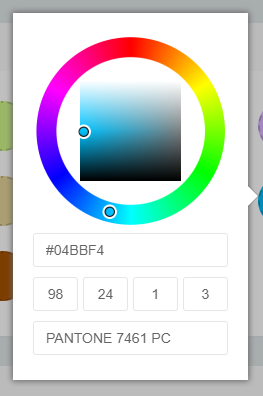 It is important to understand how the color system works on this platform to better make the most of it and avoid issues.
When you click any of the color items, the popup shown above appears with option to provide 3 color inputs to wit: Hex, CMYK and SPOT values.
Monitors by default, are based on screen technology and therefore cannot display colors in CMYK. They have to be converted into RGB to be displayed by any monitor screen. The RGB HEX value in PitchPrint is used for display on the monitor screen.
It is important to understand how the color system works on this platform to better make the most of it and avoid issues.
When you click any of the color items, the popup shown above appears with option to provide 3 color inputs to wit: Hex, CMYK and SPOT values.
Monitors by default, are based on screen technology and therefore cannot display colors in CMYK. They have to be converted into RGB to be displayed by any monitor screen. The RGB HEX value in PitchPrint is used for display on the monitor screen.
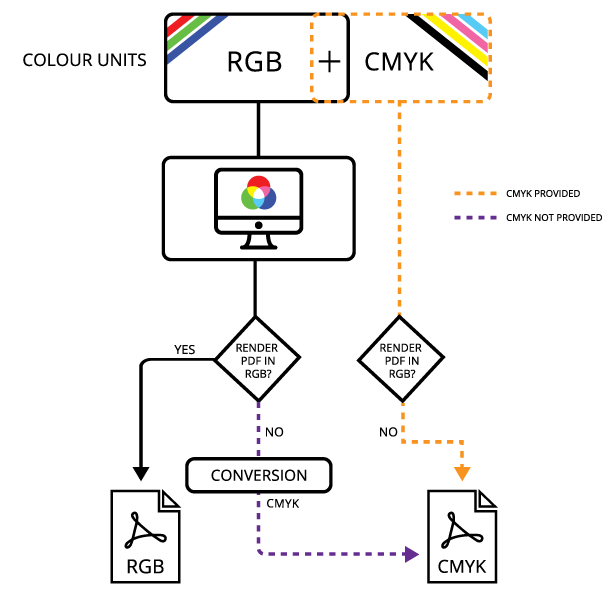 So if you have a value of say #990000 assigned to a text element, this value is used to display the text on the screen. If in addition, you also provided a CMYK + SPOT value to that color unit, those values will be used while creating the PDF File, ***provided the option to render PDF in RGB is turned off, which is by default in* *[settings page](https://pitchprint.net/admin/settings):*** 
If however, you **did not** provide a CMYK value, the system will do a conversion of the current RGB to CMYK and use the converted value in creating the PDF.
Remember, If a CMYK + SPOT value is provided, the system automatically uses that value for the PDF and so, if your screen preview's color vastly differs from the PDF output, it must be that the colors you provided do not match. The system does not do any conversion unless either is missing. It simply uses those values are they are provided.
* **RGB format:** #RRGGBB *(Example #A8E305)*
* **CMYK Format:** CCC MMM YYY KKK *(Each value is 0 to 100 . Example: 90 34 9 100)*
* **SPOT:** String value of the spot name
## Related articles
Create five-color complementary themes customers can sample to restyle a design.
Let customers switch a design's color theme, background and preview within the editor.
Let customers switch template images, such as T-shirt colors, at design time.
Learn what template-based designs are and how template images are swapped in the editor.
This documentation is built and hosted on [Mintlify](https://mintlify.com), a developer documentation platform.
So if you have a value of say #990000 assigned to a text element, this value is used to display the text on the screen. If in addition, you also provided a CMYK + SPOT value to that color unit, those values will be used while creating the PDF File, ***provided the option to render PDF in RGB is turned off, which is by default in* *[settings page](https://pitchprint.net/admin/settings):*** 
If however, you **did not** provide a CMYK value, the system will do a conversion of the current RGB to CMYK and use the converted value in creating the PDF.
Remember, If a CMYK + SPOT value is provided, the system automatically uses that value for the PDF and so, if your screen preview's color vastly differs from the PDF output, it must be that the colors you provided do not match. The system does not do any conversion unless either is missing. It simply uses those values are they are provided.
* **RGB format:** #RRGGBB *(Example #A8E305)*
* **CMYK Format:** CCC MMM YYY KKK *(Each value is 0 to 100 . Example: 90 34 9 100)*
* **SPOT:** String value of the spot name
## Related articles
Create five-color complementary themes customers can sample to restyle a design.
Let customers switch a design's color theme, background and preview within the editor.
Let customers switch template images, such as T-shirt colors, at design time.
Learn what template-based designs are and how template images are swapped in the editor.
This documentation is built and hosted on [Mintlify](https://mintlify.com), a developer documentation platform.