> ## Documentation Index
> Fetch the complete documentation index at: https://pitchprint.com/llms.txt
> Use this file to discover all available pages before exploring further.
# AI Upscale
> Let customers raise the size and resolution of an uploaded image inside the editor using AI super-resolution.
 This module allows your customers to increase the size or resolution of an image using AI, while keeping or even improving its quality. Traditional methods often cause a loss of detail, but AI-powered upscaling models—like those from Stability AI—use advanced machine learning to intelligently "guess" what the extra pixels should look like.
 **Key features of AI upscaling include:**
1. **Super-Resolution:** The AI takes a low-resolution image and adds missing details to create a high-resolution version. It learns from large amounts of data to fill in realistic details like textures and fine features (e.g., hair, skin, or text).
2. **Deep Learning Algorithms:** Stability AI uses deep learning to identify patterns in images, predicting missing details and refining pixelated areas during the upscaling process.
3. **Preserving Quality:** The AI prevents blurriness or other issues that usually occur with standard upscaling methods, producing sharper and more accurate images.
**How to use Upscale:**
Start by uploading your image into the PitchPrint editor, and inserting it on the canvas.
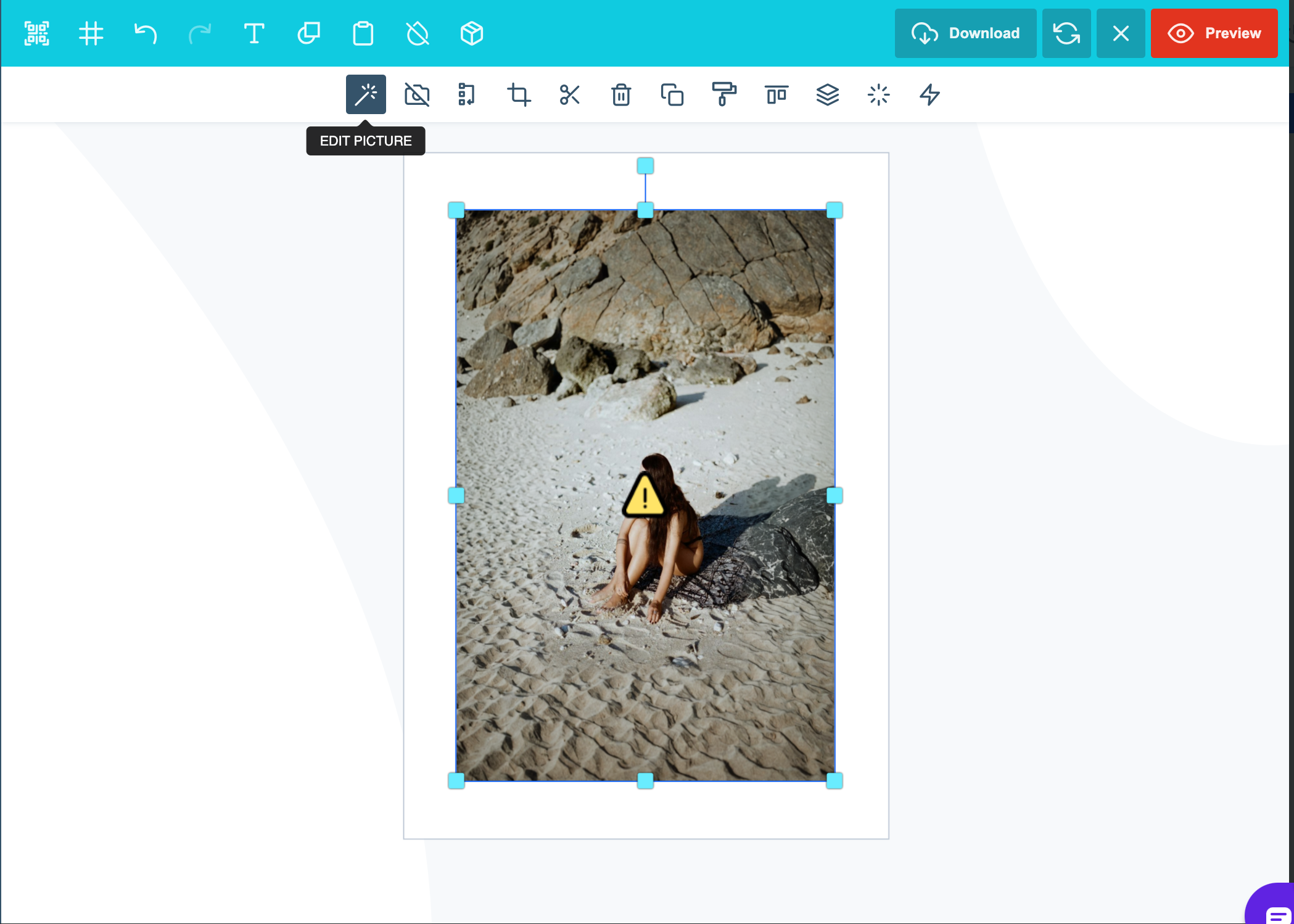
Once the image is on the canvas, click on the 'Edit Picture' button
**Key features of AI upscaling include:**
1. **Super-Resolution:** The AI takes a low-resolution image and adds missing details to create a high-resolution version. It learns from large amounts of data to fill in realistic details like textures and fine features (e.g., hair, skin, or text).
2. **Deep Learning Algorithms:** Stability AI uses deep learning to identify patterns in images, predicting missing details and refining pixelated areas during the upscaling process.
3. **Preserving Quality:** The AI prevents blurriness or other issues that usually occur with standard upscaling methods, producing sharper and more accurate images.
**How to use Upscale:**
Start by uploading your image into the PitchPrint editor, and inserting it on the canvas.
Once the image is on the canvas, click on the 'Edit Picture' button
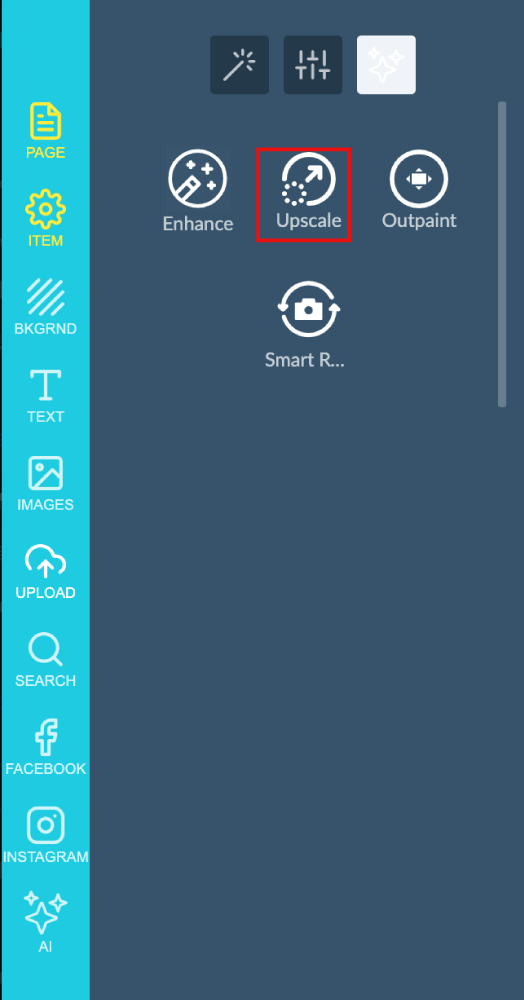
 In the side panel you will find the AI Image enhancement tools, Click on 'Upscale'
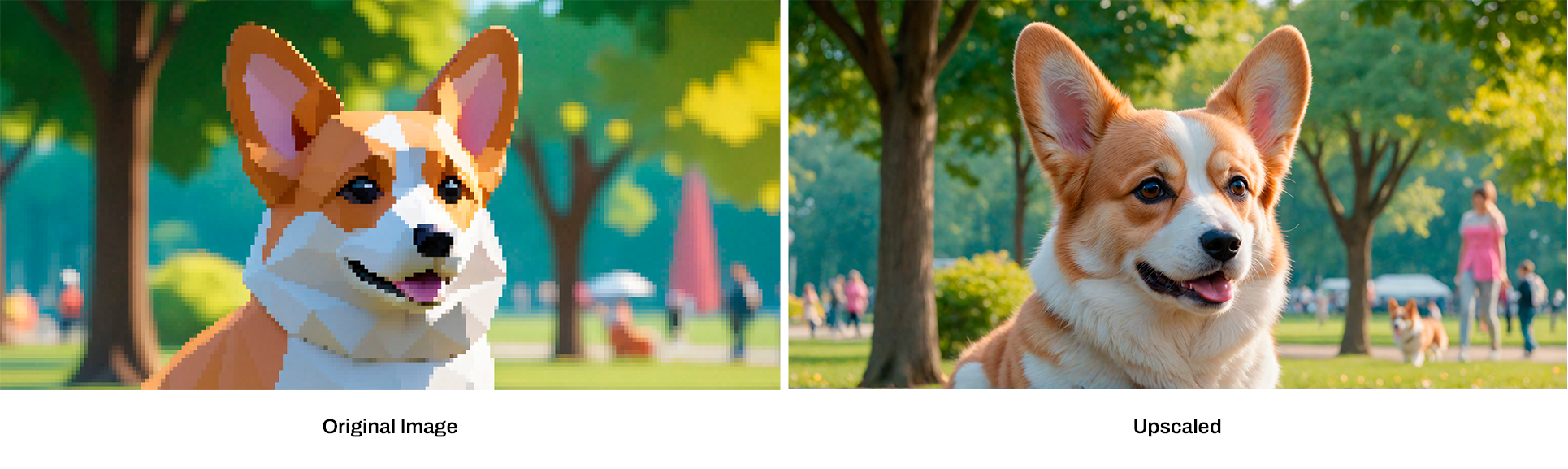
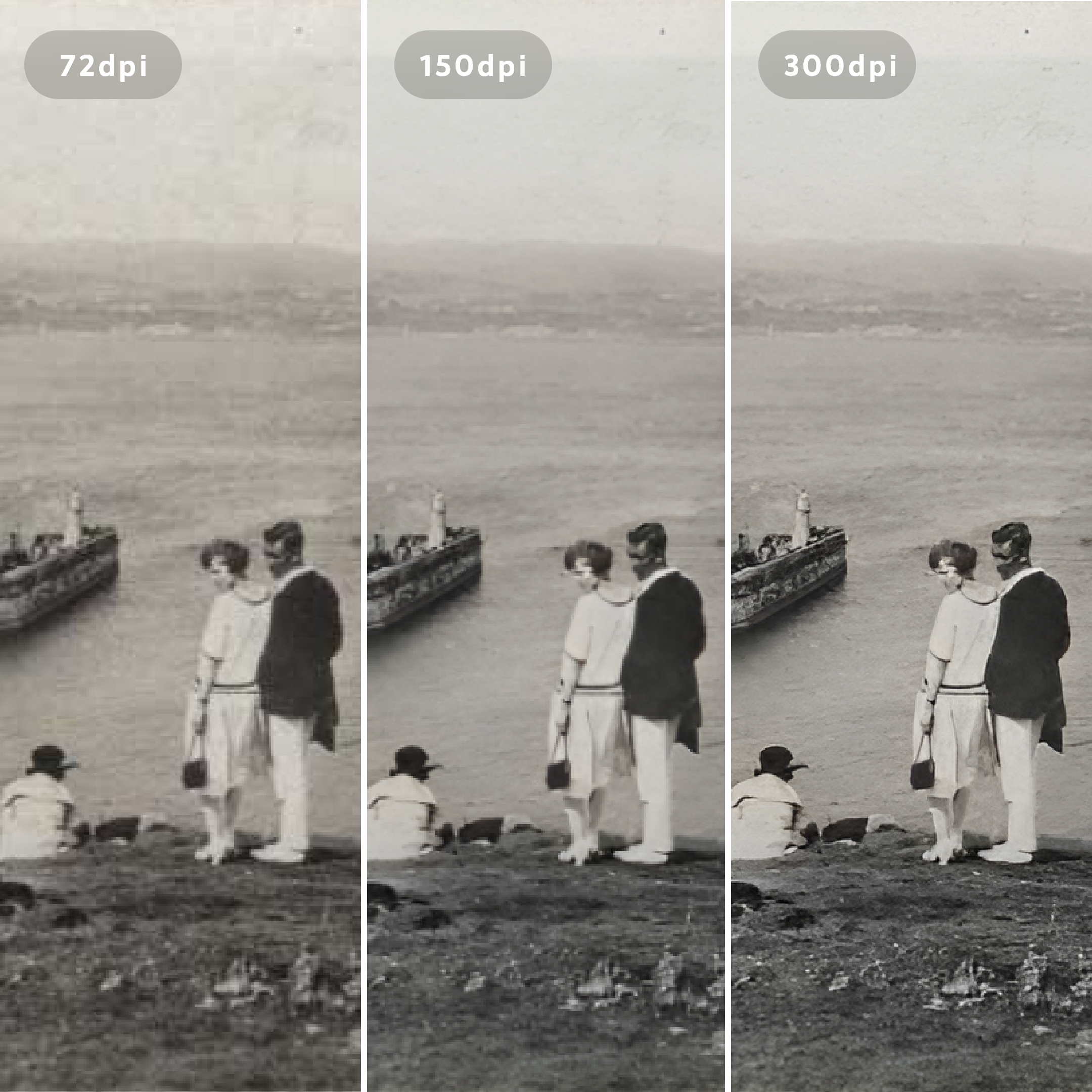
 Upscale achieves results like this, restoring old low-res images into crisp images:
 **Common Uses:**
\- Restore or improve old or low-quality images.
\- Enhance images for larger print formats, like posters, without losing quality.
\- Increase the resolution of digital assets for gaming, video production, or digital art.
In short, this module allows your customers to upscale images, making them clearer and more detailed using advanced AI technology.
Please note that this feature is still in **BETA mode** and we will continue to add functionality. Please reach out to us via [support@pitchprint.com](mailto:support@pitchprint.com) with any suggestions or questions.
*\*Additional charges apply*
## Related articles
Expand images beyond their original borders with AI.
Find and replace elements within an image using AI.
Refine images while preserving layout, proportions, and composition.
Remove the background from an image inside the editor.
This documentation is built and hosted on [Mintlify](https://mintlify.com), a developer documentation platform.
**Common Uses:**
\- Restore or improve old or low-quality images.
\- Enhance images for larger print formats, like posters, without losing quality.
\- Increase the resolution of digital assets for gaming, video production, or digital art.
In short, this module allows your customers to upscale images, making them clearer and more detailed using advanced AI technology.
Please note that this feature is still in **BETA mode** and we will continue to add functionality. Please reach out to us via [support@pitchprint.com](mailto:support@pitchprint.com) with any suggestions or questions.
*\*Additional charges apply*
## Related articles
Expand images beyond their original borders with AI.
Find and replace elements within an image using AI.
Refine images while preserving layout, proportions, and composition.
Remove the background from an image inside the editor.
This documentation is built and hosted on [Mintlify](https://mintlify.com), a developer documentation platform.