> ## Documentation Index
> Fetch the complete documentation index at: https://pitchprint.com/llms.txt
> Use this file to discover all available pages before exploring further.
# AI Structure
> Refine or regenerate an image from a text prompt while its layout, proportions and object placement stay the same.
 This module enables users to enhance and refine images while maintaining key elements such as layout, proportions, and object placement. Using AI, it makes adjustments or generates new images, ensuring the design remains consistent throughout.
 Here’s a simpler explanation of how it works:
1. **Image Refinement**: The Structure tool improves existing images by adjusting aspects like sharpness, texture, and lighting, all while preserving the original layout. This makes it ideal for enhancing designs or artwork without disrupting their composition.
2. **Preserving Composition**: Composition refers to how elements are arranged in an image. Structure ensures the balance and harmony of these elements, so changes don’t disrupt the visual flow, guiding the viewer’s focus as intended.
3. **Preserving Proportions and Scale**: In design, particularly with 3D models, it's important to keep objects sized correctly in relation to one another. The AI guarantees that adjustments don’t affect the size relationships between elements, making it helpful for product designs or architectural visualizations.
4. **Maintaining Spatial Organization**: Structure preserves the relative positioning of objects in a scene. If you're working with 3D models or scenes, the AI refines details without altering how objects are placed, which is ideal for product renders or virtual environments.
5. **Optimizing Designs**: The tool helps improve designs for various formats, whether for digital, print, or 3D. It allows designers to focus on fine details like textures and color adjustments, while keeping the overall design intact.
**How to use Structure:**
Start by uploading your image into the PitchPrint editor, and inserting it on the canvas.
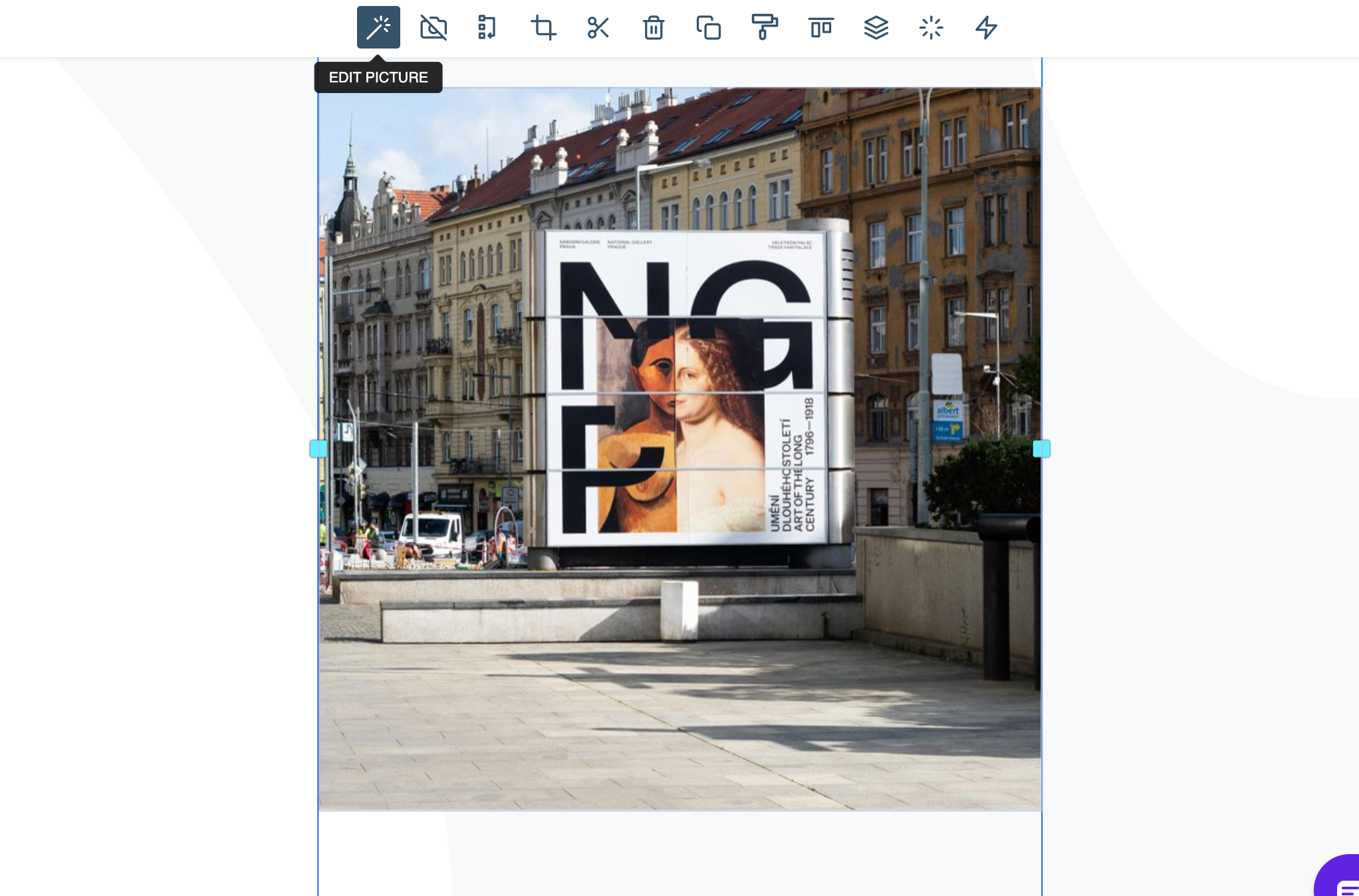
Once the image is on the canvas, click on the 'Edit Picture' button
Here’s a simpler explanation of how it works:
1. **Image Refinement**: The Structure tool improves existing images by adjusting aspects like sharpness, texture, and lighting, all while preserving the original layout. This makes it ideal for enhancing designs or artwork without disrupting their composition.
2. **Preserving Composition**: Composition refers to how elements are arranged in an image. Structure ensures the balance and harmony of these elements, so changes don’t disrupt the visual flow, guiding the viewer’s focus as intended.
3. **Preserving Proportions and Scale**: In design, particularly with 3D models, it's important to keep objects sized correctly in relation to one another. The AI guarantees that adjustments don’t affect the size relationships between elements, making it helpful for product designs or architectural visualizations.
4. **Maintaining Spatial Organization**: Structure preserves the relative positioning of objects in a scene. If you're working with 3D models or scenes, the AI refines details without altering how objects are placed, which is ideal for product renders or virtual environments.
5. **Optimizing Designs**: The tool helps improve designs for various formats, whether for digital, print, or 3D. It allows designers to focus on fine details like textures and color adjustments, while keeping the overall design intact.
**How to use Structure:**
Start by uploading your image into the PitchPrint editor, and inserting it on the canvas.
Once the image is on the canvas, click on the 'Edit Picture' button
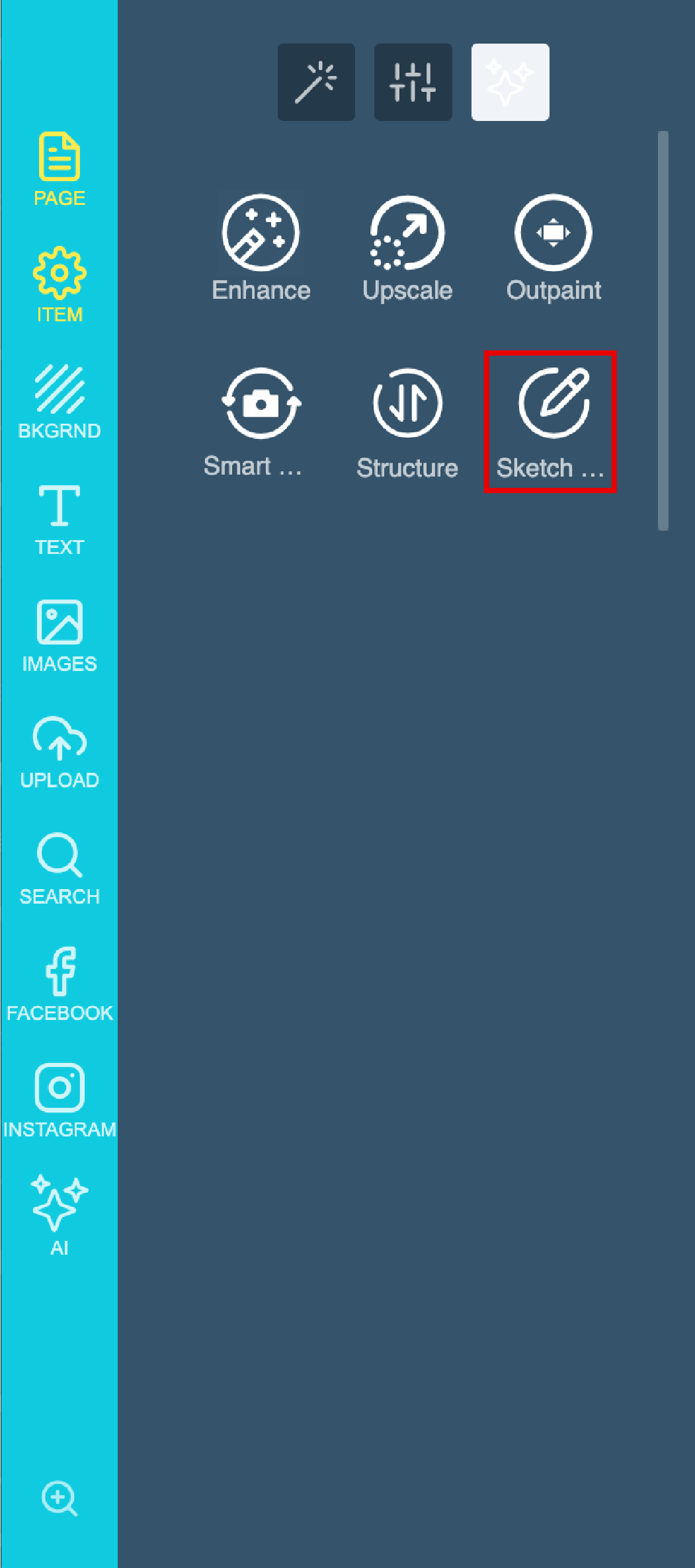
 In the side panel you will find the AI Image enhancement tools, Click on 'Structure'
 Now you will have to add your prompt: For this example I want to keep the Billboard Structure, and change the environment where it's located
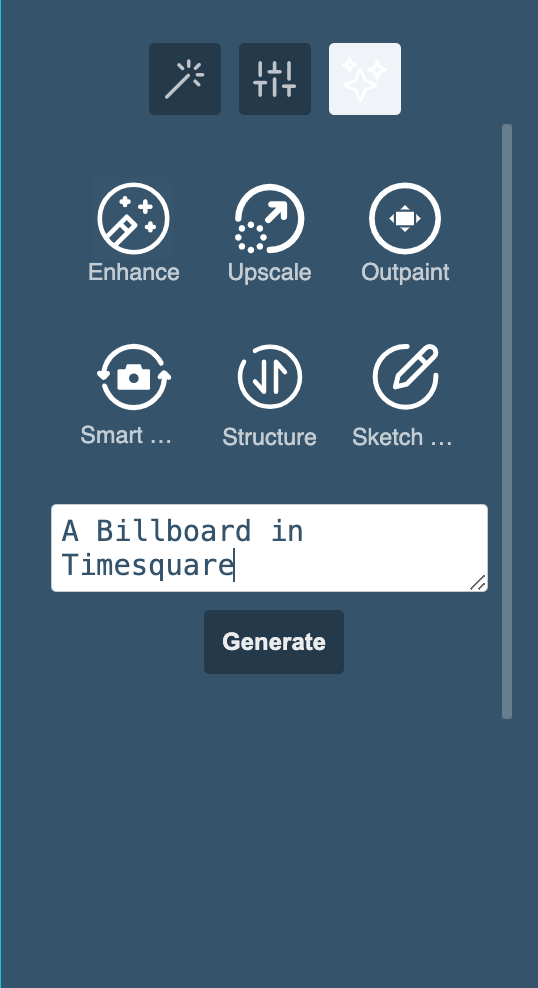 Lastly click on Generate & wait for your results.
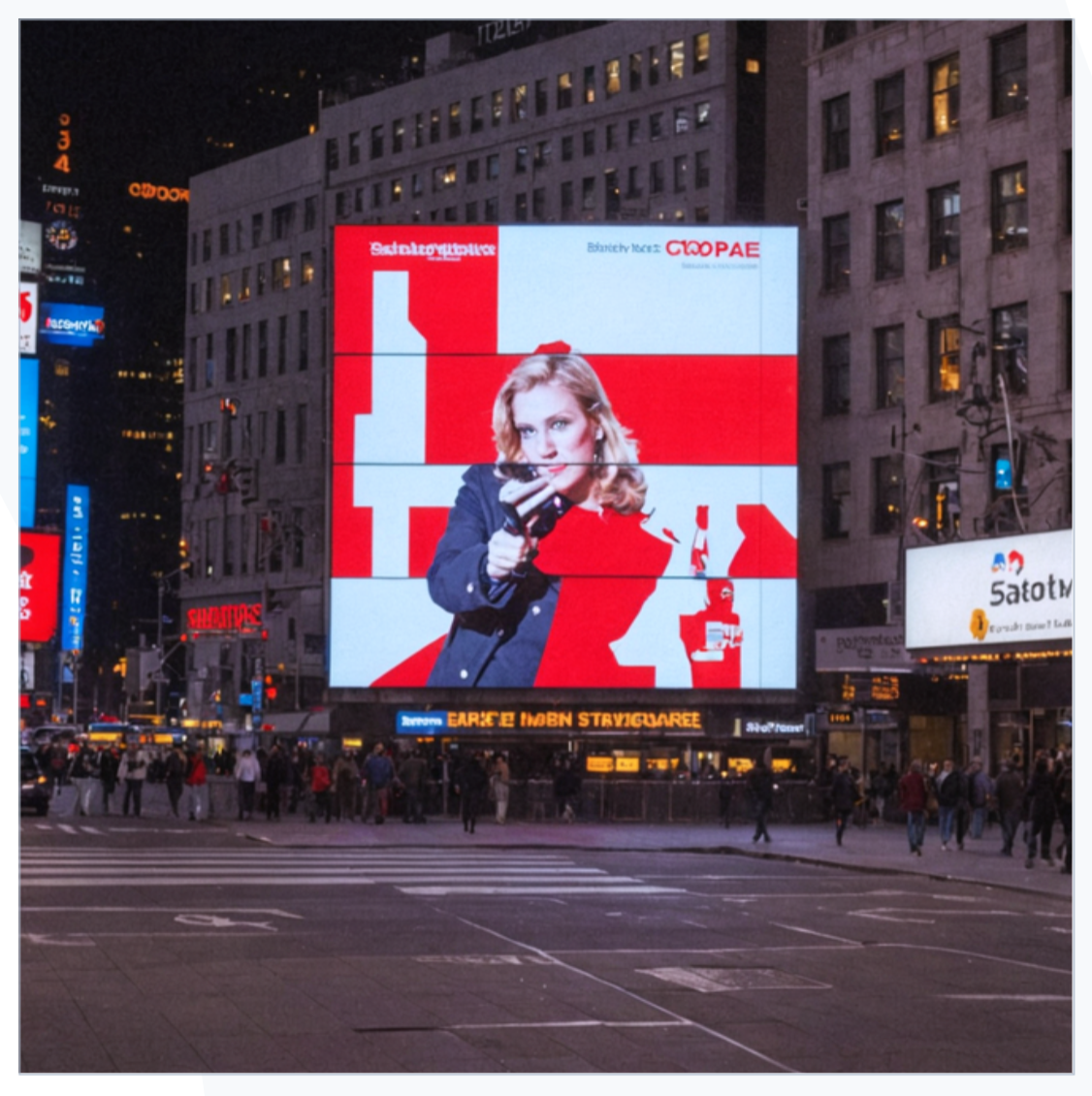 In Short this feature is a valuable tool for designers and artists who want to refine their work while preserving the core elements of composition, proportions, and object placement. It’s especially useful for graphic design, product visualization, and Print on Demand, where consistency is key.
Please note that this feature is still in **BETA mode** and we will continue to add functionality. Please reach out to us via [support@pitchprint.com](mailto:support@pitchprint.com) with any suggestions or questions.
*\*Additional charges apply*
## Related articles
Convert rough sketches into fully detailed images.
Find and replace elements within an image using AI.
Expand images beyond their original borders with AI.
Increase image resolution and quality with AI without losing detail.
This documentation is built and hosted on [Mintlify](https://mintlify.com), a developer documentation platform.
In Short this feature is a valuable tool for designers and artists who want to refine their work while preserving the core elements of composition, proportions, and object placement. It’s especially useful for graphic design, product visualization, and Print on Demand, where consistency is key.
Please note that this feature is still in **BETA mode** and we will continue to add functionality. Please reach out to us via [support@pitchprint.com](mailto:support@pitchprint.com) with any suggestions or questions.
*\*Additional charges apply*
## Related articles
Convert rough sketches into fully detailed images.
Find and replace elements within an image using AI.
Expand images beyond their original borders with AI.
Increase image resolution and quality with AI without losing detail.
This documentation is built and hosted on [Mintlify](https://mintlify.com), a developer documentation platform.