> ## Documentation Index
> Fetch the complete documentation index at: https://pitchprint.com/llms.txt
> Use this file to discover all available pages before exploring further.
# AI Sketch to Image
> Turn a rough sketch on the canvas into a detailed image using the Structure tool and a text prompt in the picture editor.
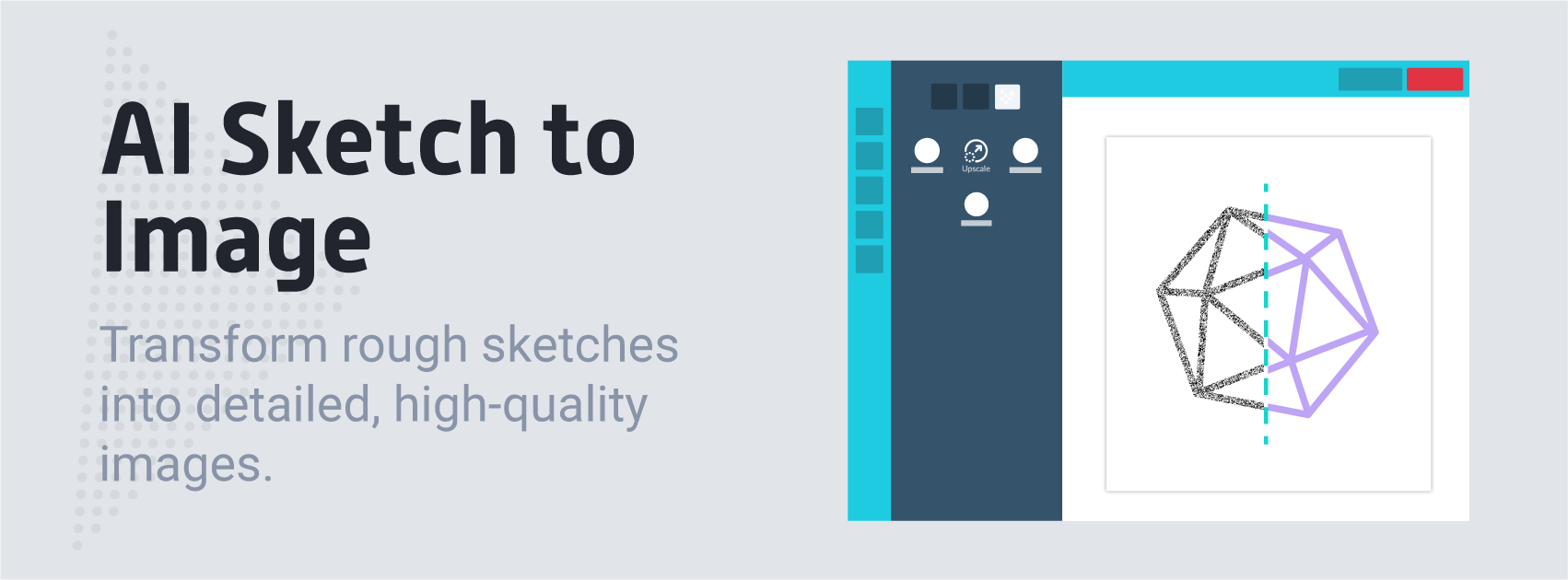 This module allows customers to convert rough sketches into fully detailed images. It uses generative models, like Stable Diffusion, to understand the user's basic drawings and create a more complex image from them.
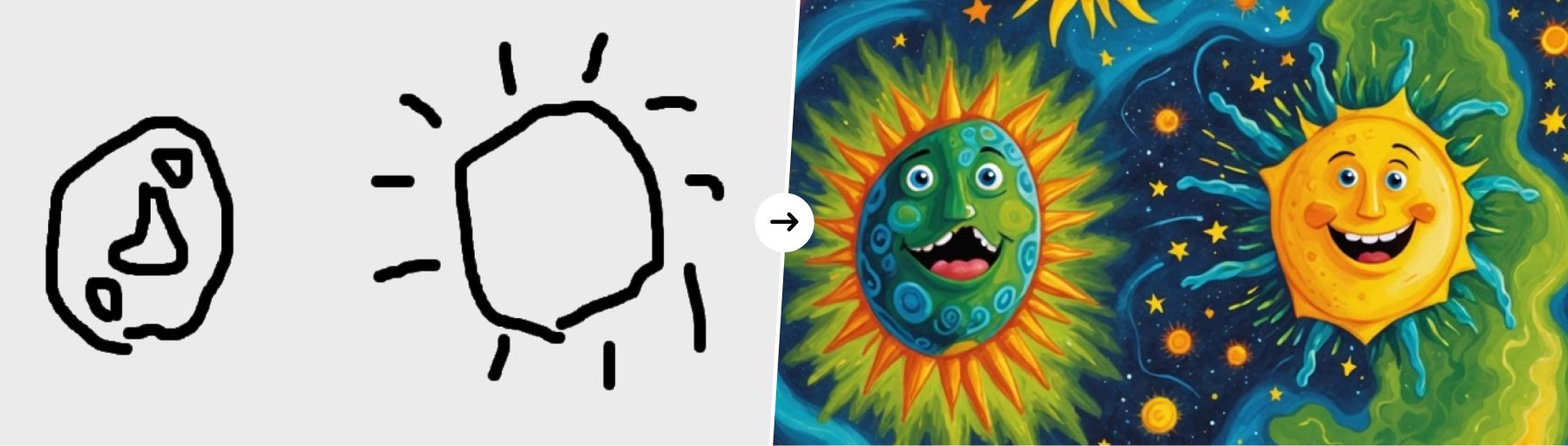 Here’s how the **Sketch to Image** function works:
1. **Sketch Input**: The user provides a simple sketch or drawing that acts as the starting point for the final image.
2. **AI Interpretation**: The AI analyzes the shapes, lines, and proportions in the sketch, turning the basic drawing into a more complete image.
3. **Image Generation**: Once the sketch is understood, the AI uses its knowledge of objects, textures, and styles to create a detailed version of the image.
4. **Customization**: Users can add more details, like style, colors, or layout, to help guide the AI in creating the final image.
### Process:
1. **Sketch Creation**: The user creates a basic sketch, which could be a hand-drawn doodle or a simple digital outline.
2. **AI Processing**: The AI processes the sketch and turns it into a more detailed image, filling in missing parts based on patterns it has learned.
3. **Final Image**: The AI produces a high-quality image based on the original sketch, which can be further adjusted if needed.
**How to use Sketch to Image:**
Start by uploading your image into the PitchPrint editor, and inserting it on the canvas.
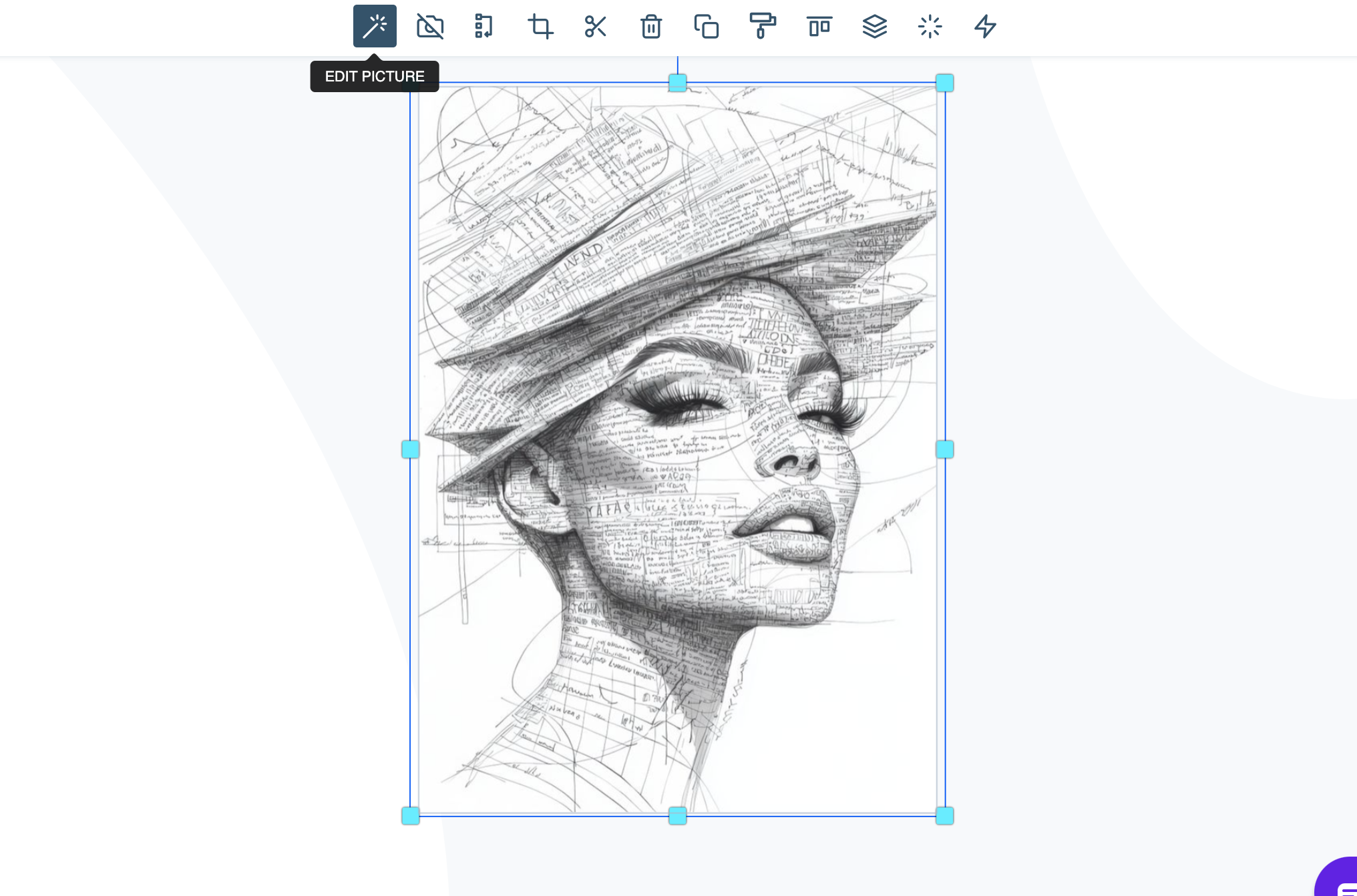
Once the image is on the canvas, click on the 'Edit Picture' button
Here’s how the **Sketch to Image** function works:
1. **Sketch Input**: The user provides a simple sketch or drawing that acts as the starting point for the final image.
2. **AI Interpretation**: The AI analyzes the shapes, lines, and proportions in the sketch, turning the basic drawing into a more complete image.
3. **Image Generation**: Once the sketch is understood, the AI uses its knowledge of objects, textures, and styles to create a detailed version of the image.
4. **Customization**: Users can add more details, like style, colors, or layout, to help guide the AI in creating the final image.
### Process:
1. **Sketch Creation**: The user creates a basic sketch, which could be a hand-drawn doodle or a simple digital outline.
2. **AI Processing**: The AI processes the sketch and turns it into a more detailed image, filling in missing parts based on patterns it has learned.
3. **Final Image**: The AI produces a high-quality image based on the original sketch, which can be further adjusted if needed.
**How to use Sketch to Image:**
Start by uploading your image into the PitchPrint editor, and inserting it on the canvas.
Once the image is on the canvas, click on the 'Edit Picture' button
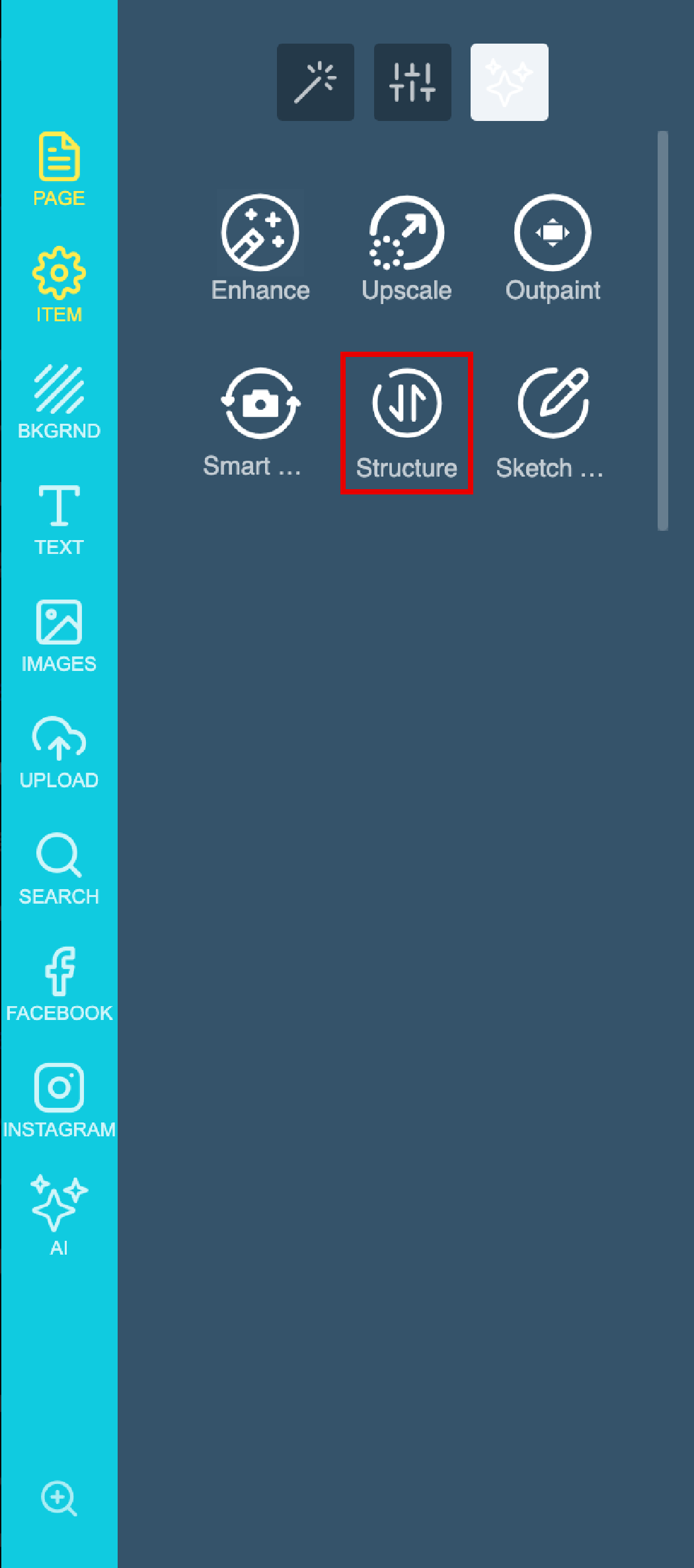
 In the side panel you will find the AI Image enhancement tools, Click on 'Structure'
 Now you will have to add your prompt: For this example I want the final Graphic to be a realistic oil Painting
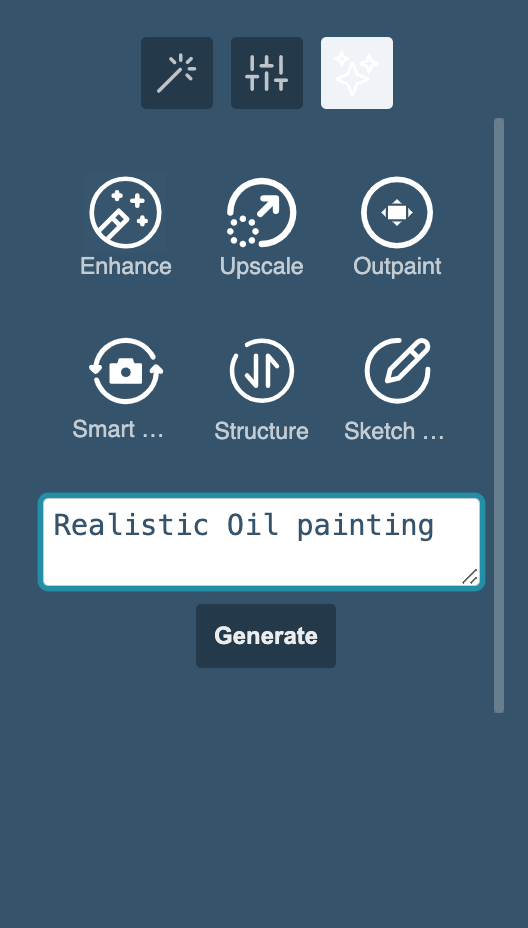 Lastly click on Generate & wait for your results.
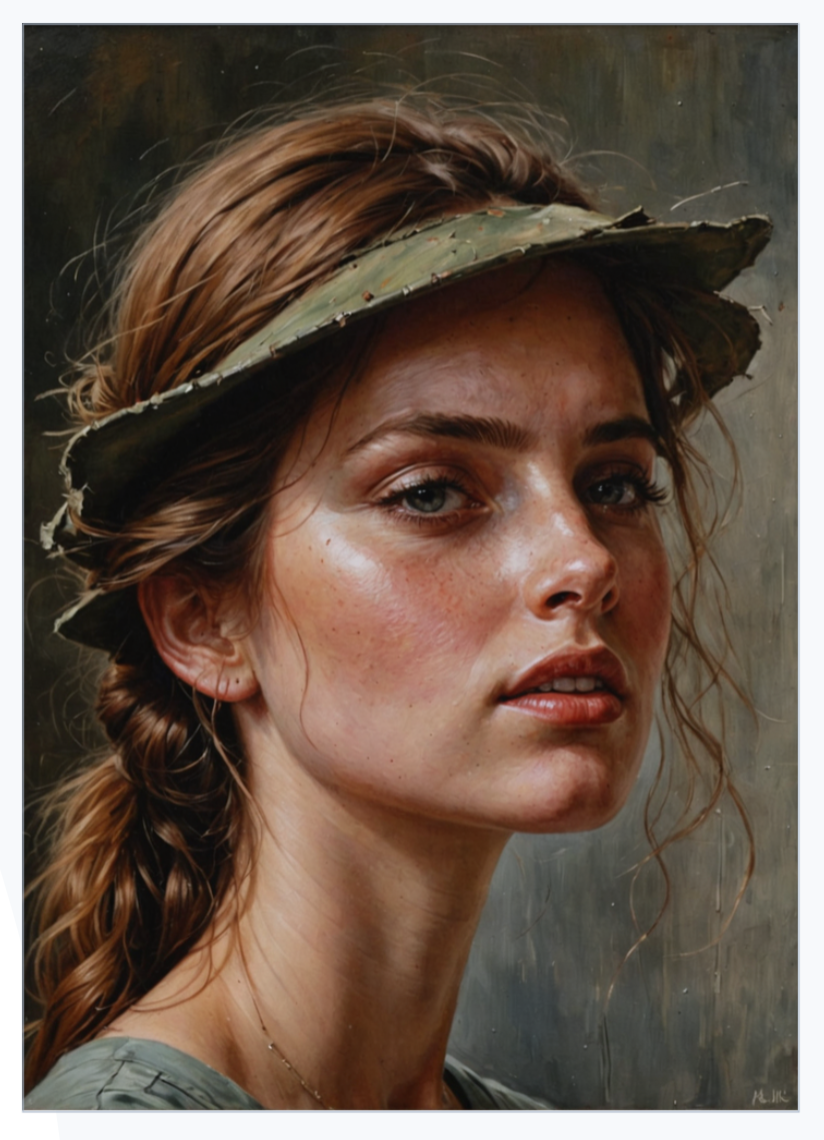 In Short this feature is great for graphic designers, artists, or businesses that need to quickly turn ideas into visual images without spending a lot of time on manual design.
Please note that this feature is still in **BETA mode** and we will continue to add functionality. Please reach out to us via [support@pitchprint.com](mailto:support@pitchprint.com) with any suggestions or questions.
*\*Additional charges apply*
## Related articles
Refine images while preserving layout, proportions, and composition.
Generate AI images from text prompts with style and size options.
Generate images from text descriptions with AI-Imaginate.
Find and replace elements within an image using AI.
This documentation is built and hosted on [Mintlify](https://mintlify.com), a developer documentation platform.
In Short this feature is great for graphic designers, artists, or businesses that need to quickly turn ideas into visual images without spending a lot of time on manual design.
Please note that this feature is still in **BETA mode** and we will continue to add functionality. Please reach out to us via [support@pitchprint.com](mailto:support@pitchprint.com) with any suggestions or questions.
*\*Additional charges apply*
## Related articles
Refine images while preserving layout, proportions, and composition.
Generate AI images from text prompts with style and size options.
Generate images from text descriptions with AI-Imaginate.
Find and replace elements within an image using AI.
This documentation is built and hosted on [Mintlify](https://mintlify.com), a developer documentation platform.