> ## Documentation Index
> Fetch the complete documentation index at: https://pitchprint.com/llms.txt
> Use this file to discover all available pages before exploring further.
# AI Outpainting
> Let customers extend an image past its original borders from the Edit Picture panel, with AI generating the surrounding content.
 This module allows your customers to expand images beyond their original borders using AI outpainting technology. By leveraging powerful machine learning algorithms, outpainting analyzes the style, textures, and composition of an image to seamlessly generate new content that blends with the existing elements. This technique can be used to:
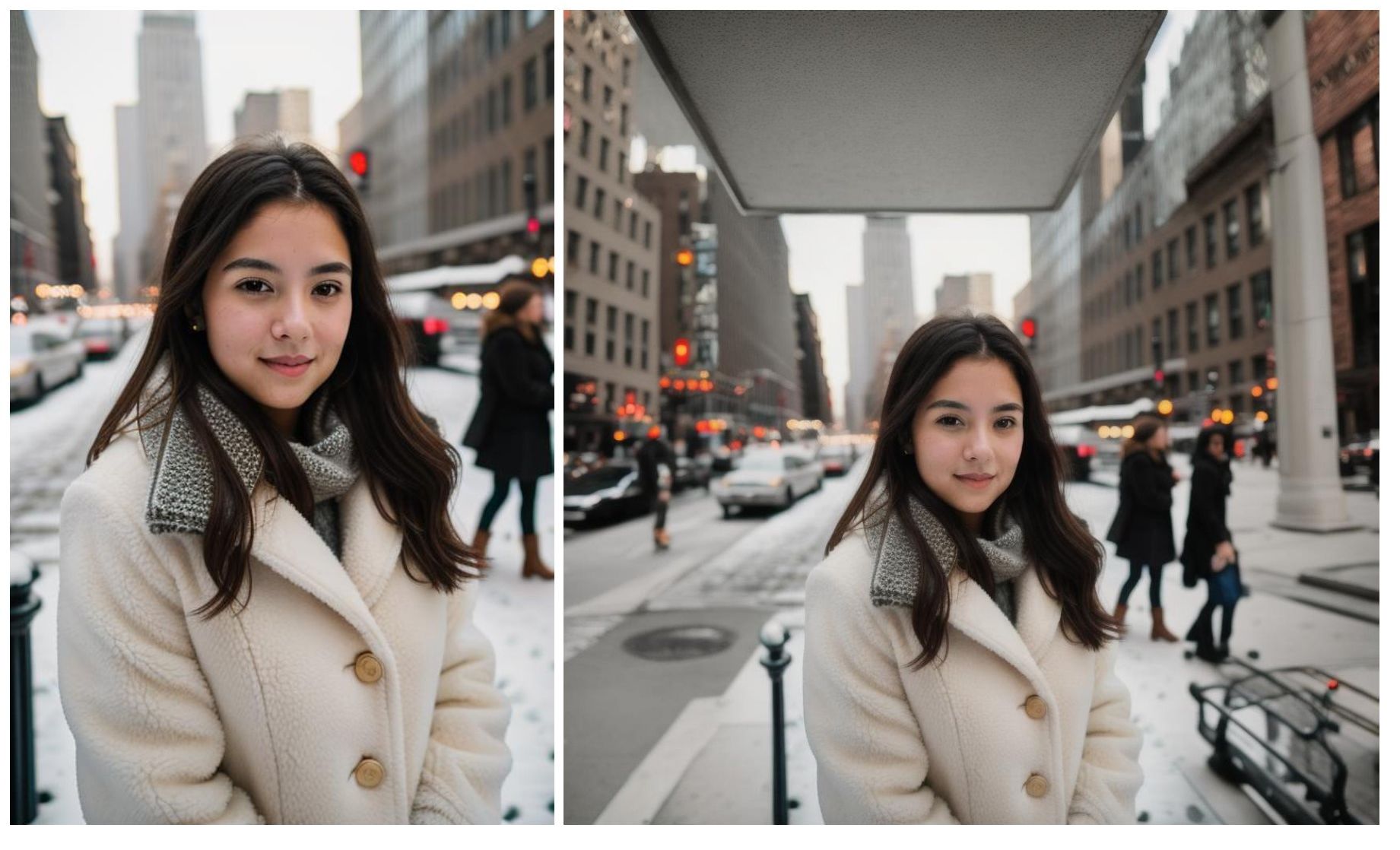 \- **Expand a Scene:** Reimagine a cropped photo by predicting and filling in what the rest of the scene might look like.
\- **Creative Edits:** Enable artists and designers to extend artwork, create variations, or develop larger visuals from smaller sections of their designs.
\- **Enhance and Repair Images:** Restore incomplete or damaged images by filling in missing parts with coherent visual elements.
**How to use Outpaint:**
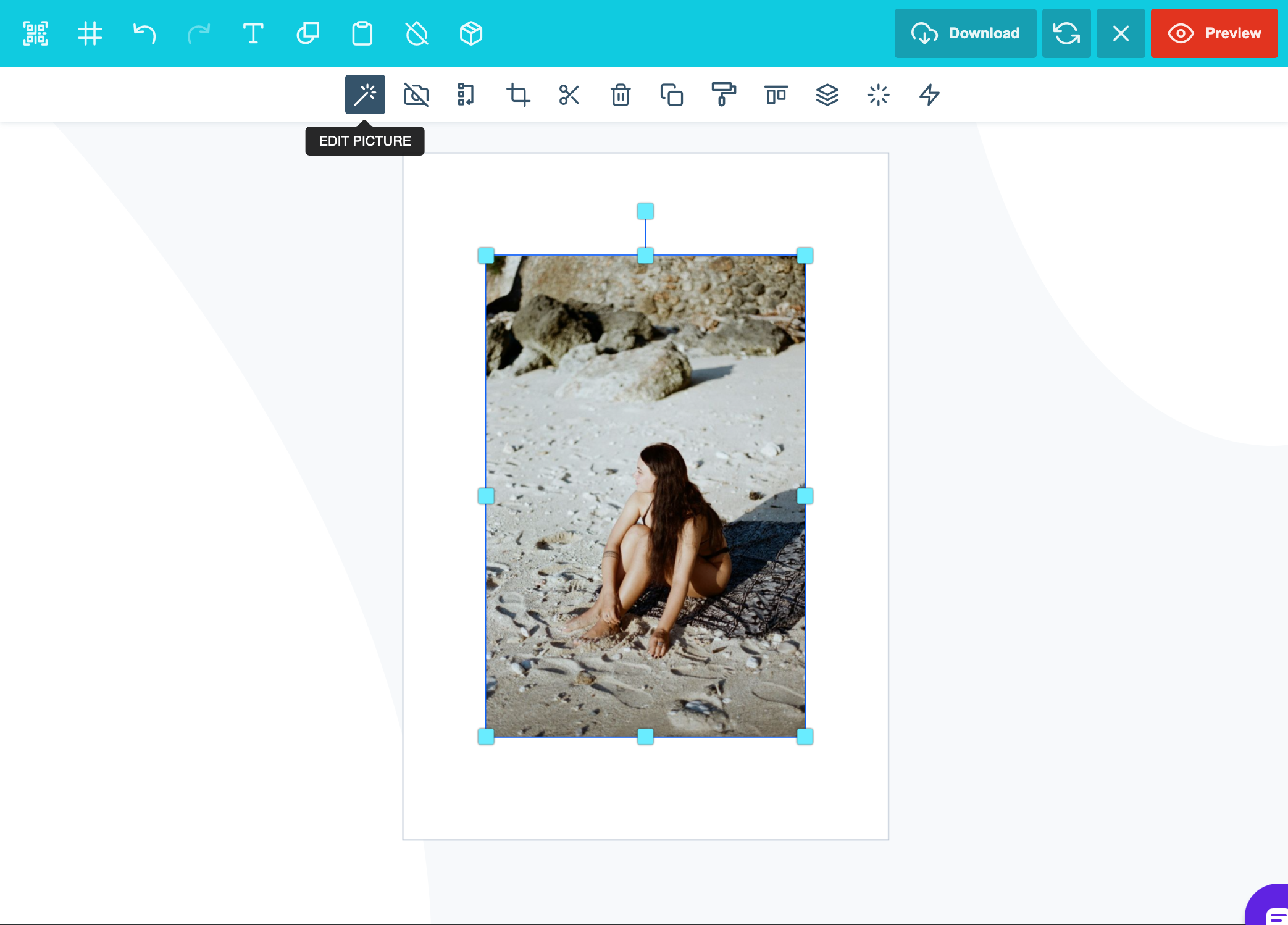
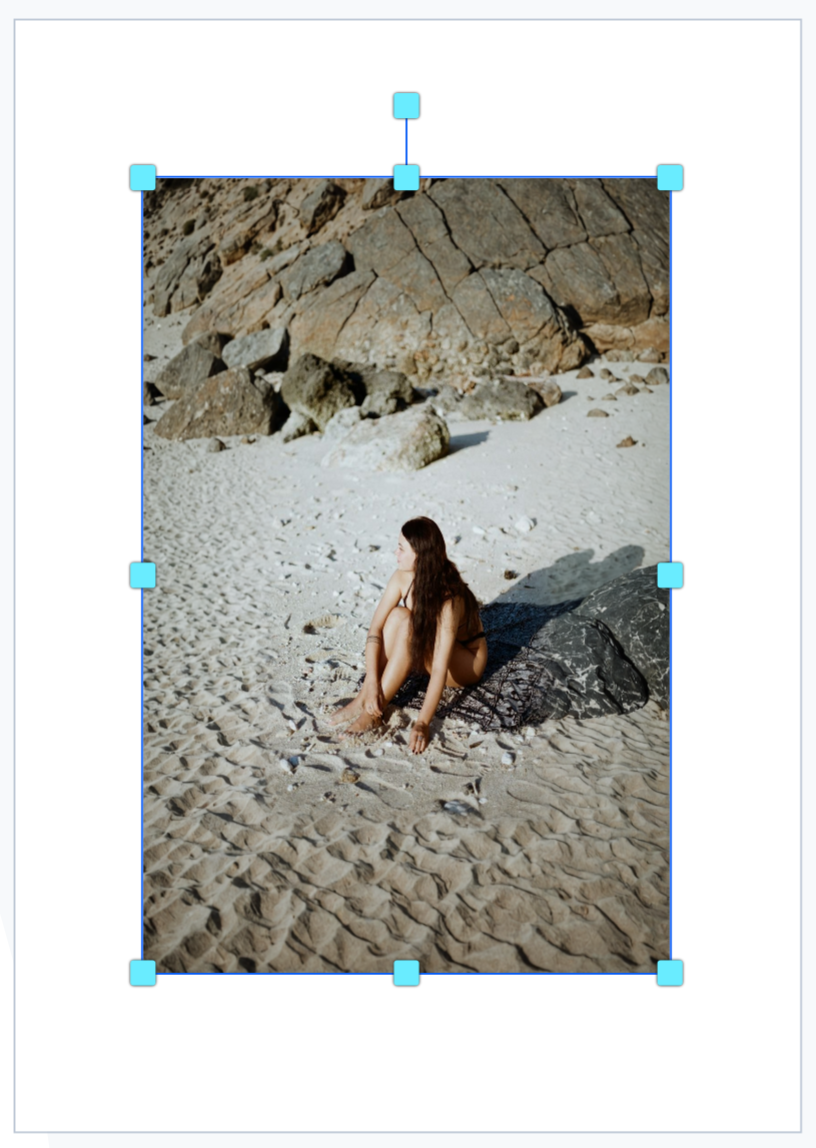
Start by uploading your image into the PitchPrint editor, and inserting it on the canvas.
Once the image is on the canvas, click on the 'Edit Picture' button
\- **Expand a Scene:** Reimagine a cropped photo by predicting and filling in what the rest of the scene might look like.
\- **Creative Edits:** Enable artists and designers to extend artwork, create variations, or develop larger visuals from smaller sections of their designs.
\- **Enhance and Repair Images:** Restore incomplete or damaged images by filling in missing parts with coherent visual elements.
**How to use Outpaint:**
Start by uploading your image into the PitchPrint editor, and inserting it on the canvas.
Once the image is on the canvas, click on the 'Edit Picture' button
 In the side panel you will find the AI Image enhancement tools, Click on 'outpaint'
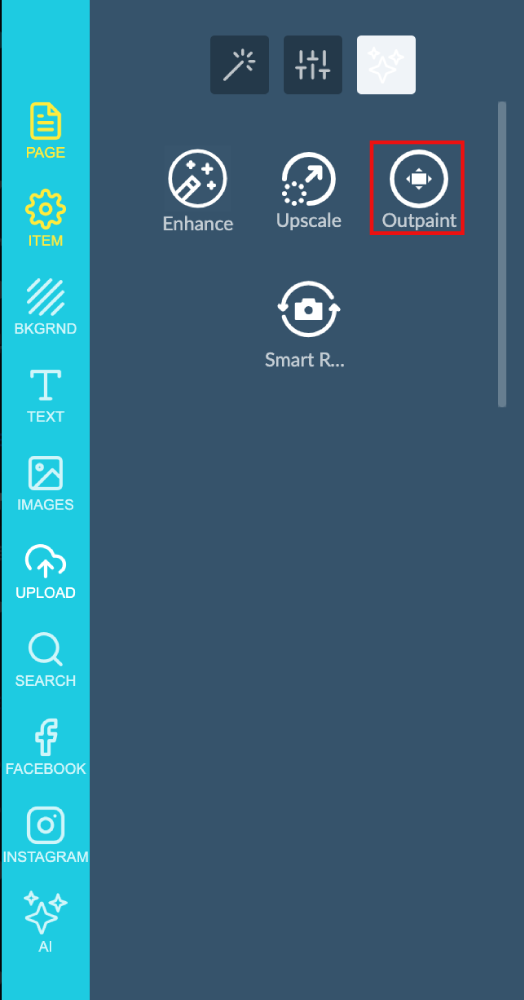 The AI Feature will then automatically expand the image for you.
 Please note that this feature is still in **BETA mode** and we will continue to add functionality. Please reach out to us via [support@pitchprint.com](mailto:support@pitchprint.com) with any suggestions or questions.
*\*Additional charges apply*
## Related articles
Increase image resolution and quality with AI without losing detail.
Find and replace elements within an image using AI.
Convert rough sketches into fully detailed images.
Refine images while preserving layout, proportions, and composition.
This documentation is built and hosted on [Mintlify](https://mintlify.com), a developer documentation platform.
Please note that this feature is still in **BETA mode** and we will continue to add functionality. Please reach out to us via [support@pitchprint.com](mailto:support@pitchprint.com) with any suggestions or questions.
*\*Additional charges apply*
## Related articles
Increase image resolution and quality with AI without losing detail.
Find and replace elements within an image using AI.
Convert rough sketches into fully detailed images.
Refine images while preserving layout, proportions, and composition.
This documentation is built and hosted on [Mintlify](https://mintlify.com), a developer documentation platform.