> ## Documentation Index
> Fetch the complete documentation index at: https://pitchprint.com/llms.txt
> Use this file to discover all available pages before exploring further.
# PitchPrint on 3DCart
> One-click install of PitchPrint on a 3DCart store, then assign designs and download print files.
[3DCart](https://3dcart.com) is a hosted ecommerce framework similar to Shopify, with a strong focus on SEO and conversion. PitchPrint installs in one click.
Open the [PitchPrint listing on the 3DCart app store](https://apps.3dcart.com/pitchprint-product-customizer.html), click the green **Install App** button, enter your secure store URL and proceed.
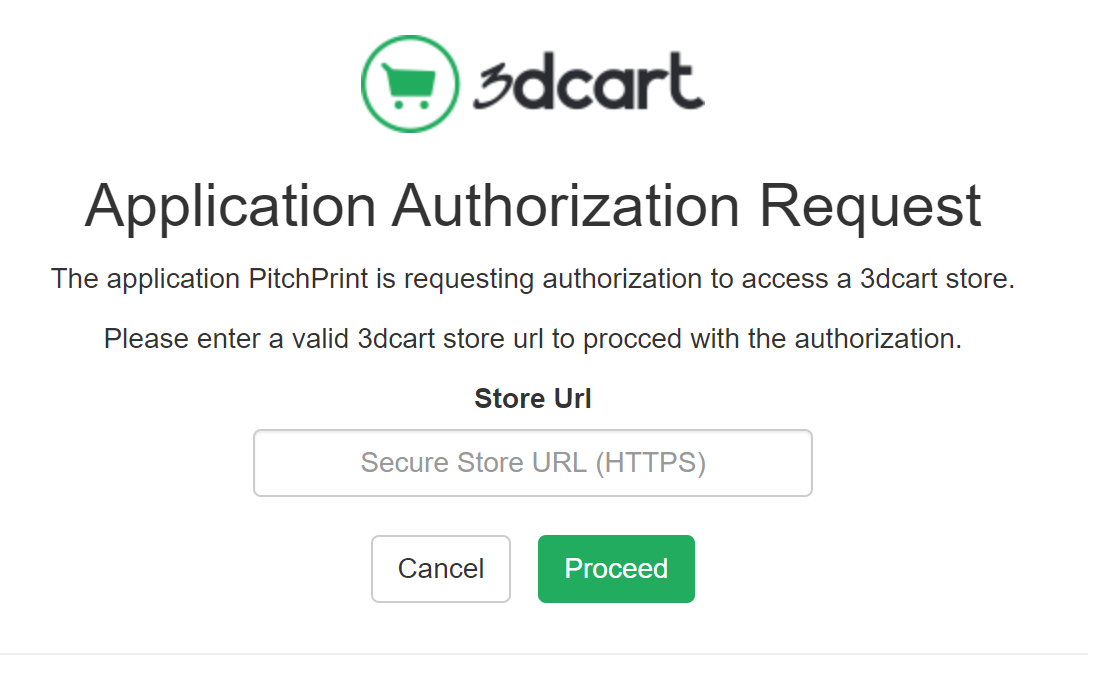 PitchPrint installs itself and emails your login credentials to your 3DCart admin email address.
On the [Designs page](https://admin.pitchprint.io/designs), build templates from scratch or import them from our design store.
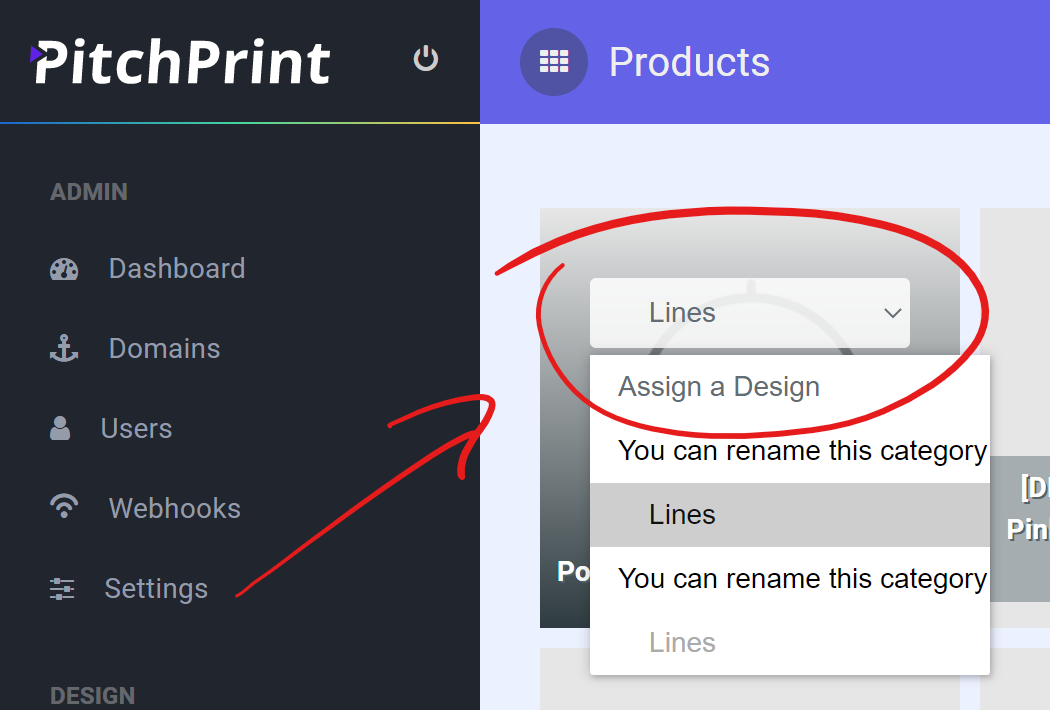
On the [Products page](https://admin.pitchprint.io/products), hover over a product and pick a design from the dropdown (a business card design for the business card product you sell, for example).
PitchPrint installs itself and emails your login credentials to your 3DCart admin email address.
On the [Designs page](https://admin.pitchprint.io/designs), build templates from scratch or import them from our design store.
On the [Products page](https://admin.pitchprint.io/products), hover over a product and pick a design from the dropdown (a business card design for the business card product you sell, for example).
 Open that product on your storefront and look for the **Customize Product** button. Clicking it launches the editor with your assigned template.
If the button does not appear, get in touch and we'll take a look.
Grab the print-ready PDF from the [Orders page](https://admin.pitchprint.io/orders). You can also reload the project there to modify it and regenerate the file.
If you are new to the platform, [Getting Started with PitchPrint](/docs/tutorial/getting-started-with-pitchprint) walks through the concepts and workflow in full.
## Related articles
Suggestions to help you choose the right shopping cart platform for your store.
See which browsers PitchPrint supports and the requirements for the app to run.
An overview of PitchPrint's features, workflows and best practices for new users.
This documentation is built and hosted on [Mintlify](https://mintlify.com), a developer documentation platform.
Open that product on your storefront and look for the **Customize Product** button. Clicking it launches the editor with your assigned template.
If the button does not appear, get in touch and we'll take a look.
Grab the print-ready PDF from the [Orders page](https://admin.pitchprint.io/orders). You can also reload the project there to modify it and regenerate the file.
If you are new to the platform, [Getting Started with PitchPrint](/docs/tutorial/getting-started-with-pitchprint) walks through the concepts and workflow in full.
## Related articles
Suggestions to help you choose the right shopping cart platform for your store.
See which browsers PitchPrint supports and the requirements for the app to run.
An overview of PitchPrint's features, workflows and best practices for new users.
This documentation is built and hosted on [Mintlify](https://mintlify.com), a developer documentation platform.