> ## Documentation Index
> Fetch the complete documentation index at: https://pitchprint.com/llms.txt
> Use this file to discover all available pages before exploring further.
# PitchPrint For Shopify.. Getting Started
> Install the PitchPrint app on Shopify, create designs, assign them to products and download print files.
PitchPrint lets your Shopify customers personalize products such as business cards, t-shirts, mugs and letterheads right on the product page before adding to cart.
Create a store at [shopify.com](http://www.shopify.com/) if you don't have one, then install PitchPrint from the [Shopify App Store](https://apps.shopify.com/pitchprint). You can also search "PitchPrint" under **Apps** in your Shopify admin.
Installation takes you to [admin.pitchprint.com/login](https://admin.pitchprint.com/login). Use the credentials emailed to the address linked to your Shopify store. If you can't find the email, check your spam and promotions folders.
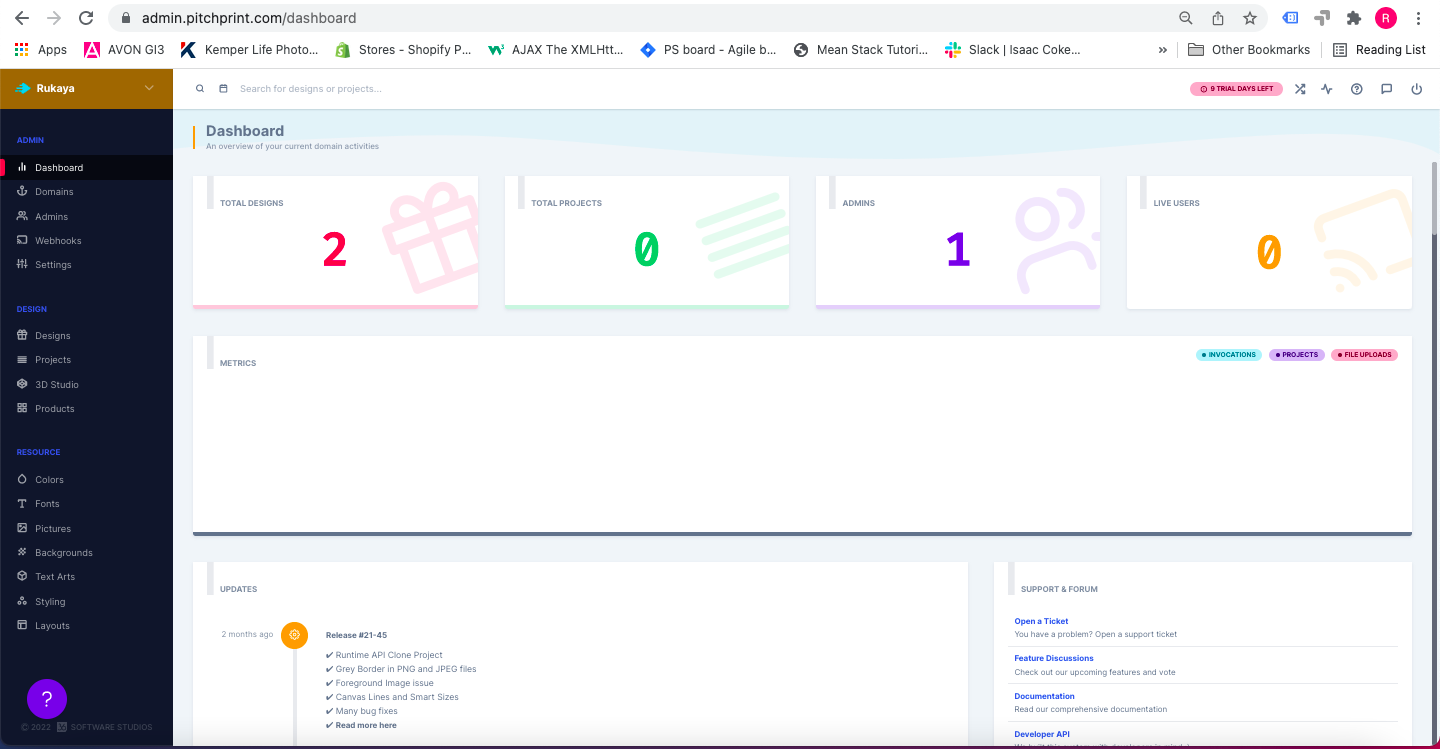 Click **Designs** in the left panel. Build your own templates, or click **Import Designs** in the top-right of a category to pull ready-made ones from our design store.
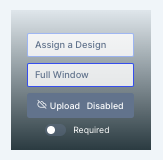
 Go to [Products](https://admin.pitchprint.com/products) and hover over a product. Four options appear: **Assign a Design**, **Full Window**, **Upload** and **Required**.
 | Option | What it does |
| - | - |
| **Assign a Design** | Links a design to the product. You can link a whole category instead, so customers pick from several. |
| **Full Window** | Sets the [display mode](/docs/tutorial/display-modes) for the editor. |
| **Upload** | Lets customers upload their own artwork instead of editing your template. Green means enabled. |
| **Required** | Forces customization. The product can't be added to cart until a design is submitted. |
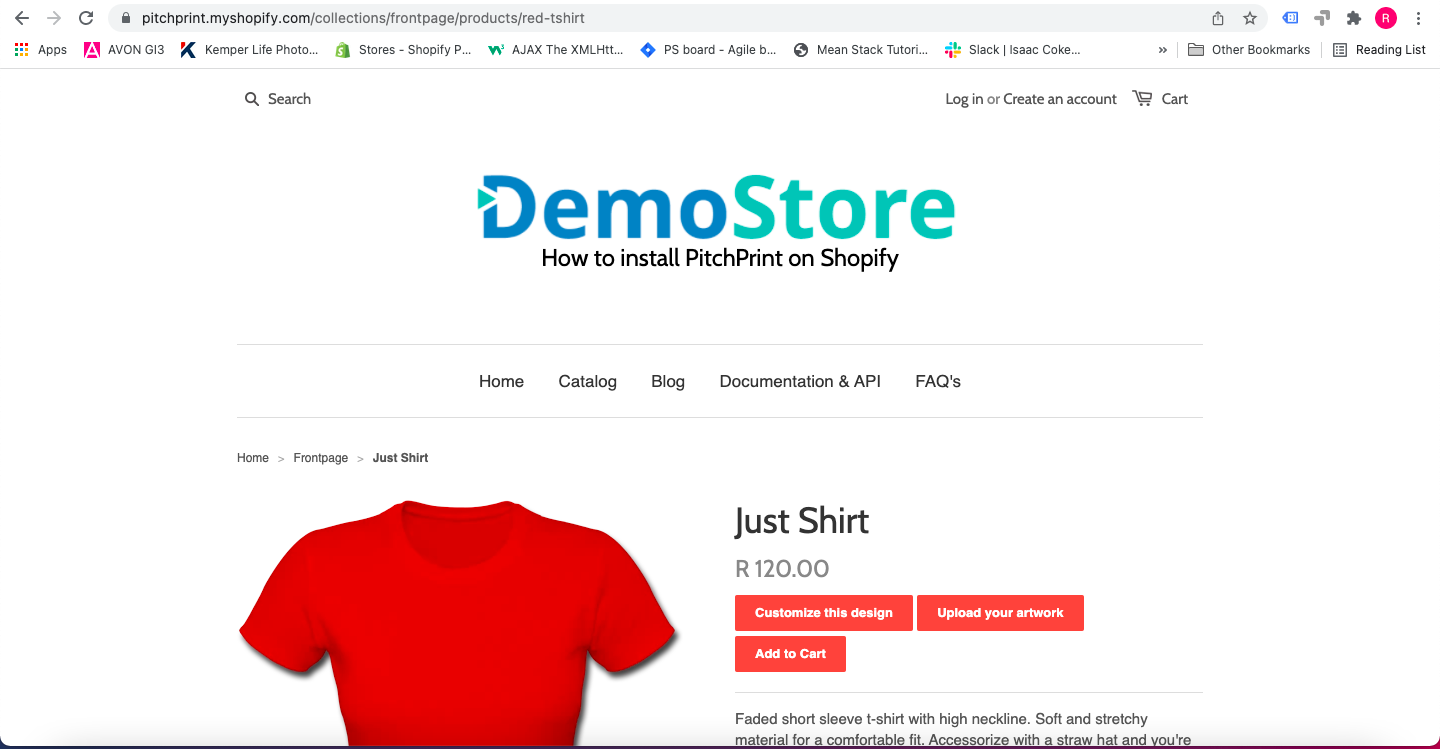
Open the product on your store. You should see a **Customize this design** button.
| Option | What it does |
| - | - |
| **Assign a Design** | Links a design to the product. You can link a whole category instead, so customers pick from several. |
| **Full Window** | Sets the [display mode](/docs/tutorial/display-modes) for the editor. |
| **Upload** | Lets customers upload their own artwork instead of editing your template. Green means enabled. |
| **Required** | Forces customization. The product can't be added to cart until a design is submitted. |
Open the product on your store. You should see a **Customize this design** button.
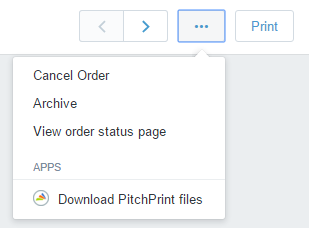
 Open the order in your Shopify admin, click the context menu in the top-right and choose **Download PitchPrint Files**.
 Disable cookie consent apps during setup. While they're active, PitchPrint won't run until the customer has accepted all cookies.
## Related articles
Suggestions to help you choose the right shopping cart platform for your store.
See which browsers PitchPrint supports and the requirements for the app to run.
An overview of PitchPrint's features, workflows and best practices for new users.
This documentation is built and hosted on [Mintlify](https://mintlify.com), a developer documentation platform.
Disable cookie consent apps during setup. While they're active, PitchPrint won't run until the customer has accepted all cookies.
## Related articles
Suggestions to help you choose the right shopping cart platform for your store.
See which browsers PitchPrint supports and the requirements for the app to run.
An overview of PitchPrint's features, workflows and best practices for new users.
This documentation is built and hosted on [Mintlify](https://mintlify.com), a developer documentation platform.