> ## Documentation Index
> Fetch the complete documentation index at: https://pitchprint.com/llms.txt
> Use this file to discover all available pages before exploring further.
# PDF Uploader
> Import an existing PDF as a design so text, groups, images and backgrounds stay editable in the PitchPrint editor.
Upload a PDF and PitchPrint turns it into a design you can keep editing on the canvas. Beta You do not have to rebuild artwork you already have.
## Why the uploader exists
PitchPrint can convert an uploaded PDF in two ways, and both of them lose editability:
| Conversion | What you can still edit |
| - | - |
| **PDF → SVG** | Colors only. Other editing is unavailable. |
| **PDF → PNG** | Nothing. Every element is flattened into a single image. |
The PDF Uploader avoids both limitations and keeps the artwork editable.
## What you can edit after uploading
Modify any text element carried over from the PDF.
Group and ungroup items to manage elements.
Move and scale images to fit the layout you want.
Change the background from inside the editor.
## Upload a PDF
Go to [Designs](https://admin.pitchprint.com/designs) and click **Import Designs**.

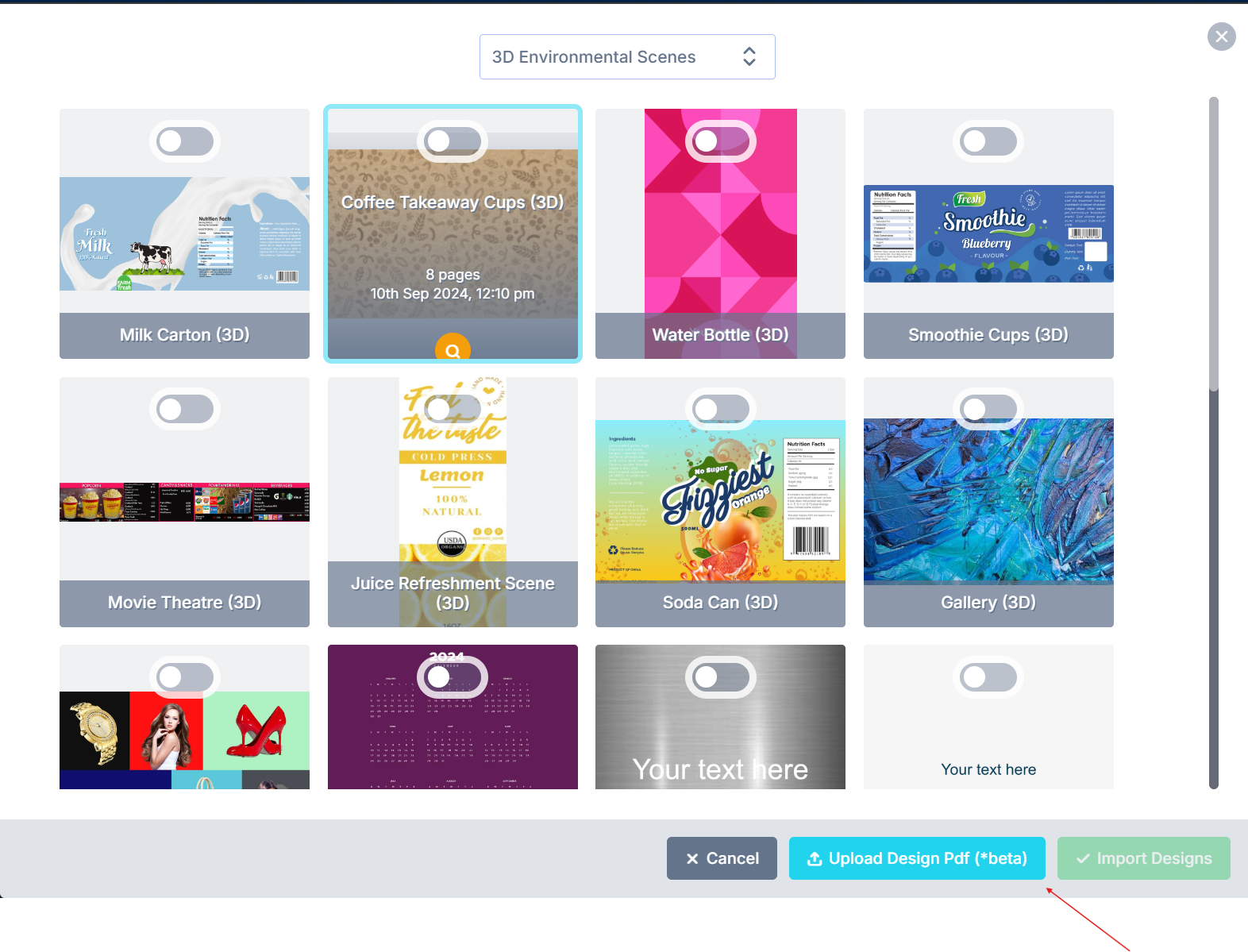 Pick the PDF from your local storage. It is added as a design in the selected category, ready to edit and save.
We are still adding functionality to the uploader. Send suggestions or questions to [support@pitchprint.com](mailto:support@pitchprint.com).
## Related articles
How PitchPrint generates print-ready PDFs and its distiller engines.
Customize PDF output with Ghostscript conversion arguments.
Automate emailing PDF output to your printer using webhooks and Zapier.
This documentation is built and hosted on [Mintlify](https://mintlify.com), a developer documentation platform.
Pick the PDF from your local storage. It is added as a design in the selected category, ready to edit and save.
We are still adding functionality to the uploader. Send suggestions or questions to [support@pitchprint.com](mailto:support@pitchprint.com).
## Related articles
How PitchPrint generates print-ready PDFs and its distiller engines.
Customize PDF output with Ghostscript conversion arguments.
Automate emailing PDF output to your printer using webhooks and Zapier.
This documentation is built and hosted on [Mintlify](https://mintlify.com), a developer documentation platform.