> ## Documentation Index
> Fetch the complete documentation index at: https://pitchprint.com/llms.txt
> Use this file to discover all available pages before exploring further.
# How To Install PitchPrint On PrestaShop
> Install and configure the PitchPrint module on a PrestaShop store.
PrestaShop is an open source cart framework built on PHP. Follow these steps to install the PitchPrint module.
Download PrestaShop from the [developer versions page](https://www.prestashop.com/en/developers-versions#previous-version) and install it on your server following the instructions in the package.
Get the latest release from [github.com/pitchprint/prestashop/releases](https://github.com/pitchprint/prestashop/releases).
Unzip it and upload to your PrestaShop `modules` directory. Upload the `pitchprint` folder itself, not just its contents, so the result looks like this:
If you upload the contents instead of the folder, the module will not be detected. The path must be `modules/pitchprint`.
Set `site/modules/pitchprint/uploads/files` to permission `777`.
`777` grants write access to everyone on the server. Work through our [security measures](/docs/tutorial/security-measures) before going live.
In your PrestaShop admin click **Modules**, search for "pitchprint", click **Install**, then click **Configure**.
In a new tab, [create an account](https://admin.pitchprint.com/register) or [log in](https://admin.pitchprint.com/login), then add a domain on the [domains page](https://admin.pitchprint.com/domains).
Enter your intended live domain, not a localhost address. You can still use the keys for local testing. PitchPrint returns an **API Key** and **Secret Key**.
Paste both keys into the PitchPrint configuration boxes and save. Leave the JavaScript and CSS fields empty for now.
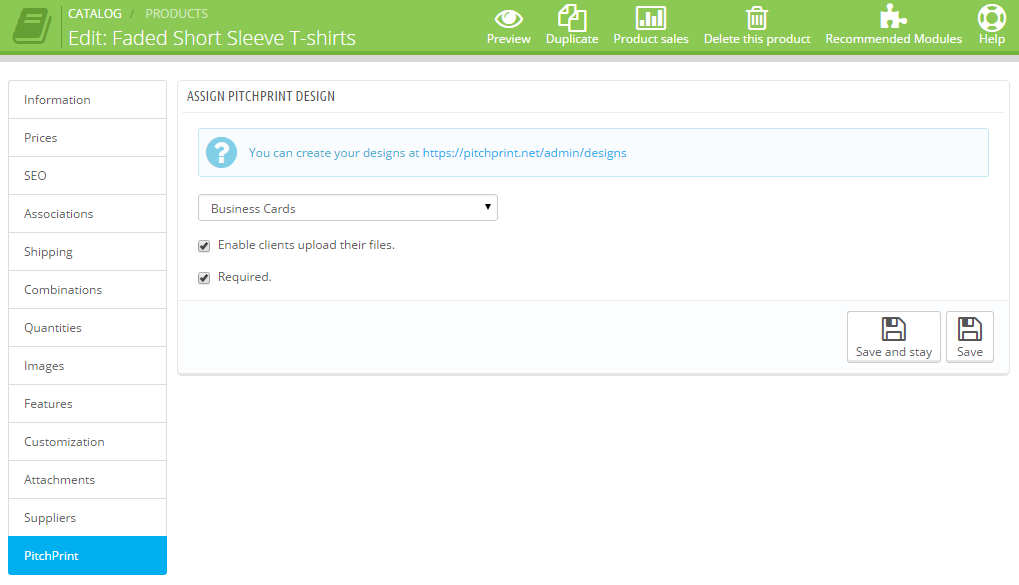
Go to **Catalog → Products** and click **edit** on any product. PitchPrint sits at the bottom of the left menu. Click it, assign one of your designs and save.
To create more designs, go to the [PitchPrint Designs page](https://admin.pitchprint.com/designs).
 Open the product on your store and check for the **Customize** button.
If the button does not appear, see [troubleshooting](/docs/tutorial/personalize-button-no-showing) or open a ticket.
When an order comes in, the design download links appear against each product in that order.
## Related articles
Suggestions to help you choose the right shopping cart platform for your store.
See which browsers PitchPrint supports and the requirements for the app to run.
An overview of PitchPrint's features, workflows and best practices for new users.
This documentation is built and hosted on [Mintlify](https://mintlify.com), a developer documentation platform.
Open the product on your store and check for the **Customize** button.
If the button does not appear, see [troubleshooting](/docs/tutorial/personalize-button-no-showing) or open a ticket.
When an order comes in, the design download links appear against each product in that order.
## Related articles
Suggestions to help you choose the right shopping cart platform for your store.
See which browsers PitchPrint supports and the requirements for the app to run.
An overview of PitchPrint's features, workflows and best practices for new users.
This documentation is built and hosted on [Mintlify](https://mintlify.com), a developer documentation platform.