> ## Documentation Index
> Fetch the complete documentation index at: https://pitchprint.com/llms.txt
> Use this file to discover all available pages before exploring further.
# How To Install PitchPrint On OpenCart
> Install the PitchPrint module on OpenCart 3.x or 2.x, then configure it and assign a design.
OpenCart is a lightweight open source cart framework. Pick the tab for your OpenCart version below, then finish with the setup steps. If your store is already running, skip straight to the module download.
Download the latest release from the [OpenCart download page](http://opencart.com/index.php?route=download/download) and install it following the instructions in the package.
Grab the V10 ocmod build from [github.com/pitchprint/opencart/releases](https://github.com/pitchprint/opencart/releases).
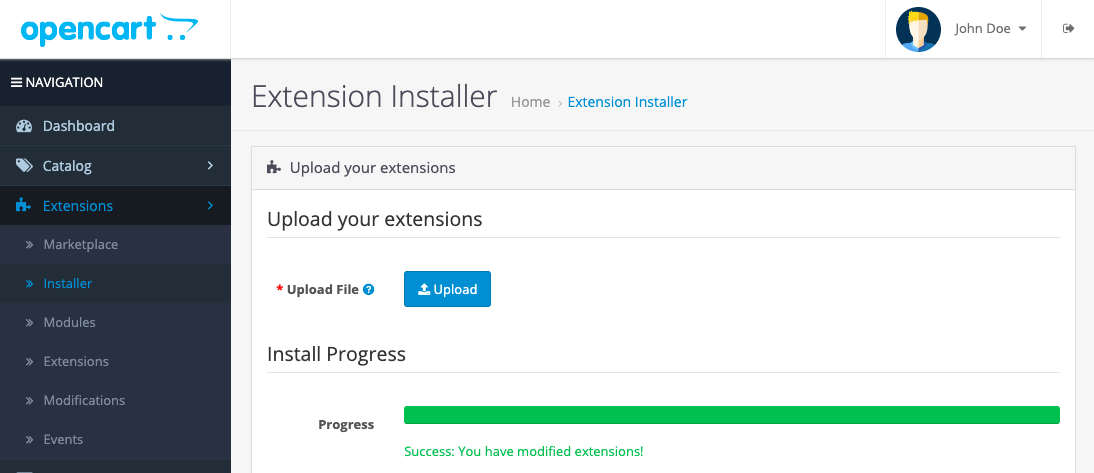
In your OpenCart admin go to **Extensions → Installer** and upload `pitchprint.ocmod.zip`.
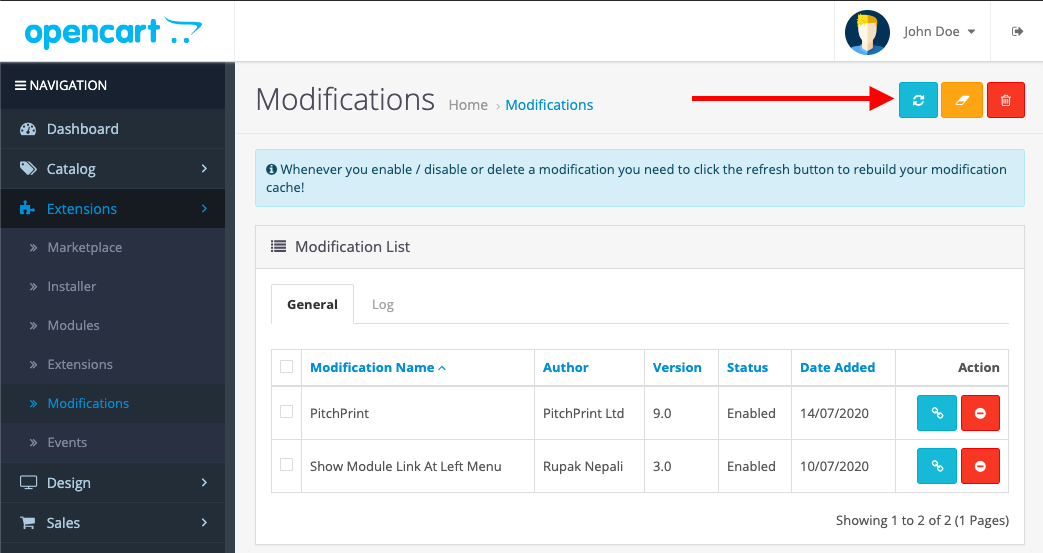
 Go to **Extensions → Modifications** and click the refresh button.
 PitchPrint now appears under **Extensions → Modules**. Continue with the setup steps below.
OpenCart 2.x needs vQmod. Download [vqmod-2.5.1-opencart.zip](https://github.com/vqmod/vqmod/releases/download/v2.5.1-opencart.zip/vqmod-2.5.1-opencart.zip) and follow the [vQmod install guide](https://github.com/vqmod/vqmod/wiki/Installing-vQmod-on-OpenCart).
You must use the OpenCart edition of vQmod, not the standalone one.
Get it from [github.com/pitchprint/opencart/releases](https://github.com/pitchprint/opencart/releases).
There are three builds: 2.3, 2.2.x and 1.5.x. They are not interchangeable, so download the one matching your OpenCart version.
Unzip the package and upload the contents of the **upload** folder into your OpenCart root, overwriting existing files.
Over FTP, set `uploads/files` to permission `777`.
`777` grants write access to everyone on the server. Work through our [security measures](/docs/tutorial/security-measures) before going live.
In your OpenCart admin, go to **Extensions → Modules**, then continue with the setup steps below.
## Setting up PitchPrint on OpenCart
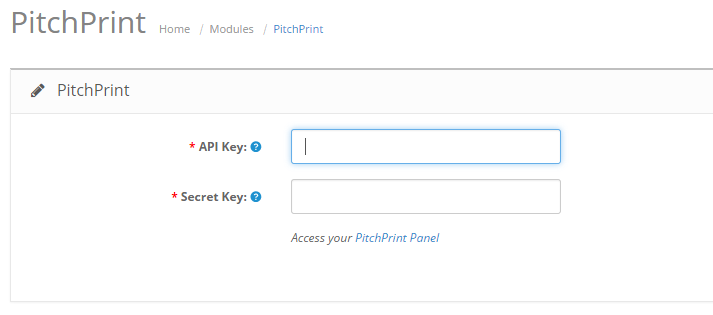
Click to install the PitchPrint module, then click to edit it.
[Create an account](https://admin.pitchprint.com/register) or [log in](https://admin.pitchprint.com/login), then add your domain on the [domains page](https://admin.pitchprint.com/domains).
Enter your intended live domain, not a localhost address. You can still use the keys for local testing. PitchPrint returns an **API Key** and **Secret Key**.
Paste both keys into the module configuration and save.
PitchPrint now appears under **Extensions → Modules**. Continue with the setup steps below.
OpenCart 2.x needs vQmod. Download [vqmod-2.5.1-opencart.zip](https://github.com/vqmod/vqmod/releases/download/v2.5.1-opencart.zip/vqmod-2.5.1-opencart.zip) and follow the [vQmod install guide](https://github.com/vqmod/vqmod/wiki/Installing-vQmod-on-OpenCart).
You must use the OpenCart edition of vQmod, not the standalone one.
Get it from [github.com/pitchprint/opencart/releases](https://github.com/pitchprint/opencart/releases).
There are three builds: 2.3, 2.2.x and 1.5.x. They are not interchangeable, so download the one matching your OpenCart version.
Unzip the package and upload the contents of the **upload** folder into your OpenCart root, overwriting existing files.
Over FTP, set `uploads/files` to permission `777`.
`777` grants write access to everyone on the server. Work through our [security measures](/docs/tutorial/security-measures) before going live.
In your OpenCart admin, go to **Extensions → Modules**, then continue with the setup steps below.
## Setting up PitchPrint on OpenCart
Click to install the PitchPrint module, then click to edit it.
[Create an account](https://admin.pitchprint.com/register) or [log in](https://admin.pitchprint.com/login), then add your domain on the [domains page](https://admin.pitchprint.com/domains).
Enter your intended live domain, not a localhost address. You can still use the keys for local testing. PitchPrint returns an **API Key** and **Secret Key**.
Paste both keys into the module configuration and save.
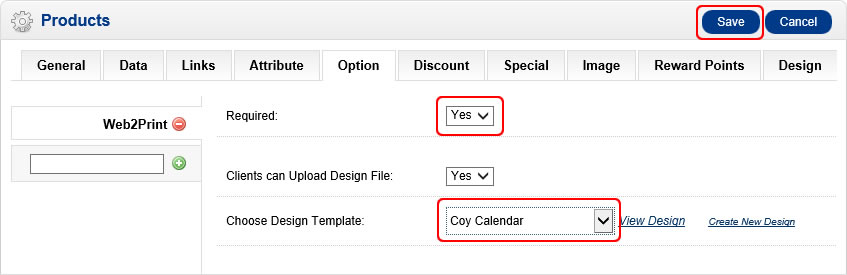
 Go to **Catalog → Products**, edit or create a product, and open the **Options** tab. Type "Web2Print" in the left box, click the Web2Print option to insert it, set **Required** to Yes and assign a design template.
 If the Web2Print option does not appear, see [Web2Print options missing in OpenCart admin](/docs/tutorial/web2print-options-missing-in-opencart-admin).
Open the product on your store and look for the **Customize Now** button.
If the button does not appear, reload the admin product page and confirm a design is assigned. If it's assigned and the button still doesn't show, the cause is usually your theme. See [troubleshooting](/docs/tutorial/personalize-button-no-showing) or open a ticket.
## Related articles
Suggestions to help you choose the right shopping cart platform for your store.
See which browsers PitchPrint supports and the requirements for the app to run.
An overview of PitchPrint's features, workflows and best practices for new users.
This documentation is built and hosted on [Mintlify](https://mintlify.com), a developer documentation platform.
If the Web2Print option does not appear, see [Web2Print options missing in OpenCart admin](/docs/tutorial/web2print-options-missing-in-opencart-admin).
Open the product on your store and look for the **Customize Now** button.
If the button does not appear, reload the admin product page and confirm a design is assigned. If it's assigned and the button still doesn't show, the cause is usually your theme. See [troubleshooting](/docs/tutorial/personalize-button-no-showing) or open a ticket.
## Related articles
Suggestions to help you choose the right shopping cart platform for your store.
See which browsers PitchPrint supports and the requirements for the app to run.
An overview of PitchPrint's features, workflows and best practices for new users.
This documentation is built and hosted on [Mintlify](https://mintlify.com), a developer documentation platform.