> ## Documentation Index
> Fetch the complete documentation index at: https://pitchprint.com/llms.txt
> Use this file to discover all available pages before exploring further.
# How to install PitchPrint on BigCommerce
> Install the PitchPrint app from the BigCommerce App Store and assign your first design.
BigCommerce is an ecommerce platform built for scale. PitchPrint installs as a BigCommerce app, so setup takes only a few clicks.
Go to [PitchPrint on the BigCommerce App Store](https://www.bigcommerce.com/apps/pitchprint/?search=pitchprint).
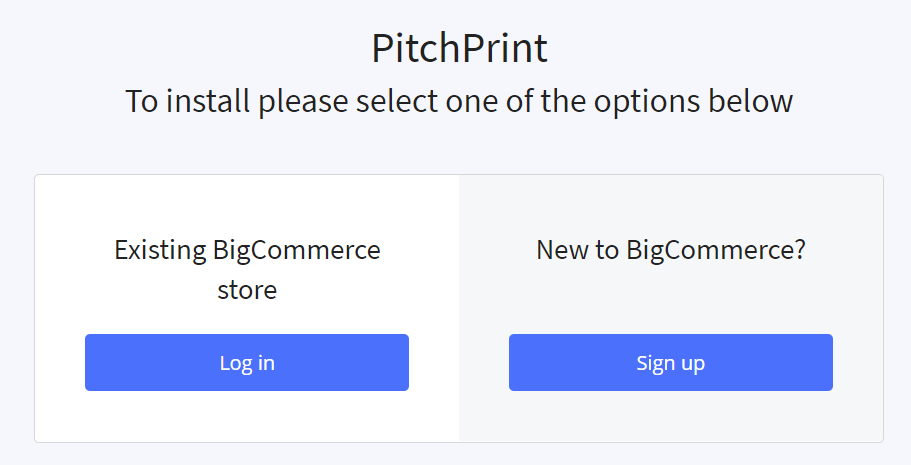
Click **Get This App**. You'll be prompted to log in to BigCommerce or create an account.
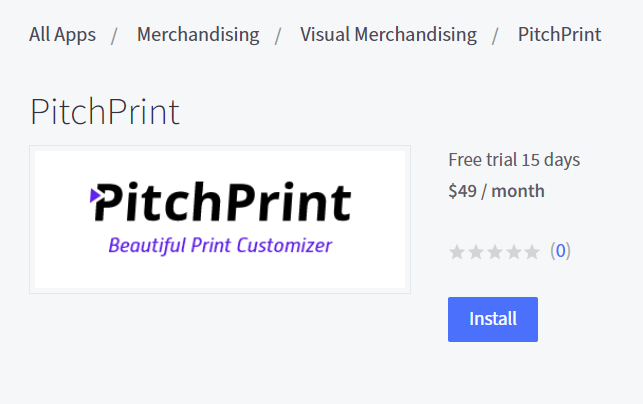
 The PitchPrint installation page loads. If it doesn't, click [the app link](https://www.bigcommerce.com/apps/pitchprint/) again now that you're logged in. Click the blue **Install** button.
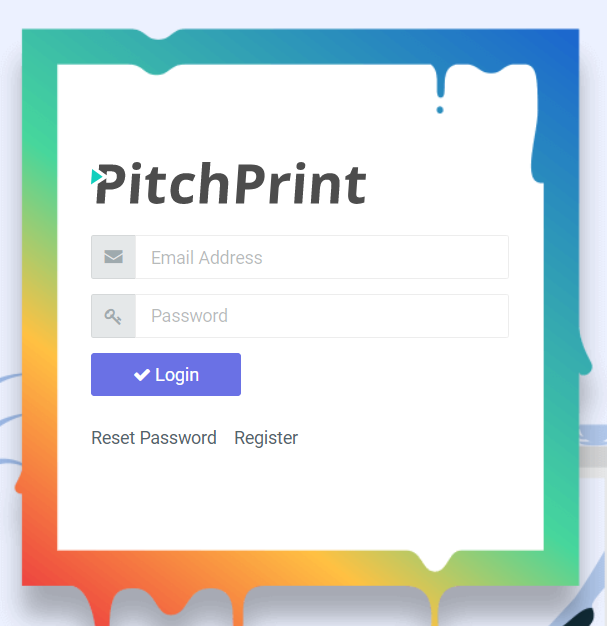
 Installation ends at the PitchPrint login page. Your credentials were emailed to the address you registered with BigCommerce.
 In your BigCommerce admin open **Products** and click **Add** (a business card, banner or t-shirt, for example).
To save time, use one of the sample products that ships with a new BigCommerce account and skip to the next step.
In your BigCommerce admin open **Products** and click **Add** (a business card, banner or t-shirt, for example).
To save time, use one of the sample products that ships with a new BigCommerce account and skip to the next step.
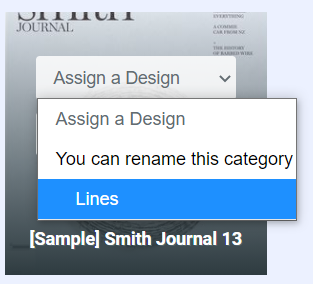
 Open the [Products page](https://admin.pitchprint.io/products) in the PitchPrint admin, hover over your product and assign a design. The default **Lines** design is fine for a test.
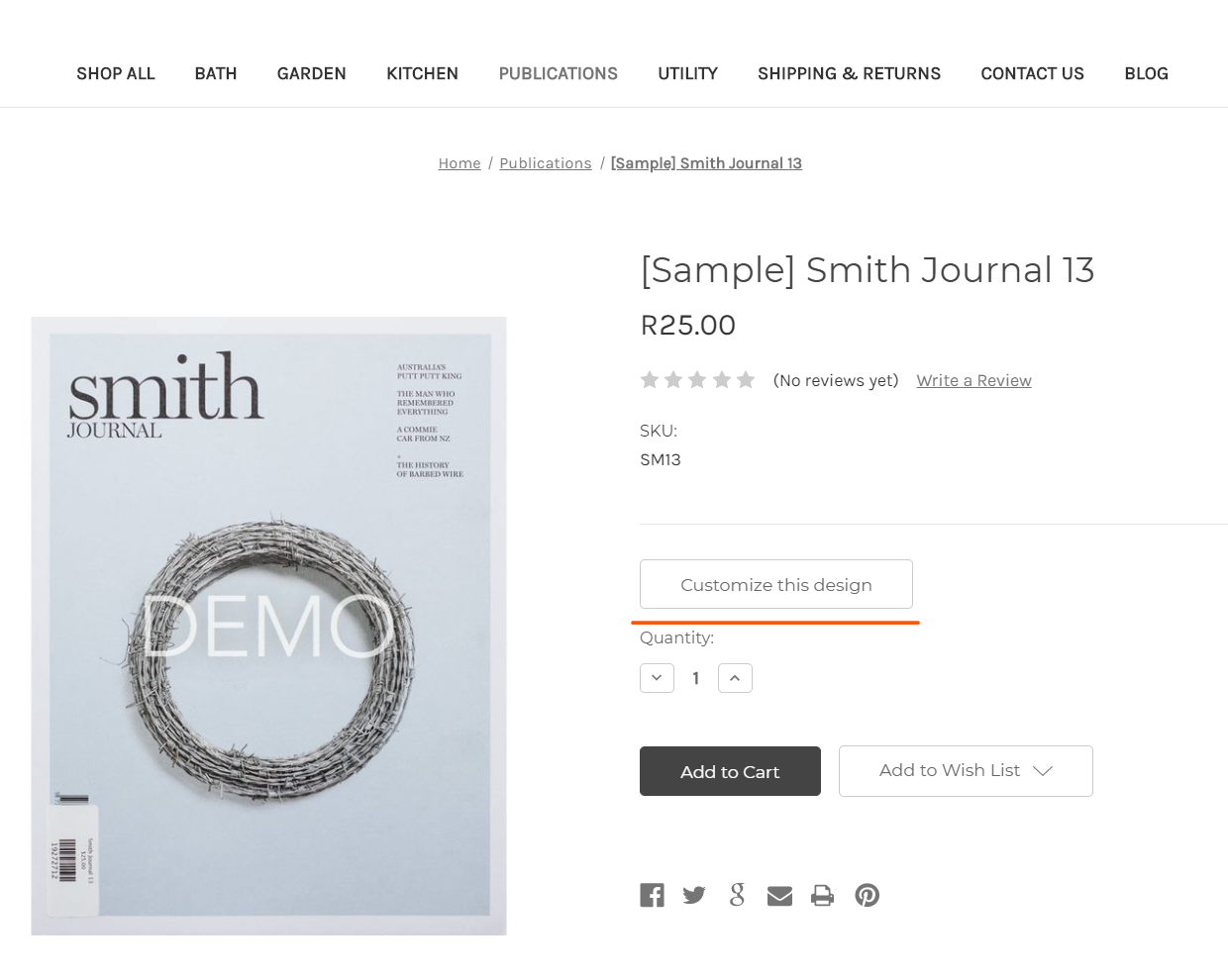
 Open the product on your store. You should see the **Customize this Design** button. Click it to launch the editor, personalize the design, then add to cart to complete a test order.
 Open **Orders** in your PitchPrint admin to download the print-ready files for each order.
If you get stuck at any point, reach us by email or live chat.
## Related articles
Suggestions to help you choose the right shopping cart platform for your store.
See which browsers PitchPrint supports and the requirements for the app to run.
An overview of PitchPrint's features, workflows and best practices for new users.
This documentation is built and hosted on [Mintlify](https://mintlify.com), a developer documentation platform.
Open **Orders** in your PitchPrint admin to download the print-ready files for each order.
If you get stuck at any point, reach us by email or live chat.
## Related articles
Suggestions to help you choose the right shopping cart platform for your store.
See which browsers PitchPrint supports and the requirements for the app to run.
An overview of PitchPrint's features, workflows and best practices for new users.
This documentation is built and hosted on [Mintlify](https://mintlify.com), a developer documentation platform.