> ## Documentation Index
> Fetch the complete documentation index at: https://pitchprint.com/llms.txt
> Use this file to discover all available pages before exploring further.
# BigCommerce user Guide
> Install the PitchPrint app on BigCommerce and set up your first customizable product.
If you don't have a store yet, sign up at BigCommerce and [start a free trial](https://www.bigcommerce.com/essentials/free-trial/).
Go to [PitchPrint on the BigCommerce App Marketplace](https://www.bigcommerce.com/apps/pitchprint/?search=pitchprint) and click **Get this app**.
Click **Install** and approve the requested permissions.
Log in to your PitchPrint account using the credentials emailed to the address on your BigCommerce account.
Select the installation plugin you intend to use.
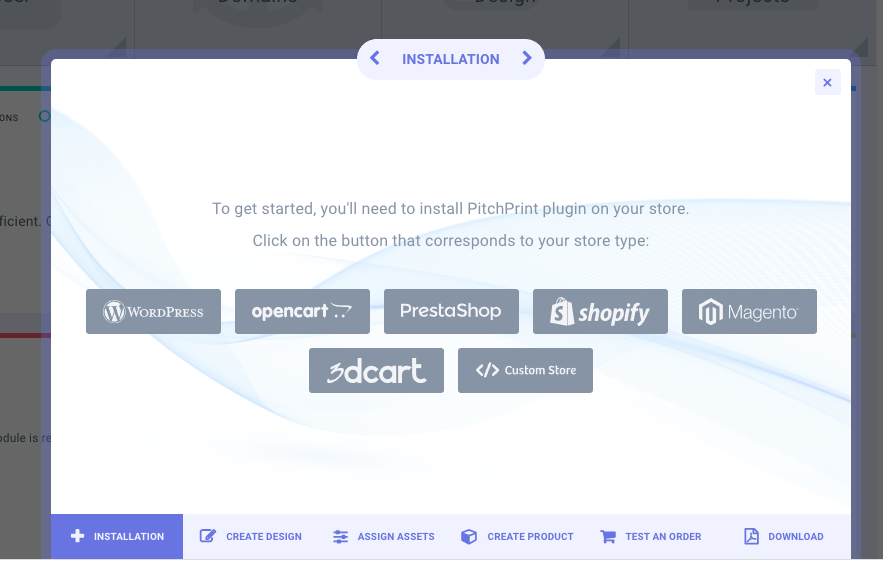 With the plugin selected you can import designs, create a new design, assign assets and create a product.
For the full walkthrough with screenshots at every stage, see [How to install PitchPrint on BigCommerce](/docs/documentation/how-to-install-pitchprint-on-bigcommerce).
This documentation is built and hosted on [Mintlify](https://mintlify.com), a developer documentation platform.
With the plugin selected you can import designs, create a new design, assign assets and create a product.
For the full walkthrough with screenshots at every stage, see [How to install PitchPrint on BigCommerce](/docs/documentation/how-to-install-pitchprint-on-bigcommerce).
This documentation is built and hosted on [Mintlify](https://mintlify.com), a developer documentation platform.