> ## Documentation Index
> Fetch the complete documentation index at: https://pitchprint.com/llms.txt
> Use this file to discover all available pages before exploring further.
# 2026 releases
> PitchPrint release notes from 2026 — new features, improvements, and bug fixes.
Releases ship weekly on Thursdays. Subscribe with the RSS button above to get each one as it lands.
**Show item dimensions, How to enable this feature, Canvas Adjuster predefined and custom values, How it works.**
We’re back with another round of updates, and as always, we’re excited to share what the team has been working on to keep improving the PitchPrint experience for you and your customers.
### Show item dimensions
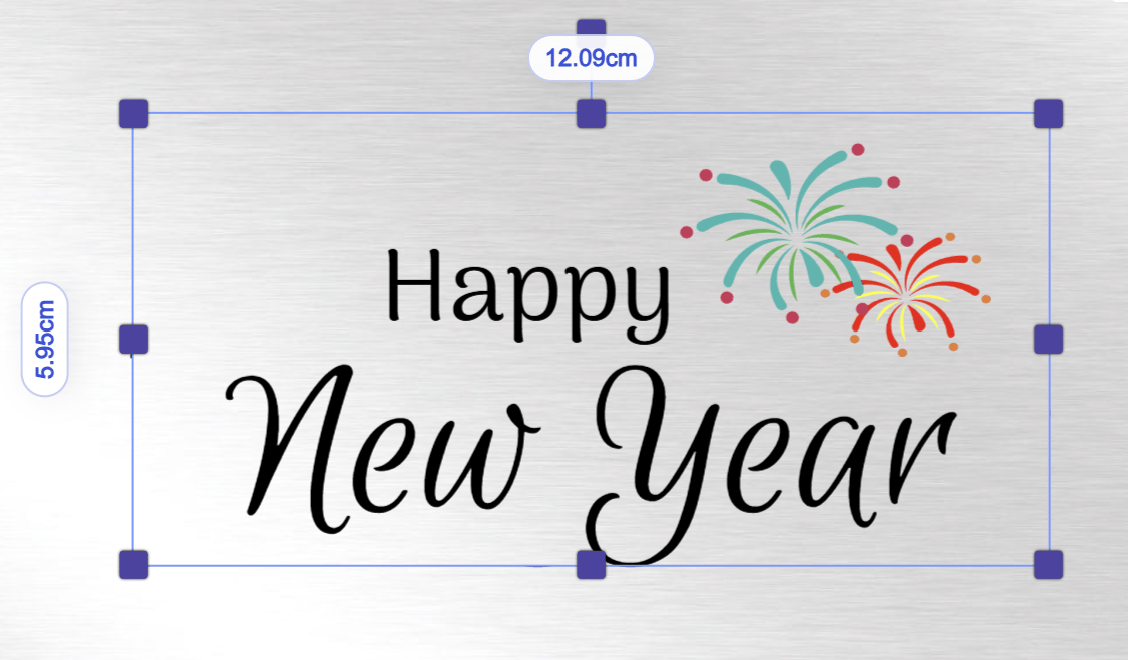
One of the most requested canvas improvements is finally here. You can now view an item’s dimensions directly on the canvas while resizing, making it much easier to size and position elements with precision.
When an item is selected or active on the canvas, its dimensions will now be displayed automatically.
### How to enable this feature
1. Go to [admin settings](https://admin.pitchprint.com/settings)
2. Enable the option shown in the screenshot below:
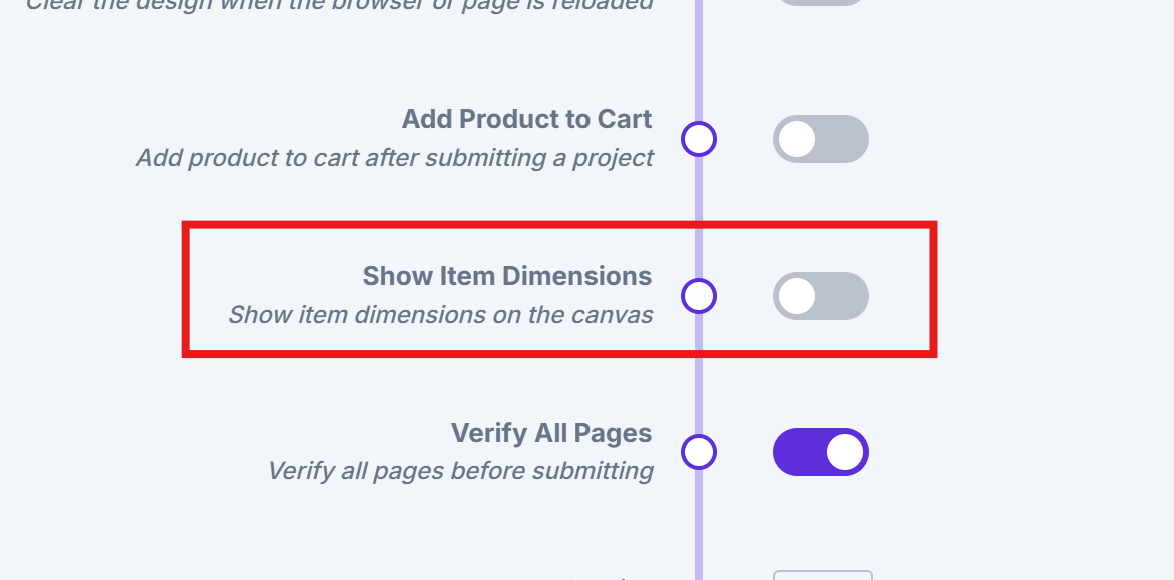 Once enabled, item dimensions will be displayed on each active item directly on the canvas, as shown below.
 ### Canvas Adjuster predefined and custom values
We’ve improved the Canvas Adjuster Module to make sizing workflows more flexible. Previously, the module could only work with **predefined values** or **custom values**—not both at the same time.
The variation element selector field also only supported one setup at a time: either a unique selector for predefined sizing options, or separate width and height selectors for custom sizing.
With this update, you can now use **both predefined and custom values together**. When **Custom Values** is enabled, an additional field will appear, allowing you to add the unique selector needed for your predefined values.
### How it works
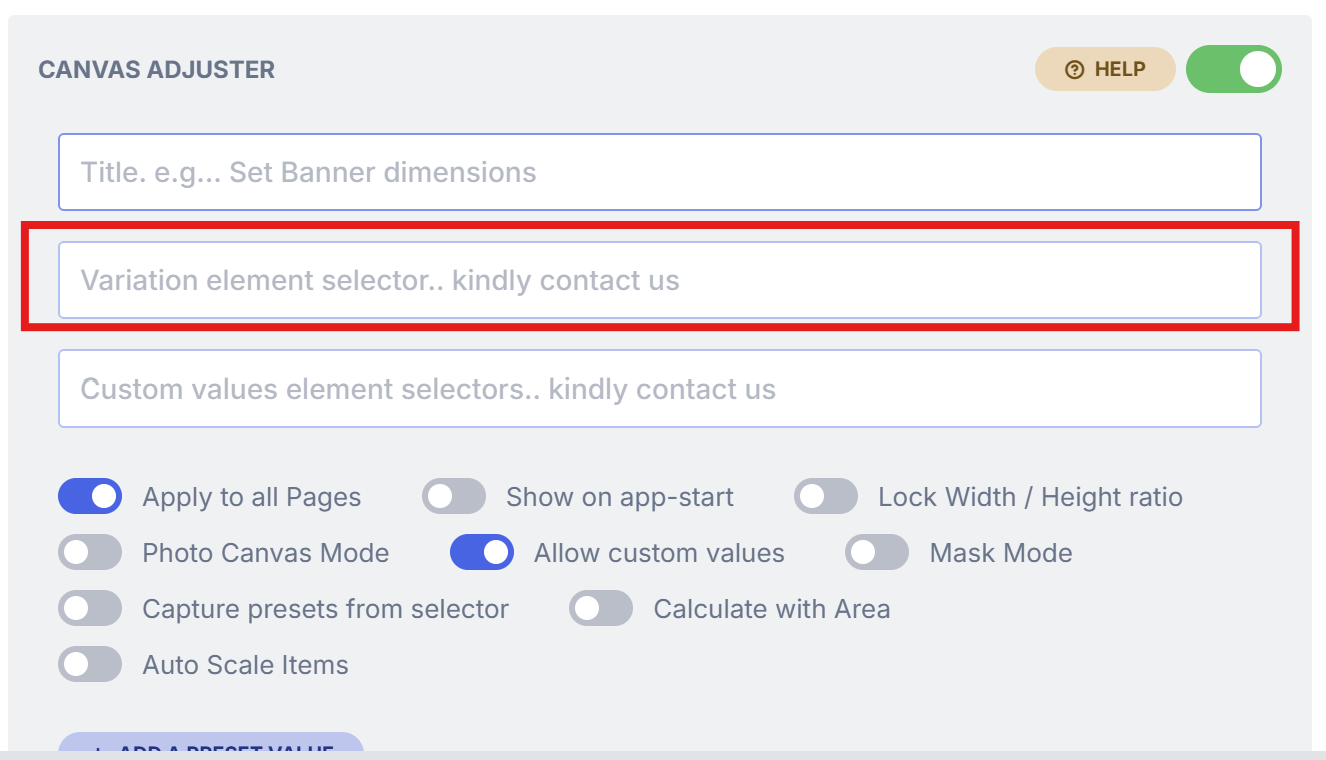
**Field 1** (marked in red below) should contain the selector for your **predefined values field** from your site. Example: `#size`
### Canvas Adjuster predefined and custom values
We’ve improved the Canvas Adjuster Module to make sizing workflows more flexible. Previously, the module could only work with **predefined values** or **custom values**—not both at the same time.
The variation element selector field also only supported one setup at a time: either a unique selector for predefined sizing options, or separate width and height selectors for custom sizing.
With this update, you can now use **both predefined and custom values together**. When **Custom Values** is enabled, an additional field will appear, allowing you to add the unique selector needed for your predefined values.
### How it works
**Field 1** (marked in red below) should contain the selector for your **predefined values field** from your site. Example: `#size`
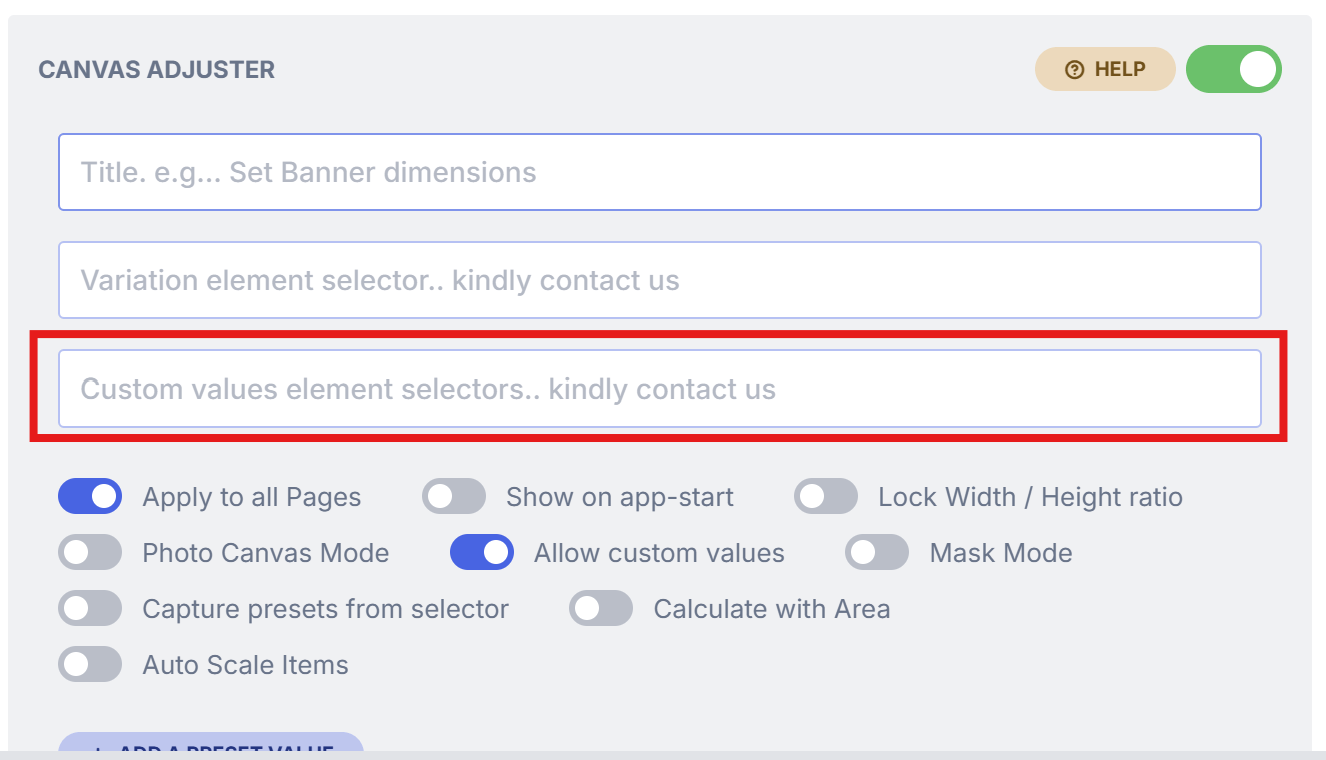
 **Field 2** (marked in red below) should contain the selectors for your **custom width and height fields** from your site.
Example: `#selectorWidth, #selectorHeight`
**Field 2** (marked in red below) should contain the selectors for your **custom width and height fields** from your site.
Example: `#selectorWidth, #selectorHeight`
 ### Page Loader and Thumbnails
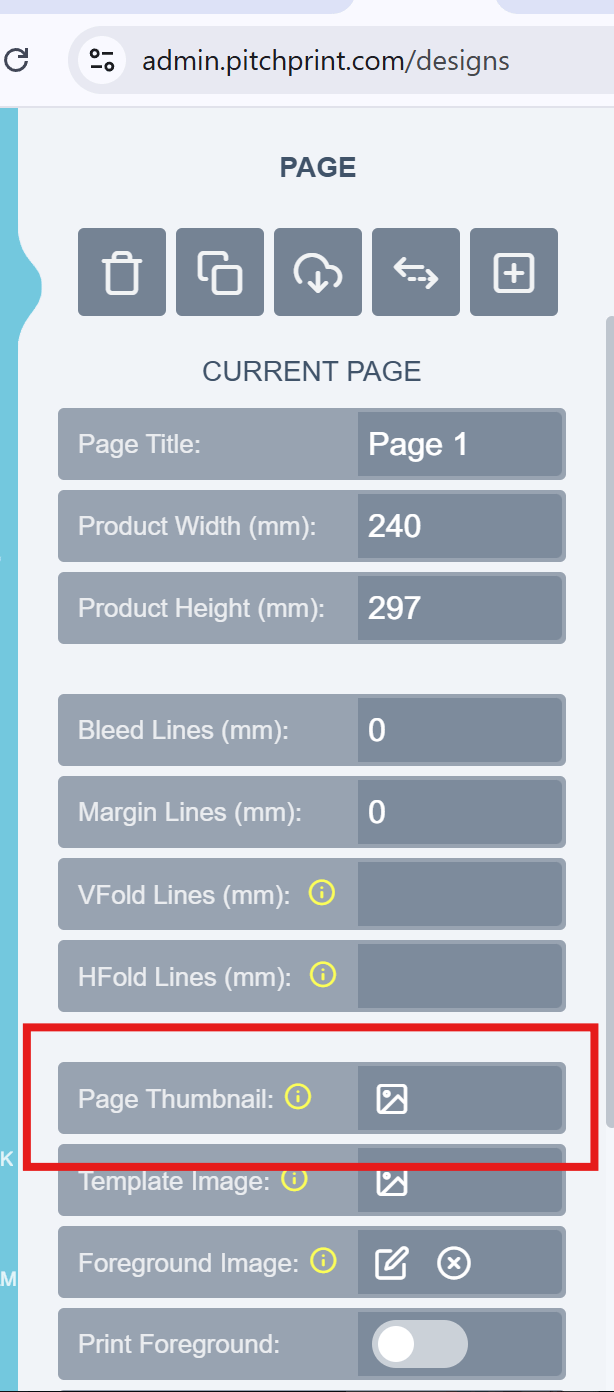
We’ve fixed an issue in the **Page Loader Module** that affected custom thumbnails on the front end.
The module allows admins to either assign a custom thumbnail or use the design preview as the thumbnail shown to customers. An issue was preventing custom thumbnails from pulling through correctly to the front end of the design setup.
With this fix, **both custom thumbnails and default design thumbnails should now display as expected** in the front end.
Please refer to the image below for reference:
### Page Loader and Thumbnails
We’ve fixed an issue in the **Page Loader Module** that affected custom thumbnails on the front end.
The module allows admins to either assign a custom thumbnail or use the design preview as the thumbnail shown to customers. An issue was preventing custom thumbnails from pulling through correctly to the front end of the design setup.
With this fix, **both custom thumbnails and default design thumbnails should now display as expected** in the front end.
Please refer to the image below for reference:
 ### Background Tab and Remix Module issue
We’ve fixed an issue where images in the **Background** tab would not display whenever the **Remix Module** was enabled on a design.
With this update, **all background resources should now display correctly**, even when the Remix Module or other supported modules are active.
### Product page uploader
We’ve fixed an issue in the **Product Page Uploader** where uploaded file previews could appear cut off after upload.
With this update, file previews should now display correctly and in full once an upload is completed.
That’s it for this week’s updates — thanks for following along, and we look forward to sharing more with you soon.
From all of us at the PitchPrint team🤗
**Shopify My Designs Extension, Eyedropper Color Picker, How to Enable This Feature, Distribute Items.**
New look, more power! We’re back with our latest round of updates, all designed with one goal in mind: making your life on PitchPrint smoother, faster, and a lot more fun.
### Shopify My Designs Extension
Previously, our “My Designs” page was integrated into our plugin, where we would attempt to locate the native account URL to display the saved designs table. This method proved unreliable due to custom URLs and Shopify’s various account page structures. With the recent deprecation of legacy account pages, this led to significant inconsistencies in how the designs table was displayed.
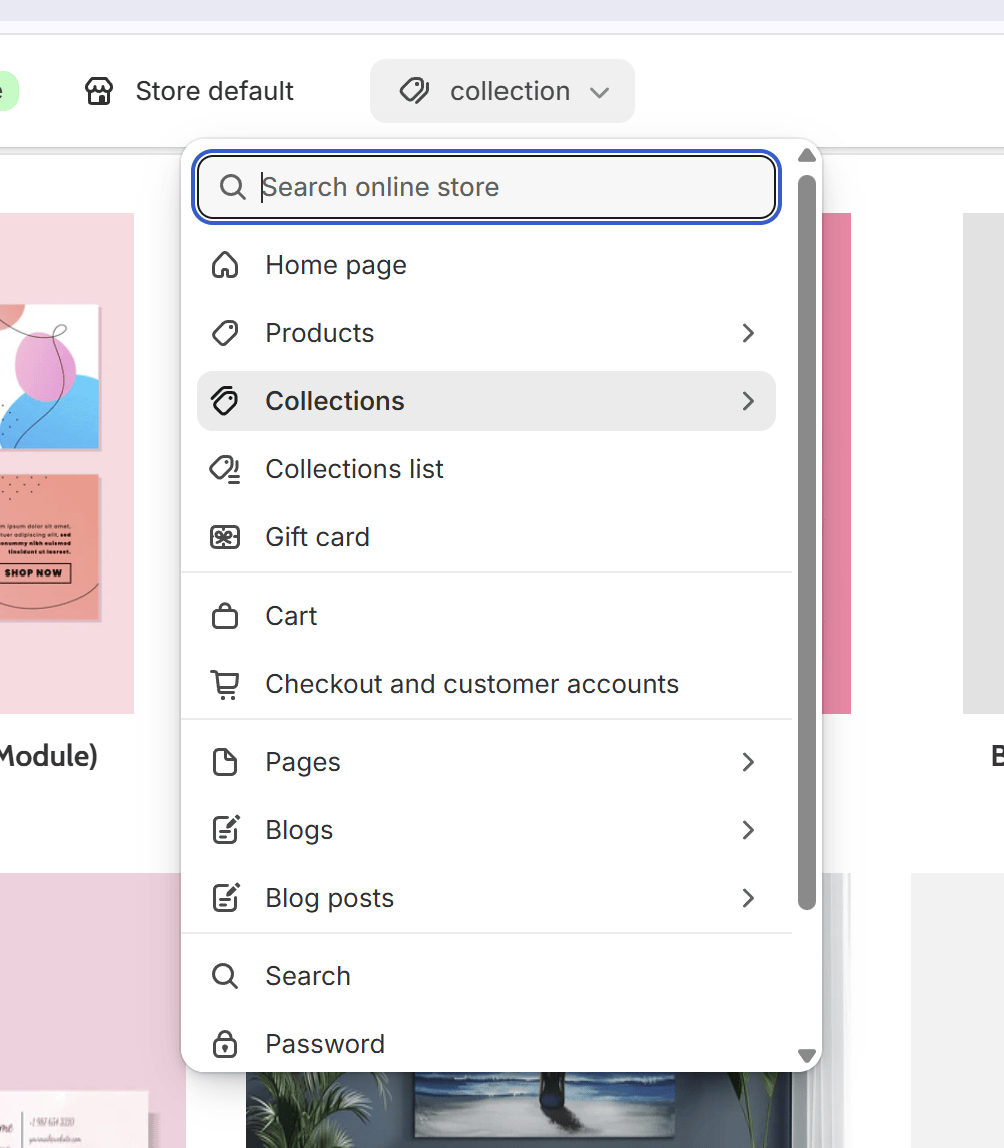
To ensure a more stable and seamless experience, we have completely rebuilt the accounts page from the ground up as a native **Shopify App Extension**. The “My Designs” table can now be enabled directly within your Shopify Theme Editor, providing a more reliable and integrated feel for your customers.
\*\*How to Enable the Designs Table:\*\*To activate the new extension on your store, please follow these steps:
1. Navigate to your **Shopify Theme Editor**.
2. Go to the **App Embeds** section.
3. Locate the **PitchPrint My Designs** extension and toggle it to **Enabled**.
4. **Save** your changes.
Please refer to the images below for reference:
### Background Tab and Remix Module issue
We’ve fixed an issue where images in the **Background** tab would not display whenever the **Remix Module** was enabled on a design.
With this update, **all background resources should now display correctly**, even when the Remix Module or other supported modules are active.
### Product page uploader
We’ve fixed an issue in the **Product Page Uploader** where uploaded file previews could appear cut off after upload.
With this update, file previews should now display correctly and in full once an upload is completed.
That’s it for this week’s updates — thanks for following along, and we look forward to sharing more with you soon.
From all of us at the PitchPrint team🤗
**Shopify My Designs Extension, Eyedropper Color Picker, How to Enable This Feature, Distribute Items.**
New look, more power! We’re back with our latest round of updates, all designed with one goal in mind: making your life on PitchPrint smoother, faster, and a lot more fun.
### Shopify My Designs Extension
Previously, our “My Designs” page was integrated into our plugin, where we would attempt to locate the native account URL to display the saved designs table. This method proved unreliable due to custom URLs and Shopify’s various account page structures. With the recent deprecation of legacy account pages, this led to significant inconsistencies in how the designs table was displayed.
To ensure a more stable and seamless experience, we have completely rebuilt the accounts page from the ground up as a native **Shopify App Extension**. The “My Designs” table can now be enabled directly within your Shopify Theme Editor, providing a more reliable and integrated feel for your customers.
\*\*How to Enable the Designs Table:\*\*To activate the new extension on your store, please follow these steps:
1. Navigate to your **Shopify Theme Editor**.
2. Go to the **App Embeds** section.
3. Locate the **PitchPrint My Designs** extension and toggle it to **Enabled**.
4. **Save** your changes.
Please refer to the images below for reference:
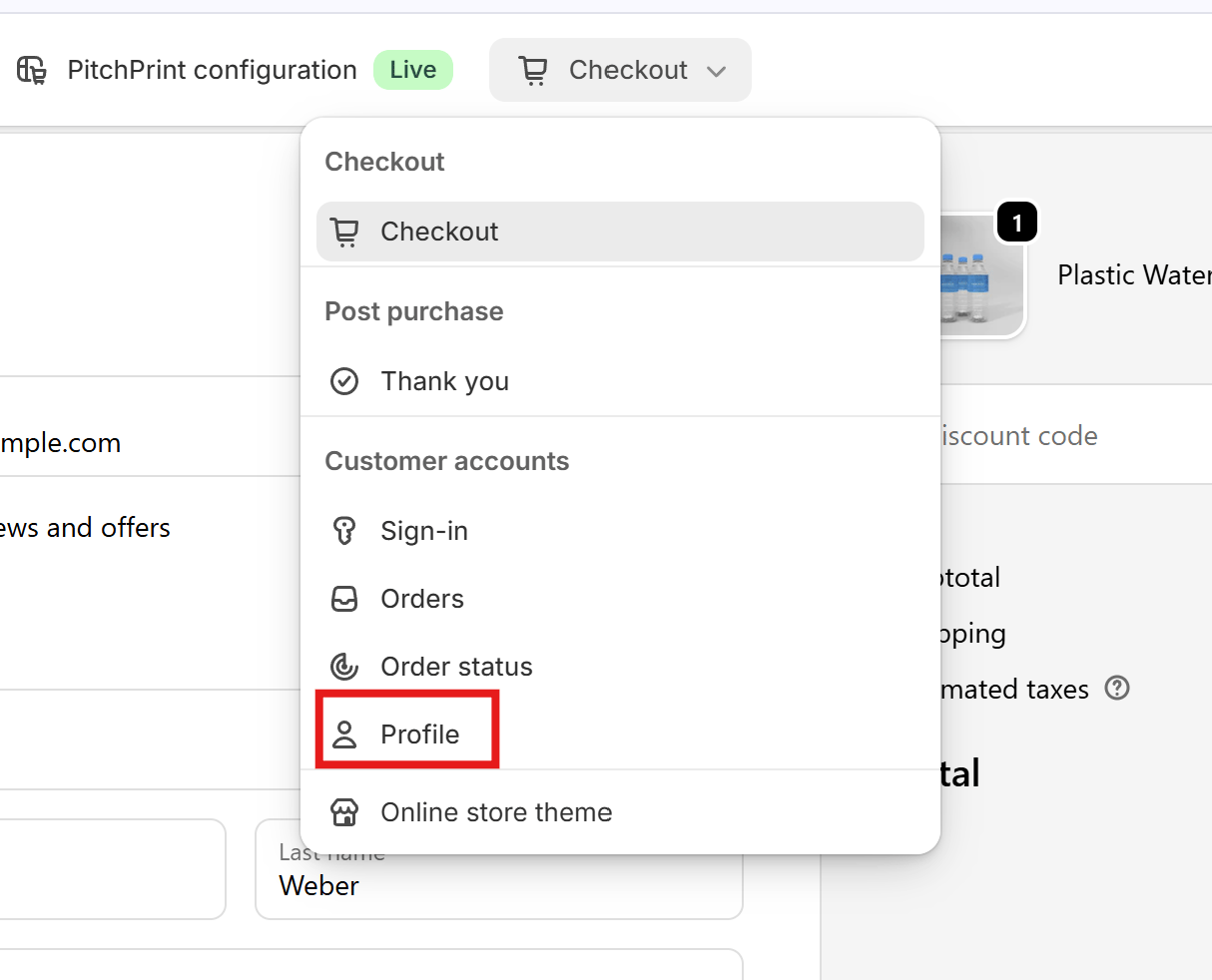
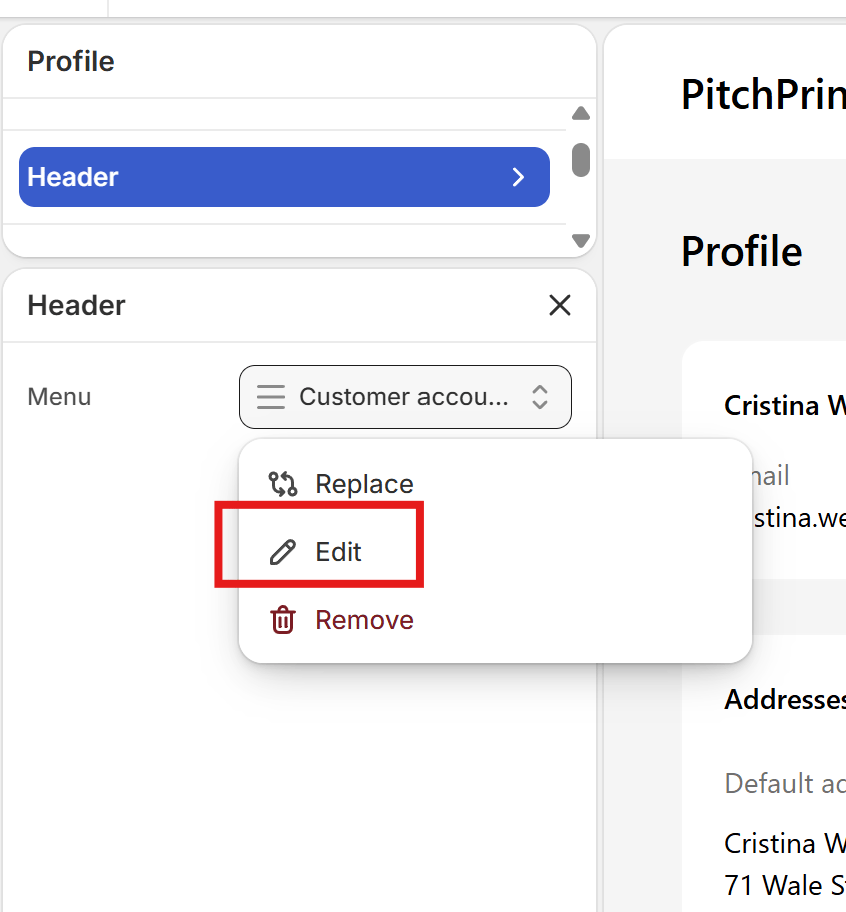
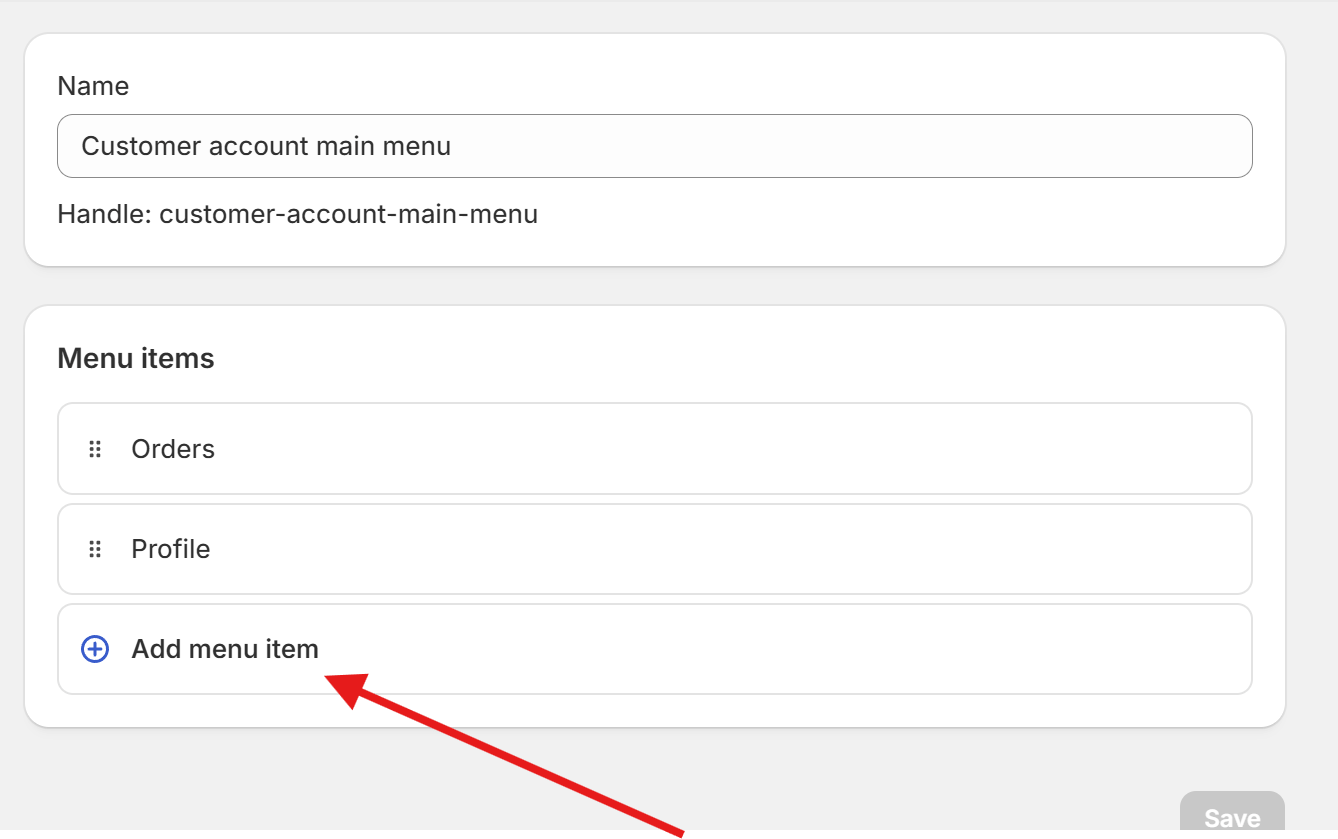
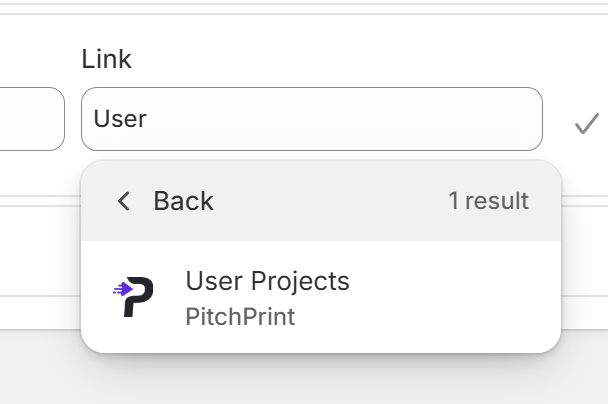
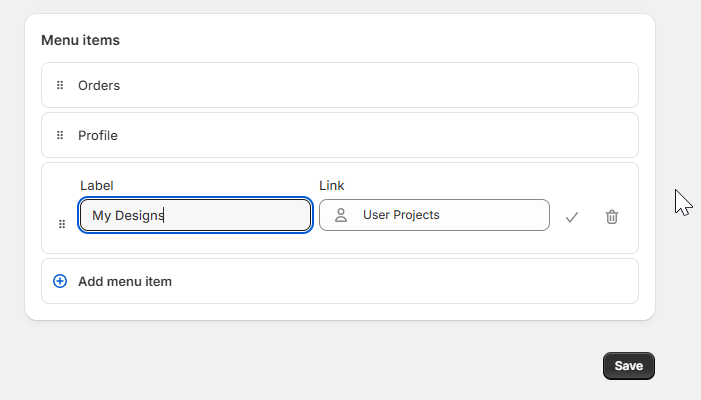
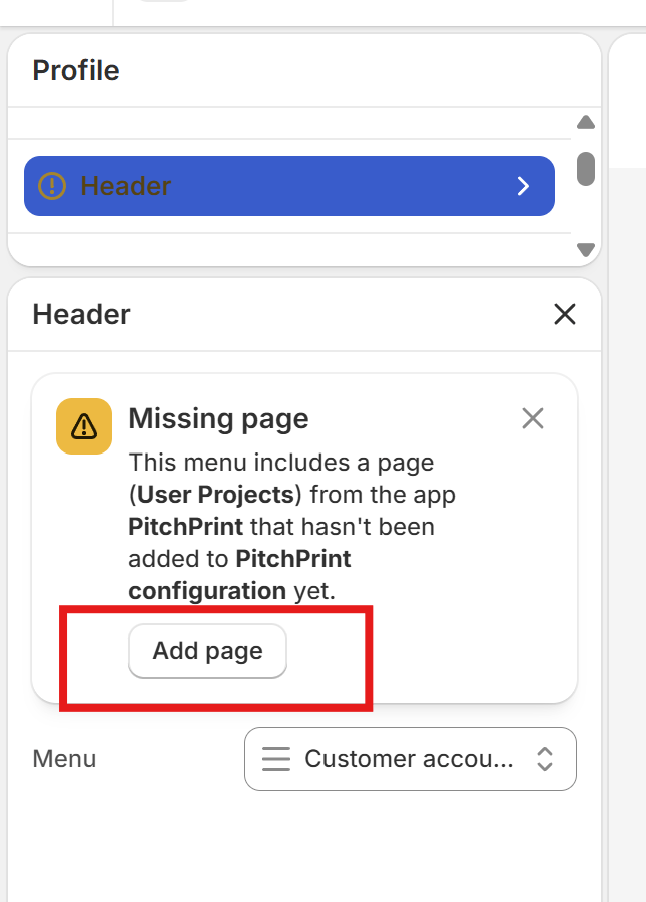 That’s it! You have successfully created a dedicated “My Designs” page where your customers can easily view their saved projects and previous orders.
### Eyedropper Color Picker
We are excited to introduce the Eyedropper Color Picker, a powerful tool designed to streamline the design process for your customers. This feature allows users to select an item within the editor to instantly capture its specific color. Once captured, that color can be applied to any other item on the canvas with a single click. By allowing users to sample colors directly from their workspace, this tool makes it easier than ever to maintain a consistent visual theme and achieve perfect color harmony across all design elements.
### How to Enable This Feature
To activate the Eyedropper tool on your account, please perform the following steps:
1. **Reload** [**Layouts**](https://admin.pitchprint.com/layouts) within your admin settings.
2. **Resave** [**Styling**](https://admin.pitchprint.com/styling) to apply the update to your editor.
Once enabled, the Eyedropper icon will be available within the standard color menu.
Please refer to the image below for reference:
That’s it! You have successfully created a dedicated “My Designs” page where your customers can easily view their saved projects and previous orders.
### Eyedropper Color Picker
We are excited to introduce the Eyedropper Color Picker, a powerful tool designed to streamline the design process for your customers. This feature allows users to select an item within the editor to instantly capture its specific color. Once captured, that color can be applied to any other item on the canvas with a single click. By allowing users to sample colors directly from their workspace, this tool makes it easier than ever to maintain a consistent visual theme and achieve perfect color harmony across all design elements.
### How to Enable This Feature
To activate the Eyedropper tool on your account, please perform the following steps:
1. **Reload** [**Layouts**](https://admin.pitchprint.com/layouts) within your admin settings.
2. **Resave** [**Styling**](https://admin.pitchprint.com/styling) to apply the update to your editor.
Once enabled, the Eyedropper icon will be available within the standard color menu.
Please refer to the image below for reference:
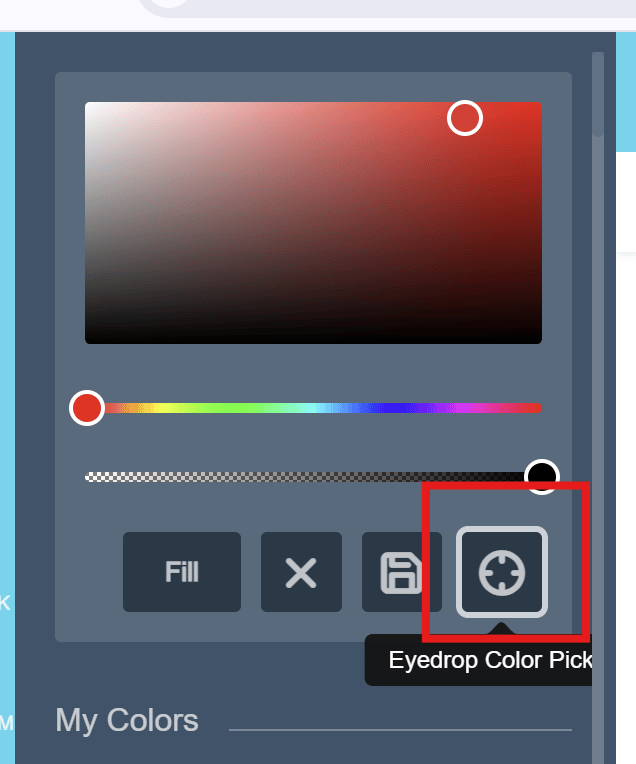 To apply a custom color, simply select the target item on your canvas and open the **Color Picker** from the **Add Color** menu. You can then use the eyedropper tool to hover over any existing color in the editor that you wish to sample. Once selected, the color will be instantly applied to your item, ensuring perfect consistency across your design.
### Distribute Items
We know how frustrating it is to spend time “eyeballing” the gaps between photos or text blocks to get them perfectly aligned. To make your life easier, we’ve added a new Distribute feature that handles the math for you. You can now select a group of items and instantly add perfectly equal spacing between them, either vertically or horizontally. It’s a small tweak that makes a massive difference in keeping your designs looking clean and professional without the manual effort.
### AI Text to Image Improvements
We’ve fine-tuned our AI generation tool to give you much sharper, high-quality results. One of the biggest hurdles with AI-generated images has always been clear text, but with this update, any text embedded within your generated images should now render much more legibly and accurately.
### Faster, High-Quality Background Removal
We’ve also given our background removal tool a significant boost. Not only will your images maintain better quality after the background is stripped away, but the processing time is now much faster. It’s a smoother, quicker way to get those clean product shots ready for your designs.
Well, that’s it for this week, folks! We’ll see you in our next release note with even more exciting updates and fixes.
Have a lovely weekend, The PitchPrint Team😊
**Edit User Name in PitchPrint Admin, Move Designs Across Categories, Scale Grouped Items in Canvas Adjuster.**
We’re pleased to share our latest updates, as we continue to enhance and improve your experience on PitchPrint.
### Edit User Name in PitchPrint Admin
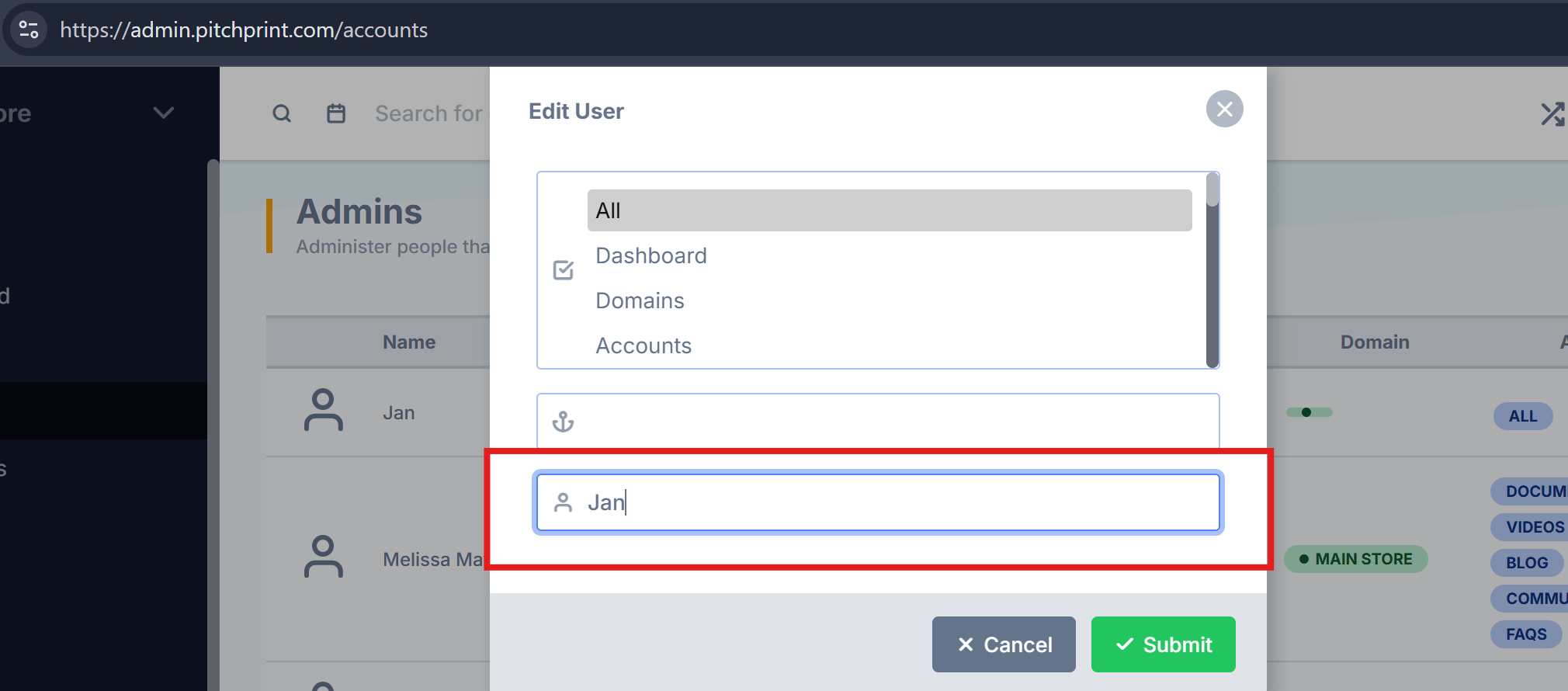
Previously, administrators could only modify the store association and access permissions for an admin user. This update introduces the ability to edit user and admin names directly within the PitchPrint admin panel.
Please refer to the image below for reference:
To apply a custom color, simply select the target item on your canvas and open the **Color Picker** from the **Add Color** menu. You can then use the eyedropper tool to hover over any existing color in the editor that you wish to sample. Once selected, the color will be instantly applied to your item, ensuring perfect consistency across your design.
### Distribute Items
We know how frustrating it is to spend time “eyeballing” the gaps between photos or text blocks to get them perfectly aligned. To make your life easier, we’ve added a new Distribute feature that handles the math for you. You can now select a group of items and instantly add perfectly equal spacing between them, either vertically or horizontally. It’s a small tweak that makes a massive difference in keeping your designs looking clean and professional without the manual effort.
### AI Text to Image Improvements
We’ve fine-tuned our AI generation tool to give you much sharper, high-quality results. One of the biggest hurdles with AI-generated images has always been clear text, but with this update, any text embedded within your generated images should now render much more legibly and accurately.
### Faster, High-Quality Background Removal
We’ve also given our background removal tool a significant boost. Not only will your images maintain better quality after the background is stripped away, but the processing time is now much faster. It’s a smoother, quicker way to get those clean product shots ready for your designs.
Well, that’s it for this week, folks! We’ll see you in our next release note with even more exciting updates and fixes.
Have a lovely weekend, The PitchPrint Team😊
**Edit User Name in PitchPrint Admin, Move Designs Across Categories, Scale Grouped Items in Canvas Adjuster.**
We’re pleased to share our latest updates, as we continue to enhance and improve your experience on PitchPrint.
### Edit User Name in PitchPrint Admin
Previously, administrators could only modify the store association and access permissions for an admin user. This update introduces the ability to edit user and admin names directly within the PitchPrint admin panel.
Please refer to the image below for reference:
 ### Move Designs Across Categories
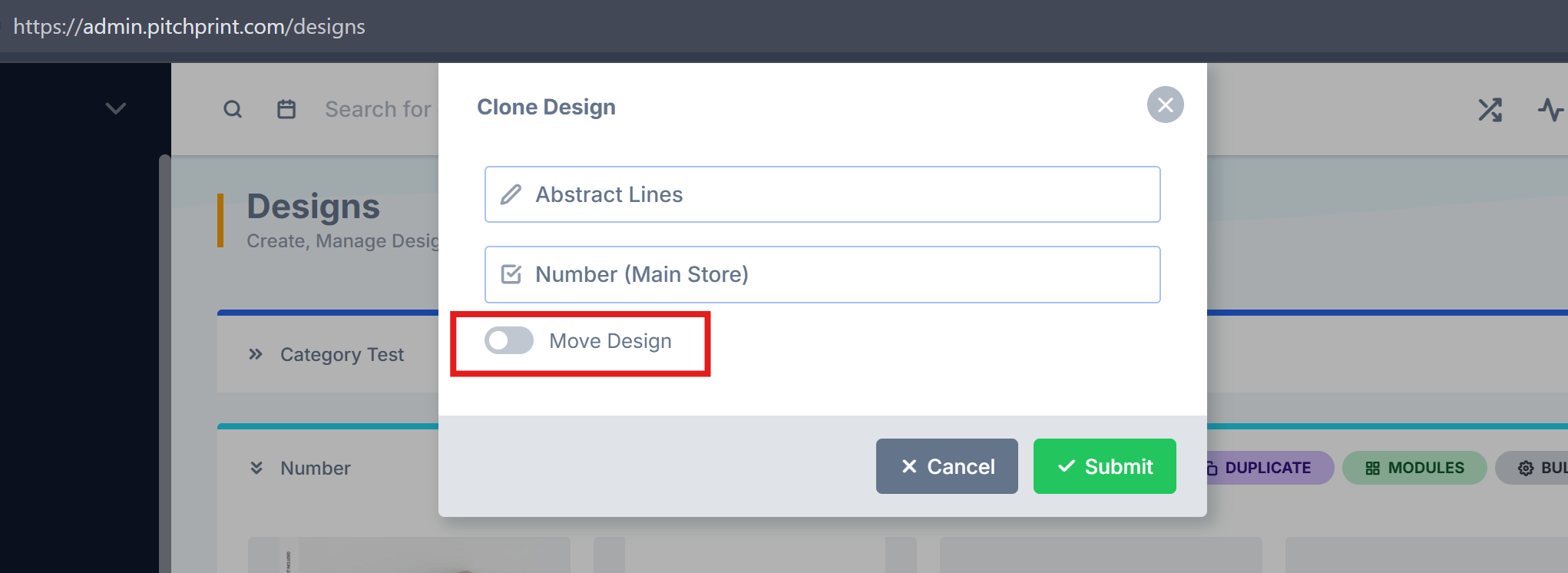
The move functionality has been reintroduced in the PitchPrint admin. This feature was previously removed while we refined its behavior, and it has now been fully rebuilt for improved reliability. You can now easily move designs between categories.
Please refer to the image below for reference:
### Move Designs Across Categories
The move functionality has been reintroduced in the PitchPrint admin. This feature was previously removed while we refined its behavior, and it has now been fully rebuilt for improved reliability. You can now easily move designs between categories.
Please refer to the image below for reference:
 ### Scale Grouped Items in Canvas Adjuster
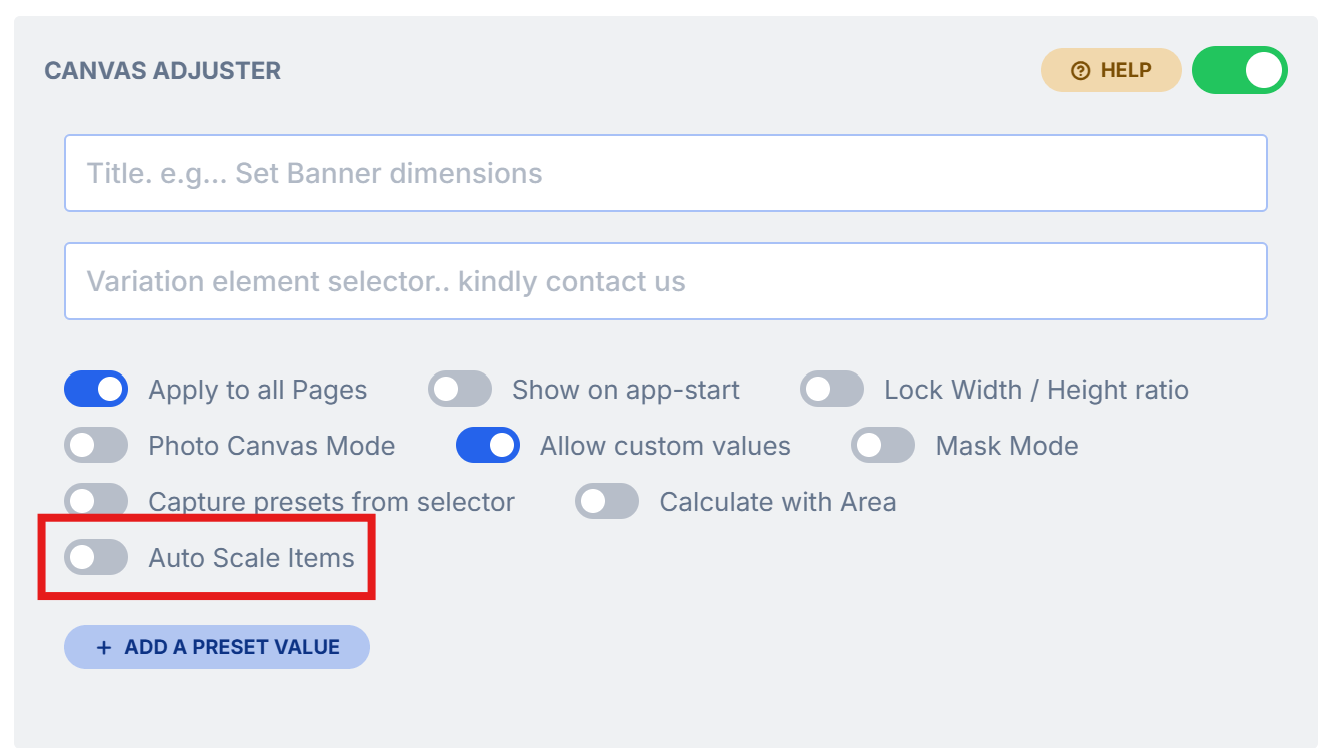
We’ve enhanced the canvas adjuster to support automatic scaling for grouped items. Previously, this feature worked well for individual elements but did not fully support groups. With this update, grouped items will now scale proportionally when customers adjust canvas dimensions, ensuring a more consistent and reliable design experience.
Please refer to the image below for reference:
### Scale Grouped Items in Canvas Adjuster
We’ve enhanced the canvas adjuster to support automatic scaling for grouped items. Previously, this feature worked well for individual elements but did not fully support groups. With this update, grouped items will now scale proportionally when customers adjust canvas dimensions, ensuring a more consistent and reliable design experience.
Please refer to the image below for reference:
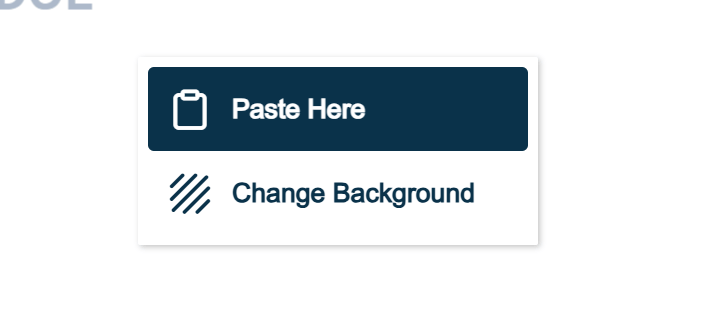
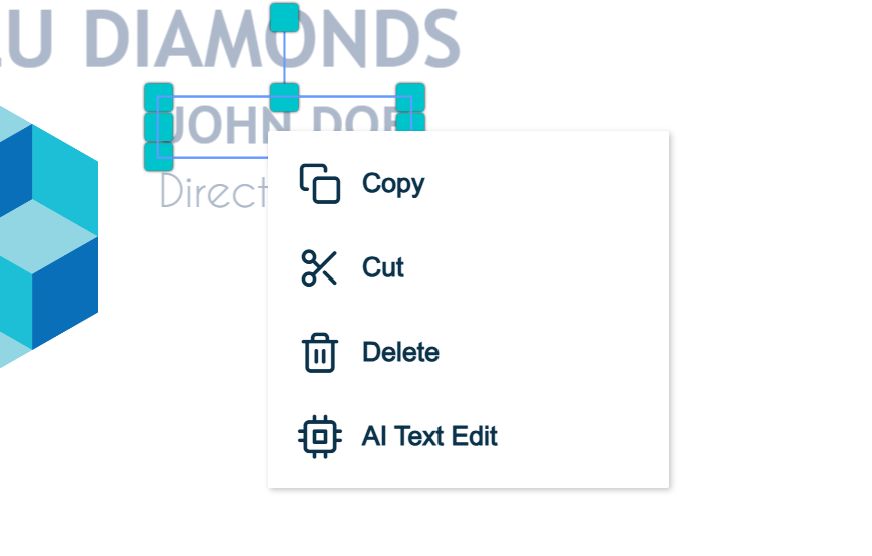
 ### Right-Click Copy and Paste
An issue affecting right-click copy and paste functionality has been resolved. Users can now reliably copy items from the editor, paste content into the editor, and transfer items between pages as expected.
Please refer to the images below for reference:
### Right-Click Copy and Paste
An issue affecting right-click copy and paste functionality has been resolved. Users can now reliably copy items from the editor, paste content into the editor, and transfer items between pages as expected.
Please refer to the images below for reference:
 ### Issue with new color and Design Configuration
One of our customers reported an issue whereby sometimes the design settings would be cleared upon opening it. We troubleshooted and traced the root cause back to an issue in the new text color value. We’ve since made an update to fix the issue and all settings should remain visible in the design configuration.
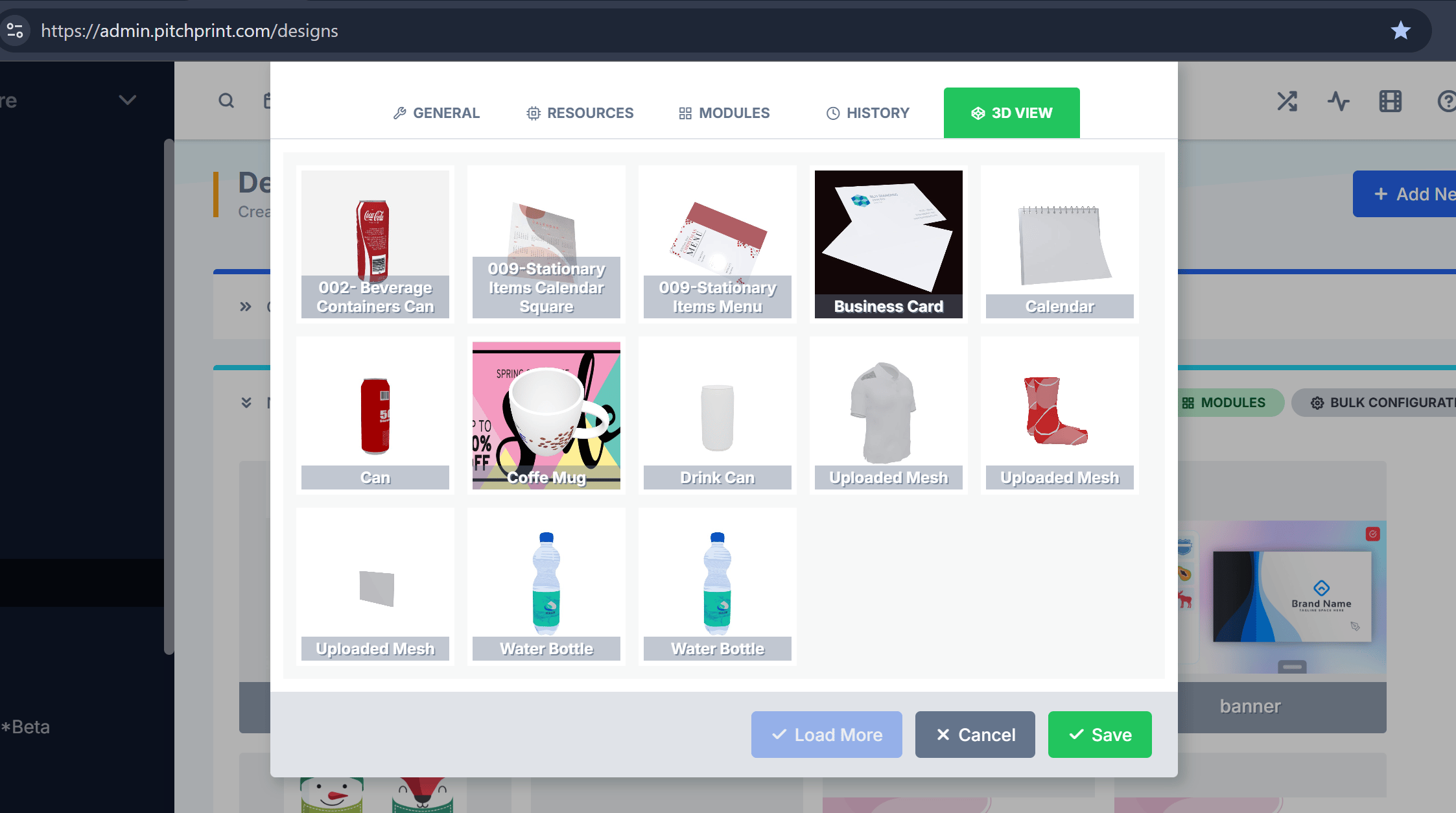
### 3D Model Pagination Fix
We resolved an issue affecting the 3D model pagination feature, where models not included in the initially loaded set could be unintentionally removed from a design after updating and saving the design configuration. This has been corrected, and models will now remain properly assigned to a design regardless of their position within the paginated model list.
Please refer to the image below for reference:
### Issue with new color and Design Configuration
One of our customers reported an issue whereby sometimes the design settings would be cleared upon opening it. We troubleshooted and traced the root cause back to an issue in the new text color value. We’ve since made an update to fix the issue and all settings should remain visible in the design configuration.
### 3D Model Pagination Fix
We resolved an issue affecting the 3D model pagination feature, where models not included in the initially loaded set could be unintentionally removed from a design after updating and saving the design configuration. This has been corrected, and models will now remain properly assigned to a design regardless of their position within the paginated model list.
Please refer to the image below for reference:
 That’s all for this week. We look forward to sharing more new features and improvements in our next release.
Wishing you a wonderful weekend,
The PitchPrint Team😊
**3D Designs Search and Filter, Option to Close Design Configuration Without Adding a Title, New 3D scenes.**
Welcome to our first release of 2026 — better late than never!
We have an exciting year ahead, with a strong focus on improving platform stability and resolving existing issues to enhance your overall experience. Alongside these improvements, we’ll also be introducing several new features designed to add even more value to the platform.
### 3D Designs Search and Filter
We’ve added the ability to **search for 3D models by name**. This feature is especially useful for stores with a large library of models, allowing you to quickly locate a specific design without having to navigate through multiple pages. It’s a simple but powerful enhancement to help you manage your 3D assets more efficiently.
### Option to Close Design Configuration Without Adding a Title
Previously, the **Design Configuration** window could not be closed if the title field was left empty, which made it difficult to exit without entering a title.
We’ve now updated this behavior: closing or cancelling the window is now possible even when the title field is empty, giving you the flexibility to exit the configuration smoothly without being forced to add a title.
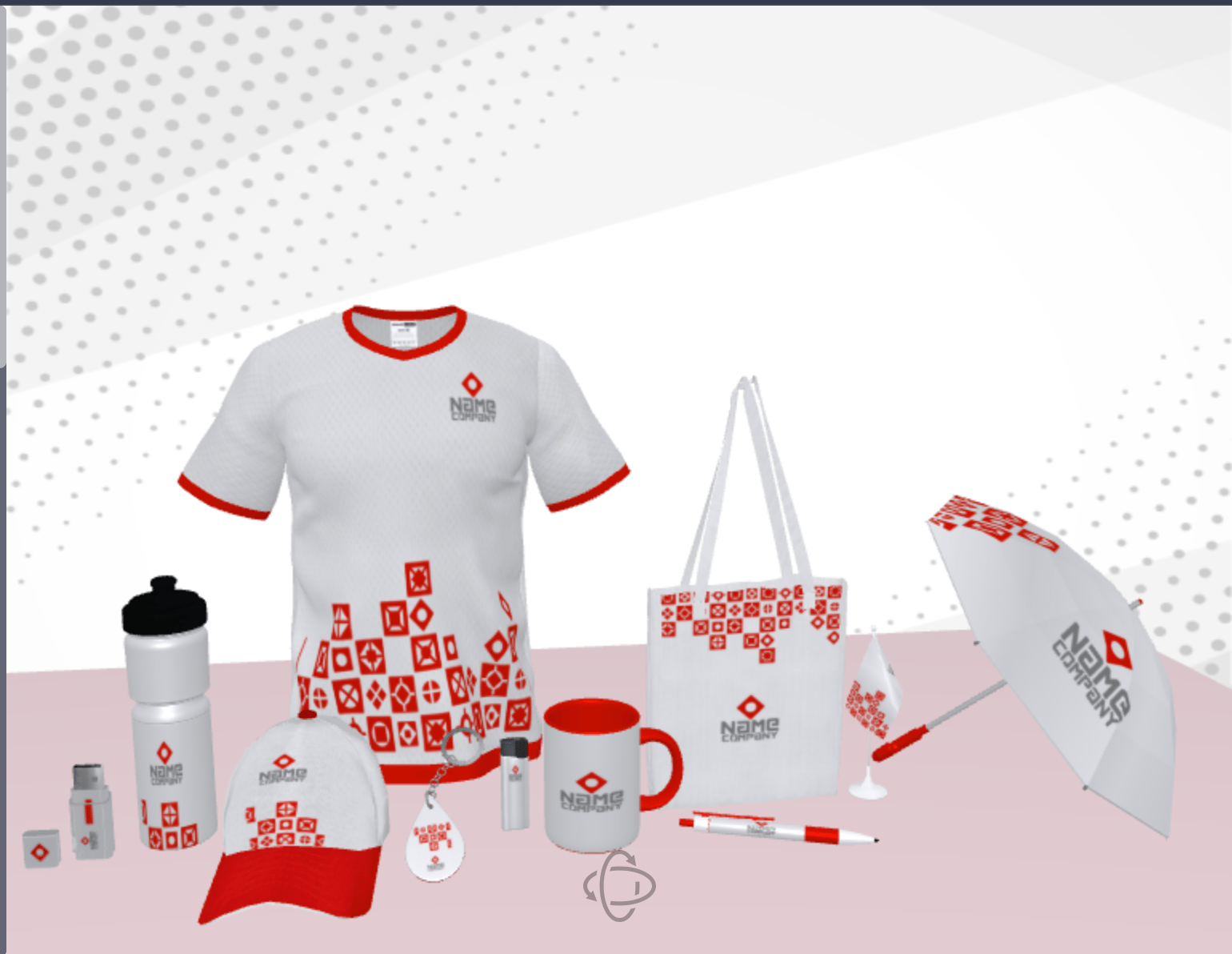
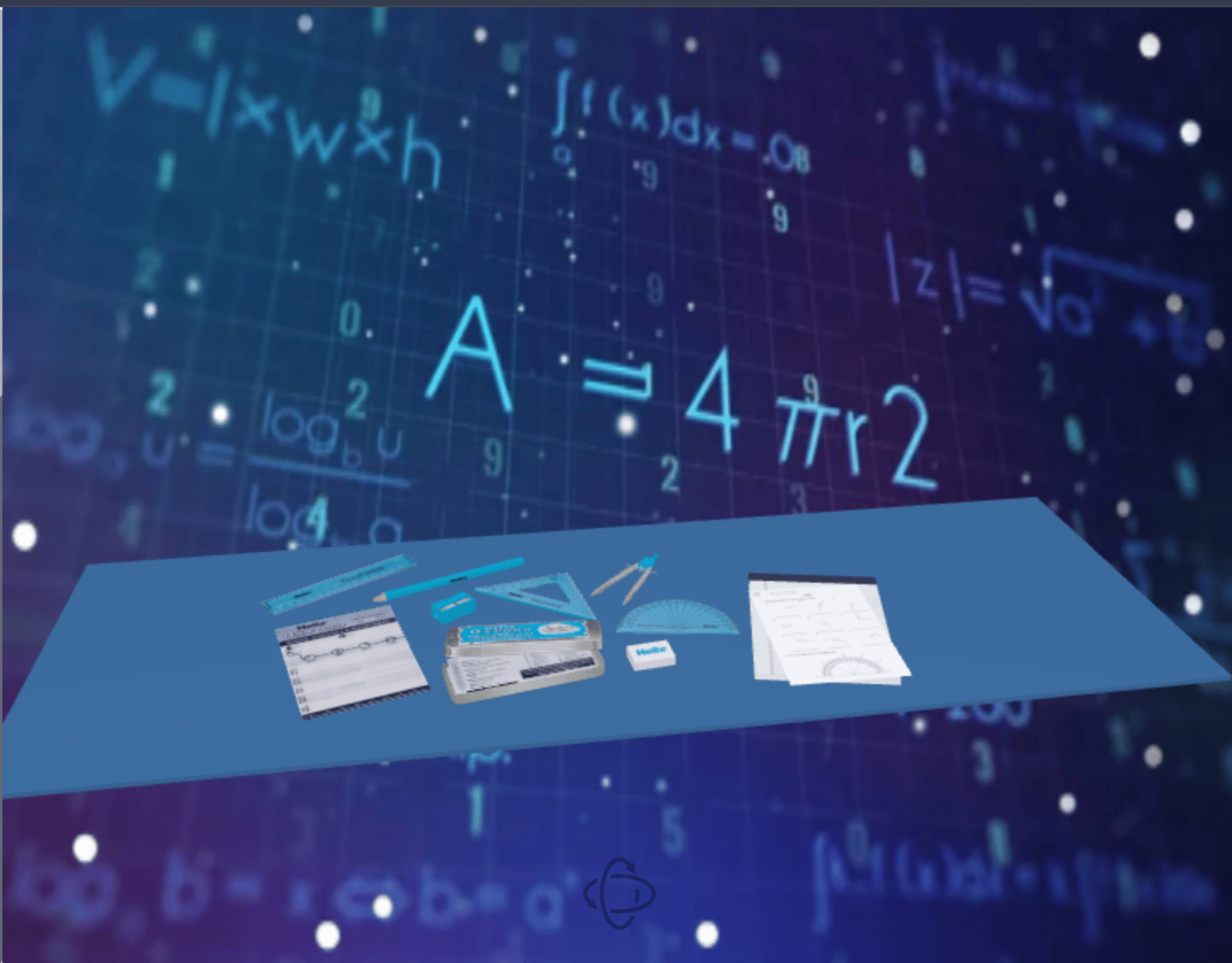
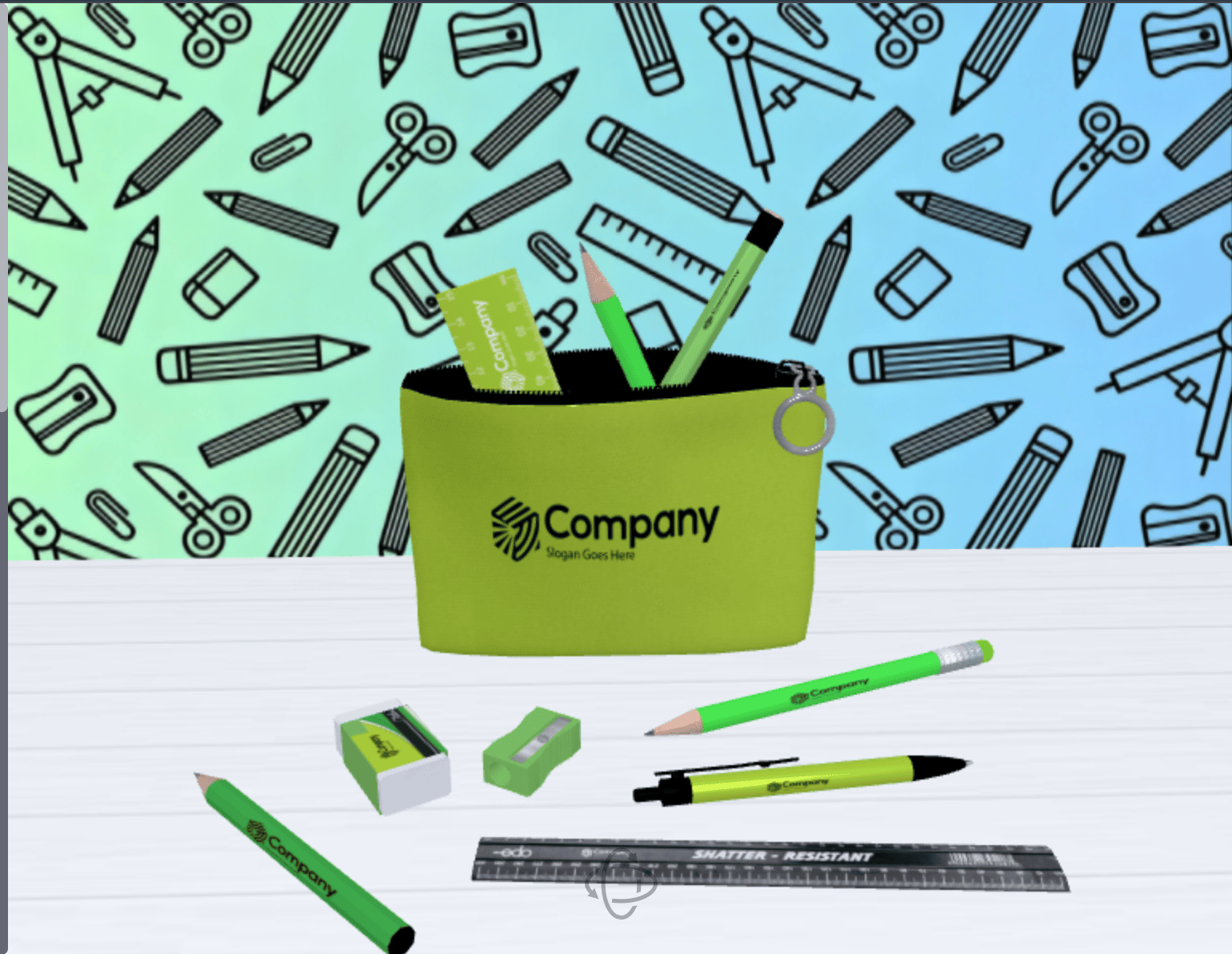
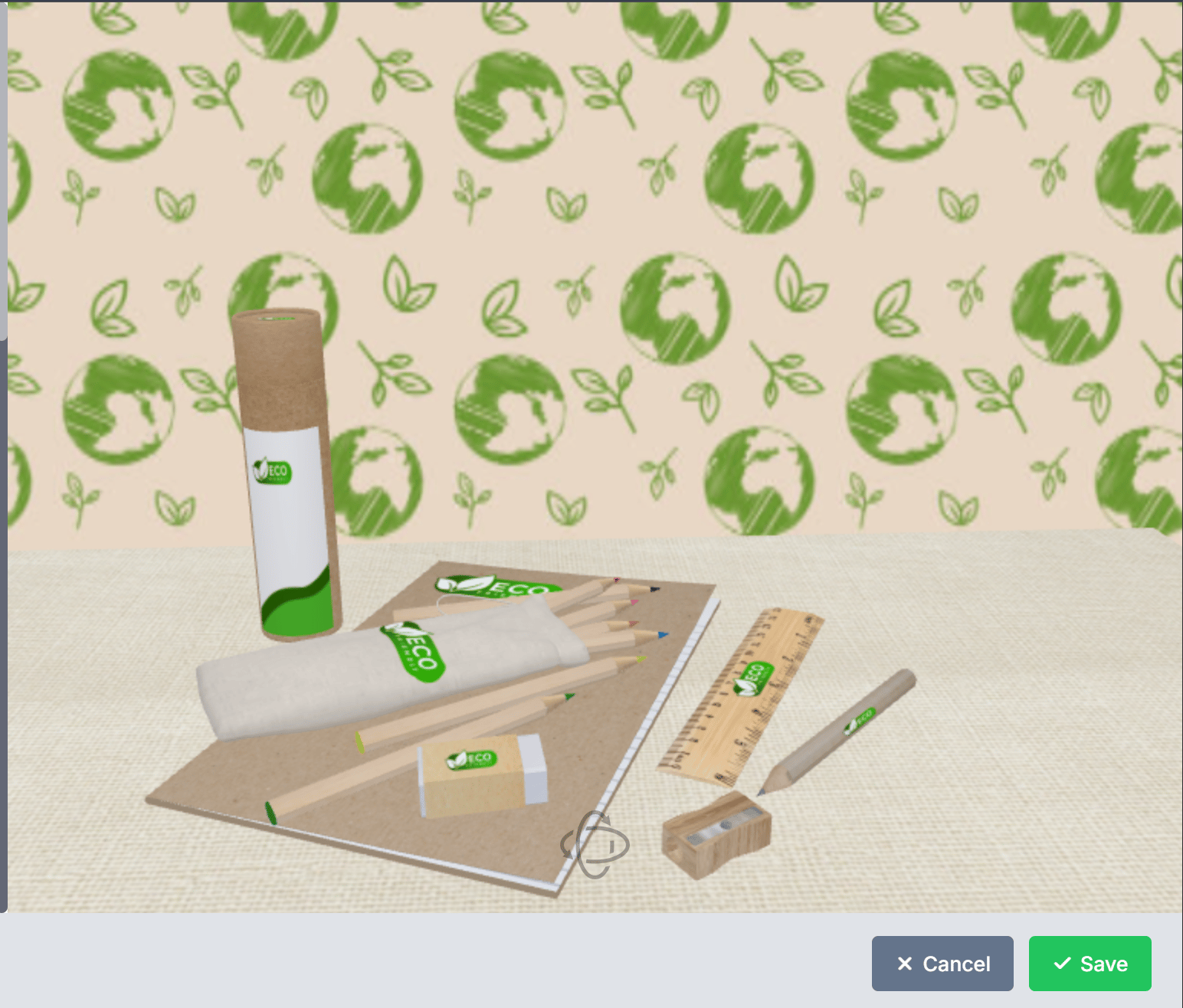
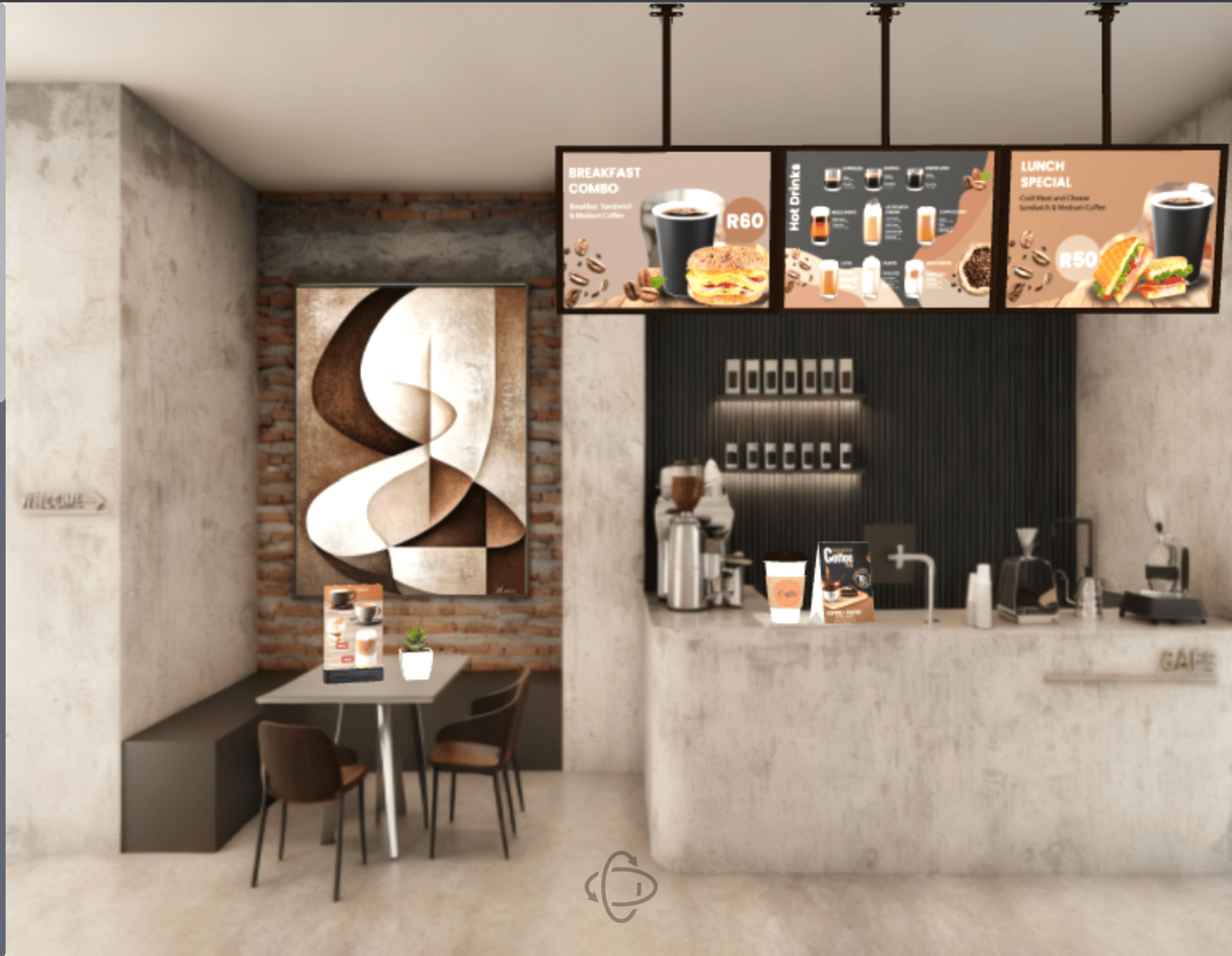
### New 3D scenes
That’s all for this week. We look forward to sharing more new features and improvements in our next release.
Wishing you a wonderful weekend,
The PitchPrint Team😊
**3D Designs Search and Filter, Option to Close Design Configuration Without Adding a Title, New 3D scenes.**
Welcome to our first release of 2026 — better late than never!
We have an exciting year ahead, with a strong focus on improving platform stability and resolving existing issues to enhance your overall experience. Alongside these improvements, we’ll also be introducing several new features designed to add even more value to the platform.
### 3D Designs Search and Filter
We’ve added the ability to **search for 3D models by name**. This feature is especially useful for stores with a large library of models, allowing you to quickly locate a specific design without having to navigate through multiple pages. It’s a simple but powerful enhancement to help you manage your 3D assets more efficiently.
### Option to Close Design Configuration Without Adding a Title
Previously, the **Design Configuration** window could not be closed if the title field was left empty, which made it difficult to exit without entering a title.
We’ve now updated this behavior: closing or cancelling the window is now possible even when the title field is empty, giving you the flexibility to exit the configuration smoothly without being forced to add a title.
### New 3D scenes
 ### AI and EPS Upload Fix
We resolved an issue that was preventing AI and EPS files from uploading correctly. This has now been fixed, and both file formats are functioning as expected.
### Add New Page
We resolved an issue where end users were still able to add a new page via the Page Loader module, even when this functionality was disabled.
This has now been corrected. When the **“Add New Page”** feature is disabled, clicking the button will no longer trigger any action. We also fixed an issue where clicking on the page thumbnail would also add a new page.
With this update, the feature now fully respects the disabled setting and prevents end users from adding additional pages when it is turned off.
That’s all for this week!
We look forward to sharing more updates with you in our next release.
Wishing you a wonderful weekend.
— The PitchPrint Team🤗
This documentation is built and hosted on [Mintlify](https://mintlify.com), a developer documentation platform.
### AI and EPS Upload Fix
We resolved an issue that was preventing AI and EPS files from uploading correctly. This has now been fixed, and both file formats are functioning as expected.
### Add New Page
We resolved an issue where end users were still able to add a new page via the Page Loader module, even when this functionality was disabled.
This has now been corrected. When the **“Add New Page”** feature is disabled, clicking the button will no longer trigger any action. We also fixed an issue where clicking on the page thumbnail would also add a new page.
With this update, the feature now fully respects the disabled setting and prevents end users from adding additional pages when it is turned off.
That’s all for this week!
We look forward to sharing more updates with you in our next release.
Wishing you a wonderful weekend.
— The PitchPrint Team🤗
This documentation is built and hosted on [Mintlify](https://mintlify.com), a developer documentation platform.